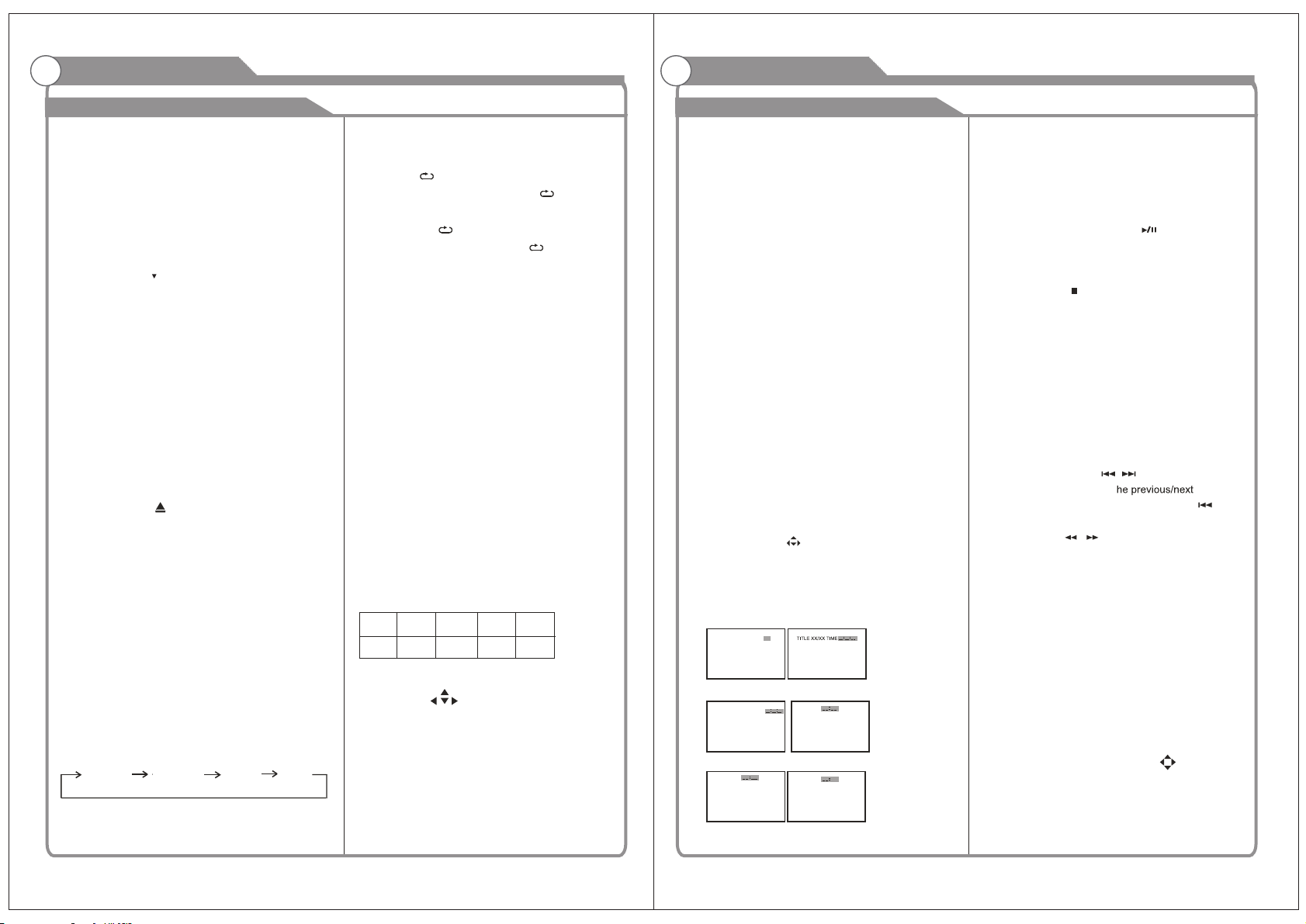
OSD BUTTON
Press this button once to show main playback in
formation on TV screen and press it again to show
playback time. Press this button at the fifth time, and
then the display will be cancelled.
DVD MENU BUTTON
If playing some DVD discs, press this button back to
root menu screen .
If playing DVDs you can use the functions of MENU,
PROGRAM and RANDOM.
ENTER BUTTON:
Press this button to confirm your selecting.
FR/FF BUTTON( / )
Press these buttons to go to t
chapter ( DVD ) When playing CD disc , press“
”
button twice to select previous song.
PREV/NEXT BUTTON( / )
These buttons allow skipping ahead/back at 5-level
speeds. Press PLAY button to return to normal playback.
Press this button to start playback. Press this button
again to pause playback.
When this button is pressed once, the unit records the
stopped point, from where playback will resume
(resume function) if PLAY is pressed afterwards.
STOP BUTTON( )
PLAY AND PAUSE BUTTON( )
SF BUTTON:
Press this button , you can play the disc slow Forward.
But if STOP button is pressed again instead of PLAY
button, there will be no resume function.
PROGRAM(PROG) BUTTON:
When you want to play only partial tracks/chapters of a
disc(DVDs) or to arrange the tracks/chapters playback
order, you need to program the following:
Press PROGRAM button. Then "PROGRAM" will appear
on TV screen.
Press the track number in the order you want. For example,
if the track numbers you want to
play are 1, 3 and 8, just input in the order of 1-3-8.
You can press CLEAR button to cancel and input again if
you miss input track numbers.
Now you can press " " and "OK" button to select
"START"option and enjoy the desired
[DVD only]
TITLE XX/XX CHAPTER [ ]/XXX
[DVD only]
TRACK GOTO T:XX
[CD]
GO TO BUTTON
Press this button to go to desired position. The player
provides 3 search mode.
When the above items are showed on LCD screen, you
can input numbers to locate desired sector, then press
PLAY to commence play.
The number you input is invalid if it is beyond the track's
capacity.
DISC GOTO
[DVD only]
CHAPTER XX/XX TIME
[CD]
CLEAR BUTTON
Press this button, you can cancel the numbers you input,
just like a eraser.
SETUP BUTTON
Press this button to get the setup menu. you can select
the setting as you like.
ANGLE BUTTON
Some DVD contains several scenes taken at the
same time in different angles. Press this key to
select a different angle (if the disc supports this
function.)
D.ZOOM BUTTON
Press this button during normal, zoom in or zoom
out playback mode. This player can magnify a
picture at 3 levels. Press this button to magnify
picture and use direction buttons to select
desired part of the zoomed picture.
“ ”
15.CHANNEL+/CHANNEL- (CH+/CH-) buttons
Press these buttons to select channels in ascending
or descending order.
16.FAVORITE LIST (FAV. LIST) Button
Press this button to display the favorite program list
17.MENU Button
Press this button to enter the menu mode for various
optional adjustable settings or quit from current menu.
18.ELECTRONIC PROGRAM GUIDE (EPG) Button
Press this button to call up the Electronic Program Guide.
19.UP/DOWN ( ▲ / ) Buttons
Press these buttons to select the desired items in the
menu.
20.LIFT/RIGHT ( / ) Buttons
Press these buttons to select the desired items in the
menu, or enter the selected.
21.ENTER Button
Press this button to enter the selected item.
22.EXIT Button
Press this button to escape from the current operation.
23.ZOOM Button
Press this button to select the screen size, such as Wide,
Zoom, Cinema and Normal.
▲
▲
Press OPEN/CLOSE button to load disc on disc tray.
In case of interactive DVDs with playback control, a menu
appears on the TV screen.
Hold the disc without touching either of its surfaces,
position it with the printed title side facing up, align it
with the guides, and place it in its proper position.
EJECT BUTTON( )
S.TITLE BUTTON
To press this button, you can change the subtitle
language from the one selected at the initial settings
to a different language, if available.
When play VCD, press this button consecutively and the
audio output will change as following:
MIX MONO
STEREO
DVD Mode:
PBC BUTTON
Press this button can return to the menu of the disc,
then play the disc from the first track.
AUDIO BUTTON
When play DVD, to press this button, you can change the
audio language from the one selected at the initial
settings to a different language, if available.
B.MARK BUTTON:
When playing DVD disc, press this key to mark the
place where you want to replay again.
BOOK MARK
Press Enter key to mark /play;
Press clear key to clean.
You can use“ ” keys to select different content
to mark /play.
NUMERIC BUTTONS(0-9):
You can select desired titles(DVD) by pressing these
buttons directly only if the title or track number is less
than 10.
If the title or track number is over 10. For instance,
if "28" is wanted, press "10+" twice, and then press
the 2-digit number "8".
tracks.
LEFT MONO RIGHT MONO
General Description
Overview of remote control
General Description
Overview of remote control
RANDOM BUTTON(DVD only)
Random mode allows you to play tracks randomly by
pressing this button, pressing again will cancel
random playback.
A-B REPEAT BUTTON(A-B )
REP
You can repeatedly play a given portion by operating as
following:
To press this button once to define the portion head.
To press this button again to define the portion toe.
Then the portion will be played repeatedly.To press this
button again to return to normal playback.
REPEAT BUTTON(REP)
To press this button you can repeatedly play a chapter
(DVD) when " chapter " appears on TV screen ,You
can repeatedly play a title(DVD) when " title " appears
on TV screen ,You can also repeatedly play the whole
disc(DVD) when " All" appears on TV screen, and You
can cancel repeat function when no " " on TV screen.
11 12
Remark: If a universal remote to be used to control
this TV, please program the universal remote with
Philips code.,