
SMART Slate WS200 User manual

SMART Slate WS200
User Guide

Product Registration
If you register your SMART product, we will notify you of new features and
software upgrades.
Register online at www.smarttech.com/registration.
Keep the following information available in case you need to contact SMART
Technical Support.
Serial Number: ________________________________________________
Date of Purchase: ________________________________________________
FCC (Federal Communications Commission) Warning
This equipment has been tested and found to comply with the limits for a Class B digital device, pursuant to Part 15 of
the FCC Rules. These limits are designed to provide reasonable protection against harmful interference in a
residential installation. This equipment generates, uses and can radiate radio frequency energy and, if not installed
and used in accordance with the instructions, may cause harmful interference to radio communications. However,
there is no guarantee that interference will not occur in a particular installation. If this equipment does cause harmful
interference to radio or television reception, which can be determined by turning the equipment off and on, the user is
encouraged to try to correct the interference by one of the following measures:
- reorientate or relocate the receiving antenna.
- increase the distance between the equipment and receiver.
- connect the equipment into an outlet on a circuit different from that to which the receiver is connected.
- consult the dealer or an experienced radio/TV technician for help.
This device complies with Part 15 of the FCC Rules. Operation is subject to the following two conditions: (1) This
device may not cause harmful interference, and (2) this device must accept any interference received, including
interference that may cause undesired operation.
FCC Caution
Any changes or modifications not expressly approved by the party responsible for compliance could void the user’s
authority to operate this equipment.
FCC Radiation Exposure
This equipment complies with FCC radiation exposure limits set forth for an uncontrolled environment. End users
must follow the specific operating instructions for satisfying RF exposure compliance. This transmitter must not be
collocated or operating in conjunction with any other antenna or transmitter.
IC Statement
Operation is subject to the following two conditions: 1) this device may not cause interference and 2) this device must
accept any interference, including interference that may cause undesired operation of the device.
Trade-mark Notice
The SMART logo, SMART Board and smarttech are trade-marks or registered trade-marks of SMART Technologies
ULC in the US and/or other countries. The Bluetooth word mark is owned by the Bluetooth SIG, Inc. and any use of
such marks by SMART Technologies ULC is under licence. All other third-party product and company names may be
trade-marks of their respective owners.
Copyright Notice
©2009 SMART Technologies ULC. All rights reserved. No part of this publication may be reproduced, transmitted,
transcribed, stored in a retrieval system or translated into any language in any form by any means without the prior
written consent of SMART Technologies ULC. Information in this manual is subject to change without notice and does
not represent a commitment on the part of SMART.
Patent No. US6320597; US6326954; US6741267; US7151533; US7499033; CA225230. Other patents pending.
11/2009

Important Information
WARNINGS
– Do not puncture, crush, heat or disassemble the battery, expose it to fire or
any liquid, short its terminals, or abuse the battery in any other way because
this can cause the battery to explode or ignite, and can cause personal injury
or a fire.
– If the battery leaks, ensure that you do not get battery fluid in your eye. If you
do, immediately rinse the affected eye with water and seek medical attention.
– Do not install the battery backwards or reverse the polarity. Do not install other
battery types in the SMART Slate WS200 wireless slate. Both of these actions
can cause damage to the slate and can cause personal injury or a fire.
– If the SMART Slate WS200 becomes excessively warm or emits an unusual
smell whilst the battery is charging, immediately disconnect the charging
cable from the slate and turn off the slate.
– When you dispose of the lithium ion battery, cover the terminals with adhesive
tape to prevent possible contact with conductive material. As an additional
precaution, do not transport the battery with conductive material. If the battery
comes into contact with conductive material, the battery can short, and cause
personal injury or a fire.
– When regulations require that wireless devices are turned off, for example, on
commercial aircraft, ensure that the SMART Slate WS200 is turned off and
can not be turned on accidentally.
– Do not use the SMART Slate WS200 in a facility control system or any other
environment that requires extremely high reliability, or where the use of a
wireless device can cause interference; the slate can interfere with or cause
other electronic devices to malfunction, or other wireless devices can interfere
with or cause the slate to malfunction. Where use is prohibited, turn off the
slate to prevent the possibility of it interfering with or causing other electronic
devices to malfunction. SMART does not accept any liability for direct or
consequential damages.

ii | IMPORTANT INFORMATION

Contents
1Overview ............................................................................................................... 1
About Your SMART Slate WS200 .................................................................. 1
Tethered Pen ........................................................................................... 2
USB Charging Cable ................................................................................ 2
USB Wireless Adapter.............................................................................. 3
2Setting Up Your SMART Slate .............................................................................. 5
Attaching the Pen Tether ......................................................................... 6
Removing the Battery-Insulating Film ...................................................... 7
Charging Your Slate................................................................................. 8
Installing Your USB Wireless Adapter...................................................... 8
Creating a Wireless Connection with Your Computer .............................. 9
Installing SMART Product Drivers.......................................................... 10
Installing a Paper Underlay .................................................................... 10
Connecting Your SMART Slate With Built-In or Third-Party Wireless
Adapters................................................................................................. 12
3Using Your Slate ................................................................................................. 13
About the Workspace ................................................................................... 13
Turning On and Connecting the Slate .................................................... 14
Using the Pen......................................................................................... 14
Using the Slate Buttons.......................................................................... 15
Using the Tools on the Icon Strip ........................................................... 16
Checking the Battery Charge ................................................................. 16
Locking Your Slate ................................................................................. 16
Storing the Pen ...................................................................................... 17
Storing the USB Wireless Adapter ......................................................... 17

iv | CONTENTS
Locking Up Your Slate ........................................................................... 17
4Customizing Your Slate....................................................................................... 19
The SMART Notebook Control Panel........................................................... 19
Changing the Functions of the Slate and Pen Buttons .......................... 20
Customizing the Pen and the Eraser...................................................... 21
Changing the Tip Feel............................................................................ 21
Changing the Icon Strip.......................................................................... 22
Customizing the Appearance of the Paper Underlay ............................. 25
Changing How the Slate Maps to Your Display ..................................... 26
Changing Mouse and Gesture Settings ................................................. 27
5Troubleshooting .................................................................................................. 29
Determining Whether Your Slate Is Connected to
Your Computer....................................................................................... 29
Re-establishing the Wireless Connection............................................... 30
Deleting a Wireless Connection and Creating a New One..................... 30
Understanding Your Slate’s LED States ................................................ 31
Troubleshooting Pen Issues................................................................... 32
AHardware Environmental Compliance................................................................. 33
Waste Electrical and Electronic Equipment Regulations (WEEE Directive) . 33
Restriction of Certain Hazardous Substances (RoHS Directive) .................. 33
Batteries........................................................................................................ 34
Packaging ..................................................................................................... 34
Covered Electronics Devices........................................................................ 34
China’s Electronic Information Products Regulations................................... 34
US Consumer Product Safety Improvement Act .......................................... 34
BCustomer Support ............................................................................................... 35
Online Information and Support.................................................................... 35
Training......................................................................................................... 35
Technical Support......................................................................................... 35

v| CONTENTS
Dispatch and Repair Status .......................................................................... 35
General Inquiries .......................................................................................... 36
Warranty ....................................................................................................... 36
Registration................................................................................................... 36

vi | CONTENTS

Chapter 1
Overview
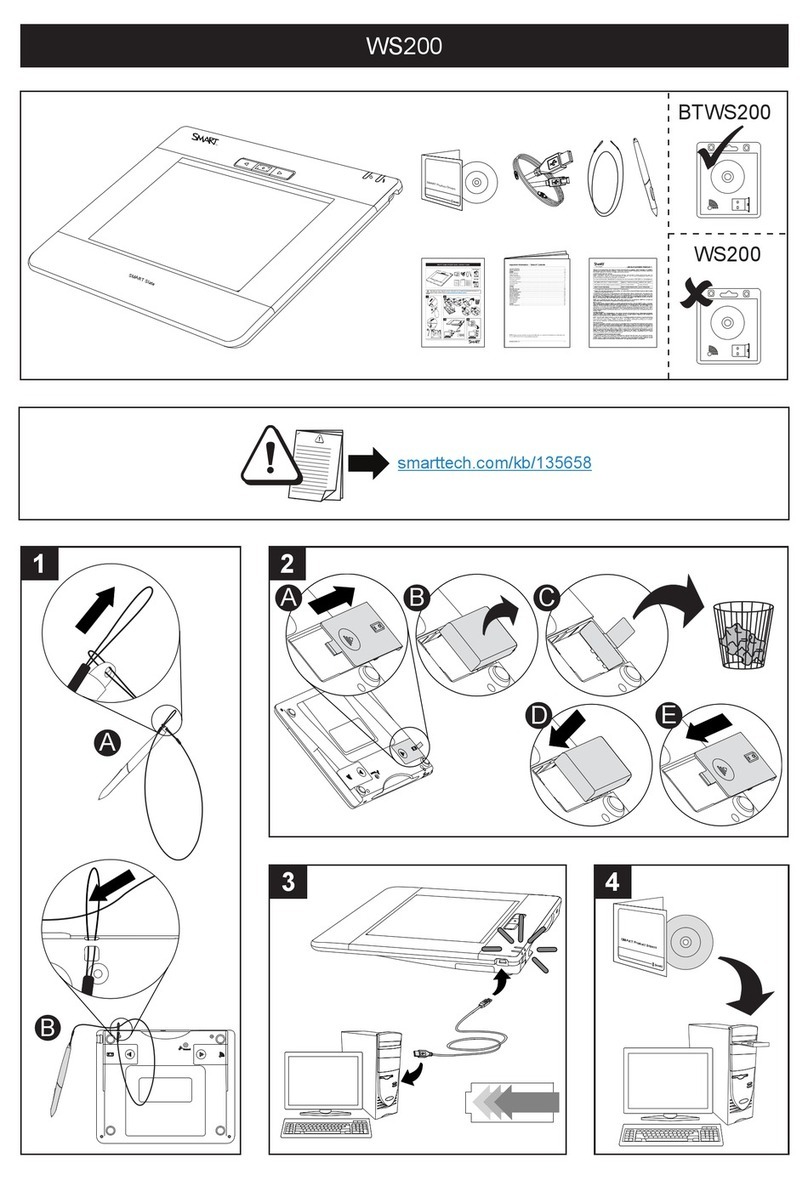
About Your SMART Slate WS200
The SMART Slate connects wirelessly to your computer and a SMART Board™
interactive whiteboard, allowing you to write notes, use programs and perform normal
computer operations from a distance of up to 10 m (32').
• You can customize a printed underlay with an icon strip of the tools and links that
you use most frequently.
• You can change the function of the three buttons on the slate.
• You can use the pen storage compartment to store the pen when you are not
using it.
• You can use the storage compartment on the back of the slate to store the USB
wireless adapter when you are not using the adapter.
• You can use the Kensington® security slot to lock the slate when you are not
using it.
Customizable Buttons Power Switch
Power LED
Status LED
Underlay and
Underlay Cover
Workspace
Security Slot

2 | CHAPTER 1 – OVERVIEW
Tethered Pen
The pen controls the pointer on your display.
Move the pen above the workspace of the slate
to move the pointer. When you touch the pen to
the slate your computer registers the point of
contact as a left click. Touch the pen to the slate
to write notes and use computer programs. The
pen has a rocker switch and an eraser that you
can customize. The tether attaches the pen to
the slate so you don’t misplace the pen.
USB Charging Cable
You can charge your slate by connecting it to your
computer with the USB charging cable. Your slate
comes with an installed lithium ion battery. It takes
six hours to fully charge the battery, which lasts for
more than 24 hours.
Pen Tether Slot
Pen Storage Compartment
Battery
Compartment
USB Wireless Adapter
Storage Compartment
Connect Button
USB Charging Cable Receptacle
Upper Rocker
Switch
Eraser
Tether
Lower Rocker
Switch
Other manuals for Slate WS200
5
Table of contents
Other SMART Tablet manuals

Popular Tablet manuals by other brands

Laser
Laser MID-1060 Quick operation guide

MUNBYN
MUNBYN IRT09J Easy setup guide

Motorola
Motorola MC3090R - Win CE 5.0 Professional 520 MHz quick start guide

Dell
Dell Latitude ST Setup and features information

Lenovo
Lenovo IdeaTab S6000L Hardware Maintenance Manual

Venturer
Venturer WT9L11 quick start guide











