Smart wake up alarm
You can set one or several smart wake up alarms in the SmartBand Talk SWR30.
Smart wake up alarms wake you up at the best time based on your sleep cycle. They
notify you with a continuous vibration. The Smart wake up function uses sleep data
from your SmartBand over a pre-set time period to wake you up when you reach a
state of light sleep.
For example, if you set a smart wake up alarm for 06:30 – 07:00, it wakes you up
sometime between 06:30 and 07:00 when you reach a state of light sleep. If you do
not reach a state of light sleep during this period, the smart wake up alarm wakes you
up at 07:00.
To add a smart wake up alarm
1From the Home screen of your Android™ device, tap .
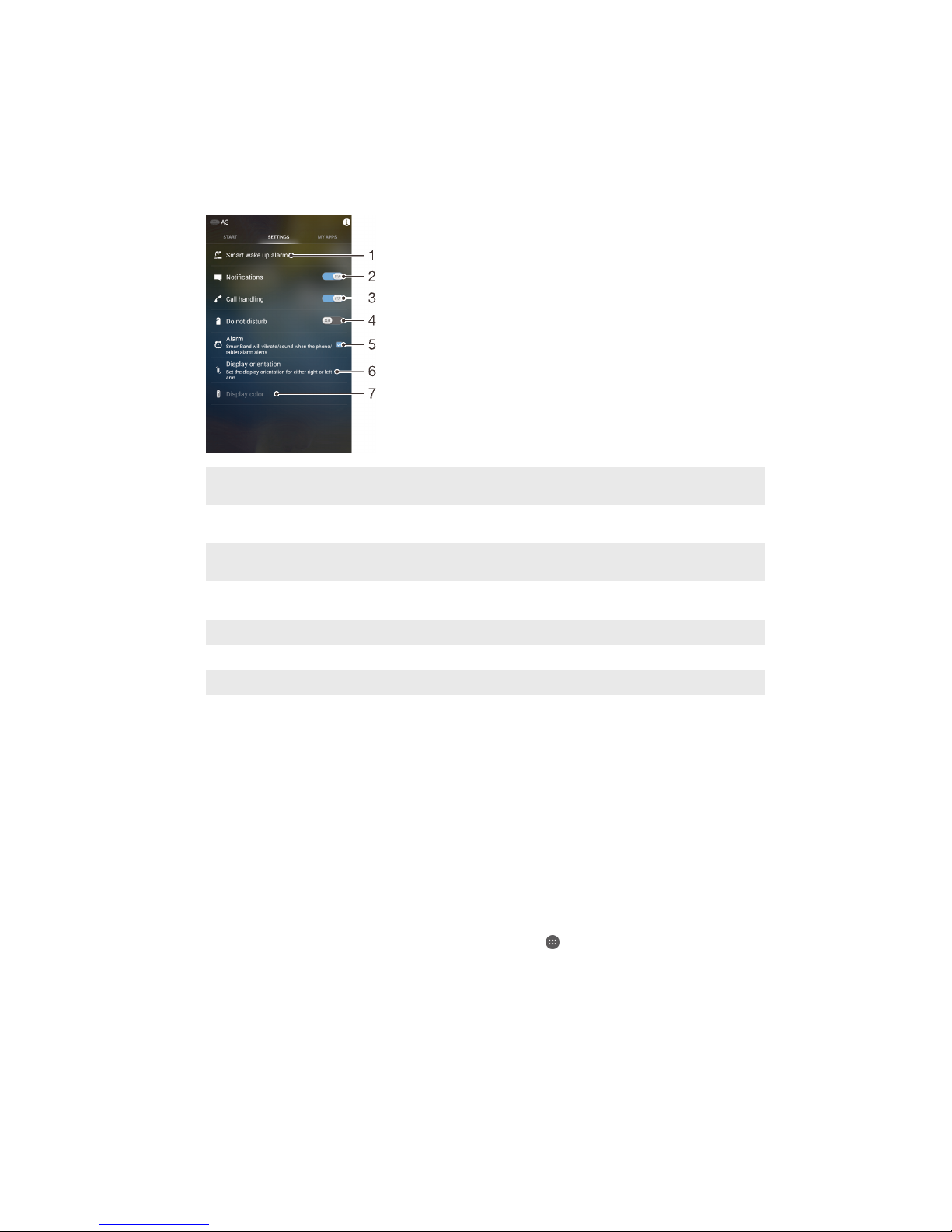
2Find and tap SmartBand Talk SWR30 > SETTINGS.
3Tap Smart wake up alarm, then tap .
4Tap Time, then scroll up or down to adjust the setting and tap Set.
5Tap Repeat, then mark the days for the alarm recurrence and tap OK.
6Tap Wake up interval, then select an option.
7Tap Alarm window, then select an option of how long before the alarm you
want to be woken up.
8Mark the Has alarm signal checkbox if you want the alarm alerts with sound.
9Tap Done.
To edit an exiting smart wake up alarm
1From the Home screen of your Android™ device, tap .
2Find and tap SmartBand Talk SWR30 > SETTINGS.
3Tap Smart wake up alarm, then tap the alarm that you want to set.
4Tap Time, then scroll up or down to adjust the setting and tap Set.
5Tap Repeat, then mark the days for the alarm recurrence and tap OK.
6Tap Wake up interval, then select an option.
7Tap Alarm window, then select an option of how long before the alarm you
want to be woken up.
8Mark the Has alarm signal checkbox if you want the alarm alerts with sound.
9Tap Done.
To delete a smart wake up alarm
1From the Home screen of your Android™ device, tap .
2Find and tap SmartBand Talk SWR30 > SETTINGS.
3Tap Smart wake up alarm, then touch and hold the alarm that you want to
delete.
4Tap , then tap Yes.
To turn on a smart wake up alarm
1From the Home screen of your Android™ device, tap .
2Find and tap SmartBand Talk SWR30 > SETTINGS.
3Tap Smart wake up alarm, then drag the slider beside the smart wake up alarm
that you want to activate to the right.
To turn off a smart wake up alarm when it vibrates
•Long press the power key on your SmartBand.
Notifications
All notifications that appear in the status bar on a connected Android™ device can be
forwarded to your SmartBand. For example, when there is an incoming notification,
your SmartBand vibrates continuously. Use the SmartBand application to select
which notifications to forward to your SmartBand.
9
This is an Internet version of this publication. © Print only for private use.