manuals.online logo
Brands
  1. Home
  2. •
  3. Brands
  4. •
  5. Sony
  6. •
  7. Network Card
  8. •
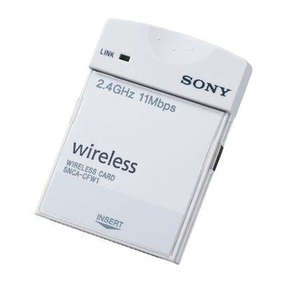
  9. Sony SNCA-CFW1 User manual

Sony SNCA-CFW1 User manual

Other Sony Network Card manuals

Sony BKM-FW50 User manual

Sony

Sony BKM-FW50 User manual

Sony AIBO ERA-201D1 User manual

Sony

Sony AIBO ERA-201D1 User manual

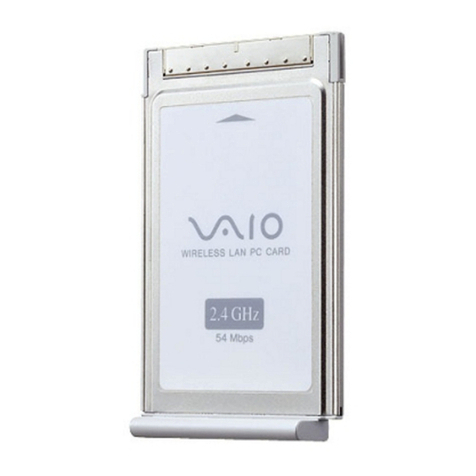
Sony PCWA-C500 - Wireless Lan Pc Card User manual

Sony

Sony PCWA-C500 - Wireless Lan Pc Card User manual

Sony CLP-NWS700 User manual

Sony

Sony CLP-NWS700 User manual

Sony SCPH-10281 User manual

Sony

Sony SCPH-10281 User manual

Sony Clie Gear PEGA-WL110 User manual

Sony

Sony Clie Gear PEGA-WL110 User manual

Sony Clie Gear PEGA-WL100 User manual

Sony

Sony Clie Gear PEGA-WL100 User manual

Sony Ethernet Network Adapter User manual

Sony

Sony Ethernet Network Adapter User manual

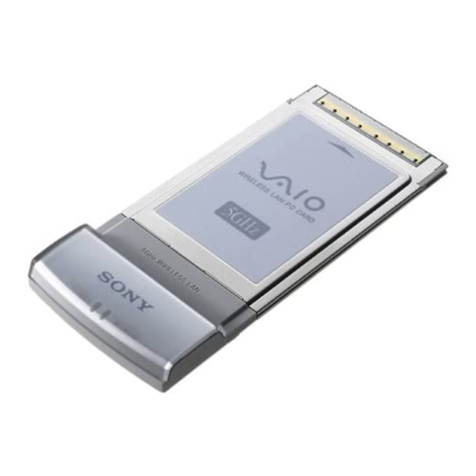
Sony Vaio PCWA-C300S User manual

Sony

Sony Vaio PCWA-C300S User manual

Sony SNCA-CFW1 User manual

Sony

Sony SNCA-CFW1 User manual

Sony BKM-FW32 User manual

Sony

Sony BKM-FW32 User manual

Sony PCWA-C500 - Wireless Lan Pc Card User manual

Sony

Sony PCWA-C500 - Wireless Lan Pc Card User manual

Sony Network Audio Remote User manual

Sony

Sony Network Audio Remote User manual

Sony PCWA-C150S - Wireless Lan Pc Card User manual

Sony

Sony PCWA-C150S - Wireless Lan Pc Card User manual

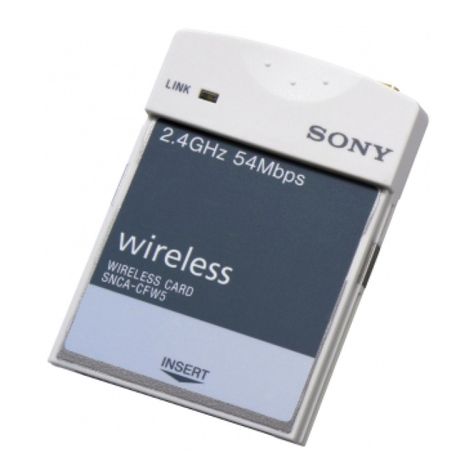
Sony SNCA-CFW5 User manual

Sony

Sony SNCA-CFW5 User manual

Sony AIBO ERA-201D1 User manual

Sony

Sony AIBO ERA-201D1 User manual

Sony SNCA-CFW5 User manual

Sony

Sony SNCA-CFW5 User manual

Sony BKMW-E3000 User manual

Sony

Sony BKMW-E3000 User manual

Sony PCWA-C100 Manual

Sony

Sony PCWA-C100 Manual

Sony CBK-NC01 User manual

Sony

Sony CBK-NC01 User manual

Sony Vaio PCWA-C300S User manual

Sony

Sony Vaio PCWA-C300S User manual

Sony Vaio PCWA-C300S User manual

Sony

Sony Vaio PCWA-C300S User manual

Sony Vaio PCWA-C300S User manual

Sony

Sony Vaio PCWA-C300S User manual

Popular Network Card manuals by other brands

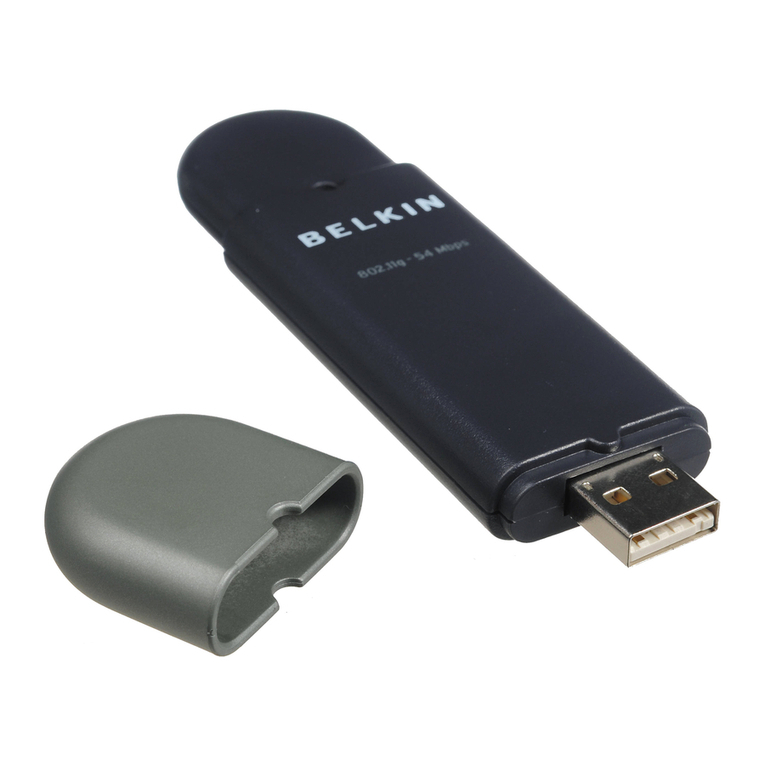
Belkin F6D301 user manual

Belkin

Belkin F6D301 user manual

FirstComm OBiWiFi5G Setup guide

FirstComm

FirstComm OBiWiFi5G Setup guide

TRENDnet TU2-ETG user guide

TRENDnet

TRENDnet TU2-ETG user guide

YASKAWA SI-EN3 Technical manual

YASKAWA

YASKAWA SI-EN3 Technical manual

Paradyne BitStorm 2600 IP DSLAM installation guide

Paradyne

Paradyne BitStorm 2600 IP DSLAM installation guide

Belkin F5D7050 user manual

Belkin

Belkin F5D7050 user manual

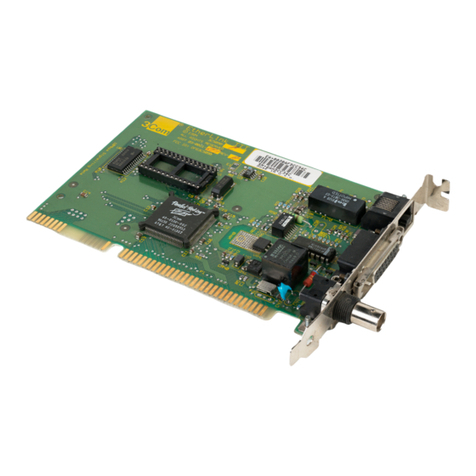
3Com EtherLink 3C509B quick guide

3Com

3Com EtherLink 3C509B quick guide

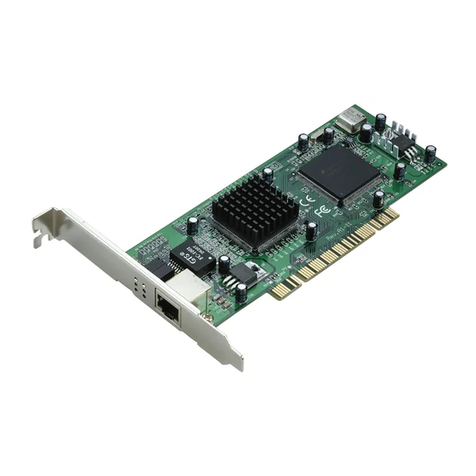
TRENDnet TEG-PCITX user guide

TRENDnet

TRENDnet TEG-PCITX user guide

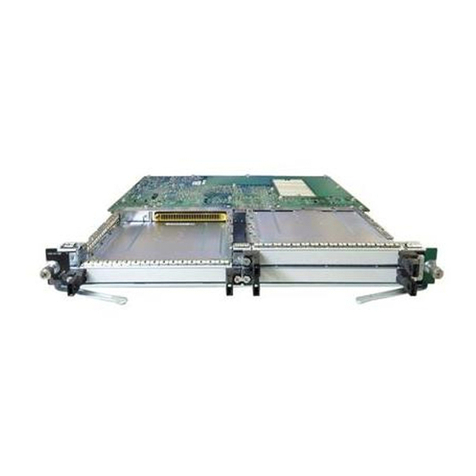
Cisco MC16E installation guide

Cisco

Cisco MC16E installation guide

Delta Electronics Braking Modules VFDB Series instruction sheet

Delta Electronics

Delta Electronics Braking Modules VFDB Series instruction sheet

TwinMOS Booming user manual

TwinMOS

TwinMOS Booming user manual

Dialogic Media Board DM/V1200BTEPEQ installation guide

Dialogic

Dialogic Media Board DM/V1200BTEPEQ installation guide

Buffalo AirStation WLI-PCM-L11GP user manual

Buffalo

Buffalo AirStation WLI-PCM-L11GP user manual

TRENDnet TEG-PCITXR user guide

TRENDnet

TRENDnet TEG-PCITXR user guide

Sun Microsystems Interface Adapter user guide

Sun Microsystems

Sun Microsystems Interface Adapter user guide

D-Link DHP?P309AV Setup guide

D-Link

D-Link DHP?P309AV Setup guide

Extollo LANPlug 2000 Product guide

Extollo

Extollo LANPlug 2000 Product guide

LG-Ericsson PCI-1020 user manual

LG-Ericsson

LG-Ericsson PCI-1020 user manual

manuals.online logo
manuals.online logoBrands
  • About & Mission
  • Contact us
  • Privacy Policy
  • Terms and Conditions

Copyright 2025 Manuals.Online. All Rights Reserved.

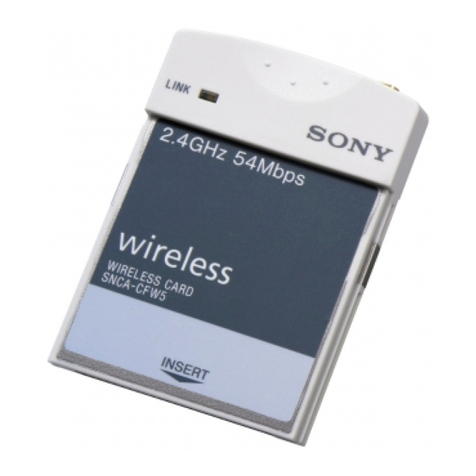
SNCA-CFW1
Pa
g
e 1 of 7
WIRELESS CARD
User's Manual
SNCA-CFW1
SNCA-CFW1
Pa
g
e 2 of 7
FCC Compliance
This equipment has been tested and found to comply with the limits for a Class B Peripheral,
pursuant to Part 15 of the FCC Rules. These limits are designed to provide reasonable protection
against harmful interference in a residential installation.
This equipment generates, uses and can radiate radio frequency energy and, if not installed and
used in accordance with the instructions, may cause harmful interference to radio
communications.
However, there is no guarantee that interference will not occur in a particular installation. If this
equipment dose cause harmful interference to radio or television reception, which can be
determined by turning the equipment off and on, the user is encouraged to try to correct the
interference by one or more of the following measures:
- Reorient or relocate the receiving antenna.
- Increase the separation between the equipment and receiver.
- Connect the equipment into an outlet on a circuit different from that to which the receiver is
connected.
- Consult the dealer or an experienced radio/TV technician for help.
This equipment has been tested to comply with the limits for a Class B peripheral, pursuant to
Subpart B of Part 15 of FCC Rules. Only peripherals (Network camera) certified (DoC) or verified
to comply with Class B limits may be attached to this equipment. Operation with non-certified
(DoC) or non-verified personal computer and/or peripherals is likely to result in Interference to
radio and TV reception. The connection of a unshielded equipment interface cable to this
Equipment will invalidate the FCC Certification of this device and may cause interference levels
which Exceed the limits established by FCC for equipment.
You are cautioned that changes or modifications not expressly approved by the party responsible
for compliance could void your authority to operate the equipment.
For mobile devices without co-location condition
FCC RF Radiation Exposure Statement:
This Transmitter must not be co-located or operating in conjunction with any other antenna or
transmitter.
This device was not tested FCC RF Exposure (SAR) limits. User must be keep distance at least
20cm separation distance from the antenna to the body of the user or a nearby person. This
device cannot be used with handheld PDAs (personal digital assistants), desktop or laptop
computers. Use in other configurations may not ensure compliance with FCC RF exposure
guidelines.
Canadian Warning Statement:
This Class B digital apparatus complies with Canada RSS-210.
Cet appareil numérique de la classe B est conforme à la norme CNR-210 du Canada
This device complies with Part 15 of the FCC Rules. Operation is subject to following two
conditions:(1) this device may not cause harmful interference. and (2) this device must accept
any interference received, including interference that may cause undesired operation.

SNCA-CFW1
Pa
g
e 3 of 7
DGT Warning Statement:
低功率電波輻性電機管理辦法
第十二條 經型式認證合格之低功率射頻電機,非經許可,公司、商號或使用者均不得擅
自變更頻率、加大功率或變更原設計之特性及功能。
第十四條 低功率射頻電機之使用不得影響飛航安全及干擾合法通信;經發現有干擾現象
時,應立即停用,並改善至無干擾時方得繼續使用。
前項合法通信,指依電信規定作業之無線電信。低功率射頻電機須忍受合法通
信或工業、科學及醫療用電波輻射性電機設備之干擾。
Limitation for use in the EU
This device can operate indoors or outdoors in all countries of the European Community using
the 2.4GHz band: Channels 1 – 13, except where noted below:
* In Italy the end-user must apply for a license from the national spectrum authority to operate
this device outdoors.
* In Belgium outdoor operation is only permitted using the 2.46 – 2.4835GHz band: Channel 13.
* In France outdoor operation is only permitted using the 2.4 – 2.454 GHz band: Channels 1 –
7.
SNCA-CFW1
Pa
g
e 4 of 7
1.Introduction
SONY Wireless Network Adapter offers performance comparable to Ethernet Local Area Network
(LAN) system, without the limitations of network cables. It allows you to connect Network camera
to a Local Area Network from anywhere within the wireless coverage area. It also enables you to
roam throughout the network while remaining connected to the LAN.
Package Contents
Make sure the following materials are available before beginning:
SNCA-CFW1 Wireless LAN Card
System Requirements
This Wireless LAN Card only operate with SONY Network camera.
Laptop PC, Desktop PC, PDA or other peripherals cannot work properly.
option
a) External polarity antenna with 1m long cable
2. Installation guide
802.11b Wireless LAN Card
Before insert Wireless LAN card, make sure Network camera's power switch is off.
After insert Wireless LAN card into CF slot, power on Network Camera's Power switch.
Network configuration
a) Install Utility Software into PC.
b) Connect PC and Network Camera by Ethernet cross cable.
c) After insert Wireless LAN card, switch on Network Camera.
d) Start utility program.
e) Setting IP address.
f) Setting SSID.
g) Setting WEP
External polarity antenna
Wireless LAN card has external antenna connector. External antenna can expand
communication distance.
Installation
a) Setting Antenna.
b) Use 1m long cable, connect Antenna connector and Wireless LAN card external connector.
c) By Utility software, select "External antenna".
SNCA-CFW1
Pa
g
e 5 of 7
3. Specifications
WIRELESS CARD (model name : SNCA-CFW1)
Absolute Maximum Ratings
Supply Voltage -0.3 to 3.6V (max.)
Storage Temperature -25 to 60 degree
(All temperature references refer to ambient conditions)
Operating Conditions
Supply Voltage range 3.0 to 3.6V
Temperature Range -20 to 55 degree
Electrical Specifications
Current consumption
Transmit mode 380mA max.
Receiving mode 300mA max.
Center Frequency Range 2412 to 2462MHz (11ch)
Antenna Gain(Internal) 2.14dBi max.
(External-polarity) 6.4 dBi max.(include Cable Loss 2.8dB)
Transmitter power +15dBm max.
E.I.R.P. +17.14dBm max.
Receiving Sensitivity -76dBm max. (FER 8e-2 at 11Mbps)
Data rate 11, 5.5, 2, 1Mbps
External polarity antenna (Model name: )
Storage Temperature -30 to 70 degree
Operating Temperature Range -20 to 60 degree
Frequency Range 2.4 to 2.5 GHz
VSWR 1.5 max. (within Frequency Range)
Impedance 50 ohm (typ.)
Peak Gain 6.4dBi (include Cable Loss 2.8dB)
Beam width +/-30 degree min.
SNCA-CFW1
Pa
g
e 6 of 7
4. Outlook Dimensions
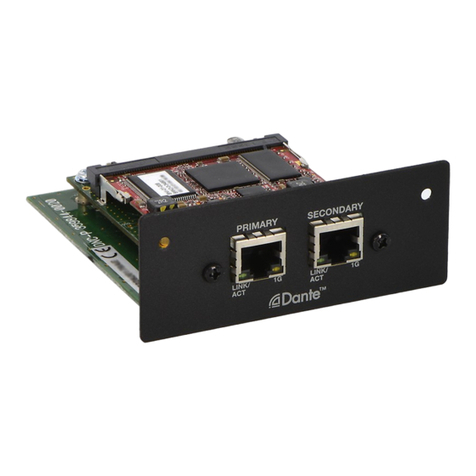
Wireless LAN card
External antenna connector
(
MMCX
)
FCC Label
SNCA-CFW1
Pa
g
e 7 of 7
4. Outlook Dimensions
External Polarity Antenna
N-t
yp
e Connecto
r