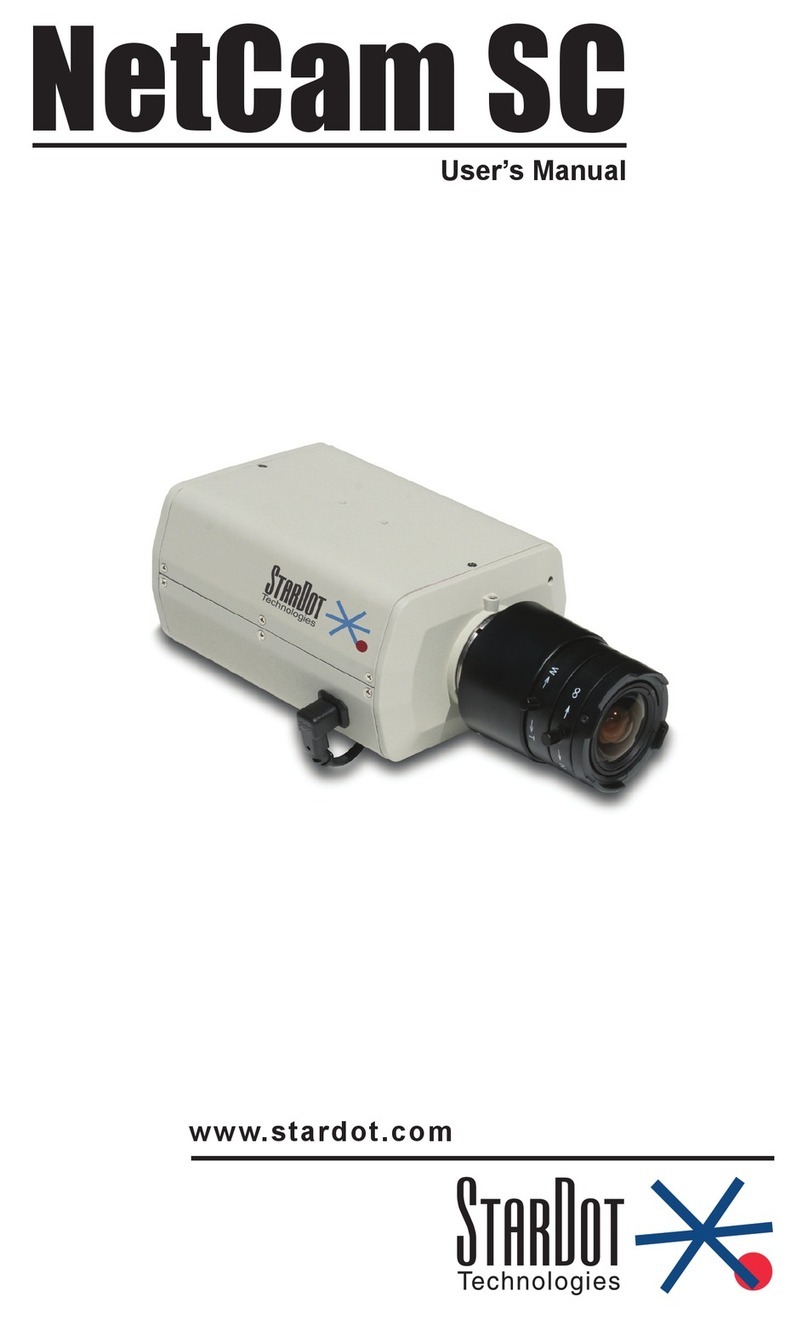
StarDot Technologies NetCam SC User manual

NetCam SC
Me g a p i x e l Hy b r i d ip Ca M e r a
User’s Manual
www.stardot.com


NetCam SC MP Hybrid IP Camera
Table of Contents
Chapter 1 Conguration....................................................................5
1.1 Before You Start.................................................................5
1.2 What’s Included and What’s Required ...............................5
1.3 Parts of NetCam SC ..........................................................6
1.4 Connecting NetCam SC to a Network ...............................7
1.5 An Overview of Network Connectivity................................7
Chapter 2 Installation ........................................................................9
2.1 Installing NetCam SC.........................................................9
2.2 Outdoor Environment.......................................................10
Chapter 3 Accessing NetCam SC .................................................. 11
3.1 Viewing NetCam SC’s Images ......................................... 11
3.2 NetCamSC’sCongurationMenus .................................12
3.3 Image Properties..............................................................13
3.4 Overlay Properties ...........................................................23
3.5 FTP Properties .................................................................27
3.6 Date/Time Properties .......................................................32
3.7 Network Properties ..........................................................35
3.8 Dial-Out Properties ..........................................................38
3.9 Security Properties...........................................................41
3.10 Advanced Menus .............................................................42
3.11 Miscellaneous ..................................................................43
3.12 ManualCong..................................................................43
3.13 PTZ ..................................................................................43
3.14 Dynamic DNS...................................................................44
3.15 Trigger Properties ............................................................45
Technical Support .............................................................................50
Specications ....................................................................................52

NetCam SC MP Hybrid IP Camera

NetCam SC MP Hybrid IP Camera Page 5
Chapter 1 Conguration
Congratulations on your purchase of a StarDot NetCam SC Megapixel Hybrid
IP Camera with integrated web server. The NetCam SC combines the best of
the analog CCTV world (auto iris, mechanical day/night IR lter*, video out,
24VAC/12VC power inputs) with the best of the digital IP camera world (up to
5 megapixel, Power over Ethernet, integrated video motion detection).
With proper usage, the NetCam SC will provide many years of quality video.
We recommend that you read this manual carefully to completely understand
the camera’s capabilities. Throughout this manual, your NetCam SC Megapixel
Hybrid IP Camera will also be referred to as simply NetCam SC.
* Mechanical Day/night IR lter available only on IR models.
1.1 Before You Start
This manual guides you through the basic setup procedure for the
NetCam SC and provides a detailed resource of the camera’s advanced
options and capabilities.
1.2 What’s Included and What’s Required
The basic package includes:
NetCam SC, lens, StarDot Tools CD and Manual.•
Since the NetCam SC is a PoE device (Power over Ethernet), it is
assumed that most users will provide their own CAT 5 or CAT 6 cable,
as well as a PoE switch or power injector. StarDot optionally offers a
wall mount, a power supply, a combination network/power cable and
a null serial conguration cable. In order to use the NetCam SC, you
will need the following:

Page 6 NetCam SC MP Hybrid IP Camera
• Power source (PoE, 12VDC or 24VAC)
• A computer – for conguring NetCam SC and for viewing video
Note: A computer is not necessary to operate NetCam, only to congure it.
• Network connectivity (LAN, cable modem, DSL, T-1, Dial-Up
Internet Account, Satellite Modem, etc.)
1.3 Parts of NetCam SC
StarDot
Technologies
24VAC
Useful for legacy CCTV
Power Infrastructure
S1 (Aux)
RS-232 Port, Optional Serial Configuration
Auxilliary Device Control
NET (PoE) 802.3af
100Mbit Power over Ethernet Port
PWR (DCPower Jack)
10-20VDC (500mA @ 12VDC)
I/O (Input/Output)
Alarm Trigger Input / Relay Output
NET (PoE)
S1 (AUX)
24VAC
I/O
1 2 3 4
VIDEO
12VDC
VIDEO OUT
Analog Video
(NTSC or PAL)
Auto Iris Jack (not shown)
For connecting DC auto iris lens

NetCam SC MP Hybrid IP Camera Page 7
1.4 Connecting NetCam SC to a Network
The StarDot Tools software can be used to nd the camera’s IP
address or to congure the camera with the Setup Wizard (optional).
Install the StarDot Tools software by inserting the CD-ROM and
running setup.exe (it should run automatically).
Connect NetCam SC into a PoE switch or injector with a
standard CAT 5 network cable or with a StarDot Combo
Ethernet/Power Cable.
If your network has a router or server that automatically assigns
IP addresses (DHCP), StarDot Tools will nd the camera’s IP
address and display it in the software. To access NetCam SC,
simply double-click its IP address. If the IP address is displayed,
skip to Chapter 3.
If no DHCP server is present, the NetCam SC will auto assign
itself a “zeroconf” IP address, which will always start with
169.254. You can temporarily assign your computer a similar
address and use StarDot Tools to nd the camera’s IP address
and assign it a new permanent IP address. To do so, give your
PC the IP address 169.254.100.100 with a subnet of 255.255.0.0.
1.5 An Overview of Network Connectivity
A LAN or network connection is the simplest configuration
for NetCam SC. NetCam SC simply needs an IP address (and other
networking parameters) to make the live images and conguration
menus accessible from any web browser on the network. There are
two ways NetCam SC can be assigned an IP address: automatically
or manually.

Page 8 NetCam SC MP Hybrid IP Camera
Automatic IP Assignment (DHCP)
NetCam SC is shipped in an automatic IP assignment mode called
DHCP (Dynamic Host Conguration Protocol). If your network has a
DHCP server (in most cases, a router), it will automatically assign the
necessary network parameters to NetCam SC. Before you can access
the camera, you will need to know which IP address was assigned. Use
the StarDot Tools software to nd the camera’s IP address.
Automatic IP Assignment (zeroconf)
If no DHCP server is present, the NetCam SC will automatically
assign itself a “zeroconf” IP address, which will always start with
169.254. You can temporarily assign your computer a similar address
and use StarDot Tools to nd the camera’s IP address and assign it
a new permanent IP address. To do so, give your PC the IP address
169.254.100.100 with a subnet of 255.255.0.0. Use the StarDot Tools
software to nd the camera’s IP address.
Manual IP Assignment
If you want to assign the camera a permanent IP address, you will
need the following information:
• IP Address (example: 192.168.1.5)
• Subnet Mask (example: 255.255.255.0)
• Gateway (example: 192.168.1.1)
• DNS Servers (obtain from ISP)
If you are installing the camera on a company network, you will probably
want to get this information from the system administrator.
If NetCam SC is connected to a network with a DHCP server and
your computer is not running Windows, you can log into your router (or
whatever is acting as your DHCP server) and view the DHCP clients
table. NetCam SC will have a MAC address starting with 00:30:F4.
Take note of the IP address and enter it in your web browser. Click on
the conguration link, visit the network tab and assign the camera a
manual IP address (outside of the router’s DHCP range).

NetCam SC MP Hybrid IP Camera Page 9
Chapter 2 Installation
Before installing the camera in its nal location, it is important to
congure and test it rst (see Chapter 1).
2.1 Installing NetCam SC
Measure the distance from the camera to the nearest Ethernet
hub or switch. This distance should not exceed 330 feet. If you wish
to extend the distance further than 330 feet, you can add an Ethernet
hub or switch.
There are three ways to power NetCam SC. This allows you go
install the camera in virtually any existing infrastructure. NOTE: Only
use one method to power the camera . Do not plug two or more
power sources into the camera simultaneously.
Power over Ethernet (PoE)
Run standard CAT 5 or better Ethernet cable from a PoE hub/
switch (or PoE power injector) into the NET jack on the back of
NetCam SC. NetCam SC will run off the PoE power running in the
CAT 5 cable. No other power source is required.
Separate Ethernet and Power
If you decide not to use PoE, you can connect one end of a CAT
5 or better Ethernet cable into a hub/switch and the other end into the
NET jack on the back of NetCam SC. Plug a 12VDC 1A power supply
into the back of NetCam SC (or you may use a 24VAC power supply
and connect it to the input marked 24VAC).
StarDot’s Power/Network Cable
If you choose not to power NetCam SC via PoE and you still want the
take advantage of a single cable run, StarDot provides Power/Network
cable that allows you to run both power and data in the same cable. Visit
http://www.stardot.com for more information.

Page 10 NetCam SC MP Hybrid IP Camera
2.2 Outdoor Environment
To mount NetCam SC outdoors, it must rst be encased in an outdoor
enclosure (different models are available from StarDot Technologies,
see http://www.stardot.com). Install the camera in an outdoor enclosure
and adjust the internal mount so the lens is up against the enclosure
window. This helps to reduce glare and interior reections.
Determine where NetCam SC will be pointing and where you’d
like to mount it. The outdoor enclosure can be mounted on a horizontal
or vertical surface. When aiming the camera, factors such as sun travel
and amount of visible sky can vastly affect the quality of the image.
Other manuals for NetCam SC
2
Table of contents
Other StarDot Technologies Security Camera manuals