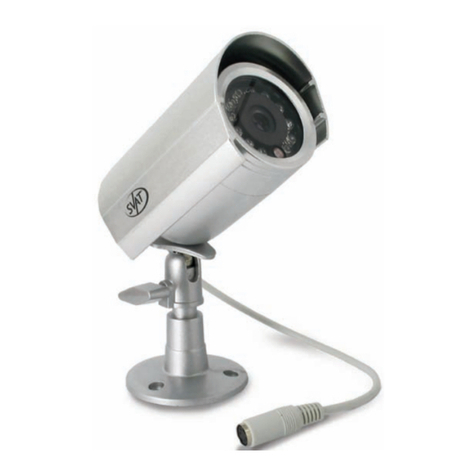
SVAT CLEARVU3 User manual

INSTRUCTIONMANUAL
COMPLETE SYSTEM
WebReady8CHDVRSystem
w/8OutdoorNightVisionCCDCamerasand8"LCDMonitor
SVAT ELECTRONICS
now you can see
Model#
CLEARVU3
www.svat.com
Version 1.0

SVAT ELECTRONICS
now you can see
CLEARVU3 www.svat.com
SPARTAN4 2
!IMPORTANT! PLEASE READ!
NEED
HELP?
DO NOT RETURN THIS
PRODUCT TO THE STORE
Please contact a SVAT customer support representative rst regarding any
additional information on product features, specications or help with set-up.
Please contact us via one of the methods below:
Toll free telephone:
1.866.946.7828
For more product information visit www.svat.com
Email:
support@svat.com
Online live web chat:
Visit www.svat.com
Toll free fax:
1.888.771.1701
Note: This is manual version 1.0 for this product, you may nd updated versions by visiting
our website.

PRODUCT WARRANTY & REGISTRATION
Please keep a copy of your Receipt/Order
Conrmation to verify your 1-Year Warranty
We take quality very seriously. This is why all of our products come with a one year
warranty from the original purchase date against defects in workmanship and materials.
If you have warranty or support issues please contact us using any of the following methods:
SVAT Electronics USA SVAT Electronics Canada Phone: 866.946.7828
2315 Whirlpool St., Unit 333 4080 Montrose Road Fax: 888.771.1701
USA 14305 Canada L2H 1J9 Website: www.svat.com
Warranty Terms
1. SVAT products are guaranteed for a period of one year from the date of purchase against defects in
workmanship and materials. This warranty is limited to the repair, replacement or refund of the purchase price
at SVAT’s option.
2. This warranty becomes void if the product shows evidence of having been misused, mishandled or tampered
with contrary to the applicable instruction manual.
3. Routine cleaning, normal cosmetic and mechanical wear and tear are not covered under the terms of
this warranty.
4. The warranty expressly provided for herein is the sole warranty provided in connection with the product itself
and no other warranty, expressed or implied is provided. SVAT assumes no responsibilities for any other
claims not specically mentioned in this warranty.
5. This warranty does not cover the shipping cost, insurance or any other incidental charges.
6. You MUST call SVAT before sending any product back for repair. You will be given a Return Authorization
number. When returning the product for warranty service, please pack it carefully in the original box with all
supplied accessories, and enclose your original receipt or copy, and a brief explanation of the problem
(include RA #).
7. This warranty is valid only in Canada and the continental U.S.A.
8. This warranty cannot be re-issued.
Graphic Symbol Explanation
The lightning ash with arrowhead symbol, within an equilateral triangle, is intended to alert the
user to the presence of insinuated “dangerous voltage” within the product’s enclosure that may be
of sufcient magnitude to constitute a risk of electric shock to persons.
The exclamation point within an equilateral triangle is intended to alert the user to the presence
of important operating maintenance (servicing) instructions in the literature accompanying the
appliance.
TO REDUCE THE RISK OF ELECTRIC SHOCK, DO NOT REMOVE THE COVER (BACK).
NO USER SERVICEABLE PARTS INSIDE. REFER SERVICING TO QUALIFIED SERVICE PERSONNEL.
CAUTION
RISK OF ELECTRIC SHOCK, DO NOT OPEN
SVAT ELECTRONICS
now you can see
CLEARVU3 www.svat.com

SVAT ELECTRONICS
now you can see
CLEARVU3
TABLE OF CONTENTS
1. WHAT IS INCLUDED ..................................................................................... 1
2. DVR BUTTONAND FUNCTIONS .....................................................................................1
3. INSTALLATION TO DVR ............................................................................... 2
3.1 Camera Installation ............................................................................... 3
3.2 Monitor Installation................................................................................ 3
3.3 Audio Installation................................................................................... 3
4. POWER TO DVR ........................................................................................... 4
5. DVR OPERATION .......................................................................................... 5
5.1 Live Mode.............................................................................................. 5
5.2 Record Mode......................................................................................... 7
5.3 Playback Mode...................................................................................... 8
5.4 Search................................................................................................... 9
6. MENU SETUP DESCRIPTION .................................................................... 10
6.1 Date/ Time Setup..................................................................................11
6.2 Camera Setup......................................................................................11
6.2.1 Edit Camera Title 1-8................................................................. 12
6.2.2 Video Adjust............................................................................... 12
6.2.3 Motion Detection........................................................................ 13
6.3 Record Setup ...................................................................................... 14
6.4 Schedule Setup................................................................................... 15
6.5 Hard Disk Setup.................................................................................. 16
6.6 CF Card Setup .................................................................................... 16
6.7 Others.................................................................................................. 18
6.7.1 Password................................................................................... 19
6.7.2 Buzzer........................................................................................ 19
6.7.3 Relay Output (Advanced users)................................................. 20
6.7.4 Alarm Input (Advanced users).................................................... 21
6.7.5 Sequence Dwell Time................................................................ 22
6.8 Factory Default.................................................................................... 22
7.DVR NETWORKING GUIDE ......................................................................... 23
7.1 Introduction.......................................................................................... 23
7.2 Prepare Your Computer....................................................................... 24
7.3 Prepare Your DVR............................................................................... 25
7.4 Connect To The Internet......................................................................16
7.5 Find Your External Ip........................................................................... 28
7.6 Forwarding Outside Your Network....................................................... 29
7.7 Finalizing The Set-Up.......................................................................... 32
7.8 Additional Troubleshooting .................................................................. 33
www.svat.com

SVAT ELECTRONICS
now you can see
CLEARVU3
8. FUNCTION SETUP ...................................................................................... 34
8.1 Main Display.........................................................................................34
8.1.1 View............................................................................................35
8.1.2 Image Recording.........................................................................35
8.1.2.1 Save As JPEG.................................................................36
8.1.2.2 Save As AVI.....................................................................36
8.1.2.3 DVR Control....................................................................36
8.2 Advanced Network Setup.....................................................................38
8.2.1 Advanced Network Setting ...................................................38
8.2.2 User Setup...............................................................................39
9. DVR TROUBLESHOOTING ........................................................................ 40
10. SYSTEM CONFIGURATION ...................................................................... 41
11. HARD DISK INFORMATION ...................................................................... 41
12. APPENDIX ................................................................................................. 41
13. MONITOR GUIDE ...................................................................................... 42
13.1 Button Functions And Connections....................................................42
13.1.1 Monitor .....................................................................................42
13.1.2 Remote Control ........................................................................43
13.2 Installation..........................................................................................43
13.2.1 OPTION 1: Connecting To Security Cameras...........................43
13.2.2 OPTION 2: Connecting To A DVR.............................................44
13.2.3 Powering On .............................................................................45
13.2.4 Basic Operation ........................................................................45
13.2.5 Adjusting Settings .....................................................................45
13.2.6 Picture.......................................................................................45
13.2.7 Option .......................................................................................45
13.2.8 Clock.........................................................................................46
13.2.9 System......................................................................................46
13.2. Troubleshooting ..........................................................................47
14. CAMERA GUIDE ....................................................................................... 47
14.1 Features Of The CV67 (Camera).......................................................47
14.2 Camera Installation Tips.....................................................................48
14.2.1 Mounting ...................................................................................48
14.2.2 Troubleshooting ........................................................................49
15. SPECIFICATIONS ...................................................................................... 50
www.svat.com

SVAT ELECTRONICS
now you can see
CLEARVU3 1
1. WHAT IS INCLUDED
2. DVR BUTTON AND FUNCTIONS
2.1 Front Panel
1. LED Indicators (Alarm/Play/HDD/Record)
2. Removable/Lockable HDD Casing: 3.5” IDE HDD
3. Camera Channel Select (1-8)
4. Record Button
5. Stop Button
6. Play Button
7. Pause Button
8. Split Button – Switch between Full Screen/ Quad Screen/ 9-Split Screen
9. Auto Sequencing Button – Automatically cycle through all the camera channels
10. Search Button – Quickly search your recorded footage by date and event.
11. Menu Button
12. Exit/Info Button – Return to the previous menu/view system information
13. Enter/Display Button – Conrm selection/show or hide onscreen display
14. CF Card Slot
15. Left Button – Change values in the menu screen/rewind
16. Right Button – Changes values in the menu screen/fast forward
17. Up Button – Navigate the onscreen menu/change camera channels
18. Down Button – Navigate the onscreen menu/change camera channels
Software CD10 RCA to BNC
Connectors
1 Remote Control for
LCD Monitor
10ft RJ45
Ethernet Cable
8”Ultra Slim LCD
Monitor
8 Camera Mounts w/
Hardware
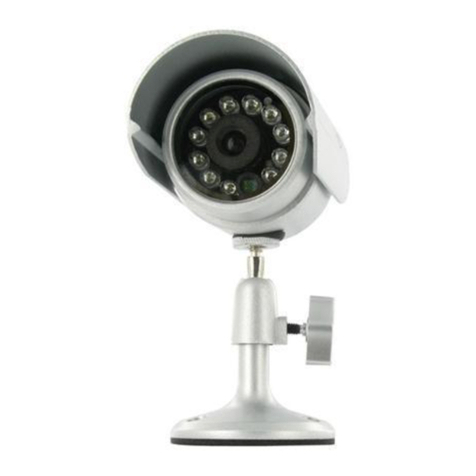
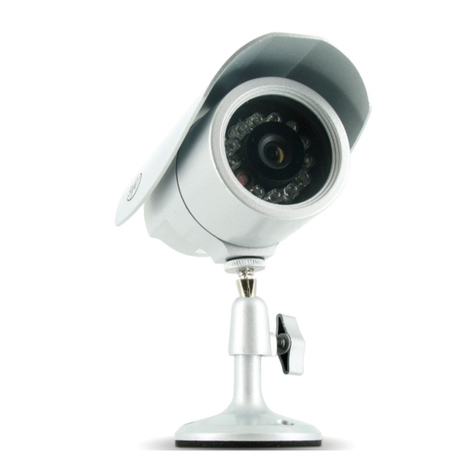
8 Indoor/Outdoor Night
Vision CCD Cameras
1 DVR (160GB HDD)
•1 Power Adapter for
LCD Monitor
•1 Power Adapter for DVR
1 10ft RCA to RCA
(male) A/V Wire
1 RCA Female to
3.5mm (male)
A/V Wire
8 x 60ft 4 PIN DIN to
RCA (male)Video/
Power Wires
•Online/ Toll Free Support
•Instruction Manual
•Quick Start Guide
•1 Year Warranty
•8 Power Adapters for Cameras

SVAT ELECTRONICS
now you can see
CLEARVU3 2
2.2 Rear Panel
1. BNC Video Inputs – Connects the cameras to the DVR
2. Power Input – DC power input (12V)
3. Alarm Input/Output Port
4. RCAAudio Input – For connecting a microphone/audio supported camera (not included)
5. RCAAudio Output – For connection to your TV/monitor
6. BNC Video Output – For connection to your TV/monitor
7. Ethernet Port – For connection to your local area network and Internet
8. BNC SPOT Video Output –Additional connection to your TV/monitor, only displays
video when motion recording is activated
9. Cooling Fan
3. INSTALLATION TO DVR

SVAT ELECTRONICS
now you can see
CLEARVU3 3
3.1 Camera Installation
1. Plug the 4 pin DIN female connection on the camera into the 4 PIN DIN male
connection on the 60ft video/power wire.
2. Match the two arrows on top of both connecting cables.
3. Plug the camera’s power supply into the power jack located on the 60ft video/
power wire.
4. Plug the camera’s power adapter into an AC outlet.
5. Connect the 60ft video/power wire’s male RCA plug to the VIDEO IN port of
your TV/monitor/VCR/DVR.
6. If your VIDEO IN port is a BNC connection (common with DVR units), you will
need to attach the BNC to RCA adapter before connecting the camera.
3.2 Monitor Installation
1. Plug the “3.5mm to RCA (female) wire” into the AV1/IN port on the monitor.
2. Plug one end of an RCA wire into the DVR’s VIDEO OUT port. Plug the other
end into the female end of the 3.5mm to RCA (female) wire.
3. Ensure that the DVR is plugged in and powered on.
3.3 Audio Installation
1. If you have an audio supported camera or microphone with an RCAAudio Out
connection, you may connect it to the Audio In port on the DVR.
2. Connect an RCAaudio wire (not included) to one of theAudio Out ports on the DVR.
3. Connect the other end to the Audio In port of your TV/monitor/speaker.

SVAT ELECTRONICS
now you can see
CLEARVU3 4
4. POWER TO DVR
1. Insert the power supply wire into the rear DC 12V Port on the DVR.
2. Insert the power cord into the power supply.
3. Plug the power cord into a power outlet. We recommend using a surge protected
power bar and/or Uninterrupted Power Supply (UPS) backup. To turn the DVR
on and off, use the power switch on your UPS or power bar. This DVR does not
have a power switch. This is for your security and helps to prevent users from

accidentally turning the DVR off.
The DVR will power on and you will see a boot screen. After the DVR initializes your
cameras should be displayed and recording will begin immediately.
Important notes before operation
1. To power off the DVR, make sure the DVR is not recording to prevent le
corruption. If on manual record, press STOP to stop recording and wait for the
REC light to turn off before you power off the DVR. If in schedule record, press
MENU and enter the password to enter the menu screen. When the record light
turns off, you can power off the DVR.
2. The default password is 12345678.
3. This DVR does not support HDD hot swap. To prevent damage, please enter the
main menu to stop all HDD activities, then power-off the device before replacing
the hard disk.
4. After power-on, the DVR auto detects the video system (NTSC/PAL) of the rst
camera connected. When no camera has been connected, the video system
will be the same as the previous setup.
5. After power-on the system auto enters 9-split screen mode, and continues with
the previously setup recording schedule (auto resume recording)

SVAT ELECTRONICS
now you can see
CLEARVU3 5
5. DVR OPERATION
5.1 Live Mode
1. Press the “DISP” button to turn the onscreen display ON or OFF. The
onscreen display shows the channel, date, and time.
2. Press the “INFO” button to display system information and conguration.
3. Whentheharddiskinformationiconturnstored,thisindicatesthattheharddrive
is full. To avoid this situation, set the DVR recording mode to OVERWRITE.
4. Press the channel buttons to switch between full screen camera views.
(CH1 – CH8).
5. Press the “SPLIT” button to switch between “Full Screen/Quad Screen/
9-Split Screen”.
6. Press the “SEQ” button to turn Sequence Mode on or off. Full screen channel
auto sequence will skip the channels that show video loss (i.e. the cameras that
are unplugged or not powered on).
7. When video loss occurs, a video loss message will be shown on the screen.
8. During an alarm triggered event the corresponding channel name will be
changed to the color red.
9. During a motion triggered event the corresponding channel name will be
changed to the color red and display “M”.
10. When an alarm event occurs, the SPOT monitor (when plugged into the SPOT
Out port) will immediately switch to the full screen view of the channel that has
been triggered by an alarm event, and will then return to previous channel
switching status.
11. Live monitoring operations have no effect on recording functions.
Other manuals for CLEARVU3
2
Table of contents
Other SVAT Security Camera manuals