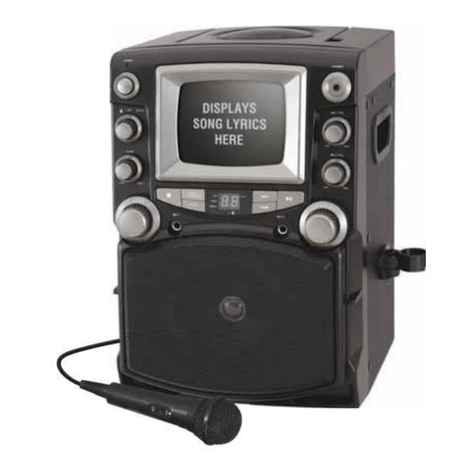
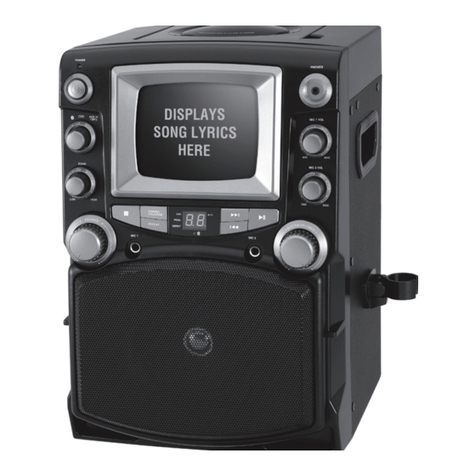
Sylvania SKAR122BT-UK User manual

MODEL NO. SKAR122BT-UK
BLUETOOTH KARAOKE SYSTEM
WITH ON SCREEN LYRICS
INSTRUCTION MANUAL
PLEASE READ BEFORE OPERATING THIS EQUIPMENT

1

TableofContents
Your Bluetooth Karaoke Party ………………………………………………
Features
Includes
Setup ………………………………………………………………………..… 3
Power
Orientation …………………………………..……………………………..….4
Front Features & Controls
Rear inputs & Controls
Audio & Video Output …………..……………………………………………5
RCA Audio Output
RCA Video Output
CD & CD+G ……………………..……………………….……………………6
RCD vs CD+G.
Loading and Playing a CD
Loading and Playing a CD+G
Programming a Loaded CD or CD+G
Balance
Echo
Bluetooth & Auxiliary input …………..………………………………………7
Pairing a Bluetooth Device for the First Time
Playing Audio Wirelessly
Using the Auxiliary input
Care And Maintenance …………..…………….………………………….…8
Carrying for Compact Discs
Care of the Cabinet
To Clean the Lens
Trouble Shooting …………..…………………………………………………9
Specifications …………..…………………………………………………..…
2
3
11

Features
•Supports Bluetooth v2.1
•Supports profile A2DP (Advanced Audio
Distribution Profile)
•Supports automatic device pairing
•Wireless range: 33 feet
•CD player: CD, CD-R/RW
•Karaoke: CD+G
•5” B&W monitor displays CD+G graphics &
lyrics
•2 digit red LED display
•Echo control
•Microphone volume control
•Balance control
•LED pairing indicator
•Top-load disc player
•Composite video output
•2 microphone inputs
•RCA stereo audio output
•3.5mm audio input
•Pairing button
•On/off switch
•Play/pause button
•Skip forward/back button
•Repeat 1 or ALL play
•Programmable tracks
•Master volume control
•Build-in speaker
Includes
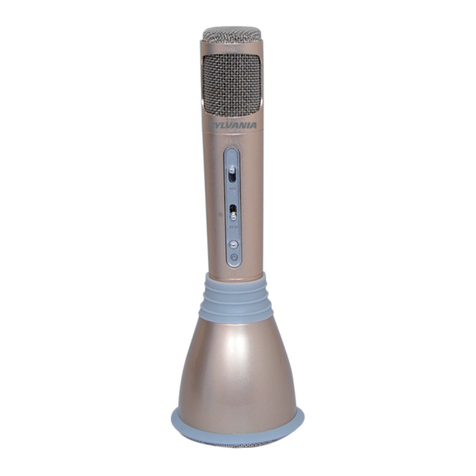
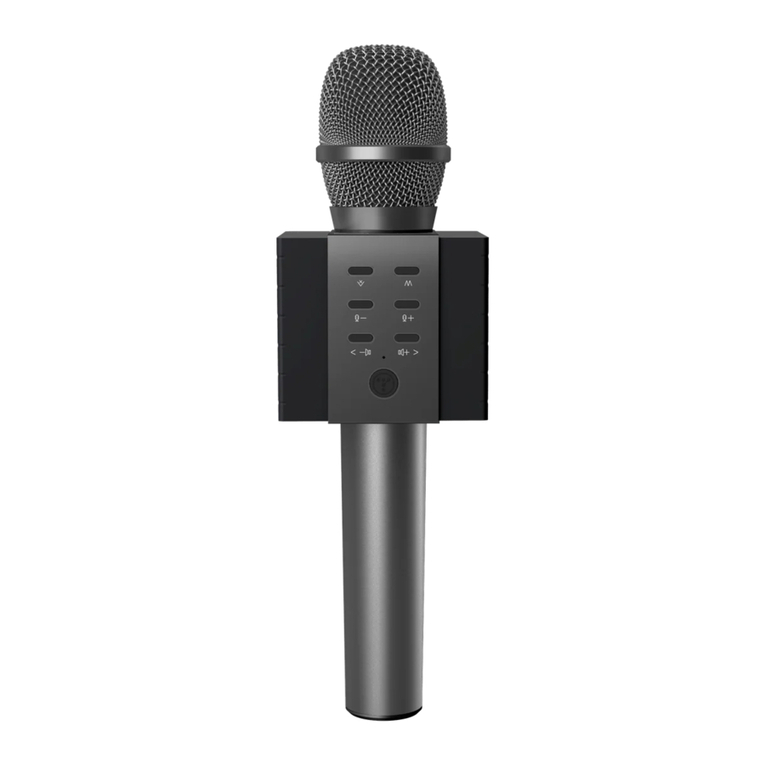
•Microphone
•AC/DC power adapter
Power
Plug the small end of the power cord into the DC input on the back of the unit, and the large
plug into a standard wall outlet.
3
Your Bluetooth Karaoke Party Machine
Setup
AC 230V~50Hz

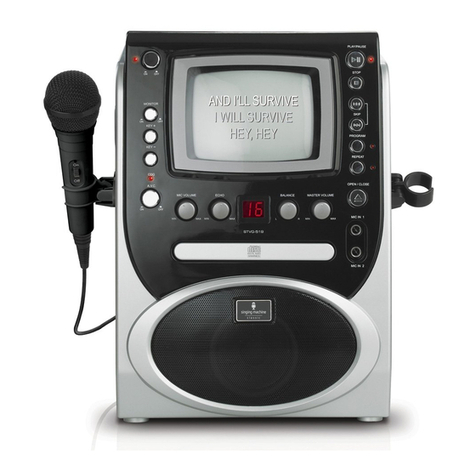
Front Features & Controls
4
Orientation
Mic. Volume 1, 2
Turn to adjust the mic
volume up or down.
Headphone Jack
Master Volume
Turn to adjust the
volume up or down.
Main Speaker
Mic input 1, 2
Screen
Power
Press to power
the unit on or off.
Turn to adjust
the echo up or down.
Echo
Balance
Turn to adjust the balance
between Music and Vocal.
CD Door
Source Selector
Turn to switch between
different sources.
Power Indicator
Stop
Press to stop
the current track.
Repeat
Press to repeat
the current track.
Play/Pause
Press to play or pause
the current track.
Skip/Search
on a loaded disc.
Press to skip between tracks
Press and hold to fast-forward
or rewind the current track on
a loaded CD.
Note: Fast forward/rewind
does not work with CD+G.
LED Display
Bluetooth
Indicator
Pairing/Program
In Bluetooth mode, press
and hold to begin pairing
to a device. In CD mode,
press to program a CD.

Rear input & Controls
AUX input
Audio/Video Output
DC power input
Connect to send audio and
vidio signal to an external
source.
Bright
Turn to adjust the screen
brightness up or down.
Contrast
Turn to adjust the screen
contrast up or down.
V-Hold
Turn to adjust the vertical
hold of the screen.
RCA Audio Output
Requires RCA audio cables (red/white, not included).
1. Connect RCA audio cables to the RCA Audio Output on the back of the karaoke machine,
and to the audio input of an external stereo system.
2. Adjust the external stereo system to accept input from the karaoke machine.
3. Audio played through the karaoke machine will now be heard through the connected stereo
system.
RCA Video Output
Require an RCA video cable (yellow, not included).
1. Connect an RCA video cable to the RCA Video Output on the back of the karaoke machine,
and to the video input of an external video system.
2. Adjust the external video system to accept input from the karaoke machine.
3. Video played through the karaoke machine will now be seen through the connected external
video system.
5
Audio & Video Output

CD vs. CD+G
CD+Gs, or CD+Graphics, are CDs that are specially formatted for use with karaoke machines. In
addition to the audio tracks, they contain graphics and text for lyrics that will appear on the screen
while the CD is playing. Switching the unit to CD+G mode will activate the screen and display lyrics
from the loaded CD+G. You must set the source to match the type of disc you wish to play. CD mode
should only be used to play CDs. Like wise, CD+G mode should only be used to play CD+Gs.
Loading and Playing a CD
Note: This unit is not compatible with MP3 CDs.
1. Open the CD Door.
2. Load a CD or CD-R/RW disc into the karaoke machine, label side facing up.
3. Close the CD door.
4. Set the Source Switch on the front of the unit to CD mode.
5. Press the Play/Pause button to begin playing the loaded CD.
Loading and Playing a CD+G
1. Open the CD Door.
2. Load a CD+G disc into the karaoke machine, label side facing up.
3. Close the CD door.
4. Set the Source Switch on the front of the unit to CD+G mode.
5. Plug a microphone (one included) into the Mic 1 or Mic 2 input.
6. Press the Play/Pause button to begin playing the loaded CD+G.
Programming a Loaded CD or CD+G
The procedure for programming either type of disc is the same..
1. Press the Stop button to stop a loaded disc.
2. Press the Program button.
3. Press the Skip/Search buttons to select a track from the loaded disc.
4. Press the Program button to add the selected tracks to the program.
5. Repeat steps 4 and 5 to program up to 20 tracks to play in a specified order.
6. Press the Stop button to cancel a program.
Balance
Use the Balance Control Feature to switch between the pre-recorded singer’s voice and the music,
when using a Multiplex Karaoke Disc.
Echo
Use the Echo Control Feature to enhance your voice for a concert hall effect.
6
CD & CD+G

Pairing a Bluetooth Device for the First Time
1. Power on the unit by pressing the Power button.
2. Set the Source Switch on the front of the unit to and press and hold the Pairing button.
The pairing indicator will flash blue quickly. When pairing, remain within 3 feet of the unit.
3. Using the native controls on your Bluetooth device, select the SKAR122BT in your Bluetooth
settings to pair. If your device requests a password, enter the default password “0000”.
Refer to the user’s manual for your specific device for instructions on pairing and connecting
Bluetooth devices.
4. When successfully paired and connected, a beep will issue from the unit and the Bluetooth
Indicator will display a solid blue light.
After initial pairing, the unit will stay paired unless unpaired manually by the user or erased
due to a reset of the device. If your device should become unpaired or you find it is unable to
connect, repeat the above steps.
Playing Audio Wirelessly
1. After pairing to a Bluetooth device, use the native controls on the connected Bluetooth
Device to select a track.
2. Play, pause or skip a selected track using the native controls on the connected Bluetooth
Device or the controls on the karaoke machine.
3. Audio played through the connected Bluetooth Device will now be heard through the
speakers.
Using the Auxiliary input
3.5mm audio input cable not included.
1. Plug one end of a 3.5mm audio input cable into the AUX IN input on the rear of the unit, and
plug the other end of the cable into the audio output on the MP3 Player or other source.
2. Press the Power button to power the unit on.
3. Set the Source Switch on the front of the unit to AUX IN.
4. Audio played through the connected device will now be heard through the speaker.
7
Bluetooth & Auxiliary Input

Carrying for Compact Discs
1. Treat the disc carefully. Handle the disc only by its
edges. Never allow your fingers to come in contact
with the shiny, unprinted side of the disc.
2. Do not attach adhesive tape, stickers, etc. to the disc
label.
3. Clean the discs periodically with a soft, lint-free, dry
cloth. Never use detergents or abrasive cleaners to
clean the disc. If necessary, use a CD cleaning kit. If a
disc skips or gets stuck on a section of the disc, it is
probably dirty or damaged (scratched). When cleaning
the disc, wipe in straight lines from the center of the
disc to the outer edge of the disc. Never wipe in circular motions.
4. This unit is designed to play discs bearing the identification logo as shown here or MP3
format Disc. Other discs may not conform to the CD standard and may not play
properly.
5. Discs should be stored in their cases after each use to avoid damage.
6. Do not expose discs to direct sunlight, high humidity, high temperatures, or dust, etc.
Prolonged exposure or extreme temperatures can warp the disc.
7. Do not stick or write anything on either side of the disc. Sharp writing instruments or the
ink may damage the surface.
Care of the Cabinet
1. To prevent fire or shock hazard, disconnect your unit from the AC power source when
cleaning.
2. The finish on your unit may be cleaned with a dust cloth and cared for as other furniture.
Use caution when cleaning and wiping the plastic parts.
3. Mild soap and a damp cloth may be used on the front panel.
To Clean the Lens
If the lens gets dirty, your player may skip or may not play a CD.
1. Open the CD door.
2. Use a camera lens blower/brush to blow on the lens once or twice, brush the dust or
particles off the lens then blow again.
3. To remove fingerprints, use a dry cotton swab to wipe from the middle to outer edge of
the lens.
8
Care And Maintenance

PROBLEM POSSIBLE CAUSE REMEDY
GENERAL
No sound in general Volume not adjusted.
Source mode in wrong
position.
Power Adapter disconnected
or loose.
Adjust the Volume knob.
Using the Source knob (at
the front panel), select the
proper function as required.
Check the connection or the
Power Adapter.
The unit does reset to
operation of any button
Under the influence of
electrostatic phenomenon,
the product may malfunction
and require user to
disconnect.
Turn off the unit, disconnect
the mains plug, and
reconnect after a few
seconds.
KARAOKE
Feedback is heard when
singing
Microphone is too close to
the unit or MIC volume is too
high.
Move Microphone away from
the unit or decrease MIC
volume.
Words do not appear on TV
screen
Using non-CD+G disc.
Video cable connected
improperly to TV.
Source is not selected on
TV.
A CD+G disc is playing but
the CD+G indicator isn’t on.
Use a CD+G disc.
Check connection (see page
7.).
Change source to match the
location of Karaoke
connection to TV(i.e
VIDEO1, CHANEL1 etc.)
Wipe disc with cloth or use
another disc.
Microphone has no sound Microphone not turned on.
Microphone volume turned
all the way down.
Microphone connection
loose.
Turn on the Microphone.
Turn the Microphone volume
up.
Insert the Microphone plug
totally to the MIC jack.
9
Trouble Shooting
Table of contents
Other Sylvania Karaoke System manuals