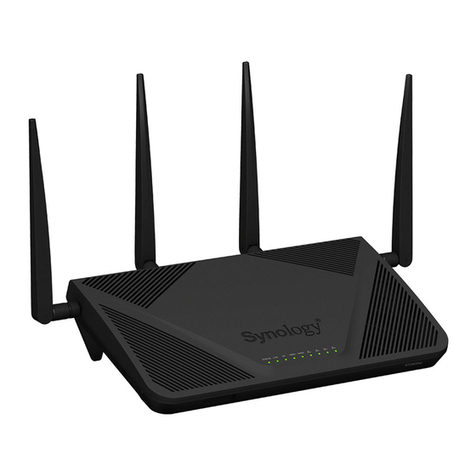
Synology RT2600ac Manual

Synology Router RT2600ac
Hardware Installation Guide

Table of Contents
Chapter 1: Meet Your Synology Router
Package Contents 3
Synology Router at a Glance 4
Safety Instructions 5
Chapter 2: Set up Your Synology Router
Install Antennas 6
Position Your Synology Router 7
Connect to Your Synology Router 7
Set up Synology Router Manager (SRM) 8
Appendix A: Specications
Appendix B: LED Indicator Table
2
Synology_HIG_RouterRT2600ac_20160729

3Chapter 1: Meet Your Synology Router
Thank you for purchasing this Synology product! Before setting up your new Synology Router, please check
the package contents to verify that you have received all of the items below. Also, make sure to read the safety
instructions carefully to avoid harming yourself or damaging your Synology Router.
Note: All images below are for illustrative purposes only, and may differ from the actual product.
Package Contents
Main unit x 1 AC power adapter x 1
RJ-45 LAN cable x 1
Antenna x 4
Meet Your Synology Router 1
Chapter
3

4Chapter 1: Meet Your Synology Router
Synology Router at a Glance
No. Article Name Location Description
1 Antenna Base
Rear Panel
Install the included antennas here.
2 Power Button Press to power on/off the Synology Router.
3 Power Port Connect the AC power adapter here.
4 RESET Button Press and hold for four seconds (Soft Reset) or for ten seconds (Hard
Reset).
5 USB 2.0 Port Connect an external drive, USB printer, or other types of USB devices
here.
6 WAN Port Connect a network cable from the ISP modem into this port to establish
WAN connection.
7 LAN Port Connect network cables into these ports to establish LAN connection.
8 SD Card Slot
Front Panel
Insert the SD card here.
9 STATUS Indicator Displays the status of the system.
10 2.4G Wi-Fi Indicator Displays the status of 2.4G Wi-Fi connection.
11 5G Wi-Fi Indicator Displays the status of 5G Wi-Fi connection.
12 WAN Indicator Displays the status of WAN connection.
13 LAN Indicator Displays the status of LAN connection.
14 USB 3.0 Port
Left Panel
Connect an external drive, USB printer, or other types of USB devices
here.
15 Eject Button 1. Press to eject USB/SD external storages.
2. Displays the status of USB/SD external storages.
16 WPS Button
Right Panel
Press to start WPS.
17 Wi-Fi Switch Switch to turn on/off the Wi-Fi network.
Note: For LED indicator information, please refer to "Appendix B: LED Indicator Table".

5Chapter 1: Meet Your Synology Router
Safety Instructions
Keep away from direct sunlight and away from chemicals. Make sure the environment does not
experience abrupt changes in temperature or humidity.
Place the product right side up at all times.
Do not place near any liquids.
Before cleaning, unplug the power cord. Wipe with damp paper towels. Do not use chemical or
aerosol cleaners.
To prevent the unit from falling over, do not place on carts or any unstable surfaces.
The power cord must plug in to the correct supply voltage. Make sure that the supplied AC voltage is
correct and stable.
To remove all electrical current from the device, ensure that all power cords are disconnected from
the power source.
Risk of explosion if battery is replaced with an incorrect type. Dispose of used batteries appropriately.

6Chapter 2: Set up Your Synology Router
Install Antennas
1 Point the antenna at the antenna base.
2 Turn clockwise until the antenna is secured.
3 Repeat Steps 1 and 2 to install the other antennas. For optimal Wi-Fi performance, tilt the antennas so that
they are at a 90 degree angle to the surface.
Set up Your Synology Router 2
Chapter
6

7Chapter 2: Set up Your Synology Router
Position Your Synology Router
For optimal performance, it is recommended to position the Synology Router as advised below:
• On a stable surface (e.g. an elevated shelf) away from any possible physical interruptions.
• Close to the center of the area where the wired/wireless client devices are placed, and within a visible distance
from the wireless devices.
• In a position where few walls and ceilings are between your Synology Router and its client devices.
• Away from any potential electrical signal sources, such as other Wi-Fi routers, 3G/4G bases, and microwave
ovens.
• Away from large expanses of metal or other materials, such as metal doors, glass panels, and concrete.
Place Flat on a Surface
Simply place the Synology Router at on a horizontal, stable surface.
Connect to Your Synology Router
1 Use the included network cable to connect your Synology Router (at the WAN1 port) to the ISP modem.
2 Connect one end of the power adapter to the power port on your Synology Router, and the other end to
the power outlet. Press the power button to power on your Synology Router. Wait for up to two minutes until
the STATUS and WAN LED indicators turn green.
3 Connect wired/wireless client devices to your Synology Router:
• For wired devices: Use network cables to connect devices to the LAN ports. The corresponding LAN LED
indicators should turn orange/green to indicate successful connection.
• For wireless devices:

8Chapter 2: Set up Your Synology Router
1 Turn on the Wi-Fi switch on the Synology Router, and wait until the 2.4G/5G LED indicators turn static
green to indicate it is ready to connect to other devices.
2 Use your wireless device to scan and join the Wi-Fi network created by your Synology Router.
Note:
Below are the default credentials for the Wi-Fi network:
1. Wi-Fi SSID: SynologyRouter
2. Password: synology
The default credentials can be changed during the initial SRM setup.
Set up Synology Router Manager (SRM)
1 Use a computer or wireless device connected to the Synology Router's local network. If you use a wireless
device, scan and join the Wi-Fi network (SSID: SynologyRouter; Password: synology).
2 Open a web browser, and enter either URL into the address bar:
a http://router.synology.com
b http://192.168.1.1:8000
3 Once connected, click Start to launch the SRM Setup Wizard.

9Chapter 2: Set up Your Synology Router
4 Fill in the information to set up the administrator account. Click Next to continue.
5 Fill in the information to set up the Wi-Fi network. Click Next to continue.

10 Chapter 2: Set up Your Synology Router
6 Set up the operation mode. When choosing the Wireless Router mode, you can also enable External access
to SRM so that only external access via the HTTP(S) port (e.g. 8000/8001) can reach SRM.
7 Choose an Internet connection type:
• PPPoE: Choose this option if you have obtained PPPoE credentials from the ISP.
• Manual IP: Choose this option if you have obtained an available IP address for use.
• Auto IP: Choose this option if you rely on an ISP modem for automatic IP assignment.
Other manuals for RT2600ac
1
Table of contents
Other Synology Network Router manuals