4Chapter 1: Before You Start
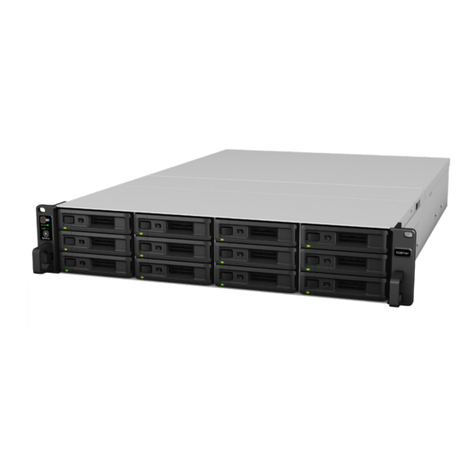
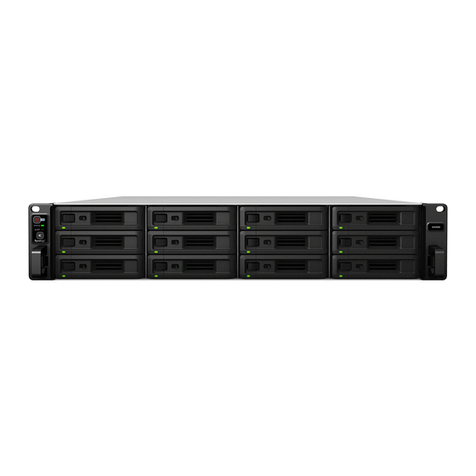
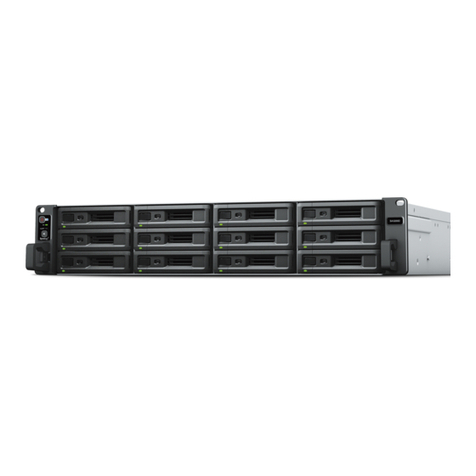
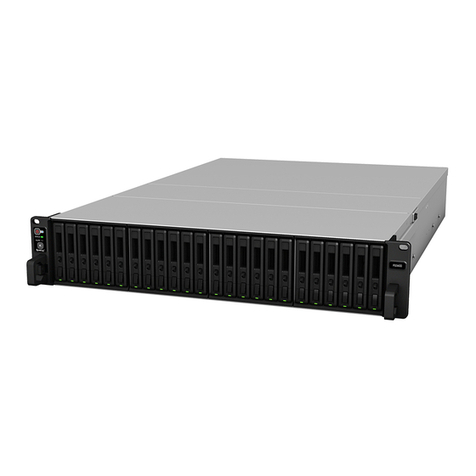
Synology FS6400 at a Glance
No. Article Name Location Description
1 Power Button and Indicator
Front
1. Press to power on your FS6400.
2. To power off the FS6400, press and hold until you hear a beep sound
and the Power LED starts blinking.
2 Status Indicator Displays the status of the system. For more information, see "LED
Indicator Table."
3 Alert Indicator Displays warnings regarding fan or temperature. For more information,
see "LED Indicator Table."
4 Beep Off Button Press to deactivate the beeping sound that is emitted when a malfunction
occurs.
5 Drive Status Indicator Displays the status of drives. For more information, see "LED Indicator
Table."
6 Drive Tray Install drives (hard disk drives or solid state drives) here.
7 Rail Kit Release Tab Push in and hold to release your FS6400 from the rail kit lock.1
8 PSU Fan
Back
Disposes of excess heat and cools the PSU.
9 Power Port Connect power cords here.
10 PSU Indicator Displays the status of the power supply unit (PSU). For more information,
see "LED Indicator Table."
11 Console Port This port is used for manufacturing use only.
12 RESET Button
1. Press and hold until you hear a beep sound to restore the default IP
address, DNS server, and password for the admin account.
2. Press and hold until you hear a beep sound, then press and hold
again until you hear three beep sounds to return the FS6400 to “Not
Installed” status so that DiskStation Manager (DSM) can be reinstalled.
13 1GbE LAN Port Connect RJ-45 network cables here.
14 10GBase-T LAN Port Connect RJ-45 network cables here.
15 USB 3.0 Port Connect external drives and other USB devices to the FS6400 here.
16 PCI Express Expansion
Slot Supports two PCIe add-in cards.
17 SAS OUT Port Connect Synology Expansion Unit to the SAS OUT port on the right side.
1For more information about the rail kit installation, please refer to the Quick Installation Guide that comes with the rail kit.