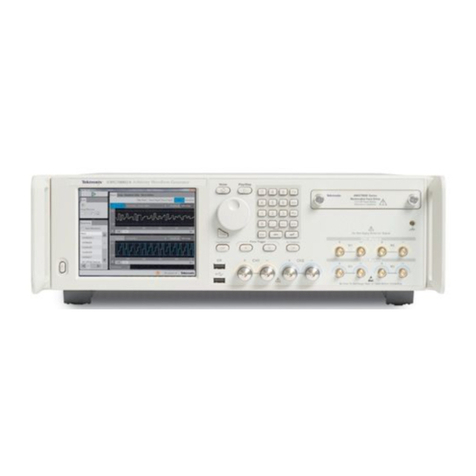
Tektronix AWG5012 User manual
Other Tektronix Portable Generator manuals
Tektronix
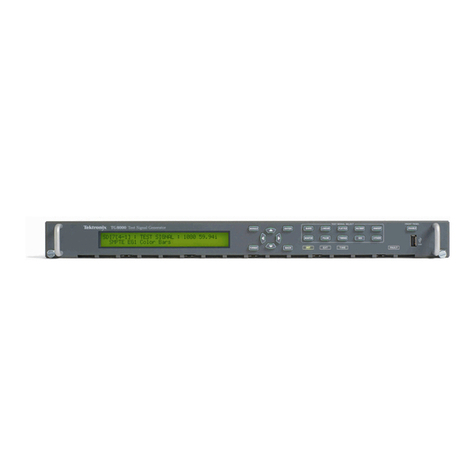
Tektronix TG8000 Use and care manual
Tektronix
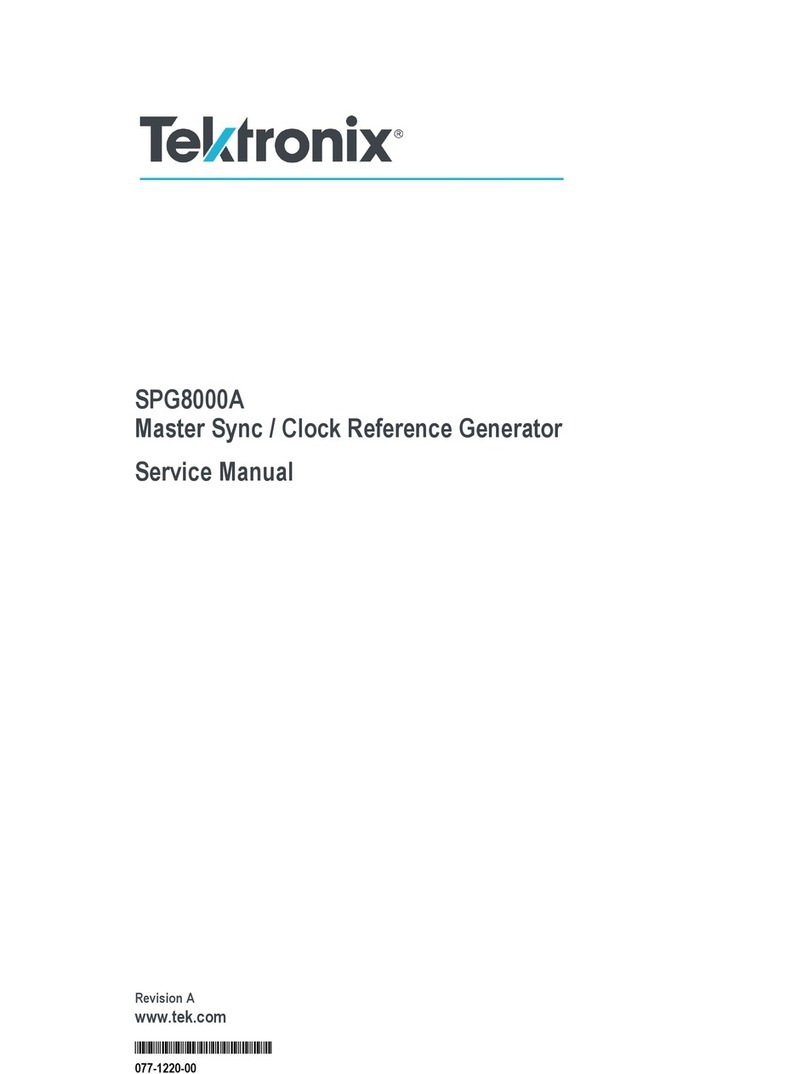
Tektronix SPG8000A User manual

Tektronix
Tektronix AWG7101 User manual
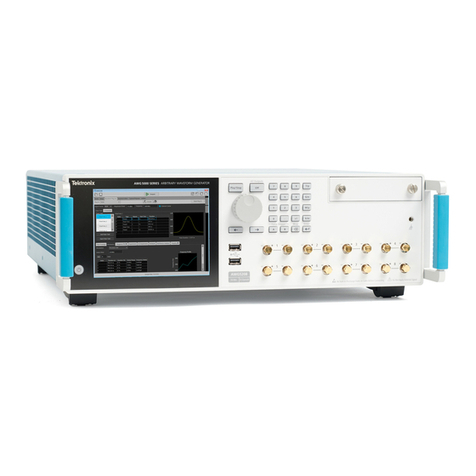
Tektronix
Tektronix AWG5200 Series Use and care manual
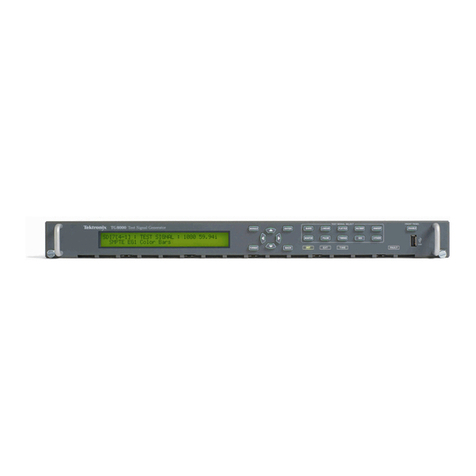
Tektronix
Tektronix TG8000 Operating and maintenance manual
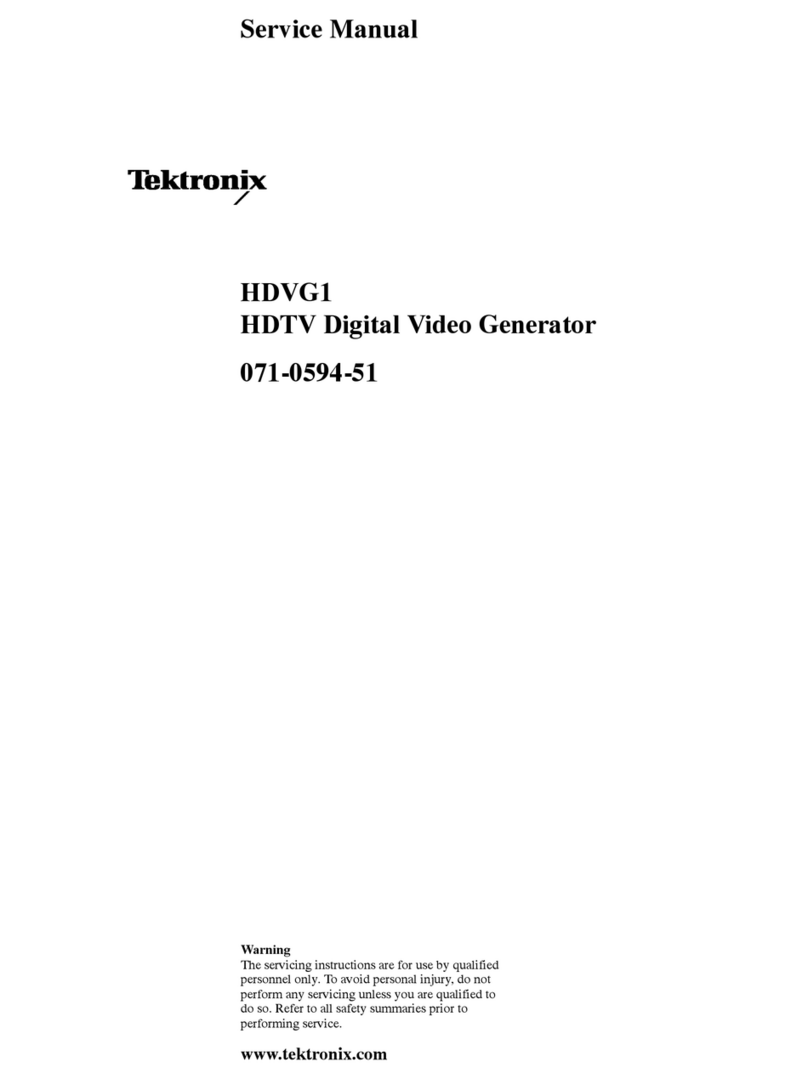
Tektronix
Tektronix HDVG1 User manual
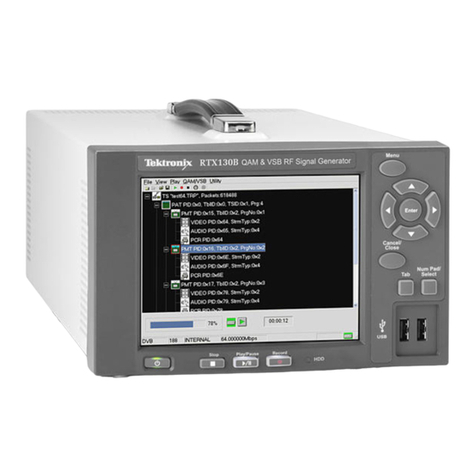
Tektronix
Tektronix RTX130B User manual
Tektronix
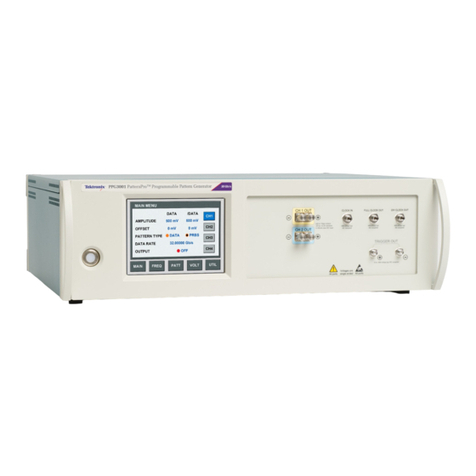
Tektronix PPG3000 Series User manual
Tektronix
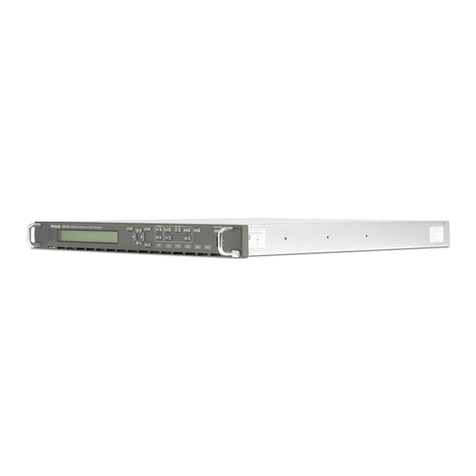
Tektronix SPG70UP User manual
Tektronix
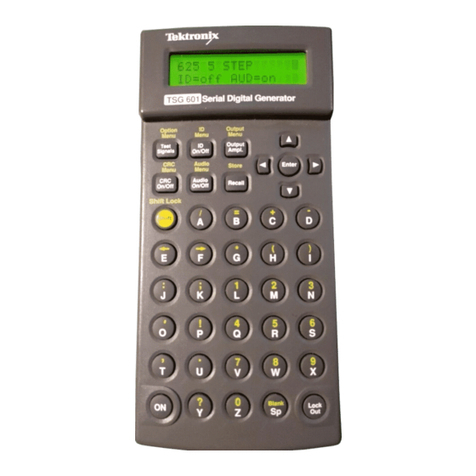
Tektronix TSG 601 User manual
Tektronix
Tektronix TG8000 User manual

Tektronix
Tektronix PatternPro PPG1600 User manual
Tektronix
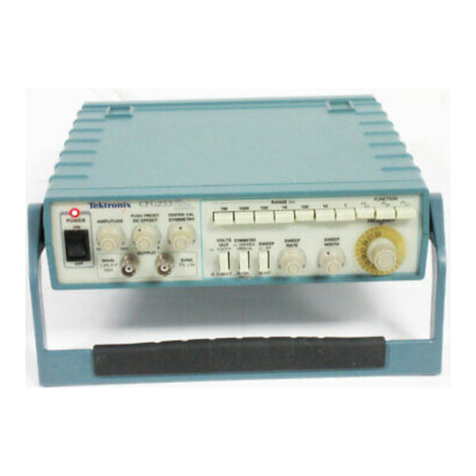
Tektronix CFG253 User manual
Tektronix
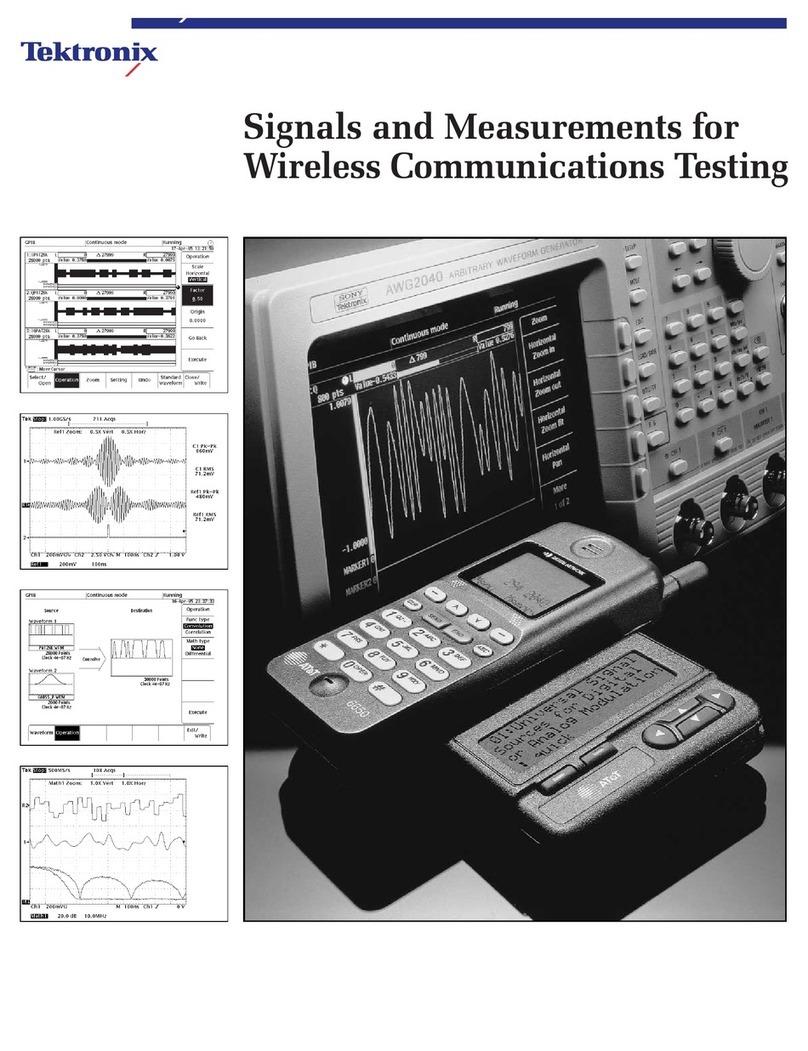
Tektronix AWG 2021 User manual
Tektronix
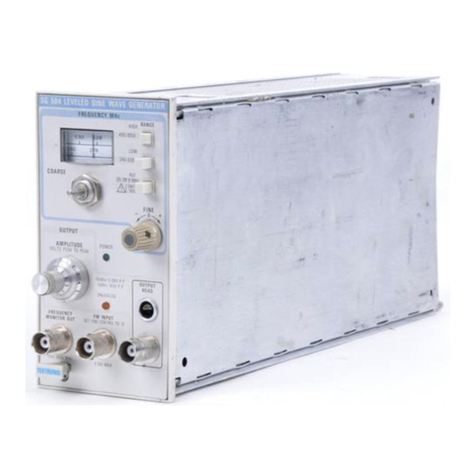
Tektronix SG 504 User manual

Tektronix
Tektronix AWG510 User manual
Tektronix
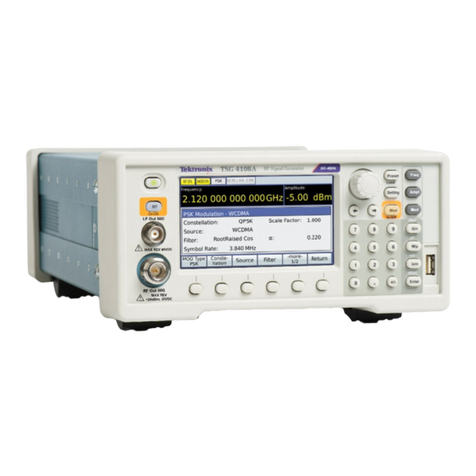
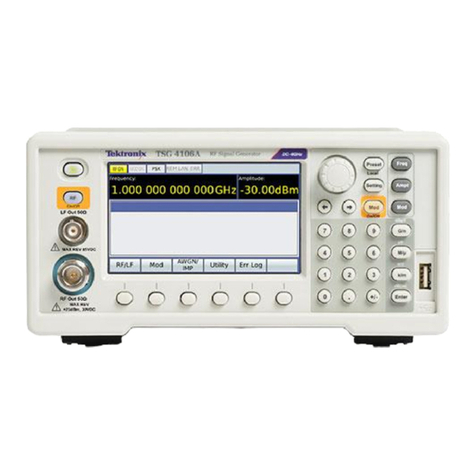
Tektronix TSG4100A Series Operating and maintenance manual
Tektronix
Tektronix TSG4100A-RM1 User manual
Tektronix
Tektronix AWG7000 Series Manual
Tektronix
Tektronix AWVG1 User manual