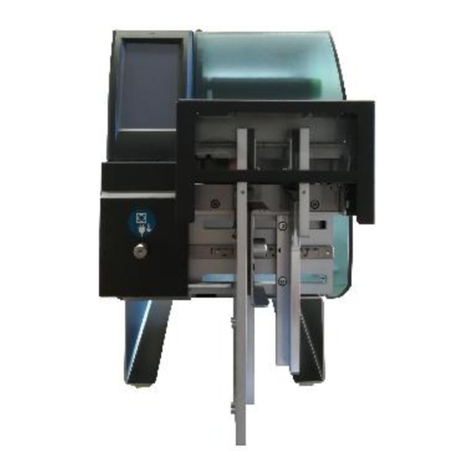
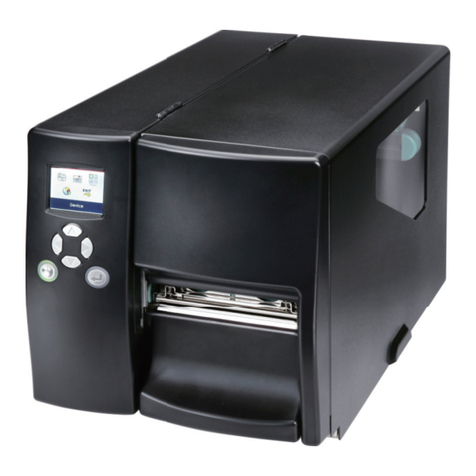
Texlabel SP1 User manual

User Guide
V. 18.0606
SP1 –SP3

2
Summary
OVERVIEW ......................................................................................................................................................... 3
INSTALLATION.................................................................................................................................................... 5
INSTALLATION FOR WINDOWS USER ............................................................................................................... 5
INSTALLATION FOR MAC USER.......................................................................................................................... 6
LOADING RIBBONS .......................................................................................................................................... 11
USING THE BUILT-IN SOFTWARE - Cablabel S3 Lite......................................................................................... 13
PARAMETERS FOR WHITE AND COLORED STICKERS....................................................................................... 22
PARAMETERS FOR TRANSPARENT STICKERS................................................................................................... 24
PARAMETERS FOR CARE LABELS ..................................................................................................................... 26
PARAMETERS FOR MAC USER ......................................................................................................................... 30
PRINCIPAL REQUIREMENTS FOR INTERNATIONAL CARE LABELS.................................................................... 39

3
OVERVIEW
Please keep the original packaging in case the printer must be returned.
Box Content:
SP1 –SP3 Label Printer.
DVD Including software and printer driver.
Empty foil core.
Foil spindle –Set of 2.
USB Cable.
AC Adapter.
Power adapter.
Printer Views:
1. Feed button
2. Led Status
3. Led Power
4. Power Button
5. Cover release catches
6. Front cover
1. Calibration Button
2. Power jack
3. Ethernet Port
4. Serial port
5. USB port

4
1. Label guide plate
2. Label supply hub
3. Release catch for opening the label supply
hub
4. Label guide
5. Release catch for closing the printer cover
6. Label sensor
7. Platen
8. Guide track
9. Platen lockers
10. Cover for foil rewind mechanism
11. Foil rewind wheel
12. Print head
13. Foil supply wheel
14. Paper press bar

5
INSTALLATION
1. Plug the jack of the AC adapter (1) into the power connection socket (2).
2. Plug the power cable (3) into the AC adapter (1).
3. Plug the power cable (3) into a grounded socket.
4. Connect the printer to the computer to USB or Ethernet.
5. Switch the printer on at the POWER button.
6. The printer performs a system test, and then shows the system status with the LED status.
NOTE: If the printer is connected correctly, the Power LED lights green after the system test.
INSTALLATION FOR WINDOWS USER
Installing the printer driver
1. Connect to the following link and download the Windows driver for the printer.
https://it.seagullscientific.com/drivers/cab-windows-printer-drivers/
2. Turn on the printer and wait for the green LED to light up
3. Run the file as an administrator and follow the printer setup wizard.
Installing Software
Note! When the printer is connected to USB cable, the driver installation will be automatically made.
Insert the DVD in the computer.
Choose "Software" on the Welcome screen.
Press the icon "install software" to start the installation.

6
INSTALLATION FOR MAC USER
1. Connect to the following link and download the Mac driver for the printer.
http://www.godexintl.com/de/download/download/list/Drivers
2. Install the .dmg file and after connect and turn on the printer
3. In your Mac go to: System Preferences –Printers & Scanner
4. Press “ +”

7
5. Select “ GODEX RT730i” for SP3 (or “GODEX RT700” for SP1) and in Use select “Other”
6. Go to: MacintoshHD
7. Library

8
8. Printers
9. PPDs
10. Contents

9
11. Resources
12. Select “godex-rt730i.ppd” (for SP3) and press OPEN
(for SP1 select “godex-rt700.ppd”)
13. Press Add

10
14. In “Printer & Scanner” press “Option & Supplies”
15. Rename “GODEX RT730i” to “SP3” (“GODEX RT700” to “SP1”)
Other manuals for SP1
1
This manual suits for next models
1
Table of contents
Other Texlabel Label Maker manuals