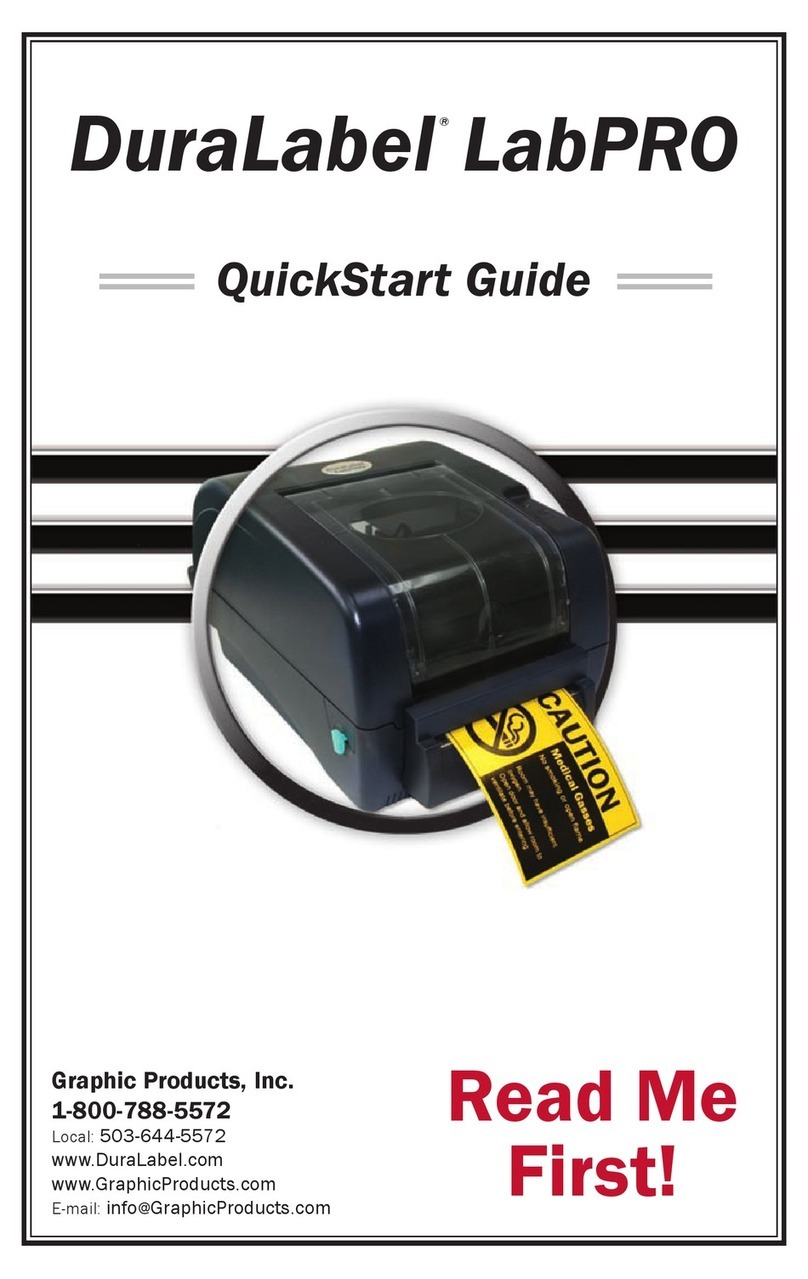
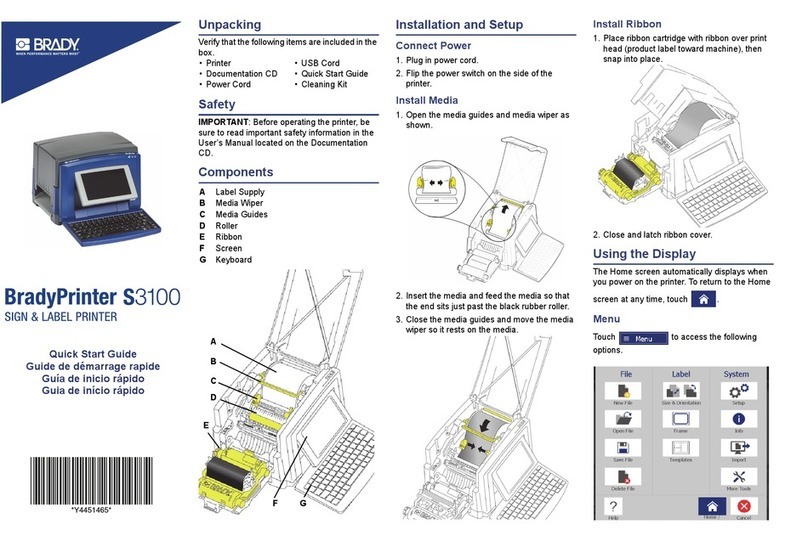
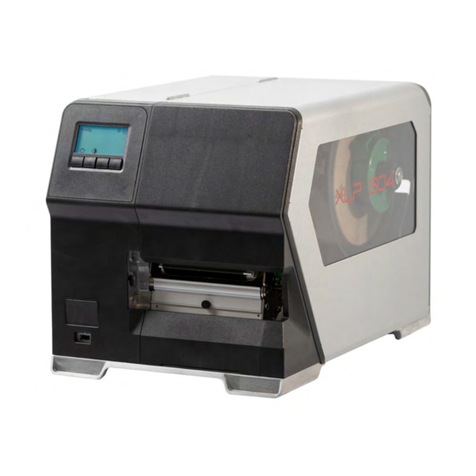
DuraLabel LabPRO User manual

Graphic Products, Inc.
1-800-788-5572
Local: 503-644-5572
www.DuraLabel.com
www.GraphicProducts.com
E-mail: info@GraphicProducts.com
LabPRO
User’s Guide

©2008-2011 Graphic Products, Inc. All Rights Reserved

WARRANTY
-1-
Graphic Products DuraLabel printers are warrantied to be free from defects in
materials or workmanship for a period of five years from the date of purchase.
Within this period, Graphic Products, Inc. will, at its sole option, repair or replace
any components which fail in normal use. Such repairs or replacement will be
made at no charge to the purchaser for parts or labor, provided that the purchaser
shall be responsible for any transportation cost. This warranty does not cover loss,
damages from accident, or equipment or parts which have been misused, altered,
neglected, carelessly handled, used for purpose other than those for which the
printer was manufactured, or damages resulting from unauthorized service.
NOTE: Repairs have a 90 day warranty. If the unit sent in is still under its original
warranty, then the new warranty is 90 days or to the end of the original warranty,
depending upon which is longer.
The Warranties and remedies contained herein are exclusive and in lieu of all other
warranties whether express, implied or statutory, including any liability arising
under any warranty of merchantability or fitness for a particular purpose, statutory
or otherwise. This warranty gives the purchaser specific legal rights, which may vary
from state to state.
In no event shall Graphic Products be liable for any incidental, special, indirect or
consequential damages, whether resulting from the use, misuse or inability to use
the product for any reason including defect. Some states do not allow the exclusion
of incidental or consequential damages, so the above limitation may not apply in all
areas.
Graphic Products retains the exclusive right within all warranty periods to repair,
replace the product or offer a full refund of the purchase price at its sole discretion.
Such remedy shall be the purchaser’s sole and exclusive remedy for any breach of
warranty.
General maintenance and cleaning of the DuraLabel printer is the purchaser’s
responsibility and is not covered by the warranty. Expendable items or parts such
as label supply and ribbon are not covered by this warranty.
NOTE: Some DuraLabel printers require specific preparation such as removal of
battery or power supply before shipping. Please contact your Graphic Products
representatives to ensure correct return procedure: call 1-800-788-5572 or visit
www.GraphicProducts.com. Graphic Products, Inc. shall not be responsible for any
loss or damages incurred during shipping.

GETTING STARTED
Minimum System Requirements
Operating System: Windows 2000 SP4, XP SP2, Vista and 7
Memory: 128 MB RAM
Additional Requirements: IT Administration Privileges
Supplies
The ribbon and various print media for the DuraLabel®LabPRO have been optimized
for compatibility and print quality. Only authorized supplies from Graphic Products
will print correctly in the DuraLabel®LabPRO.
Prepare Printer
Instructions for unpacking, loading supplies and connecting your printer are located
in the Printer Manual (in electronic form). There is also an instructional video
included on the CD, that shows you how to load supplies. Please read and follow
those instructions carefully before continuing.
NOTE: To view the electronic version of the printer manual you will need a corresponding document viewer
(PDF or DOC). A suitable viewer is included on the installation CD - Adobe Acrobat Reader.
Please contact us for all your labeling needs. From standardized to custom
labels, we’re ready to provide the labeling supplies you need.
Call 1-800-788-5572 today to get your labeling problems solved.
-2-

INTRODUCTION
Welcome...And congratulations on the purchase of your new DuraLabel®LabPRO
Thermal Transfer Printer! We've included this guide to get you printing as quickly as possible.
In this guide you'll find information on setting up your printer, configuring your software, and
creating custom labels. We know that all topics cannot be addressed in any document and are
ready to answer your questions. If you have any questions or concerns, make sure to give us a
call! Graphic Products, Inc. 1-800-788-5572
CONTENTS
Warranty ......................................................................................pg. 1
Getting Started............................................................................pg. 2
Minimum System Requirements............................................pg. 2
Supplies....................................................................................pg. 2
Prepare Printer ........................................................................pg. 2
Load Printer.................................................................................pg. 4
Printer Ribbon Parts................................................................pg. 4
Load Ribbon.............................................................................pg. 5 - 9
Printer Inside Parts..................................................................pg. 10
Load Label Stock.....................................................................pg. 11 - 13
Tape Guide Install Instructions ..................................................pg. 14 - 16
To Use Tape Guides.................................................................pg. 14
Connect Printer ...........................................................................pg. 17
Insert Installation CD...............................................................pg. 17
Install Using USB Cable...........................................................pg. 18 - 19
Install Using Parallel Cable .....................................................pg. 20 - 23
Configure Driver ..........................................................................pg. 24 - 27
Configure Windows 2000/XP/Vista/7...................................pg. 24
Continuous Vinyl Printing Instructions..............................pg. 25
Die-Cut Label Instructions .................................................pg. 25
Black Mark Label Instructions...........................................pg. 26
Cut Labels in Intervals .......................................................pg. 27
Adjust Print Speed..............................................................pg. 27
Adjust Darkness .................................................................pg. 27
Label Creation.............................................................................pg. 28
Use Templates .........................................................................pg. 29
Set Up Microsoft Word Document..........................................pg. 29
Select Printer...............................................................................pg. 29
Change Page Setup.................................................................pg. 31
Orientation ...............................................................................pg. 32
Label Design................................................................................pg. 33
Text ...........................................................................................pg. 33 - 34
Graphics ...................................................................................pg. 35 - 36
Symbols....................................................................................pg. 37 - 38
Bar Codes.................................................................................pg. 39 - 40
Sequencing ..............................................................................pg. 41 - 44
Import from Excel ....................................................................pg. 45 - 49
Cleaning & General Maintenance..............................................pg. 50 - 53
Print Head ................................................................................pg. 50
Cutter........................................................................................pg. 51
Cleaning The Cutter From The Inside ....................................pg. 52
Platen Roller.............................................................................pg. 53
Troubleshooting ..........................................................................pg. 54 - 59
Specifications..............................................................................pg. 60 -3-

LOAD PRINTER
Printer Ribbon Parts
Flange of Ribbon Spindle
(The larger end of spindle)
Ribbon Rewind Spindle
with paper core applied
Ribbon Supply Spindle
Rear Spring-Loaded Hub
for Ribbon Supply Spindle Rear Hub (for Flange-side of Spindle)
for Ribbon Supply Spindle
Front Hub (for Flange-side of Spindle)
for Ribbon Rewind Spindle
Front Spring-Loaded Hub
for Ribbon Rewind Spindle
(with paper core) Flange of Ribbon Spindles insert
on the right side, when facing the
front of the Printer.
-4-

Load Ribbon
IMPORTANT! Always turn OFF the printer when loading supplies. Always wait at
least 5 seconds before turning ON the power.
The ribbon and various print media for the DuraLabel®LabPRO have been optimized for
compatibility and print quality. Only authorized supplies from Graphic Products will print
correctly in the DuraLabel®LabPRO.
Turn the power OFF first!
1. Open the Ribbon Mechanism Cover by pressing down and in on the Ribbon
Mechanism Cover to unlatch, then lift up and back to open.
For loading 4.3" ribbon supply, please follow "To Load 4.3" ribbon supply"
instructions (page 5). For loading 2.5" ribbon supply, please follow "To Load 2.5"
ribbon supply" instructions (page 6).
To Load 4.3" ribbon supply
2. With flange of the spindle on the right side, apply 4.3" Ribbon Supply to the
Ribbon Supply Spindle with the Ribbon Supply leader extended over the top and
towards the back.
3. Slide the Ribbon Supply on the Spindle until it touches the Flange of the Spindle.
Fig. 1 Press down and in to unlatch Fig. 2 Lift up and back to open
Ribbon leader
Flange of Spindle
Fig. 3 Correct ribbon application for Spindle -5-

4. Apply the provided paper core onto the front Ribbon Rewind Spindle.
5. Skip to Step 6, section Load Ribbon Continued. (See page 7, section “Load
Ribbon Continued”)
To Load 2.5" ribbon supply
2. With the flange of the spindle on the right side, apply 2.5" Ribbon Supply to the
Front Ribbon Spindle with the Ribbon Supply leader extended over the top and
towards the back.
3. Align the 2.5" Ribbon Supply in the center of the ribbon spindle using the
measurement marks.
4. Apply the provided 2.5" paper core onto the front Ribbon Rewind Spindle and
center it using the measurement marks.
5. Skip to Step 6, section Load Ribbon Continued. (See page 7, section “Load
Ribbon Continued”)
Fig. 4 Ribbon Supply (2.5")
centered on Ribbon
Supply Spindle
Fig. 5 Paper core (2.5")
centered on Ribbon
Supply Spindle
Ribbon leader
Flange of Spindle
Fig. 3 Correct ribbon application for Spindle
-6-

Load Ribbon Continued- For All Ribbon Supply Sizes
The ribbon loading process is the same for all sizes of ribbon for Steps 6 - 12 of section
“Load Ribbon Continued”. Pages 7-9, Fig. 6, 7, 8, 11, 12, 13, & 14 illustrate 4.3" ribbon
supply.
6. Apply the Ribbon Supply Spindle to the Rear Hub, with the Ribbon Supply leader
dropped down.
7. Place the Ribbon Rewind Spindle with the paper core on the Front Hubs, by
inserting the left side of the Spindle first, fitting it onto the Front Spring-Loaded
Hub. Then fit the right side of spindle which has the flange onto the right Hub.
Fig. 8 Ribbon Rewind Spindle with paper core (4.3") being applied to the Front
Spring-loaded Hub
Fig. 9 Ribbon
Supply (2.5")
Spindles loaded
and aligned with
each other
Fig. 7 Ribbon Supply (4.3") Spindle inserted at
Rear Hubs
Fig. 6 Ribbon Supply (4.3") spindle being inserted at Rear Hubs
-7-

8. Open the Printer Cover by pulling forward the Printer Cover Release Levers on the
sides of the printer.
9. Grab the Ribbon Supply leader that is hanging down.
10. Pull it towards you and underneath the Ribbon Mechanism and Print Head, up to
the Front Hub.
NOTE:
The ribbon should rotate with ease as you unroll it. The dull side of the ribbon should face
down towards the label stock.
Fig. 11 Ribbon Supply (4.3") being pulled down and underneath
Fig. 12 Ribbon Supply being pulled up to the Ribbon
Rewind Spindle
Fig. 10 Printer Release Lever being pulled forward
-8-
Other manuals for LabPRO
1
Table of contents
Other DuraLabel Label Maker manuals

DuraLabel
DuraLabel 2000 PLUS User manual

DuraLabel
DuraLabel Kodiak User manual

DuraLabel
DuraLabel Catalyst User manual

DuraLabel
DuraLabel PRO 300 User manual

DuraLabel
DuraLabel Bronco User manual

DuraLabel
DuraLabel Bronco User manual

DuraLabel
DuraLabel 7000 User manual

DuraLabel
DuraLabel Bronco User manual

DuraLabel
DuraLabel LabPRO User manual

DuraLabel
DuraLabel Kodiak User manual