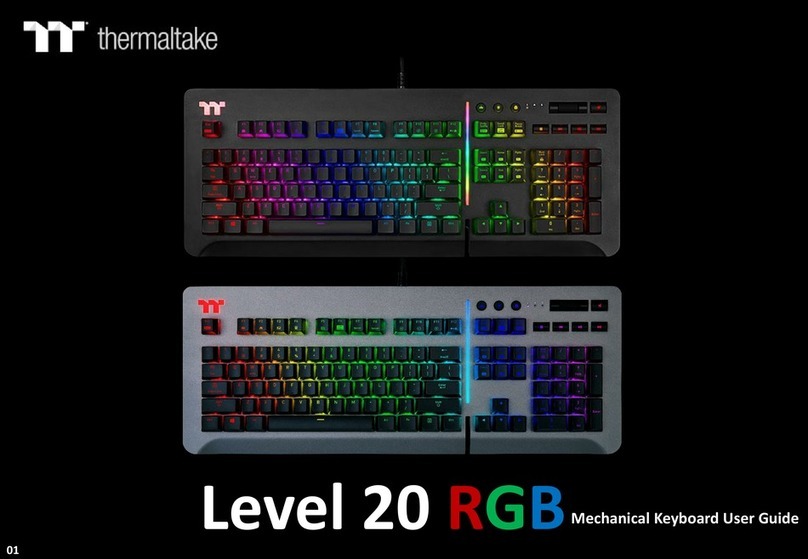
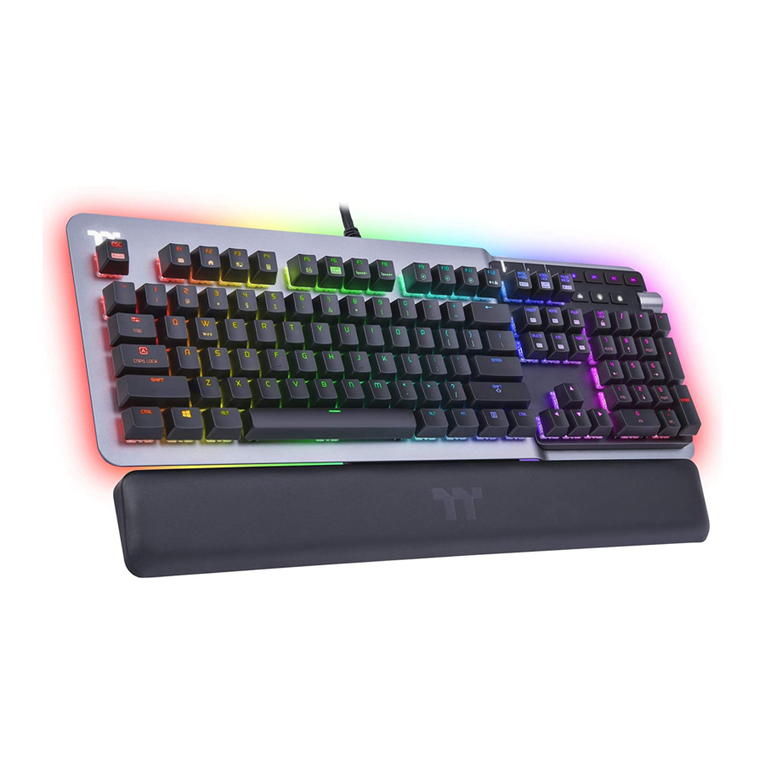
TT Premium | Level 20 GT RGB User Guide
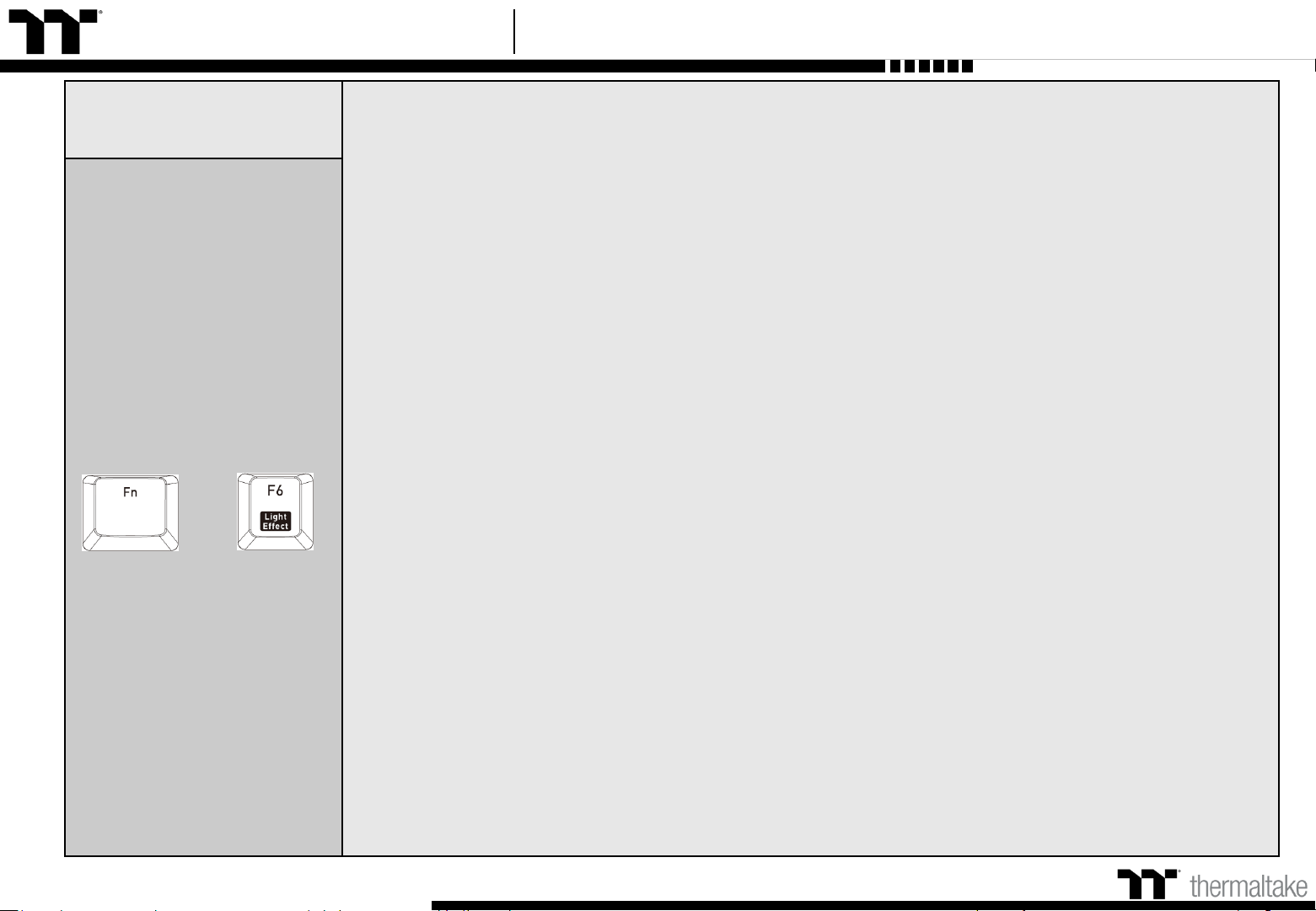
Switching Lighting
Effects Static:
(1). You can use Fn + F9 (red), F10 (green), and F11 (blue) to change the color of the lighting effect.
Pulse:
(1). You can use Fn + F7 (slower) and F8 (faster) to adjust the speed of the lighting effect.
(2). You can use Fn + F12 to switch between monochrome and random color modes.
(3). Under monochrome mode, Fn + F9 (red), F10 (green), and F11 (blue) can be used to adjust the color of the lighting effect.
Wave:
(1). You can use Fn + F7 (slower) and F8 (faster) to adjust the speed of the lighting effect.
(2). You can use Fn + ↑, ↓, ←, or → to change the direction of running lights.
(3). You can use Fn + F9 (red), F10 (green), and F11 (blue) to change the color of the lighting effect.
Spiral Rainbow:
(1). You can use Fn + F7 (slower) and F8 (faster) to adjust the speed of the lighting effect.
(2). You can use Fn + ← (counterclockwise) or → (clockwise) to switch the direction of running lights.
(3). You can use Fn + F9 (red), F10 (green), and F11 (blue) to change the color of the lighting effect.
Spectrum Cycling:
(1). You can use Fn + F7 (slower) and F8 (faster) to adjust the speed of the lighting effect.
Reactive:
(1). You can use Fn + F7 (slower) and F8 (faster) to adjust the speed of the lighting effect.
(2). You can use Fn + F12 to switch between monochrome and random color modes.
(3). Under monochrome mode, Fn + F9 (red), F10 (green), and F11 (blue) can be used to adjust the color of the lighting effect (F12 will display the blended color).
Flow:
(1). You can use Fn + F7 (slower) and F8 (faster) to adjust the speed of the lighting effect.
(2). You can use Fn + F12 to switch between monochrome and random color modes.
(3). Under monochrome mode, Fn + F9 (red), F10 (green), and F11 (blue) can be used to adjust the color of the lighting effect (F12 will display the blended color).
Ripple:
(1). You can use Fn + F7 (slower) and F8 (faster) to adjust the speed of the lighting effect.
(2). You can use Fn + F12 to switch between monochrome and random color modes.
(3). Under monochrome mode, Fn + F9 (red), F10 (green), and F11 (blue) can be used to adjust the color of the lighting effect (F12 will display the blended color).
Raindrop:
(1). You can use Fn + F7 (slower) and F8 (faster) to adjust the speed of the lighting effect.
(2). You can use Fn + F12 to switch between monochrome and random color modes.
(3). Under monochrome mode, Fn + F9 (red), F10 (green), and F11 (blue) can be used to adjust the color of the lighting effect (F12 will display the blended color).
Snake Marquee:
(1). You can use Fn + F7 (slower) and F8 (faster) to adjust the speed of the lighting effect.
(2). You can use Fn + ← or → to change the direction of running lights.
(3). You can use Fn + F12 to switch between monochrome and random color modes.
(4). Under monochrome mode, Fn + F9 (red), F10 (green), and F11 (blue) can be used to adjust the color of the lighting effect (F12 will display the blended color).
Blink:
(1). You can use Fn + F7 (slower) and F8 (faster) to adjust the speed of the lighting effect.
(2). You can use Fn + F12 to switch between monochrome and random color modes.
(3). Under monochrome mode, Fn + F9 (red), F10 (green), and F11 (blue) can be used to adjust the color of the lighting effect (F12 will display the blended color).
+
Keyboard Features Features Overview
08