manuals.online logo
Brands
  1. Home
  2. •
  3. Brands
  4. •
  5. Toshiba
  6. •
  7. Monitor
  8. •
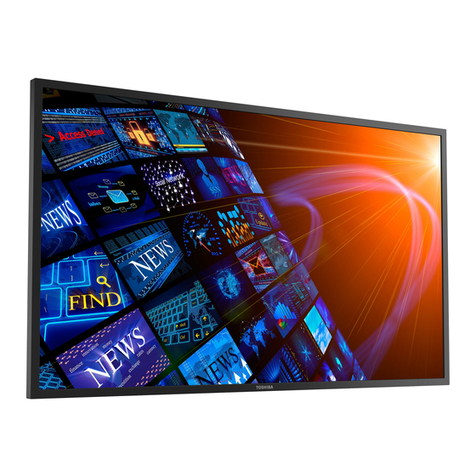
  9. Toshiba TD-E432 User manual

Toshiba TD-E432 User manual

Other manuals for TD-E432

2

This manual suits for next models

3

Other Toshiba Monitor manuals

Toshiba PA3923U-1LC3 User manual

Toshiba

Toshiba PA3923U-1LC3 User manual

Toshiba TD-P553E User manual

Toshiba

Toshiba TD-P553E User manual

Toshiba RMTI-EMD-HT User manual

Toshiba

Toshiba RMTI-EMD-HT User manual

Toshiba TD-Q553 User manual

Toshiba

Toshiba TD-Q553 User manual

Toshiba 37HLC56 - 37" LCD Flat Panel Display User manual

Toshiba

Toshiba 37HLC56 - 37" LCD Flat Panel Display User manual

Toshiba TD-E653 User manual

Toshiba

Toshiba TD-E653 User manual

Toshiba TD-P753 User manual

Toshiba

Toshiba TD-P753 User manual

Toshiba P47LSA User manual

Toshiba

Toshiba P47LSA User manual

Toshiba P42LSA - 42" LCD Flat Panel Display User manual

Toshiba

Toshiba P42LSA - 42" LCD Flat Panel Display User manual

Toshiba 50HP82 User manual

Toshiba

Toshiba 50HP82 User manual

Toshiba P32LS1 User manual

Toshiba

Toshiba P32LS1 User manual

Toshiba TD-E501 User manual

Toshiba

Toshiba TD-E501 User manual

Toshiba Techno Rainbow TR2015X User manual

Toshiba

Toshiba Techno Rainbow TR2015X User manual

Toshiba TD-P433 User manual

Toshiba

Toshiba TD-P433 User manual

Toshiba 65H84 User manual

Toshiba

Toshiba 65H84 User manual

Toshiba 26HLC56 User manual

Toshiba

Toshiba 26HLC56 User manual

Toshiba 42HP82 User manual

Toshiba

Toshiba 42HP82 User manual

Toshiba TD-E493E User manual

Toshiba

Toshiba TD-E493E User manual

Toshiba P32LSA User manual

Toshiba

Toshiba P32LSA User manual

Toshiba 42DPC85 User manual

Toshiba

Toshiba 42DPC85 User manual

Toshiba TD-P863 User manual

Toshiba

Toshiba TD-P863 User manual

Toshiba CM1320A User manual

Toshiba

Toshiba CM1320A User manual

Toshiba 26HLC56 User manual

Toshiba

Toshiba 26HLC56 User manual

Toshiba 27WL46 Series User manual

Toshiba

Toshiba 27WL46 Series User manual

Popular Monitor manuals by other brands

Samsung ME32C user manual

Samsung

Samsung ME32C user manual

ViewSonic VA926-LED user guide

ViewSonic

ViewSonic VA926-LED user guide

Furuno Mu 120c Operator's manual

Furuno

Furuno Mu 120c Operator's manual

Asus VB171D - 17" LCD Monitor Service manual

Asus

Asus VB171D - 17" LCD Monitor Service manual

AOC 9GLR Technical specifications

AOC

AOC 9GLR Technical specifications

DMG RAFFAELLO manual

DMG

DMG RAFFAELLO manual

AOC LM720 - 17" Technical specifications

AOC

AOC LM720 - 17" Technical specifications

Sony Trinitron GDM-F500 Service manual

Sony

Sony Trinitron GDM-F500 Service manual

Memorex MT1701 user guide

Memorex

Memorex MT1701 user guide

ViewSonic VE510s-4 Service manual

ViewSonic

ViewSonic VE510s-4 Service manual

Farenheit T-1503CM instruction manual

Farenheit

Farenheit T-1503CM instruction manual

Ditel DINOS DN129/AT Quick installation guide

Ditel

Ditel DINOS DN129/AT Quick installation guide

Sony SDM-S51 Specifications

Sony

Sony SDM-S51 Specifications

Kenwood DMX1025BT quick start guide

Kenwood

Kenwood DMX1025BT quick start guide

Dell S2409WFP user guide

Dell

Dell S2409WFP user guide

EverFocus EN-7517E instruction manual

EverFocus

EverFocus EN-7517E instruction manual

Dell P3222QE user guide

Dell

Dell P3222QE user guide

Panasonic TH152UX1 - 152" PLASMA TV Service manual

Panasonic

Panasonic TH152UX1 - 152" PLASMA TV Service manual

manuals.online logo
manuals.online logoBrands
  • About & Mission
  • Contact us
  • Privacy Policy
  • Terms and Conditions

Copyright 2025 Manuals.Online. All Rights Reserved.

LCD Display Monitor
User’s Guide
TD-E432
TD-E502
TD-E552
TD-E652
Owner’s Record
The model number and serial number are on the back of
your TV. Record these numbers in the spaces below.
Refer to these numbers whenever you communicate
with your Toshiba dealer about this TV.
Model
08/15
TSB.book Page 1 Monday, August 31, 2015 4:30 PM
2
Dear Customer,
Thank you for purchasing this Toshiba LCD Display
monitor. This manual will help you use the many exciting
features of your new LCD Display monitor. Before
operating your LCD Display monitor, please read this
manual completely, and keep it nearby for future
reference.
WARNING
Important Safety Instructions
1) Read these instructions.
2) Keep these instructions.
3) Heed all warnings.
4) Follow all instructions.
5) Do not use this apparatus near water.
6) Clean only with dry cloth.
7) Do not block any ventilation openings. Install in
accordance with the manufacturer’s instructions.
8) Do not install near any heat sources such as radia-
tors, heat registers, stoves, or other apparatus (includ-
ing amplifiers) that produce heat.
9) Do not defeat the safety purpose of
the polarized or grounding type
plug.
A polarized plug has two blades with
one wider than the other. A ground-
ing type plug has two blades and a third grounding
prong. The wide blade or the third prong are provided
for your safety. If the provided plug does not fit into
your outlet, consult an electrician for replacement of
the obsolete outlet.
10) Protect the power cord from being walked on or
pinched, particularly at plugs, convenience recepta-
cles, and the point where they exit from the appara-
tus.
11) Only use attachments/accessories specified by the
manufacturer.
12) Refer all servicing to qualified service personnel.
Servicing is required when the apparatus has been
damaged in any way, such as power-supply cord or
plug is damaged, liquid has been spilled or objects
have fallen into the apparatus, the apparatus has
been exposed to rain or moisture, does not operate
normally, or has been dropped.
Additional Safety Precautions
13) CAUTION: If the monitor is dropped and the cabinet
or enclosure surface has been damaged or the moni-
tor does not operate normally, take the following pre-
cautions:
 ALWAYS turn off the monitor and unplug the power
cord to avoid possible electric shock or fire.
 NEVER allow your body to come in contact with any
broken glass or liquid from the damaged monitor
The LCD panel inside the monitor contains glass
and a toxic liquid. If the liquid comes in contact with
your mouth or eyes, or your skin is cut by broken
glass, rinse the affected area thoroughly with water
and consult your doctor.
 ALWAYS contact a service technician to inspect the
monitor any time it has been damaged or dropped.
Safety Precautions
WARNING: TO REDUCE THE RISK OF FIRE OR
ELECTRIC SHOCK, DO NOT EXPOSE THIS APPLIANCE
TO RAIN OR MOISTURE.
The lightning flash with arrowhead
symbol, within an equilateral triangle, is
intended to alert the user to the presence
of uninsulated “dangerous voltage” within
the product’s enclosure that may be of
sufficient magnitude to constitute a risk of
electric shock to persons.
The exclamation point within an equilateral
triangle is intended to alert the user to the
presence of important operating and
maintenance (servicing) instructions in the
literature accompanying the appliance.
WARNING: If you decide to wall mount this display,
always use a mounting bracket that has been Listed by
an independent laboratory (such as UL, CSA, ETL) and
is appropriate for the size and weight of this display.
The use of inappropriate or non-Listed mounting
brackets could result in serious bodily injury and/or
property damage

   
  
    
    
   
Grounding
TSB.book Page 2 Monday, August 31, 2015 4:30 PM
3
14) CAUTION:
 To reduce the risk of electric shock, do not use the
polarized plug with an extension cord, receptacle,
or other outlet unless the blades can be inserted
completely to prevent blade exposure.
 To prevent electric shock, match wide blade of plug
to wide slot; fully insert.
15) WARNING:
Do not let children swallow the product or play with
the plastic bag. Keep the product and the plastic bag
out of the reach of children.
16) CAUTION:
Do not let water or other liquids come into contact
with the product, as it may result in damage.
17) WARNING:
 To prevent the spread of fire, keep candles or other
open flames away from this product at all times.
 Keep the product away from direct sunlight, fire or a
heat source such as a heater. This may reduce the
product lifetime or result in fire.
Installation, Care, and Service
Installation
Follow these recommendations and precautions and
heed all warnings when installing your LCD Display
monitor:
18) When operating the LCD display with its AC 220-
240V power supply in Europe, use the power supply
provided with this display. If a power cord is not sup-
plied with this display, please contact your supplier.
This equipment requires an Earthed mains supply
connection.
19) In the UK, use a BS-approved power cord with
molded plug and black (10A) fuse installed.
20) When operating the LCD display with a 120V, 60Hz
AC power supply in the United States or Canada, use
the power cord provided with the display. If a power
cord is not supplied with the display, please contact
your supplier.
21) For all other cases, use a power cord that matches
the AC voltage of the power outlet and has been
approved by and complies with the safety standards
of your particular country.
22) Avoid displaying fixed patterns for long periods of
time, to avoid image persistence (after image
effects).
24) ALWAYS plug the product into an outlet that is
located in such a manner that it can be easily
unplugged in case the product requires service.
25) NEVER route the products power cord inside a wall
or similar enclosed area.
26) Never modify this equipment. Changes or modifica-
tions may void: a) the warranty, and b) the user’s
authority to operate this equipment under the rules of
the Federal Communications Commission.
27)
28) When selecting a location for the display,
 NEVER allow any part of the display to hang over
the edge of supporting furniture.
 NEVER place the display on tall furniture (for
example, entertainment centers or bookcases)
without anchoring both the furniture and the display
to a suitable support.
 NEVER allow children to climb on the monitor.
29) To avoid damage to this product, never place or store
the monitor in direct sunlight; hot, humid areas; or
areas subject to excessive dust or vibration.
30) The product should not be exposed to dripping or
splashing. Objects filled with liquids should not be
placed on the apparatus.
31) Never block or cover the slots or openings in the
monitor cabinet back, bottom, and sides. Never place
the monitor:
 On a bed, sofa, rug, or similar surface;
 Too close to drapes, curtains, or walls; or
 In a confined space such as a bookcase, built-in
cabinet, or any other place with poor ventilation.
32) Always leave a space of at least 10cm - 4 (four)
inches around the monitor.The slots and openings
are provided to protect the monitor from overheating
and to help maintain reliable operation of the moni-
tor.
23) WARNING: NEVER expose batteries to
excessive heat such as sunshine, fire or
the like.
Never place the monitor on an unstable
cart, stand, or table. The LCD Display may
fall, causing serious personal injury, death,
or serious damage to the monitor.
DANGER: RISK OF SERIOUS PERSONAL
INJURY, DEATH, OR EQUIPMENT
DAMAGE!
TSB.book Page 3 Monday, August 31, 2015 4:30 PM

4
33) Never allow anything to rest on or roll over the power
cord, and never place the monitor where the power
cord is subject to wear or abuse.
34) Never overload wall outlets and extension cords.
Ergonomics
For maximum ergonomic benefit, we recommend the
following:
35) For optimum performance, allow 20 minutes for
warm-up.
36) Rest your eyes periodically by focusing on an object
at least 5 feet away. Blink often.
37) Use the preset Size and Position controls with stan-
dard signals.
38) Use the preset Color Setting.
39) Use non-interlaced signals.
40) Do not use primary color blue on a dark background,
as it is difficult to see and may produce eye fatigue
due to insufficient contrast.
41) Adjust the display’s brightness, contrast, and sharp-
ness controls to enhance readability.
42) Position the display at a 90° angle to windows and
other light sources to minimize glare and reflections.
Care
For better performance and safer operation of your
TOSHIBA LCD Display monitor, follow these
recommendations and precautions:
43) Always unplug the monitor before cleaning. Gently
wipe the display panel surface (the monitor screen)
using a dry, soft cloth (cotton, flannel, etc.). A hard
cloth may damage the surface of the panel. Avoid
contact with alcohol, thinner, benzene, acidic or alka-
line solvent cleaners, abrasive cleaners, or chemical
cloths, which may damage the surface. Never spray
volatile compounds such as insecticide on the cabi-
net. Such products may damage or discolor the cabi-
net.
44) Never hit, press, or place anything on the back cover.
These actions will damage internal parts.
45)
Never spill liquids or push objects of any kind into the
monitor cabinet slots.
46) During a lightning storm, do not touch the connect-
ing cables or product.
47) Always unplug the monitor to completely disconnect
from mains power. When the monitor is turned off
using the on/off switch, it is not completely discon-
nected from power and a minute amount of current is
still consumed.
48) During normal use, the monitor may make occasional
snapping or popping sounds. This is normal, espe-
cially when the unit is being turned on or off. If these
sounds become frequent or continuous, unplug the
power cord and contact a Toshiba Authorized Service
Provider.
49) Handle with care when transporting. Save packaging
for transporting. Please clean the ventilation slots on
the back of the cabinet to remove dirt and dust at
least once a year to maintain reliable operation of the
monitor.
50) If using the cooling fan continuously, it’s recom-
mended to clean the ventilation slots at least once a
month.
51) When installing the remote control batteries;
 Align the batteries according to the (+) and (-)
indications inside the case.
 Align the (-) indication of the batteries first inside
the case.
Service
52)
Never attempt to service the monitor yourself.
Opening and removing the covers may expose you to
dangerous voltage or other hazards. Failure to follow
this WARNING may result in death or serious injury.
Refer all servicing not specified in this manual to a
Toshiba Authorized Service Provider.
53) If you have the monitor serviced:
 Ask the service technician to use only replacement
parts specified by the manufacturer.
 Upon completion of service, ask the service
technician to perform routine safety checks to
determine that the monitor is in safe operating
condition.
   
   
TSB.book Page 4 Monday, August 31, 2015 4:30 PM
5
Important Information
Canadian Department of Communications Compliance
Statement.
CAN ICES-3 (A)/NMB-3(A)
C-UL: Bears the C-UL Mark and is in compliance with
Canadian Safety Regulations according to CAN/CSA
C22.2 No. 60950-1.
FCC Declaration of Conformity Compliance
Statement (Part 15):
This device complies with part 15 of the FCC Rules.
Operation is subject to the following two conditions: (1)
This device may not cause harmful interference, and (2)
this device must accept any interference received,
including interference that may cause undesired
operation.
You are cautioned that changes or modifications not
expressly approved by the party responsible for
compliance could void your authority to operate the
equipment.
Please use the supplied power cord and RCA to 3.5mm
cable to ensure FCC compliance.If a power cord is not
provided, please contact your supplier.
Warning
This is a Class A product based on the standard of the
VCCI Council. If this equipment is used in a domestic
environment, radio interference may occur, in which
case, the user may be required to take corrective actions.
REACH Information
The European Union (EU) chemical regulation, REACH
(Registration, Evaluation, Authorization and Restriction
of Chemicals), entered into force on 1 June 2007, with
phased deadlines up to 2018. Toshiba will meet all
REACH requirements and is committed to provide our
customers with information about the presence in our
articles of substances included on the candidate list
according to REACH regulation. Please consult the
following website www.toshiba.eu/reach for about the
presence in our articles of substances included on the
candidate list according to REACH in a concentration
above 0.1% weight by weight.
Disposal of your old product and batteries
The following information is only valid for EU member
states:
Disposal of products
The crossed out wheeled dust bin symbol
indicates that products must be collected
and disposed of separately from household
waste. Integrated batteries and
accumulators can be disposed of with the
product. They will be separated at the
recycling centres. The black bar indicates that the
product was placed on the market after August 13, 2005.
By participating in separate collection of products and
batteries, you will help to assure the proper disposal of
products and batteries and thus help to prevent potential
negative consequences for the environment and human
health. For more detailed information about the
collection and recycling programmes available in your
country, please contact your local city office or the
dealer where you purchased the product.
Disposal of batteries and/or accumulators
The crossed out wheeled dust bin symbol
indicates that batteries and/or accumulators
must be collected and disposed of
separately from household waste. If the
battery or accumulator contains more than
the specified values of lead (Pb), mercury
(Hg), and/or cadmium (Cd) defined in the Battery
Directive (2006/66/EC), then the chemical symbols for
lead (Pb), mercury (Hg) and/or cadmium (Cd) will
appear below the crossed out wheeled dust bin symbol.
By participating in separate collection of batteries, you
will help to assure the proper disposal of products and
batteries and thus help to prevent potential negative
consequences for the environment and human health.
For more detailed information about the collection and
recycling programmes available in your country, please
contact your local city office or the shop where you
purchased the product.
EU Conformity Statement
This product is labeled with the CE Mark in
accordance with the related European
Directives, notably Low Voltage Directive
2006/95/EC, Electromagnetic Compatibility
Directive 2004/108/EC and RoHS Directive
2011/65/EU.
Responsible for CE-Marking is TOSHIBA, 23
Davy Rd, Plymouth, PL6 8BY, UK
  
TSB.book Page 5 Monday, August 31, 2015 4:30 PM
6
ENERGY STAR®User Information
ENERGY STAR User Information Statement: the
factory default settings of this television meet ENERGY
STAR requirements. Changing Picture Settings may
increase energy consumption, possibly beyond the limits
required for ENERGY STAR certification.
Note: ENERGY STAR certification does not apply
to TD-E652.
Important notes about your monitor
The following symptoms are technical limitations of
LCD Display technology and are not an indication of
malfunction; therefore, Toshiba is not responsible for
perceived issues resulting from these symptoms.
(1) An afterimage (ghost) may appear on the screen if a
fixed, nonmoving image is displayed for a long
period of time. The afterimage is not permanent and
will disappear in a short period of time.
(2) The LCD panel contained in this monitor is manu-
factured using an extremely high level of precision
technology; however, there may be an occasional
pixel (dot of light) that does not operate properly
(does not light, remains constantly lit, etc.). This is a
structural property of LCD technology, is not a sign
of malfunction, and is not covered under your war-
ranty. Such pixels are not visible when the picture is
viewed from a normal viewing distance.
Note: Interactive video games that involve shooting a
“gun” type of joystick at an onscreen target may not
work with this monitor.
WARNING: This product contains chemicals,
including lead, known to the State of California to cause
cancer and birth defects or other reproductive harm.
Wash hands after handling.
Trademark Information
 Windows is either a registered trademark or trade-
mark of Microsoft Corporation in the United States
and/or other countries.
 The terms HDMI and HDMI High-Definition Multi-
media Interface, and the HDMI Logo are trademarks
or registered trademarks of HDMI Licensing LLC in
the United States and other countries.
Manufactured under license from Dolby
Laboratories. Dolby and the double-D symbol are
trademarks of Dolby Laboratories.
 All other brand and product names are trademarks or
registered trademarks of their respective companies.
Copyright
Under the copyright laws, this guide cannot be
reproduced in any form without the prior written
permission of Toshiba. No patent liability is assumed,
however, with respect to the use of the information
contained herein.© 2015 by Toshiba Lifestyle Products
& Services Corporation. All rights reserved.
Notice
The information contained in this manual, including but
not limited to any product specifications, is subject to
change without notice.
TOSHIBA LIFESTYLE PRODUCTS & SERVICES
CORPORATION (TOSHIBA) PROVIDES NO
WARRANTY WITH REGARD TO THIS MANUAL
OR ANY OTHER INFORMATION CONTAINED
HEREIN AND HEREBY EXPRESSLY
DISCLAIMS ANY IMPLIED WARRANTIES OF
MERCHANTABILITY OR FITNESS FOR ANY
PARTICULAR PURPOSE WITH REGARD TO
ANY OF THE FOREGOING.
TOSHIBA ASSUMES NO LIABILITY FOR ANY
DAMAGES INCURRED DIRECTLY OR
INDIRECTLY FROM ANY TECHNICAL OR
TYPOGRAPHICAL ERRORS OR OMISSIONS
CONTAINED HEREIN OR FOR
DISCREPANCIES BETWEEN THE PRODUCT
AND THE MANUAL. IN NO EVENT SHALL
TOSHIBA BE LIABLE FOR ANY INCIDENTAL,
CONSEQUENTIAL, SPECIAL, OR EXEMPLARY
DAMAGES, WHETHER BASED ON TORT,
CONTRACT OR OTHERWISE, ARISING OUT
OF OR IN CONNECTION WITH THIS MANUAL
OR ANY OTHER INFORMATION CONTAINED
HEREIN OR THE USETHEREOF.
ENERGY STAR
®
certified LCD Display.
Products that earn the ENERGY STAR
prevent green house gas emissions by
meeting strict guidelines set by the U.S.
Environmental Protection Agency.
ENERGY STAR and the ENERGY STAR
mark are registered U.S. marks.
TSB.book Page 6 Monday, August 31, 2015 4:30 PM
7
Contents
Important Safety Instructions ..........................................................................................2
Installation, Care, and Service ........................................................................................ 3
Chapter 1: Introduction .................................................................................................9
Safety Icons.................................................................................................................................................... 9
Features of your new LCD Display ................................................................................................................ 10
Package Contents ......................................................................................................................................... 11
Parts Name and Functions............................................................................................................................ 12
Connectors and Terminals............................................................................................................................ 14
Infrared Remote Control...............................................................................................................................16
How to Use the Infrared Remote Control................................................................................................ 17
Chapter 2: Preparation for use....................................................................................... 20
Preparation for installation .......................................................................................................................... 20
Determine the installation location ......................................................................................................... 20
Ventilation requirements for enclosure mounting ................................................................................. 20
Using the wall mount or ceiling mount or handles ................................................................................. 22
Installation in portrait or landscape orientation ............................................................................................ 25
Avoiding Image Retention ...................................................................................................................... 26
Connection procedure .................................................................................................................................. 27
Connecting with an analog video source ...................................................................................................... 28
Connecting with a digital video source ......................................................................................................... 29
Digital connection: ................................................................................................................................. 29
Connecting LAN............................................................................................................................................ 31
Display connection using LAN................................................................................................................ 31
Connecting the power cord to the display..................................................................................................... 31
Connecting the power source................................................................................................................. 31
Chapter 3: How to use the LCD Display Monitor .................................................................. 33
Turning on all the connected devices............................................................................................................ 33
Power Management Function ................................................................................................................. 36
Selecting the video input .............................................................................................................................. 37
Select using the SOURCE button on the infrared remote control ........................................................... 37
Select using the SOURCE button on the LCD display ............................................................................. 37
Controlling the external devices ............................................................................................................. 37
Selecting the OSD language.......................................................................................................................... 38
Initial Setting ................................................................................................................................................ 39
Selecting the picture mode ........................................................................................................................... 40
Picture adjustment........................................................................................................................................ 41
Audio settings............................................................................................................................................... 42
Treble, bass, and balance adjustment .................................................................................................... 43
Schedule setting ........................................................................................................................................... 44
TSB.book Page 7 Monday, August 31, 2015 4:30 PM
8Contents
How to set up a schedule..............................................................................................................................45
Viewing media from USB storage................................................................................................................. 47
Setting up a playlist................................................................................................................................ 49
Playing background music ..................................................................................................................... 51
Slideshow settings ................................................................................................................................. 51
Playing a playlist .................................................................................................................................... 52
Remote control............................................................................................................................................. 55
LAN remote control ................................................................................................................................ 58
Configuration and basic operation of the OSD screen .................................................................................. 59
Basic operation of OSD screen............................................................................................................... 60
Picture Menu Screen .............................................................................................................................. 62
Aspect Ratio Menu Settings ................................................................................................................... 63
Sound Menu Screen ............................................................................................................................... 64
Setup Menu Screen................................................................................................................................ 65
Initial Setting Menu Screen .................................................................................................................... 66
Multi Display Control Menu Screen........................................................................................................ 67
System Information Menu Screen.......................................................................................................... 69
Appendix A.............................................................................................................. 70
Specifications ............................................................................................................................................... 70
LCD Module ........................................................................................................................................... 70
Viewable Size (H x V) ............................................................................................................................. 71
Power Management ............................................................................................................................... 71
Power source ......................................................................................................................................... 71
Power consumption ............................................................................................................................... 71
Input/Output Signal ................................................................................................................................ 71
AV Input/Output ..................................................................................................................................... 72
Audio Input/Output................................................................................................................................. 72
Dimensions ............................................................................................................................................ 72
Mass (weight) ........................................................................................................................................ 73
TSB.book Page 8 Monday, August 31, 2015 4:30 PM
9
Chapter 1
Introduction
Safety Icons
This manual contains safety instructions that must be observed to avoid potential hazards that could result in personal
injuries, damage to your equipment, or loss of data. These safety cautions have been classified according to the
seriousness of the risk, and icons highlight these instructions as follows:
Indicates an imminently hazardous situation which, if not avoided, will result in death or
serious injury.
Indicates a potentially hazardous situation which, if not avoided, could result in death or
serious injury.
Indicates a potentially hazardous situation which, if not avoided, may result in minor or mod-
erate injury.
Indicates a potentially hazardous situation which, if not avoided, may result in property dam-
age.
Provides important information.
TSB.book Page 9 Monday, August 31, 2015 4:30 PM
10 Chapter 1
Introduction
Features of your new LCD Display
True Commercial 16/7 Operation Digital Display
43”, 50”, 55”, and 65”— These robust displays are specifically designed for long hours of trouble-free operation
in a commercial environment, as well as many other commercial features.
Industry LED backlight
LED backlight panel — Commercial grade panel with a LED backlight. With the LED backlight, the display has
achieved low power consumption and eliminated mercury. The slim display design allows installation in various
environments than the conventional displays. See page 70.
High-quality LCD panel providing a wide variety of content and messages clearly
Full HD panel — The TD-E432 , TD-E502 , TD-E552 and TD-E652 panels reproduce images from video and
computer signals with precision and clarity, delivering full 1920 x 1080 high- definition resolution.
Brightness
450 cd/m243”, 50”, 55”, 65” — Creates more compelling, dynamic images to better attract and maintain
customer attention in a variety of lighting environments.
Enhanced Display Functionality for Various Applications
Daisy Chain Connection — By connecting the DVI-D OUT connectors and the DVI-D IN connectors using DVI-
D cables (commercially available), you can transmit video signals to up to 9 displays (when using 2-meter cables).
This is useful when supplying a video signal to multiple displays.
LAN Control — You can control multiple displays by sending control commands from a computer via a LAN
network. See pages 31 and 58.
Others
Built-in Speakers — This display offers built-in stereo speakers to deliver audio messages. External stereo
speakers can also be used. The user can switch between external or built-in speakers from the menu. See pages 42,
43, and 64.
Remote Control — An infrared remote control is supplied to control the various functions of this display,
including power on/off, input select, and menu access. See page 16-17.
USB Media Player — Display and schedule content without an external media player. See page 47. Built-in USB
Media Player CODECs include:
Video: MPG, MPEG, AVI, MKV, MOV, MP4, TS, M2TS, H.264 (up to level 4.0)
Music: MP3, WMA, AAC
Photo: JPG, BMP, PNG (BMPs and JPGs with a resolution larger than 1024x768 may take additional time to
display)
TSB.book Page 10 Monday, August 31, 2015 4:30 PM