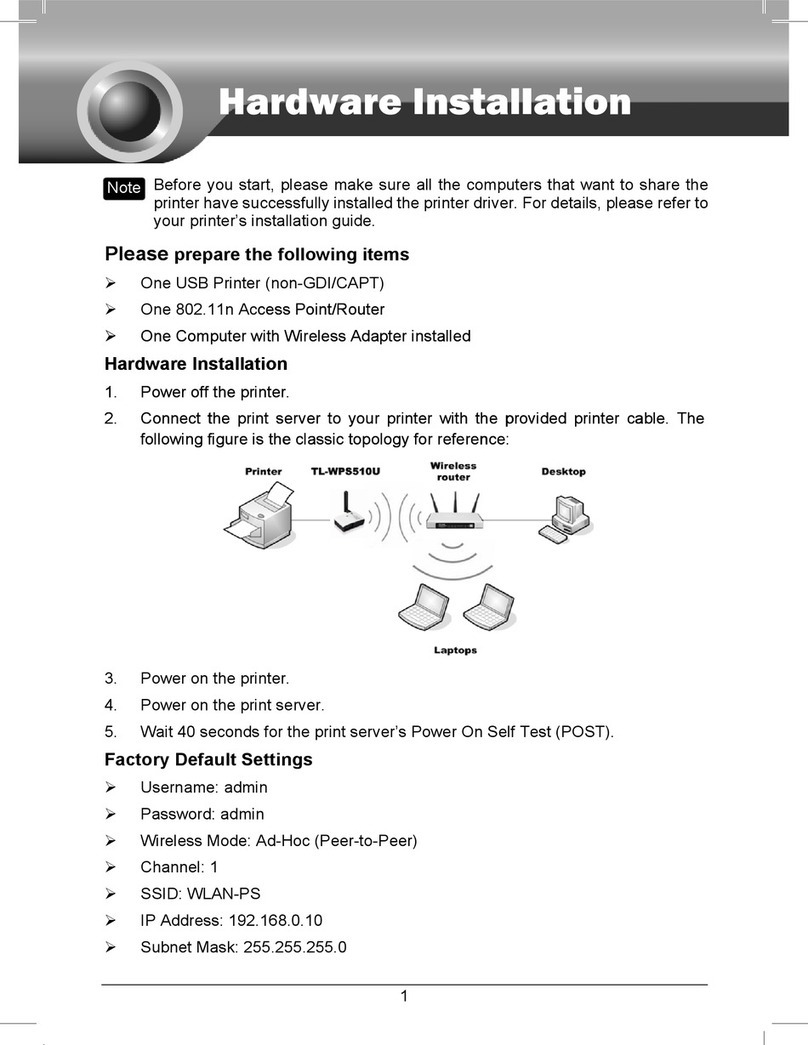
©2024 TP-Link 7106510825 REV4.1.0
Physical Appearance Frequently Asked Questions
Q1. How do I reset my extender to factory default settings?
A. With the extender plugged into an electrical outlet, press and hold the Reset button until all LEDs
turn o. When the LEDs turn back on, the reset process is complete.
Q2. What should I do if
my powerline network has no internet connection
?
A1. Make sure all powerline adapters and extenders are on the same service panel.
A2. Make sure the Powerline LEDs are lit on all of your powerline devices. If they are not, pair all
devices again.
A3. Make sure all devices are correctly and securely connected.
A4. Check if you have an internet connection by connecting the computer directly to the modem or
router.
Q3. What should I do if a successfully-paired extender does not reconnect after it is
relocated?
A1. Make sure all powerline adapters and extenders are on the same service panel.
A2. Try to pair the extender again, and make sure the Powerline LED is on.
A3. Check for possible interference due to a washing machine, air conditioner or other household
appliance that may be too close to one of the powerline devices. Plug the appliance into the
integrated electrical socket to remove the electrical noise if your powerline device has an
integrated electrical socket.
Personalize Your Networks
Manage your powerline devices using any of the methods below. You
can change the SSID and password, set Wi-Fi schedules, create a guest
network and more.
Unify Your Wi-Fi Networks
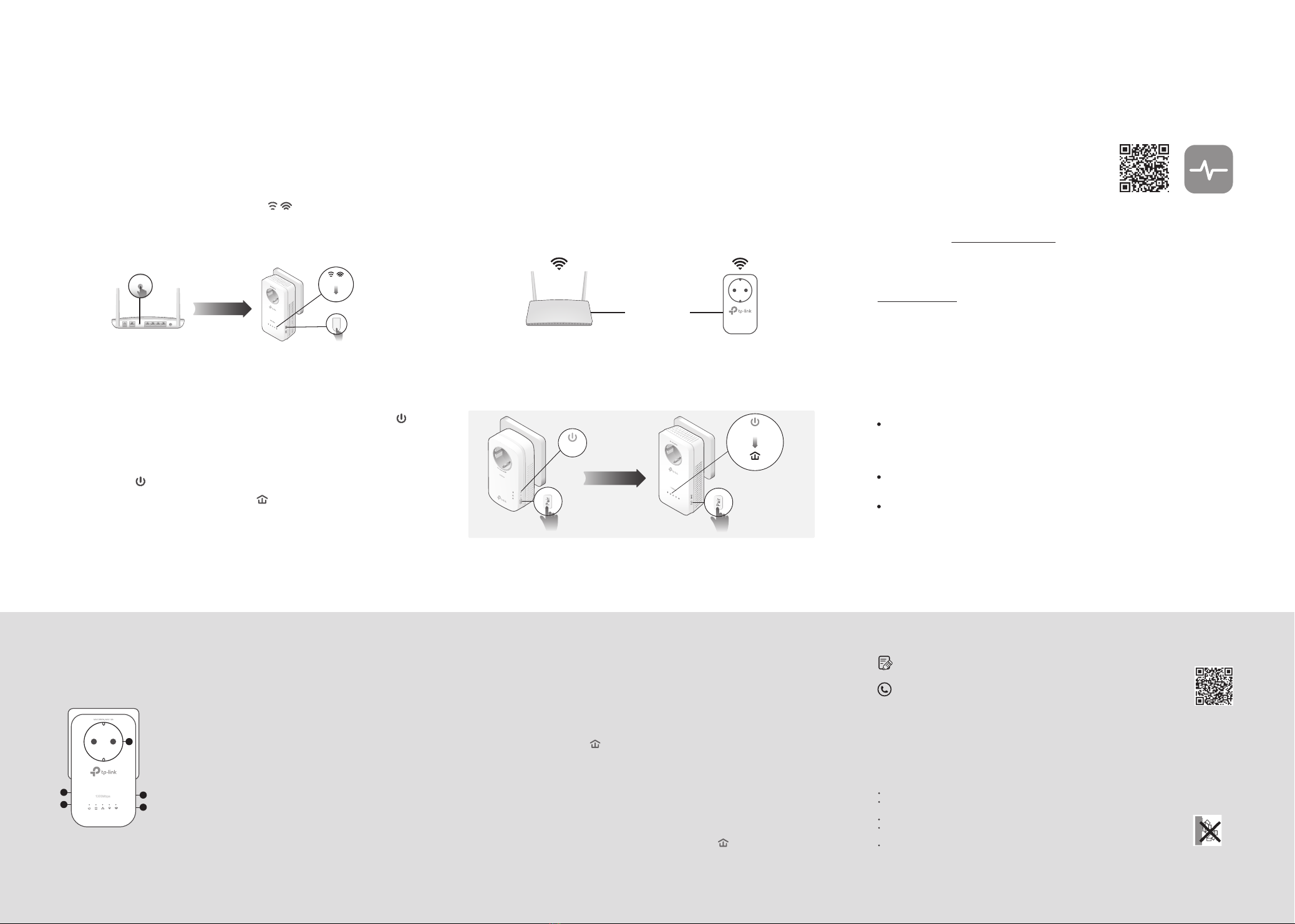
Note: You can only pair two devices at a time. We recommend that you plug in the powerline devices near each other when pairing.
Note: If your router doesn’t support the two methods below, refer to Personalize Your Networks section to manually change the extender’s Wi-Fi settings.
Copy SSID and password from your router via any of the methods below to create one unied Wi-Fi network throughout your home.
Create a Secure Powerline Network by Pairing
If you have more extenders, simply plug in and pair each one with the existing adapter to join the network. Then the Wi-Fi settings will automatically sync
from the existing extender to the new ones.
Sync Wi-Fi Settings to More Extenders
Note: If the Power LED does not blink, press the Pair button again.
Press the Pair button on the adapter for 1 second. Its Power LED
should start blinking.
1
(Within 2 minutes) press the extender’s Pair button for 1 second. Its
Power LED should start blinking.
When the extender’s Powerline LED turns on, a powerline network
has been successfully created.
2
3
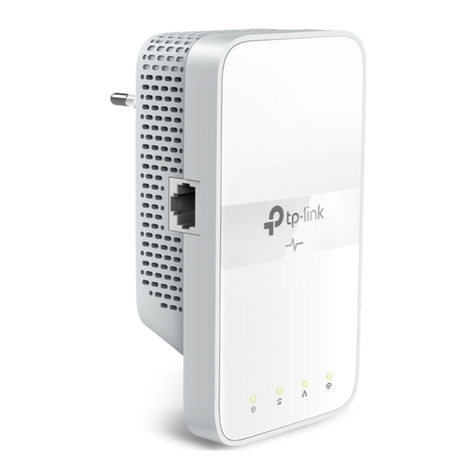
Extender TL-WPA8631PAdapter TL-PA8010P
Blinking
On
Blinking
within 2 minutes
Extender TL-WPA8631P
Reset Button
Press for at least 5 seconds until all LEDs turn o to reset the
extender to factory default settings.
LED Button
Press for 1 second to turn all LEDs on or o.
Wi-Fi Button
Press for 1 second to begin or stop copying Wi-Fi settings from
the router.
Press and hold for about 5 seconds to turn Wi-Fi on or o.
Pair Button
Press for 1 second on two powerline devices within two minutes
to pair them.
Integrated Electrical Socket
Used as a pass-through AC outlet to power other devices. It also
reduces some electrical noise that may interfere with powerline
performance.
a
b
c
d
e
b
c
d
e
SAME
SSID & Password
Method ONE: Via Wi-Fi Button
Note: If Wi-Fi settings are not copied within 2 minutes, manually change the extender’s Wi-Fi settings.
Press your router’s WPS button.
(Within 2 minutes) press the extender’s Wi-Fi button for 1 second. The
extender’s 2.4 GHz and 5 GHz Wi-Fi LEDs should start blinking.
When
they turn solid on, Wi-Fi settings are copied.
1
2
3 Relocate the extender and enjoy the internet using your router’s SSID
and password.
Note: You can use this method when your router has a WPS button.
WPSWAN LAN
Wireless Router Extender
Blinking
On
Within 2 minutes
Wi-Fi
Safety Information
Keep the device away from water, re, humidity or hot environments.
Do not attempt to disassemble, repair, or modify the device. If you need service, please
contact us.
Do not use the device where wireless devices are not allowed.
For passthrough devices, plug the power strips into the integrated electrical sockets of the
devices, but devices of the same or another type not be stacked in normal use.
Plug the powerline devices directly into the wall outlets but not the power strips.
For technical support, replacement services, user guides, and other information,
please visit https://www.tp-link.com/support, or simply scan the QR code.
To ask questions, find answers, and communicate with TP-Link users or engineers,
please visit https://community.tp-link.com to join TP-Link Community.
TP-Link hereby declares that the device is in compliance with the essential requirements and other relevant
provisions of directives 2014/53/EU, 2009/125/EC, 2011/65/EU and (EU)2015/863.
The original EU Declaration of Conformity may be found at https://www.tp-link.com/en/support/ce/
TP-Link hereby declares that the device is in compliance with the essential requirements and other relevant
provisions of the Radio Equipment Regulations 2017.
The original UK Declaration of Conformity may be found at https://www.tp-link.com/support/ukca/
Method TWO: Via EasyMesh
3Enjoy the internet using your router’s SSID and password. Any changes to the
Wi-Fi settings of your router will be automatically copied to the extender.
1
2
Connect your computer to the extender wirelessly. Visit http://tplinkplc.net.
Go to EasyMesh and enable it. Then the extender will automatically join an
EasyMesh network and copy the wireless settings from the main router.
Note: You can use this method when your router supports EasyMesh.
EasyMesh-Compatible
You can experience strong, stable, and seamless wireless connections
throughout your home with EasyMesh, a whole home mesh standard that
works across dierent access points for ultimate exibility.
Seamless Roaming
Connects mobile devices to your routers or extenders that provide the best coverage.
Devices compatible with EasyMesh also share a single Wi-Fi name so you stay
connected in every room.
Easy Setup and Management
Easily set up and manage a unied Mesh network.
Flexible Scalability
Flexibly scale your home networking with dierent vendors,* dierent topologies,
dierent Protocols and dierent product categories.
For more information, visit https://www.tp-link.com/easymesh/.
The EasyMesh-Compatible function is still being developed on some models and will be supported
in subsequent software updates. This product is compatible with standardized EasyMesh
technology but has not obtained the Wi-Fi EasyMesh certication.
*TP-Link EasyMesh-compatible products can network with other devices that use EasyMesh. Failed
connections may be due to rmware conicts of dierent vendors.
tpPLC Utility
For easy management via your computer, download the utility on the product’s
Support page at https://www.tp-link.com.
Web Interface
To access all settings, connect to an extender wirelessly and visit
http://tplinkplc.net.
tpPLC App
For easy management via your smartphone or tablet,
download the app from Apple App Store or Google
Play, or simply scan the QR code.
Note: For detailed instructions, refer to the product manual on the product’s Support page.
Note: For detailed instructions, refer to the product manual on the product’s Support page.
tpPLC AppScan to download
Please read and follow the above safety information when operating the device. We cannot guarantee that
no accidents or damage will occur due to improper use of the device. Please use this product with care and
operate at your own risk.
a