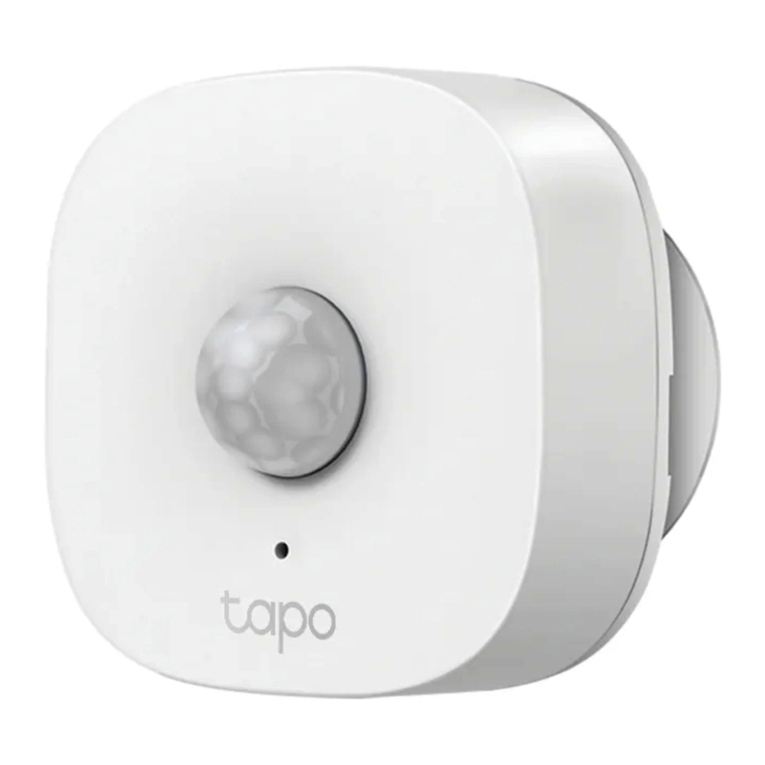
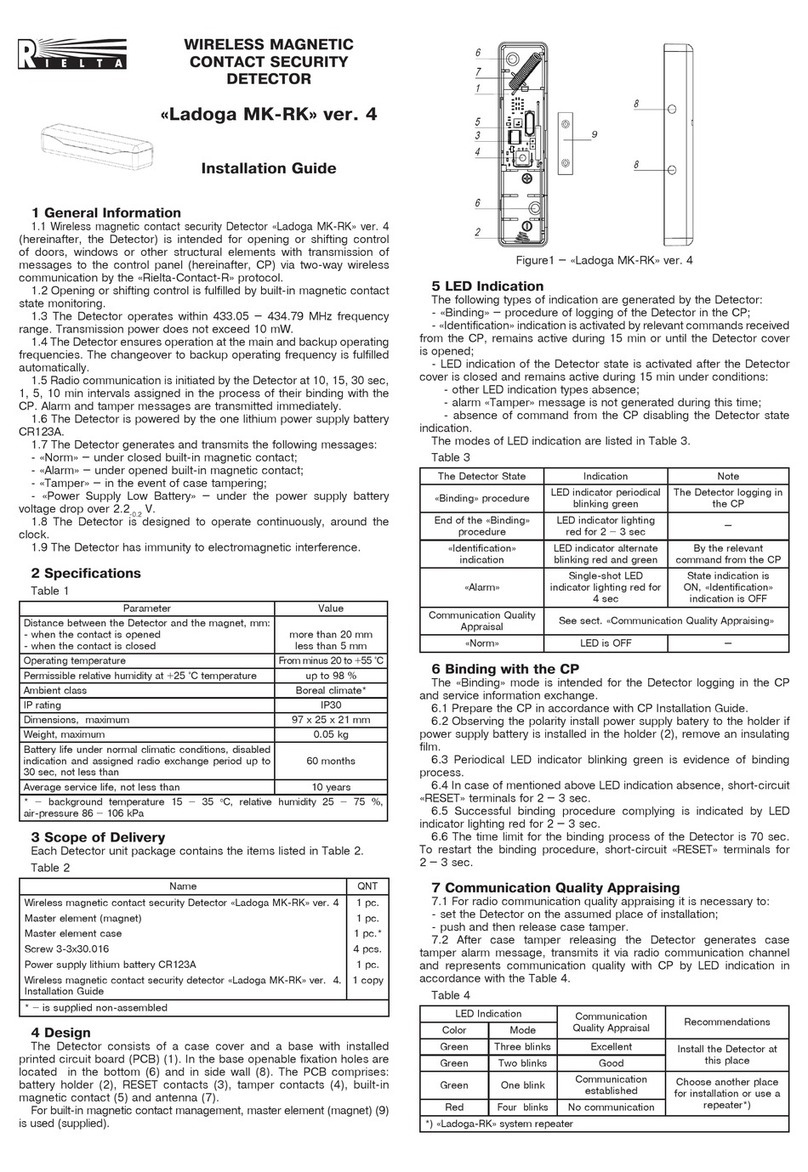
TP-Link Tapo T110 User manual

User Guide
Tapo Smart Contact Sensor
© 2022 TP-Link 1910013285 REV1.0.0

Contents
About This Guide ···················································· 1
Introduction ······························································· 2
Tapo Smart Ecosystem······································· 3
Automate Your Home··········································· 4
Set Up Your Smart Sensor································· 5
Use Your Smart Sensor······································· 8
Explore Smart Actions·······································10
How to Create Smart Actions························11
How to Replace the Battery ····························13
How to Reset Your Smart Sensor ················14
Authentication························································15

1
About This Guide
This guide provides a brief introduction to the Smart Contact Sensor and the Tapo app, as well as regulatory information.
Please note that features available in Tapo may vary by model and software version. Tapo availability may also vary by region. All images, steps, and
descriptions in this guide are only examples and may not reect your actual Tapo experience.
Conventions
In this guide, the following convention is used:
Convention Description
Blue Key information appears in blue, including management page text such as menus, items, buttons and so on.
Underline Hyperlinks are in blue and underlined. You can click to redirect to a website.
Note: Ignoring this type of note might result in a malfunction or damage to the device.
More Info
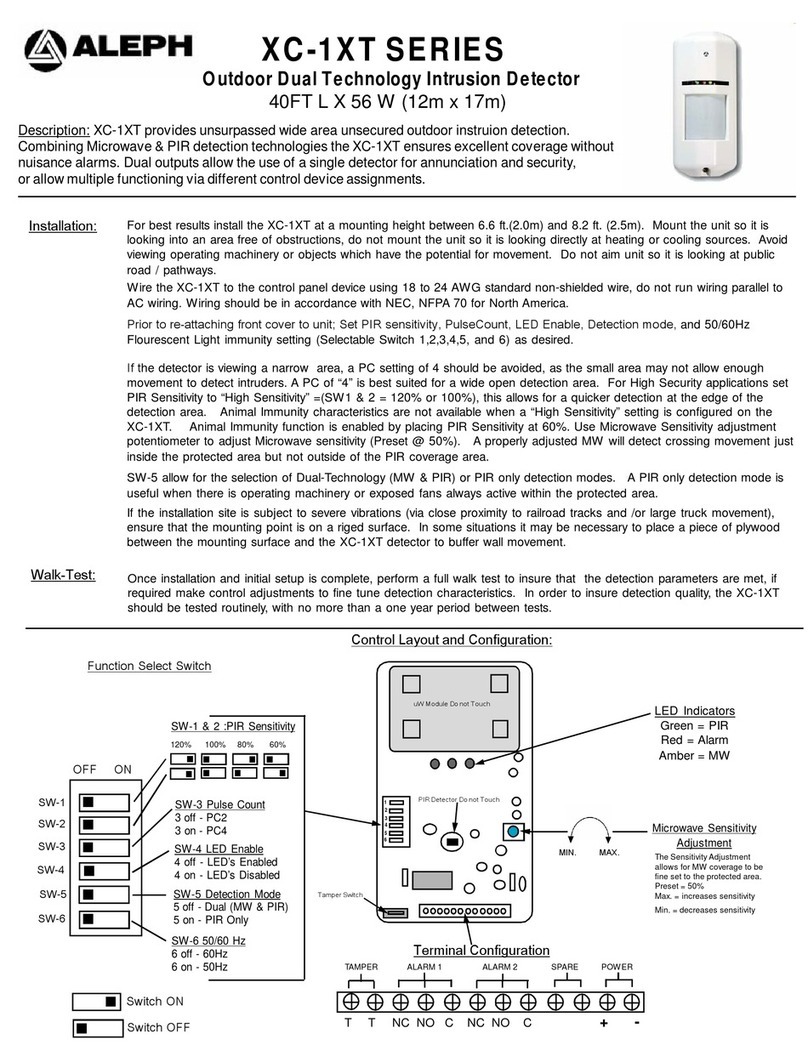
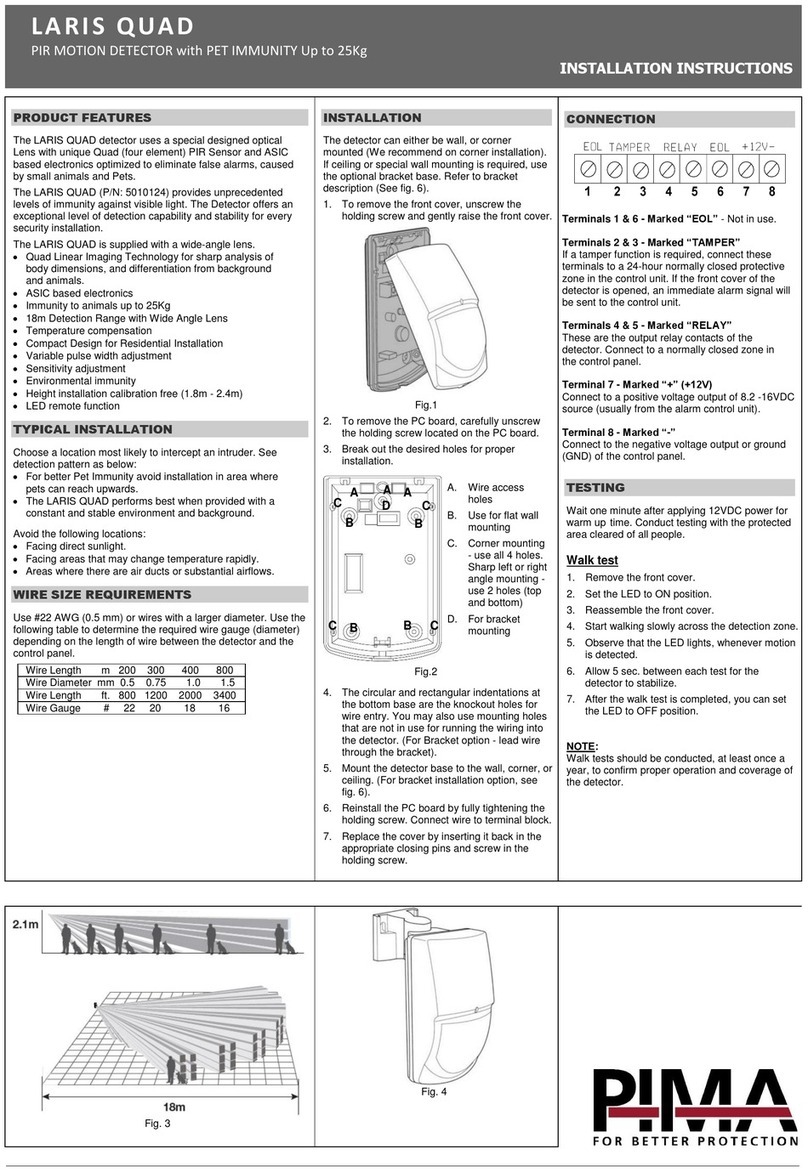
• Specications can be found on the product page at https://www.tapo.com.
• Our Technical Support and troubleshooting information can be found at https://www.tapo.com/support/.
• The setup videos can be found at https://www.tp-link.com/support/ setup-video/#smart-sensors.

2
Introduction
Know when doors/windows are opened or closed. Check on your doors and windows at a glance with the Tapo app and receive instant alerts. This
makes your home safer and smarter.
• Window/Door Safeguard - Monitors the opening & closing of windows, doors, cabinets, the fridge, or the mailbox in real time.
• Instant App Notication - Is your parcel locked away? Find out immediately with instant notications.
• Smart Action Support - Connect the actions with other smart devices for a welcome return home.
• Easy Installation - Mount to nearly any surface with included 3M adhesive.
• Great Compatibility - Just one part of the integrated Tapo ecosystem.
• Battery Powered – Battery-powered design with 1+ year battery life. (Based on the testing of 30 triggers a day.)
• Device Sharing – Easily share management permissions with each member of your family.
• Easy Setup and Use – Set up quickly and easily through the free Tapo app.
LED Light
Sensor
Magnet
Magnet
Alignment
Mark Battery
Compartment
Reset Button

3
Tapo Smart Ecosystem
Tapo is the easy way to turn your home into a smart home. With the Tapo Hub as a bridge, Tapo Smart Sensor works with a wide range of Tapo
accessories. So you can easily control and monitor your home from anywhere.
Smart
Button
Motion
Sensor Temperature &
Humidity
Sensor
Smart
Switch

4
Tapo T110
Automate Your Home
Create a Smart Action to automate your smart devices. Customize your own Smart Actions to group your Tapo products together any way you want.
Light the Way When Arriving Home
Turn on the light automatically when you open
the door.
Tapo T110
Tapo Lighting
Tapo Hub
Build Smart Alarm
Trigger hub alarm and send you app notications
when someone opens the door or window.
Secure Door/Window
Your Hub will ring if the door/window is opened.
OR

5
1. Set Up Your Sensor
Tap the button in the Tapo app, tap
Sensors, and select your model. Follow the
instructions in the Tapo app to complete the
setup.
2. Check the LED & Set Up
Check if the LED blinks. If not, use a pin to
press and hold the Reset button for 5s. Follow
app instructions to complete the setup.
Set Up Your Smart Sensor
Watch setup videos at https://www.tp-link.com/support/download/tapo-t110/
Before You Start
A Tapo Hub is required. Make sure your Tapo
Hub is successfully added via the Tapo app.
OR

6
3. Test Your Sensor
a. Open and close the sensor to test it in your
preferred location.
b. Check the Event Log on the Tapo app to
conrm the open/closed status.
4. Mount Your Sensor
a. Stick the included adhesives
on the sensor and magnet.
b. Choose where you’d like to install the sensor (but don’t
attach it yet). Place the magnet near the edge of the door
or window that moves.
Notes:
· Leave at least 0.39 inches (10 mm) of space so you can open the battery compartment.
· Installation height should not be higher than 6.56 ft (2 m).
x2
x1
≥ 0.39 inches (10 mm)

7
c. Align the magnet and sensor with no more than 0.59 inches (15 mm) between them when the door or window is closed.
Peel the backing from the adhesive and press the sensor and magnet into place.
≤ 0.59 inches (15 mm)
Alignment
Lines

8
Home Page Settings
Long press on a card, then you can reorder
cards, tap to remove your device from your
account, share your device, favorite/unfavorite
device, or relocate your device to other Home.
Status Page
You can check all events of you sensor. Slide
the panel up to check more settings or tap the
gear icon to enter the Settings page.
Use Your Smart Sensor
After you successfully set up your hub and sensor, you will see your devices listed on the home page. With the Tapo app, you can view and manage
your devices and get instant notications anytime, anywhere.
Home Page
This page lists all the devices you've added
and you can view them directly and manage
them easily. Tap the card to enter its Status
page.
Other manuals for Tapo T110
1
Table of contents
Other TP-Link Security Sensor manuals