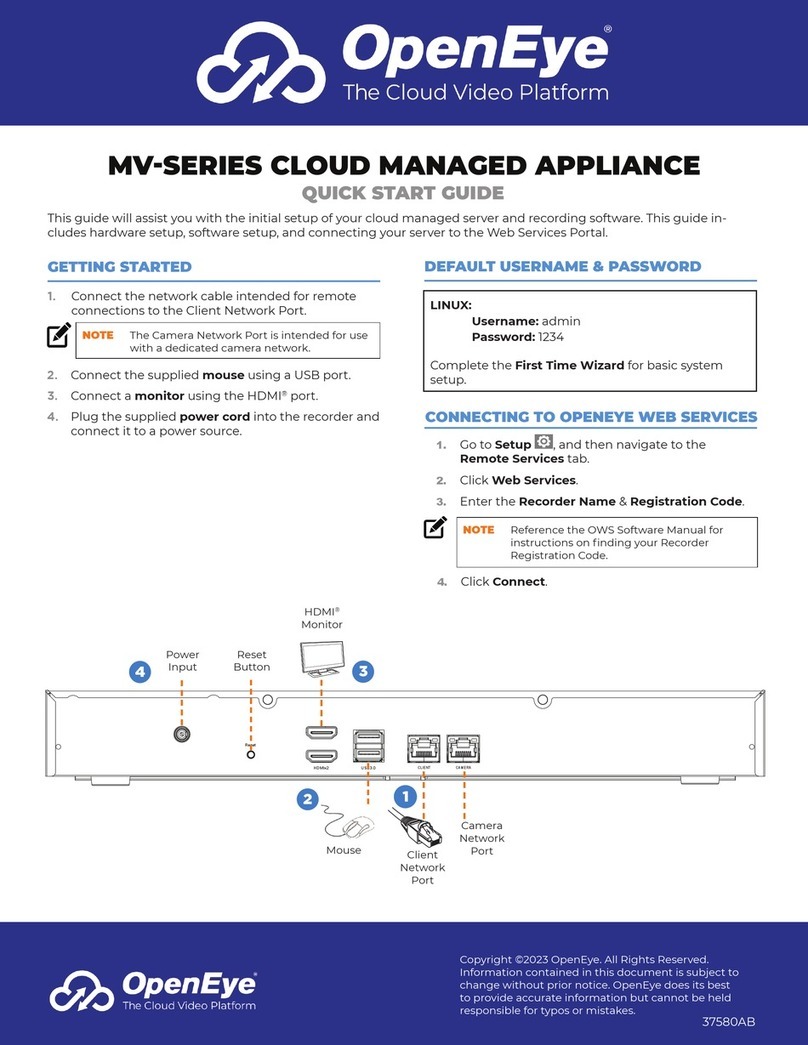
5. In the System Information area, type the exacqVision user name and password that you created during initial start up.
6. Select the Connection Speed.
Choose from the following options, Remote, WAN, LAN or Local.
7. Verify that the server appears in the Systems list with a status showing Connected.
Note: If the server does not connect to the client, check for antivirus software on the remote client machine that may block the
communication between the server IP addresses and ports.
8. Click Apply.
Connecting the cameras
1. Connect the analog cameras, PTZ serial cables, or alarm I/O. For more information, see Connections.
Note: Connections vary by model.
2. Using the camera manufacturer’s software, configure the IP address for all the cameras, and record this information for future reference.
Note: Do not change the user name and password until after you establish connectivity with the exacqVision server.
For additional information, see the camera manufacturer’s website or the exacqVision IP Camera Quick Start Guide at http://
www.exacq.com/downloads/ev-ip-quickstart-0311.pdf. You can also find the Quick Start Guide in the Quickstarts directory on the CD that
Exacq dispatches with your system.
3. To determine the compatibility of a particular camera model and firmware combination with exacqVision servers, use the following link:
http://www.exacq.com/support/ipcams.php
4. Test the connectivity between the camera and the server by completing the following steps:
a. Log off from the operating system user account.
b. Type the camera’s IP address into the address bar on your Internet browser.
c. Press Enter. If the browser does not display an introductory or log on window, the camera is not establishing a connection with
the server. Check the exacqVision User Manual, and www.exacq.com/kb for a solution if the problem persists.
5. Repeat this process for all other camera connections.
Connections
For information on the EV-Series server’s back panel for a hybrid system, see the following figure and table.
Figure 3: EV-Series hybrid system back panel
Callout Name No. of Ports Description
A Power 1 100-240VAC 50/60Hz. Power port (A1) and power switch (A2).
B PS/2 connector 1 PS/2 port.
C Video out 3 HDMI Port (C1) Display Port (C2), VGA (C3) . You can use a maximum of three
video outputs simultaneously.
D USB3.0/3.1 6 USB keyboard, mouse, memory device, or DVD burner. USB 3.1 (D1 and D3) and
USB 3.0 (D2).
E Audio in/out 3 Line in (blue), line out (green), microphone (pink).
F 10/100/1000 Ethernet 2 Dual onboard NICs, 2.5 Gbps (blue), (F1) and 1Gps (black), (F2).
G Serial ports 2 Serial port
Note: Activate the power button on the front of the system to provide power to the system.
EV 4UA Hybrid Series H410/X1313 Quick Start Guide 3