manuals.online logo
Brands
  1. Home
  2. •
  3. Brands
  4. •
  5. VADDIO
  6. •
  7. Microphone
  8. •
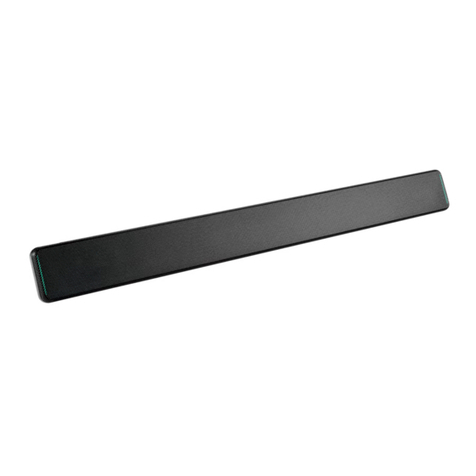
  9. VADDIO EasyMic MicPOD Series Instruction Manual

VADDIO EasyMic MicPOD Series Instruction Manual

This manual suits for next models

3

Other VADDIO Microphone manuals

VADDIO TableMIC 1 User manual

VADDIO

VADDIO TableMIC 1 User manual

VADDIO CeilingMIC User manual

VADDIO

VADDIO CeilingMIC User manual

VADDIO TableMIC User manual

VADDIO

VADDIO TableMIC User manual

Popular Microphone manuals by other brands

IK Multimedia iRig Stream MIC PRO user manual

IK Multimedia

IK Multimedia iRig Stream MIC PRO user manual

DAPAudio RM-101 user manual

DAPAudio

DAPAudio RM-101 user manual

AKG CHM 21 User instructions

AKG

AKG CHM 21 User instructions

Sennheiser evolution wireless series EM 100 instruction manual

Sennheiser

Sennheiser evolution wireless series EM 100 instruction manual

Sony C-48 operating instructions

Sony

Sony C-48 operating instructions

GIGAMEDIA GGM PAMICUHFG user manual

GIGAMEDIA

GIGAMEDIA GGM PAMICUHFG user manual

Shure WH30TQG user guide

Shure

Shure WH30TQG user guide

auna PRO MIC-900 manual

auna PRO

auna PRO MIC-900 manual

AKG D 3800 User instructions

AKG

AKG D 3800 User instructions

Shure KSM141 user guide

Shure

Shure KSM141 user guide

MAIIN SOUND IIN style instruction manual

MAIIN SOUND

MAIIN SOUND IIN style instruction manual

Earthworks TC25 user manual

Earthworks

Earthworks TC25 user manual

Alesis MicLink Wireless user guide

Alesis

Alesis MicLink Wireless user guide

DSPPA D6234 manual

DSPPA

DSPPA D6234 manual

Monacor IMG STAGELINE ECM-300B manual

Monacor

Monacor IMG STAGELINE ECM-300B manual

Ansr Audio Scan16 user manual

Ansr Audio

Ansr Audio Scan16 user manual

Shure MXA710 Series user guide

Shure

Shure MXA710 Series user guide

Sennheiser evolution D1 user manual

Sennheiser

Sennheiser evolution D1 user manual

manuals.online logo
manuals.online logoBrands
  • About & Mission
  • Contact us
  • Privacy Policy
  • Terms and Conditions

Copyright 2025 Manuals.Online. All Rights Reserved.

RELEASE NOTES
& UPDATE INSTRUCTIONS
Release Notes for:
EasyMic MicPOD Microphones:
EasyMic Ceiling MicPOD
EasyMic Table MicPOD (with keypad)
EasyMic Table MicPOD (without keypad) - (Previous name: TRIO Table Mic Array)
Release Information:
-----
03/14/2018
EasyMic 1.11
Notes:
- Improvements
- General audio processing improvements.
- Default behavior of camera button on EasyMic Table MicPOD (with keypad) has changed from
momentary to latching.
- Added ability to update MicPOD firmware from the Web UI of compatible Vaddio products.
- User Notes
- The firmware file and update process differs depending on the Vaddio product from which the connected
MicPOD is updated. See update instructions on the following pages for more details.
-----
06/15/2015
EasyMic 1.09
Notes:
- New Features
- Added Interoperability Support for AV Bridge MATRIX PRO.
- User Notes
- For this firmware and all previous versions, microphones must be updated serially through the Vaddio
EasyUSB Mixer/Amp.
Page 2 of 11
Vaddio EasyMic MicPOD Firmware Update Instructions
Firmware for the EasyMic Table and Ceiling MicPODs can be updated from the following products using the
following methods:
Vaddio Product to update firmware from
Update method
AV Bridge MATRIX PRO
Web UI
ConferenceSHOT AV Camera
Web UI
EasyUSB Mixer/Amp
Vaddio Loader
Using the table above, find the product that you will be updating your EasyMic MicPOD’s firmware from and
navigate to the proper update method on the following pages. Once your firmware has been properly updated, it
is recommended that you give yourself a high five for a job well done.
Page 3 of 11
Web UI Update Instructions
Requirements:
- Network access to the Vaddio product from which you will update the connected MicPOD(s).
- The Web UI’s Admin password, if it has been changed from the factory default.
- The ‘Web’ version (.p7m) firmware file for your MicPOD, downloaded from the microphone’s
product page at www.vaddio.com.
Step-By-Step Process:
1. Enter the IP address for the AV Bridge MATRIX PRO or ConferenceSHOT AV Camera into a
browser.
- You can get the IP address for the AV Bridge MATRIX PRO from the front panel of the
unit under ‘Network Settings’.
- You can get the IP address for the ConferenceSHOT AV Camera by viewing the
camera’s USB stream and pressing the ‘Data Screen’ button on the camera’s remote.
The IP address will appear in the camera’s video output.
2. In the Web UI, use the menu access button in the top right to open the Admin Login dialogue
box.
If your web UI doesn’t have the menu access button like in the picture above (outlined
in blue) your connected unit may be on older firmware that had a different web UI layout.
Page 4 of 11
3. In the Admin Login dialogue box that pops up, enter the admin password. The default password
is password (lower case).
4. Go to the System page with the menu on the left of the page, then select the peripheral tab
within the System page.
If there is no Peripherals tab on the system page, you will need to update firmware on your product:
▪AV Bridge MATRIX PRO must be on firmware version 2.0.0 or newer.
▪ConferenceSHOT AV Camera must be on firmware version 1.1.0 or newer.
Page 5 of 11
5. Select ‘Choose File’ and browse to the appropriate firmware file that you downloaded from
www.vaddio.com, then select which microphone you’d like to update.
6. When you’re satisfied with your selections (though when are any of us ever truly satisfied –
especially Mick Jagger) select ‘Begin Firmware Update…’ to watch the magic happen.
7. After about 2 minutes your firmware update will indicate that it was successfully completed. Sit
back and enjoy a job well done (or update your other microphone).
Page 6 of 11
Vaddio Loader Update Instructions
Requirements:
- USB to Serial Adapter.
- Vaddio EZCamera Control Adapter (part # 998-1001-232).
- Cat-5 or better cable to connect the distance between PC and EasyUSB Mixer/Amp interface
- A PC with the following downloaded onto it:
oThe latest version of the Vaddio Loader program (available at http://support.vaddio.com/)
oThe ‘Serial’ version (.ldr) firmware file for your MicPOD, located on the microphone’s
product page at www.vaddio.com.
Step-By-Step Process:
1. Connect the PC and the EasyUSB Mixer/Amp:
- Plug the USB to Serial Adapter into a USB port on the PC.
- Connect the Vaddio EZCamera Control Adapter to the USB to Serial Adapter via their 9-
pin connectors.
- Connect your Cat-5 or better cable to the RJ-45 port on the EZCamera Control Adapter.
- Connect the other end of your Cat-5 or better cable to the RS-232 port on the EasyUSB
Mixer/Amp.
Example connection diagram –your cable colors may be less fun.
2. Open Vaddio Loader on the PC and choose the COM port you have connected to the EasyUSB
Mixer/Amp if prompted (if not prompted, you can check or change which is selected by going to
File -> Setup COM#).
EZCamera
control adapter
USB to serial
Cat-5
Page 7 of 11
3. Select ‘Audio’ under Product Type.
4. From the drop-down menu select ‘EasyUSB Mixer/Amp’.
5. Go to File -> Serial Commands. A new Serial Commands window will open.
Page 8 of 11
6. Enter a question mark on the command line box and click ‘Send’. You should get a response
from the unit that lists its current firmware version and a list of valid commands and responses:
If your query times out, returns no response, or returns a different response than expected, contact
Vaddio Technical Support to troubleshoot before proceeding.
Page 9 of 11
7. Now that we’ve confirmed communication to the EasyUSB Mixer/Amp, we’re going to confirm
communication to the connected microphones:
- If you have a MicPOD connected to EasyMic Port 1, send the command 5202 00.
- If you have a MicPOD connected to EasyMic Port 2, send the command 5202 01.
oMicrophones should respond with 4202, followed by a 01 (for a table mic) or 02
(for a ceiling mic), and the microphone’s firmware version.
In this example the connected EasyMic Table MicPOD in port 1 is on firmware version 1.11
8. If steps 6 & 7 worked as described, close the Serial Commands window. This will return you to
the main Vaddio Loader window.
9. Put the EasyUSB Mixer/Amp into ‘firmware update mode’ by removing power and putting DIP
switch 8 on the back of the unit in the ‘up’ position.
10. Reapply power and wait about 15 seconds for the unit to finish booting.
11. If you have two EasyMic MicPODs connected, disconnect one of them from the EasyMic ports
on the back of the unit. It does not matter which port is currently connected for the update to
happen, just that only one microphone is connected at a time during a serial MicPOD
firmware update.
12. From the product drop-down menu of Vaddio Loader, change the product to either EasyMic
Ceiling MicPOD or EasyMic Table MicPOD (depending on the unit you’re updating).

Page 10 of 11
13. Choose ‘Select Load File’ and select the firmware you downloaded from www.vaddio.com.
14. Click ‘Start’ to initiate the firmware update. The squares in the bottom right corner should flash
and the progress bar on the bottom should start to fill in. If the MicPOD has a mute indicator,
that will also start to blink.