Vicon Roughneck V2000D-PTZ User manual
Other Vicon Security Camera manuals
Vicon
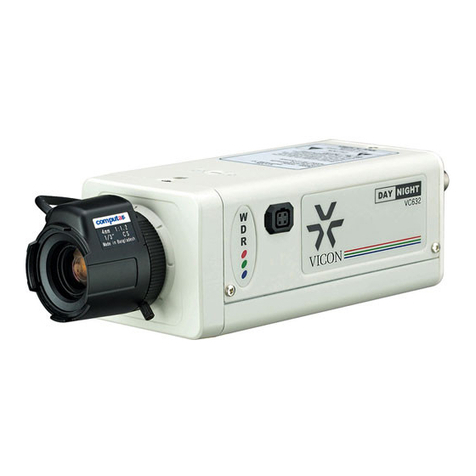
Vicon VC-632 User manual
Vicon
Vicon SN683D-WIR User manual
Vicon
Vicon S2000-MSH-HHB Surveyor 2000 User manual
Vicon
Vicon XX264-20-00 User manual
Vicon
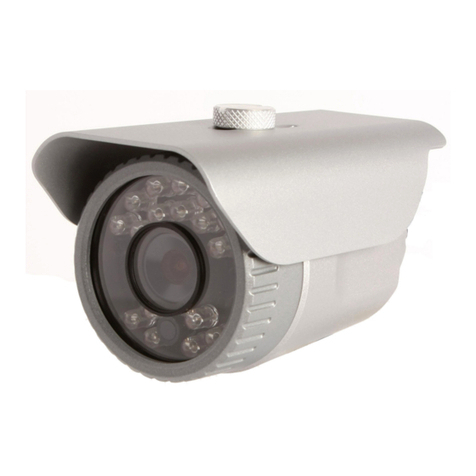
Vicon V992B-IR4 User manual
Vicon
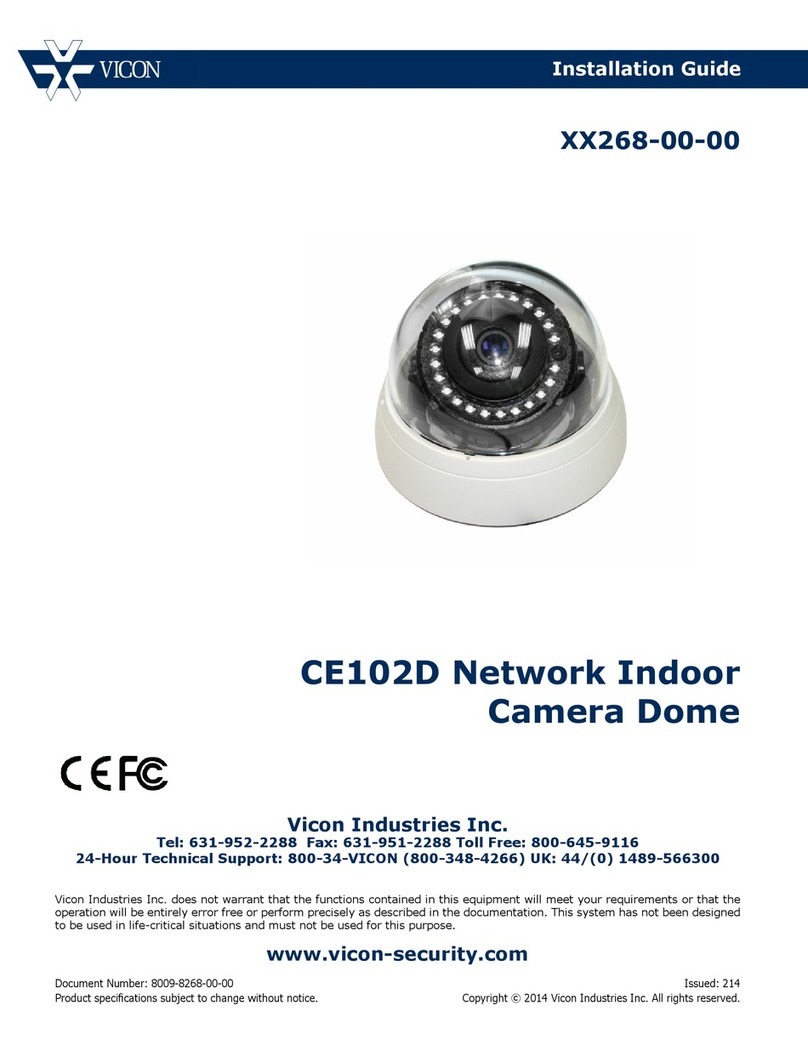
Vicon CE102D User manual
Vicon
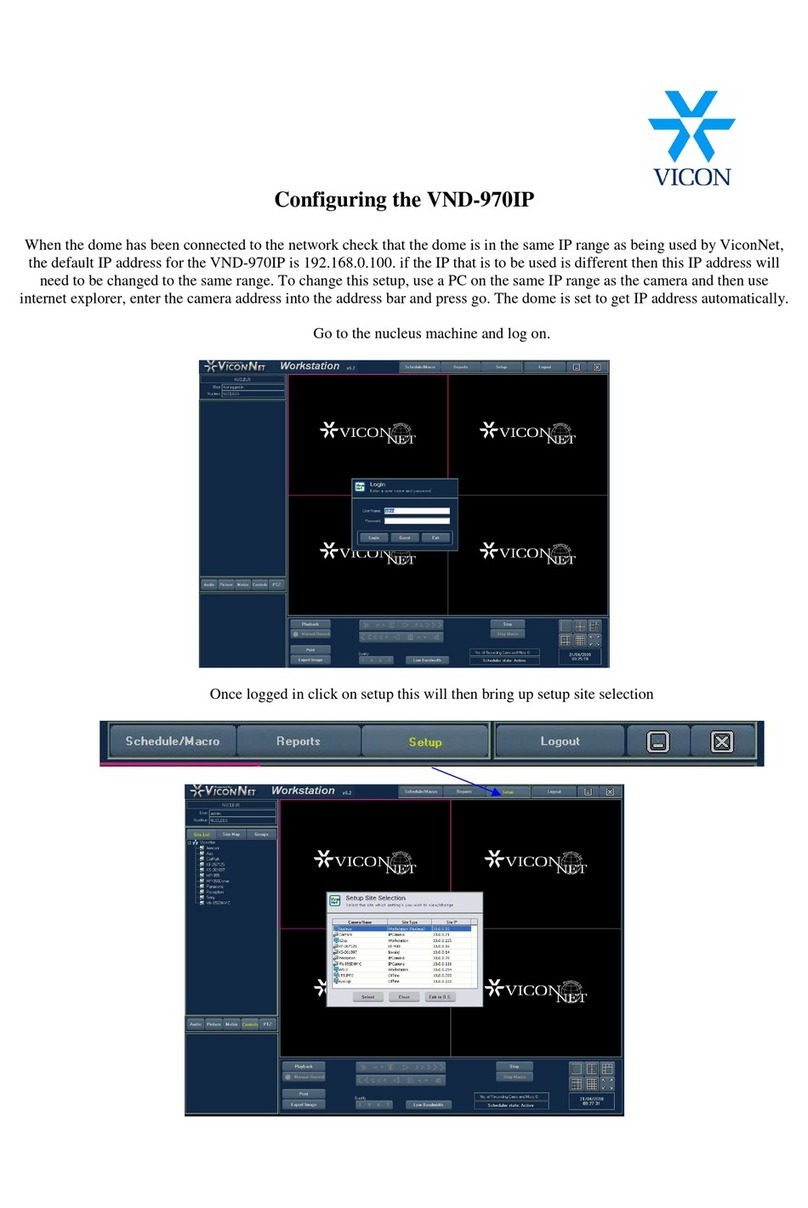
Vicon I-ONYX VND-970IP User manual
Vicon
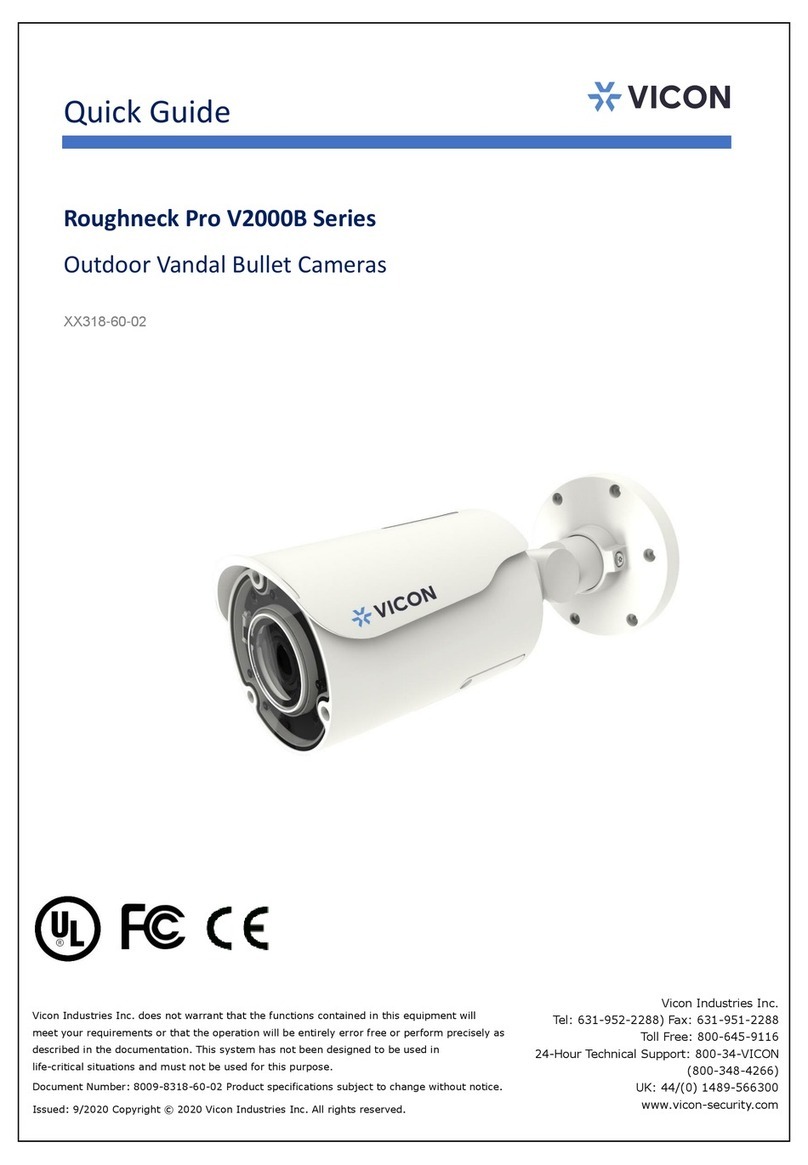
Vicon Roughneck Pro V2000B Series User manual

Vicon
Vicon XX152-10-01 Installation instructions
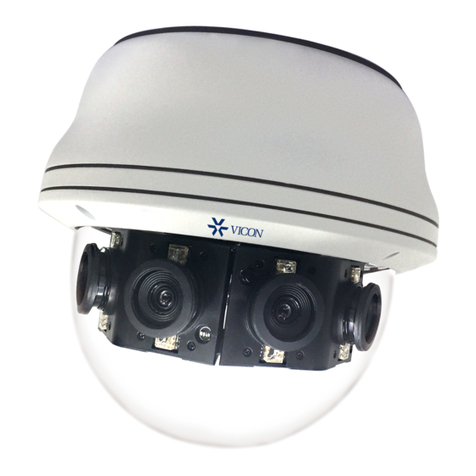
Vicon
Vicon V1020-WIR-180 User manual
Vicon
Vicon Surveyor 99 User manual
Vicon
Vicon V922B-W551-A1 User manual
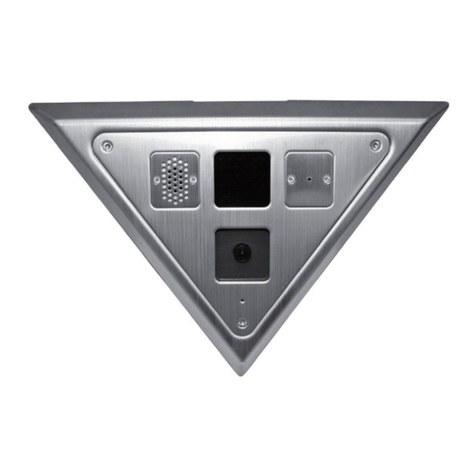
Vicon
Vicon V-CELL-HD User manual
Vicon
Vicon SURVEYOR4A User manual
Vicon
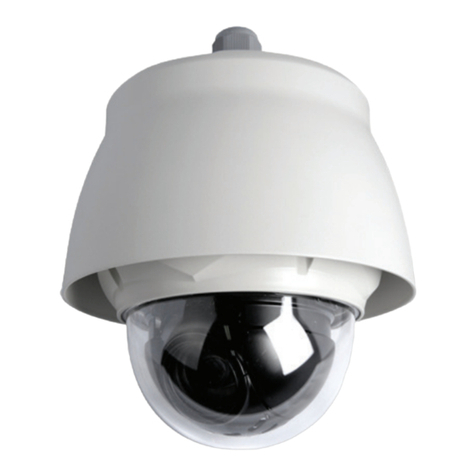
Vicon Cruiser SN663V-B-EX Operating instructions
Vicon
Vicon V15CCM-IR-2 Series Rouchneck User manual
Vicon
Vicon surveyor1000 Owner's manual
Vicon
Vicon Series 247-00-03 User manual
Vicon
Vicon V992D-IR User manual

Vicon
Vicon ALU-2500/230 Service manual