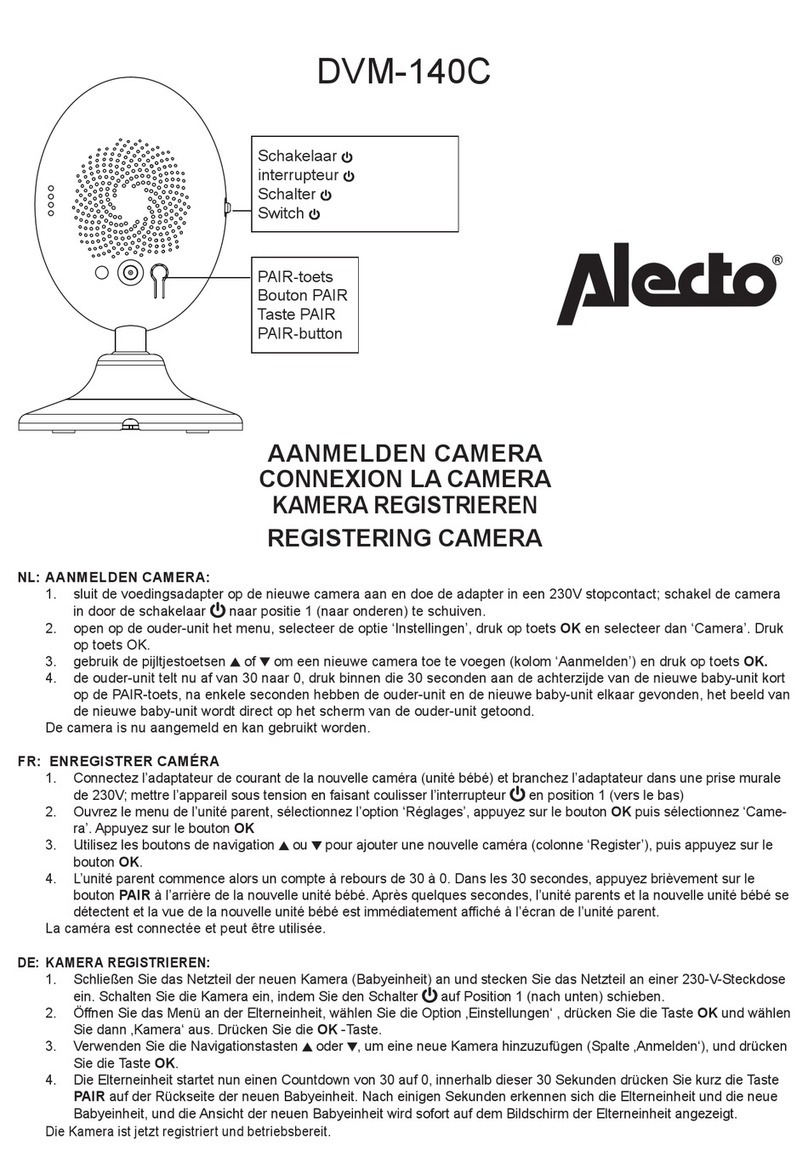
Getting Started
7
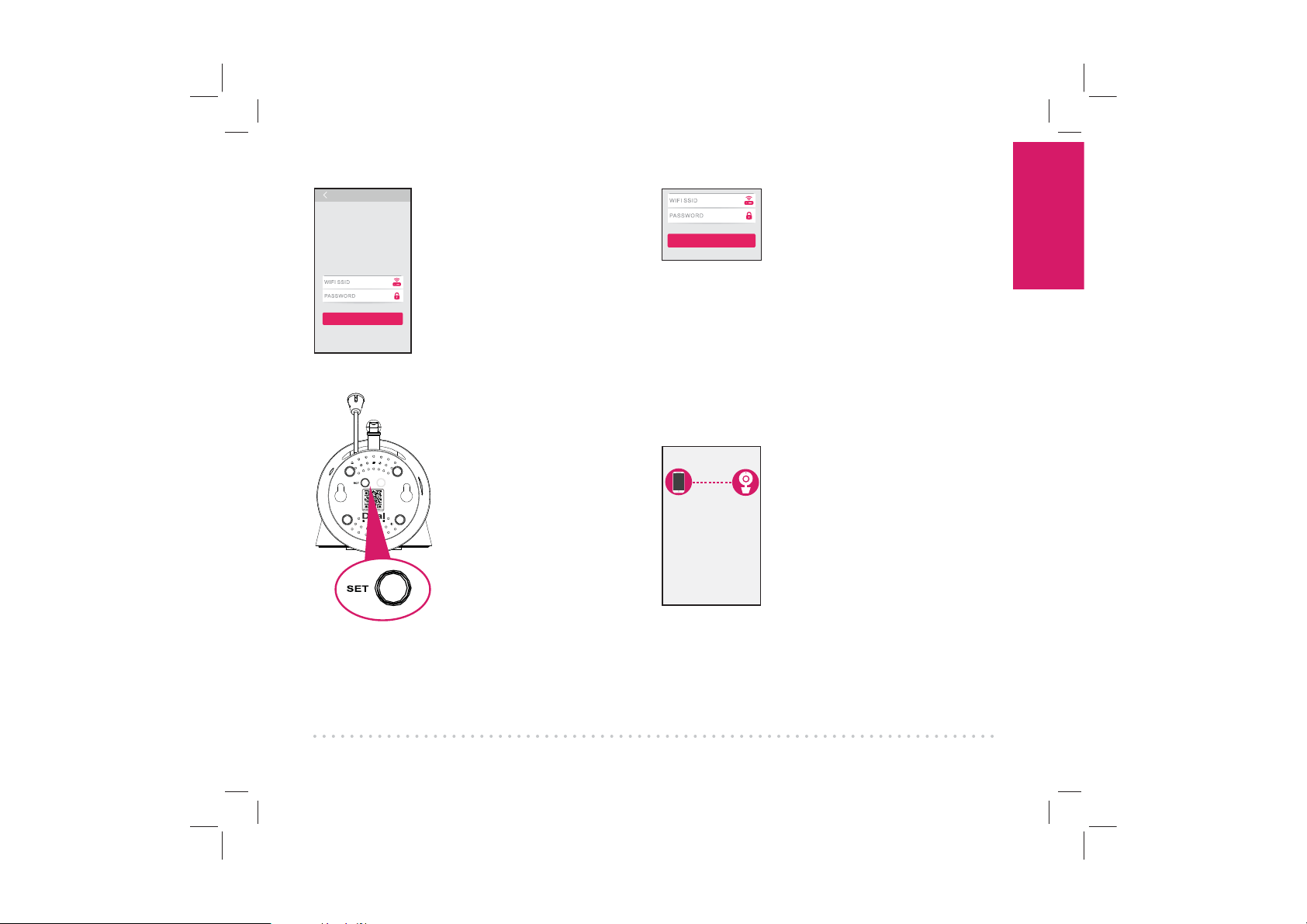
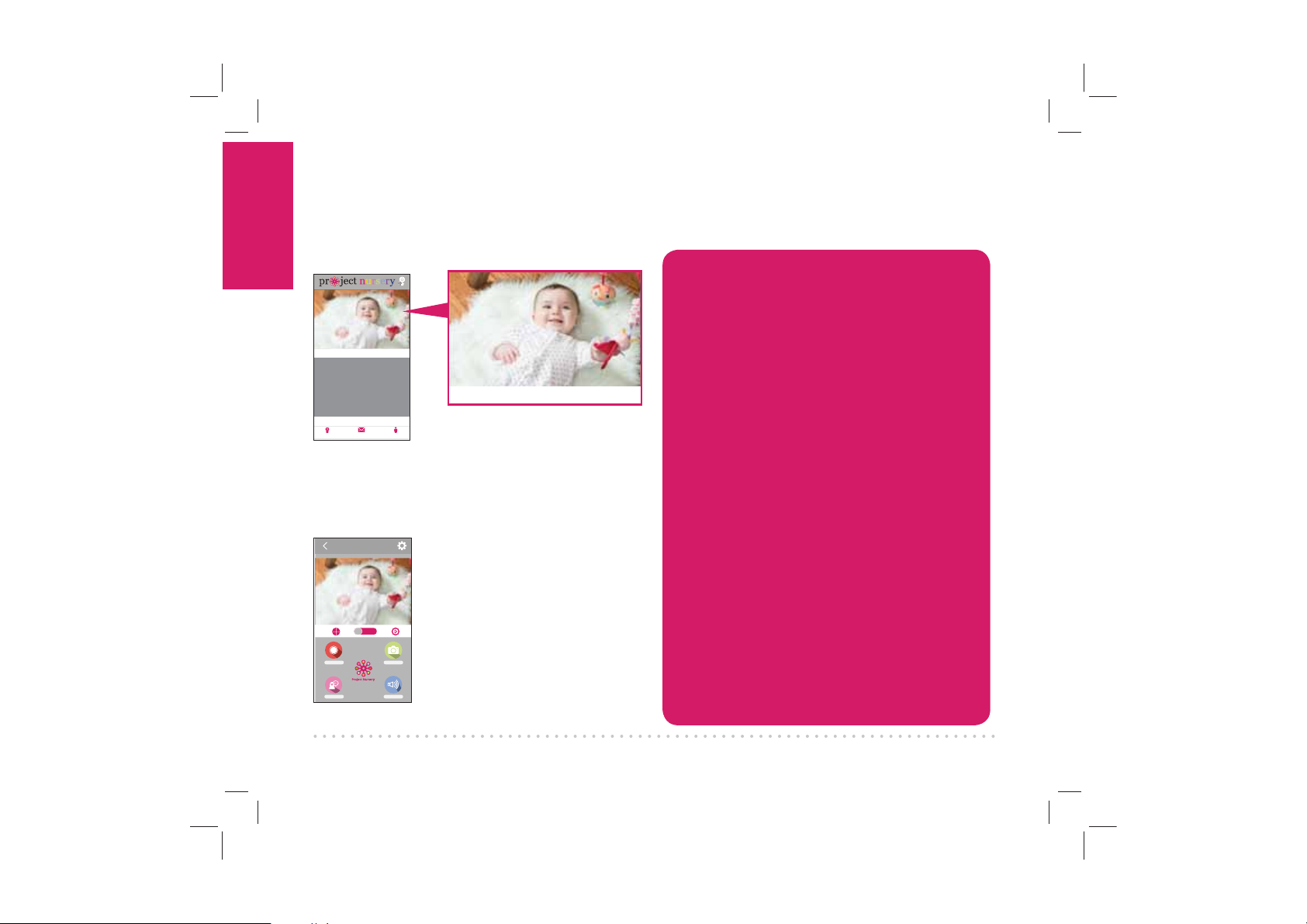
After you’ve scanned the QR
code on the bottom of the
WiFi Camera, the App will ask
you to press the SET button
on the bottom of the camera
and enter the name (WIFI
SSID) and password of your
WiFi network.
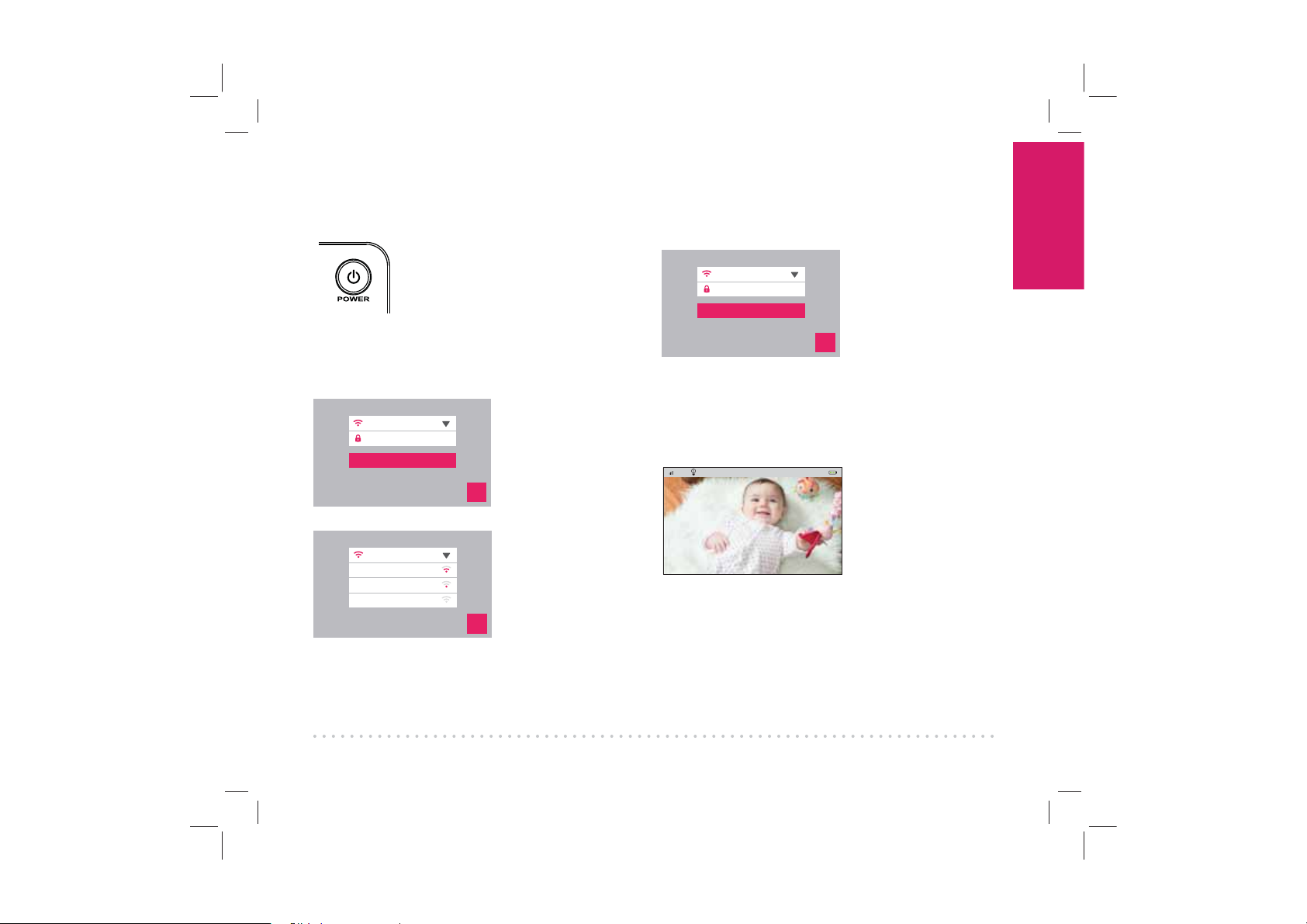
Enter the name (WIFI SSID)
and password for your home
WiFi network in the App.
IMPORTANT: Double check
that you’ve typed your network
name and password correctly—
otherwise, the camera won’t
work with the App!
Find the SET button on the
bottom of the WiFi camera.
Press it for one second (until
the camera gives an audio
signal).
Once you’ve finished entering your network
name and password, press the Next step
button on the App screen. The indicator light
on the back of the WiFi camera starts flashing—
the camera is trying to join your WiFi network.
Congratulations!
Camera successfully added!
Once the WiFi camera has
successfully connected to your
WiFi network, you’ll see the
Success screen in the App and
the indicator light on the back
of the camera will turn green.
Congratulations—you’ve just
set up your first camera!
IMPORTANT: If this WiFi setup
option doesn’t work, try the
Add new camera with QR code
option in the Add Camera
screen.
If the WiFi camera does not
connect, follow the instructions
in the App to troubleshoot.
Configure WiFi
Next step
1. Your camera should be plugged in and turned ON.
Press the “Set” button on the bottom of your camera for 1
second.You will hear one beep and the LED will start
blinking red.
2. Choose WiFi SSID (or network name) and enter
password below. Make sure you enter the info correctly.
If your WiFi SSID does not have a password, you will need to
create one. This is for your safety and security. Consult the
user guide for your WiFi router/AP to add a password.
Helpful Hint: Click on the lock icon in the password area
to hide or display text.
3. After you’ve entered your WiFi info below, press “Next
step.” Your camera will begin connecting to your WiFi
network. This can take 2–3 minutes to complete.
When you hear two beeps and the LED turns solid green,
your camera is successfully connected and ready for you to use.
Next step