manuals.online logo
Brands
  1. Home
  2. •
  3. Brands
  4. •
  5. Vuzix
  6. •
  7. Monitor
  8. •
  9. Vuzix M100 User manual

Vuzix M100 User manual

Other manuals for M100

2

Other Vuzix Monitor manuals

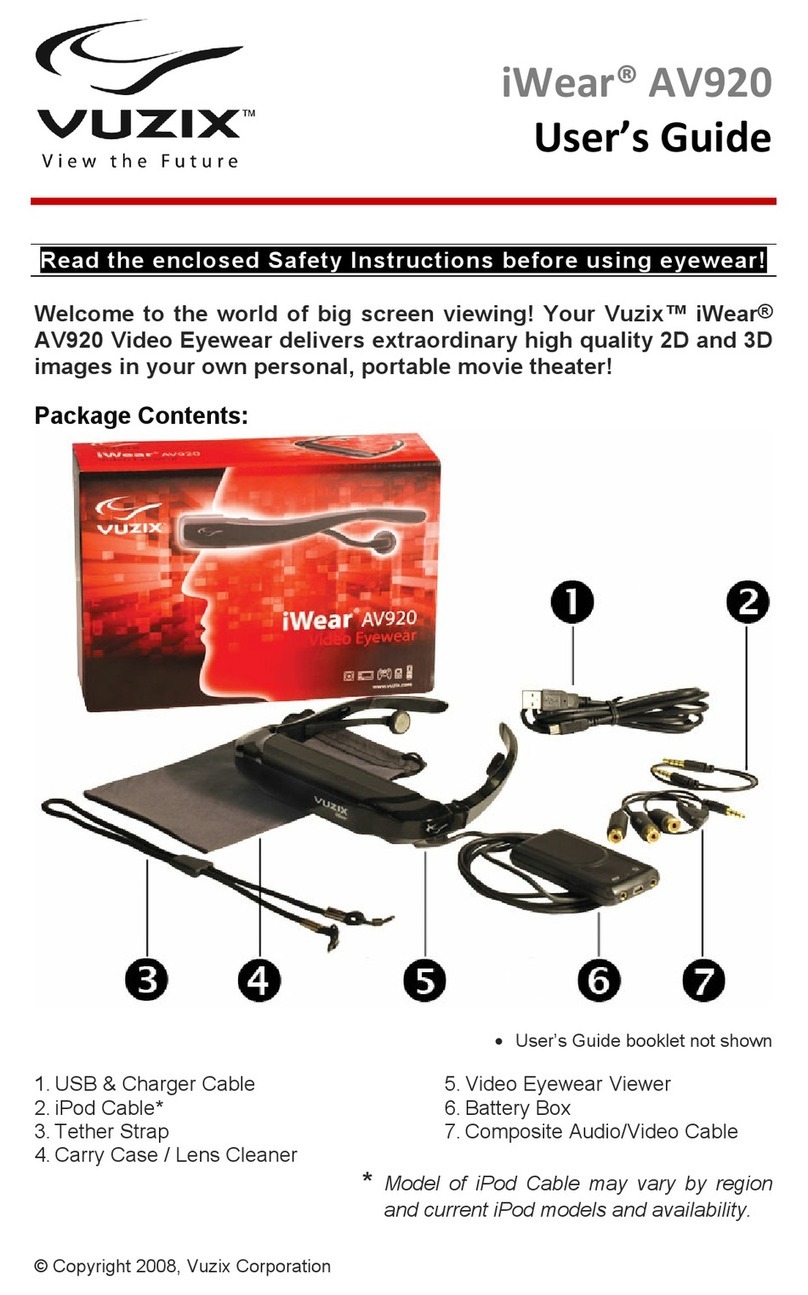
Vuzix iWear AV920 User manual

Vuzix

Vuzix iWear AV920 User manual

Vuzix iWear VR920 Quick start guide

Vuzix

Vuzix iWear VR920 Quick start guide

Popular Monitor manuals by other brands

Samsung ME32C user manual

Samsung

Samsung ME32C user manual

ViewSonic VA926-LED user guide

ViewSonic

ViewSonic VA926-LED user guide

Furuno Mu 120c Operator's manual

Furuno

Furuno Mu 120c Operator's manual

Asus VB171D - 17" LCD Monitor Service manual

Asus

Asus VB171D - 17" LCD Monitor Service manual

AOC 9GLR Technical specifications

AOC

AOC 9GLR Technical specifications

DMG RAFFAELLO manual

DMG

DMG RAFFAELLO manual

AOC LM720 - 17" Technical specifications

AOC

AOC LM720 - 17" Technical specifications

Sony Trinitron GDM-F500 Service manual

Sony

Sony Trinitron GDM-F500 Service manual

Memorex MT1701 user guide

Memorex

Memorex MT1701 user guide

ViewSonic VE510s-4 Service manual

ViewSonic

ViewSonic VE510s-4 Service manual

Farenheit T-1503CM instruction manual

Farenheit

Farenheit T-1503CM instruction manual

Ditel DINOS DN129/AT Quick installation guide

Ditel

Ditel DINOS DN129/AT Quick installation guide

Sony SDM-S51 Specifications

Sony

Sony SDM-S51 Specifications

Kenwood DMX1025BT quick start guide

Kenwood

Kenwood DMX1025BT quick start guide

Dell S2409WFP user guide

Dell

Dell S2409WFP user guide

EverFocus EN-7517E instruction manual

EverFocus

EverFocus EN-7517E instruction manual

Dell P3222QE user guide

Dell

Dell P3222QE user guide

Panasonic TH152UX1 - 152" PLASMA TV Service manual

Panasonic

Panasonic TH152UX1 - 152" PLASMA TV Service manual

manuals.online logo
manuals.online logoBrands
  • About & Mission
  • Contact us
  • Privacy Policy
  • Terms and Conditions

Copyright 2025 Manuals.Online. All Rights Reserved.

M100 Smart Glasses
Quick Start Guide
1
Vuzix 425PB0001-03
M100 Smart Glasses
Quick Start Guide
About your Vuzix M100 Smart Glasses
Congratulations on your purchase of the latest wearable display technology from Vuzix, the
M100 smart glasses. Vuzix M100 is the world's first enhanced "Hands Free" smartphone
display and communications system for on-the-go data access from your smartphone and
the Internet. Vuzix smart glasses offer a wearable visual connection directly to the Cloud,
through your smartphone or other compatible connected device, wherever you go. They
also operate standalone for those remote applications that don’t have access to the
Internet.
Support
This guide provides you with the information you need to get started with your M100 smart
glasses. For more information and additional support please visit Vuzix website
www.vuzix.com or the Vuzix Developer Center at developer.vuzix.com.
M100 Smart Glasses Hardware Features
1. Blue and white LED indicators
2. Gesture, proximity and light
sensor
3. Select/Menu* button
4. Left/Back* button
5. Right/Home* button
6. Eyepiece arm
7. Eyepiece / display window
8. HD camera
9. Camera recording indicator
*Long Press
1. FCC and product label
2. Speaker
3. Universal mount
4. Micro USB connector
5. Micro SD card slot
6. Sleep/Power* button
7. Eyepiece arm
8. Eyepiece
9. Eyepiece display window
*Long Press
Setting up your M100
M100 smart glasses - back view
M100 smart glasses - front view
2
Vuzix 425PB0001-03
Charging the M100 smart glasses
Before turning on your smart glasses for the first time charge it fully.
Connect the charge cable to the micro USB connector at the end of the M100. Use a
standard USB charger and plug the USB cable into its USB connector. Plug the charger
into a standard AC wall outlet or if you are using USB from your computer, turn your
computer on. The M100 turns on and indicates its charge state with the white LED flashing
if charging. When charging is complete the white LED will be remain solid if the M100 is
turned on.
M100 LED indicators
White LED:
- If the M100 is powered on while connected to an external power source the white LED
will remain solid when the M100 is fully charged.
oIf the M100 is powered on, the user can fully operate the device even when it is
connected to an external power source.
- If the M100 is powered off, while connected to an external power source, and has a very
low battery, the white LED flashes 3 times every 5 seconds until it is able to regain some
charge.
oOnce the battery is charged enough the white LED will flash once every 2
seconds while it is plugged in and charging.
oWhen the battery is fully charged the white LED will stay solidly on.
oPressing the power button while looking into the display shows a battery charge
indicator for how full the battery is.
- If the M100 is powered off and not connected to an external charger, there are no LEDs
lit.
Blue LED:
- The blue LED is used for miscellaneous alerts and notifications
How to wear your M100
The M100 has a universal mount built into the main body and is designed around the
audio speaker. This mount will connect too many different head worn options. The M100
ships two mounting options; an “over the head” mounting option and a “safety glasses”
mounting option.
3
Vuzix 425PB0001-03
Safety Glasses Mounting
The M100 safety glasses mount can be used for either left or right eye operation.
- Slide the bracket onto your preferred left or right arm (or temple) of the safety glasses
as shown below:
- When attaching the M100 to the adapter, place the flexible arm in the front portion of
the adapter (2) before snapping the earpiece into the universal mount socket (1).
- The arm tilt of the safety glasses is adjustable (as indicated in the below picture). Most
users find that the M100 is in the best position when both arms have been adjusted
down to the lowest setting, and the M100 is positioned higher in your line of sight.
- Please make sure that both arms are in approximately the same position, to ensure
that the M100 is level, and comfortable.
4
Vuzix 425PB0001-03
Over the Head Mounting
To assemble the over the head mounting option to the M100, push the head band
mounting ring (4) onto the universal mount (3) on the main body of the M100. This will
require a fair amount of force as this is a tight fitting connection. Once secured, the ear bud
(5) is then slid onto the ring edge on the outside rim of the mounting arm (4).
1. Head band
2. Main body of M100 smart glasses
3. Universal mount
4. Mounting ring with integrated ear bud option
5. Ear bud
Congratulations, your smart glasses are now ready to be adjusted to fit your specifications.
Fitting your M100
Now that your smart glasses are assembled you can begin fitting them to your particular
needs. There are many adjustments that can be made to get the best performance and
fitting for each user. Your M100 has been designed to work with or without glasses and can
accommodate either left or right eye users. This section describes all of the adjustments
available to accommodate this and the varied ergonomics of different users from around
the world.
As can be seen in the figure below, the ear bud can be rotated anywhere in a 360 degree
circle about the mount ring of the headband adjusting the offset of the M100 body around
the users ear canal. The headband also itself retracts and expands into the mounting arm,
adjusting for different head sizes.
M100 smart glasses - headband mount
5
Vuzix 425PB0001-03
As shown below, the entire headband also rotates around the universal mount that will
allow for different positions of the headband over the users head. This movement also
allows the eye piece to be positioned up and down in the user’s field of vision.
Earbud rotation and headband retraction
Eyepiece tilt
6
Vuzix 425PB0001-03
Once the headband has been optimally adjusted, we turn our attention to the eyepiece. As
shown above, the eyepiece can be tilted towards the eye by as much as plus or minus 15
degrees from center. This allows for the optimum placement of the display eye piece in
your vision field from low near the cheek to high near the eyebrow while allowing the
eyepiece to be tilted towards the user’s eye.
The adjustability of the eyepiece arm has been designed to accommodate users with or
without prescription eyeglasses. To accommodate this and to place the eyepiece left to
right in front of the user, the eyepiece arm bends as shown and slides in and out of the
M100 body. These adjustments allow the eyepiece to be positioned comfortably in front of
the user’s eye even while using prescription glasses.
It is important to note that there is no focus adjustment required for the M100. The M100’s
optics have been designed so that the image appears, from a focus perspective, to be
about 10 feet away. For this reason only users that need glasses for distance vision will
need their glasses while using the M100. Users with presbyopia, or that need reading
glasses, will not need them to operate the M100.
Eyepiece arm adjustment
Left / Right eye configuration
7
Vuzix 425PB0001-03
It is well known that users have an eye preference that is tied to their eye dominance. For
this reason, the M100 is designed for either left or right eye use. To use the M100 on either
eye, simply rotate the body of the M100 180 degrees around the headband arm mount. The
display, camera, and other functions will automatically flip to accommodate this change.
Turning your smart glasses on and off
To turn the smart glasses on, press and hold the power/home button until the LEDs (white
and blue) flash on for 2 seconds.
To turn the smart glasses off,
a) Hold the power button until the Power Menu appears
b) Press the Right button to select the Power Off option
c) Press the Select button to power off
The first time the smart glasses are switched on they are in paring mode and ready to be
paired with your partner device or smart phone.
M100 Smart Glasses Manager (For your smartphone)
Installing the M100 Smart Glasses Manager app
To install the Manager download the APK from the following website:
www.vuzix.com/downloads
Download the Manager app to your phone and then select it from the “downloads” directory
to install it. Or, push the manager to your phone using the Android developer tools or one of
the many APK side-loading tools.
Note: The smart glasses Manager app will soon be available for download from the Vuzix
app store.
Launching the M100 manager
From within your smartphone’s application page tap the Smart Glasses
Manager icon
If the M100 has been paired with your smart phone it will automatically
sync with your phone and the desktop will appear on your phones
display screen. See more information below
Overview
The screenshots in this document represent the layout on a 7” tablet running Android
version 4.1.1. If your device has a different screen size or resolution these images may not
be exactly representative of what you will see, but the layout should be very similar on all

8
Vuzix 425PB0001-03
devices. The Smart Glasses Manager app will only run on Android versions 2.3.3
(Gingerbread) or newer.
The Smart Glasses Manager app runs in portrait mode only.
After running the application you must pair it first to your M100 to start using it.
Connecting an M100 to a Bluetooth-capable phone or tablet within the Manager app
The M100 is shipped with Bluetooth enabled by default to make the pairing process easier.
The M100 will be discoverable continuously until it is paired with a device. After a device
has been paired to the M100, a user can make the M100 discoverable again by holding the
M100’s Back/Select button.
- Ensure the M100 is currently discoverable by holding the Back button until you
see a message on the M100 screen saying it is in discoverable mode. If the
M100 is not discoverable, this will read “Entering discoverable mode for 300s”. If
the M100 was already discoverable this message will read “Already in
discoverable mode”.
- On the phone/tablet, search for the M100 and initiate the pairing process as
normal. (see Pairing the M100 to the smartphone for more details)
- Accept the pairing on the phone/tablet.
9
Vuzix 425PB0001-03
- Use the front two buttons on the M100 to navigate the dialog and accept the
pairing request by pressing the rear button.
- The phone/tablet should now be able to see the paired M100 in the Smart
Glasses Manager app.
Now that your phone is paired to your M100 you will need to connect the Smart Glasses
Manager to your M100. This is required so that you can connect multiple M100’s to your
phone.
Connecting the Smart Glasses Manager to an M100
- Open the menu in the Smart Glasses Manager app.
- Select the option to “Connect to a device”. A list of paired devices will open.
- Select a paired M100 from the list to start connecting. To connect to an unpaired
M100, the M100 must be in discoverable mode. Press the “Scan for devices”
button to generate a list of unpaired discoverable devices. Select an M100 from
this list to start connecting
- Note: that the last four digits of the M100 serial number (on the back of the
M100) will match the last four digits of the m100’s mac address, 5C:5A above
- If the connection was successful you should see the connection text disappear
from the app mirror and a “Toast”will indicate that the connection was
successful.