manuals.online logo
Brands
  1. Home
  2. •
  3. Brands
  4. •
  5. Wasco
  6. •
  7. Remote Control
  8. •
  9. Wasco Solar Smart GSVMS Instruction Manual

Wasco Solar Smart GSVMS Instruction Manual

This manual suits for next models

1

Popular Remote Control manuals by other brands

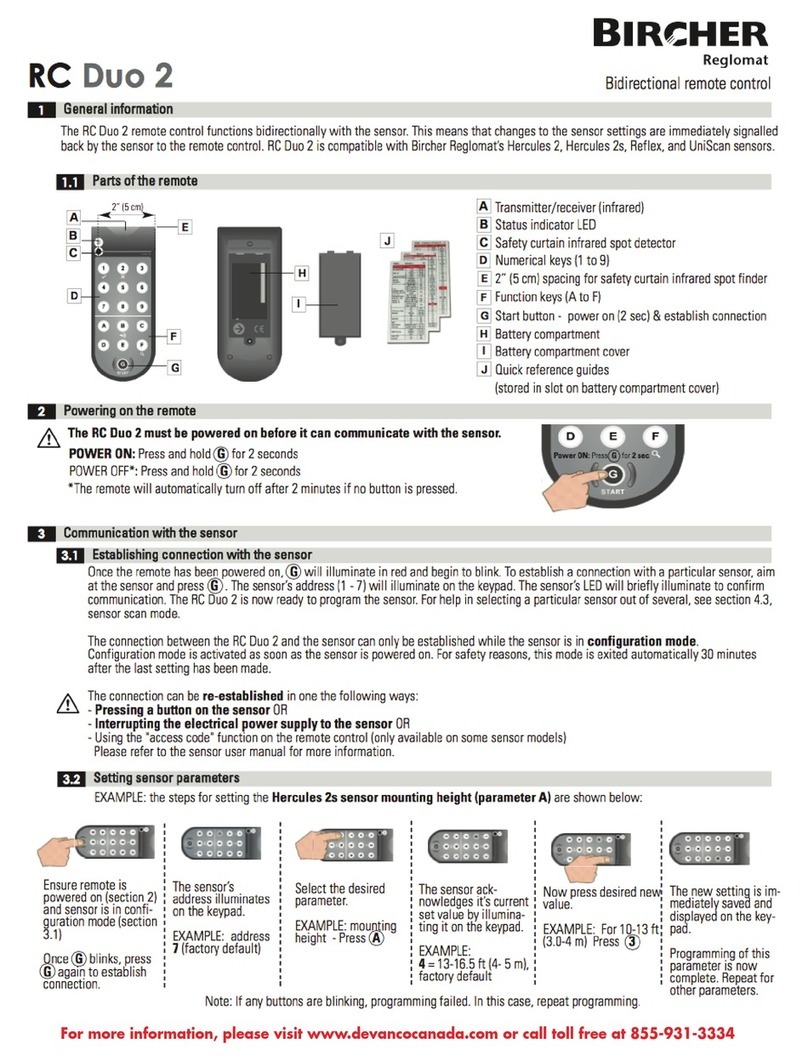
Bircher Reglomat RC Duo 2 user guide

Bircher Reglomat

Bircher Reglomat RC Duo 2 user guide

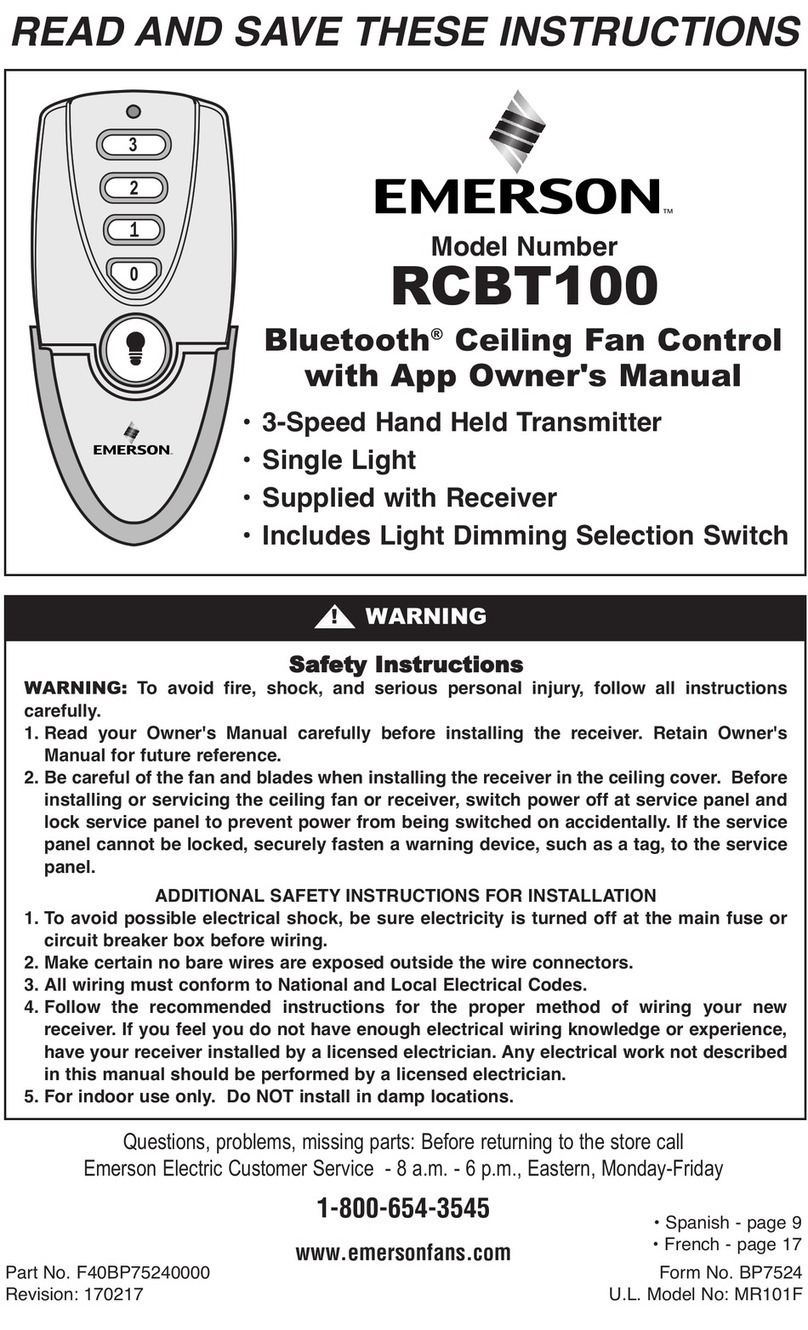
Emerson RCBT100 owner's manual

Emerson

Emerson RCBT100 owner's manual

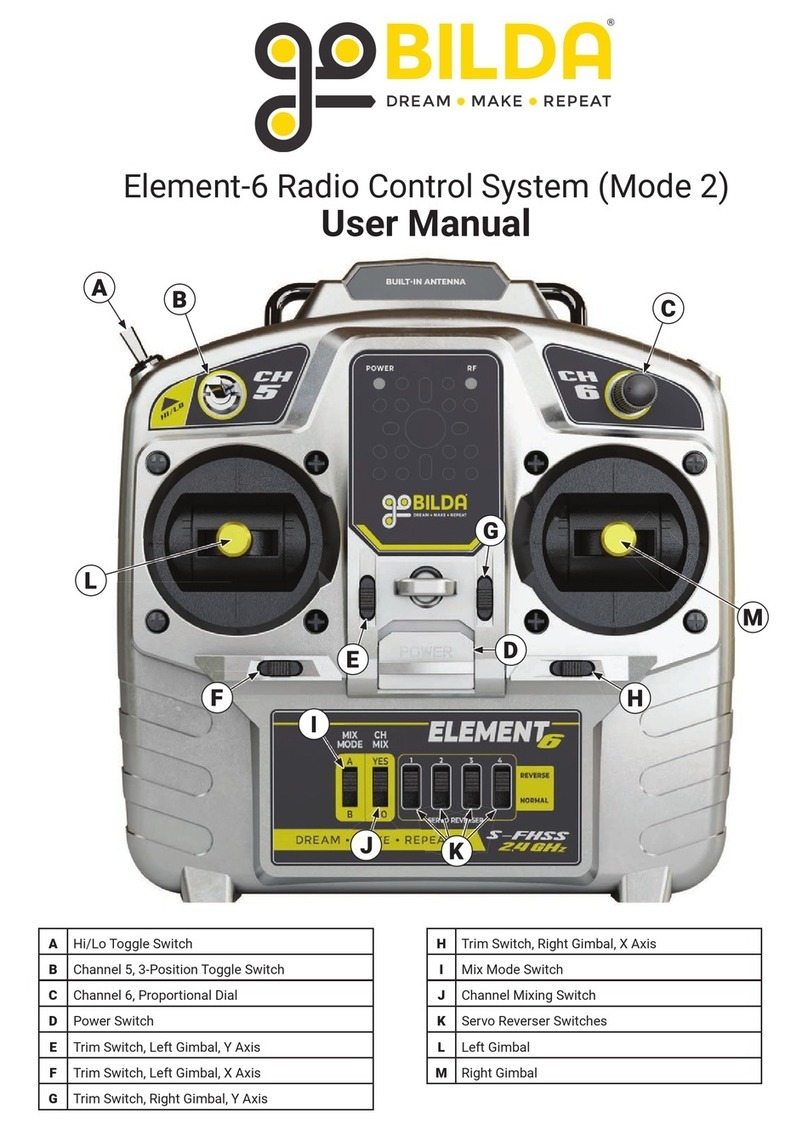
BILDA Element-6 user manual

BILDA

BILDA Element-6 user manual

Absima CR7P manual

Absima

Absima CR7P manual

Mitsubishi Electric PAR-32MAAG Instruction book

Mitsubishi Electric

Mitsubishi Electric PAR-32MAAG Instruction book

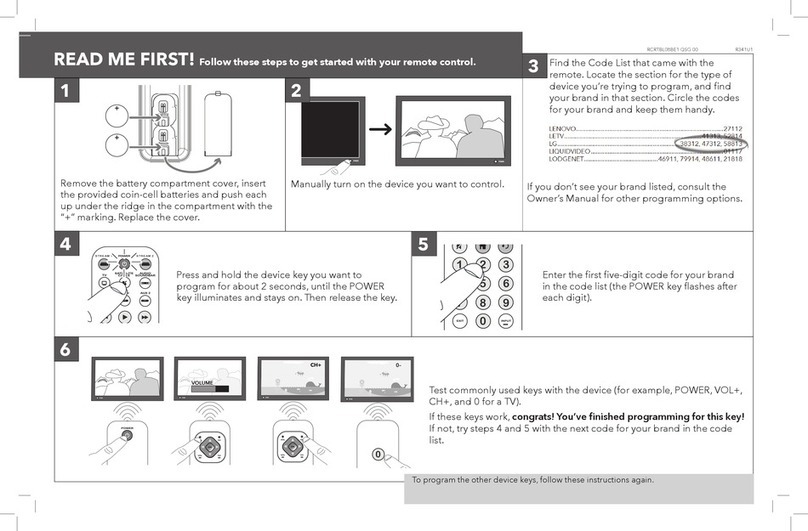
RCA RCRTBL08BE1 quick start guide

RCA

RCA RCRTBL08BE1 quick start guide

US Electronics NOVARI user guide

US Electronics

US Electronics NOVARI user guide

Panasonic EUR7622KB0 Operation guide

Panasonic

Panasonic EUR7622KB0 Operation guide

Bang & Olufsen Beo4 user manual

Bang & Olufsen

Bang & Olufsen Beo4 user manual

Marantz RC101 user guide

Marantz

Marantz RC101 user guide

FUTABA 9ZAP - PART2 manual

FUTABA

FUTABA 9ZAP - PART2 manual

HR Matic HR MULTI 3 quick start guide

HR Matic

HR Matic HR MULTI 3 quick start guide

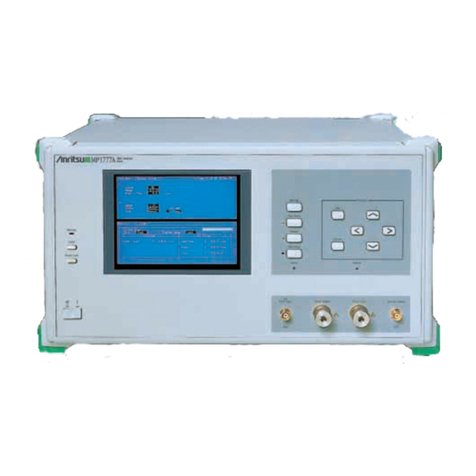
Anritsu MP1777A Operation manual

Anritsu

Anritsu MP1777A Operation manual

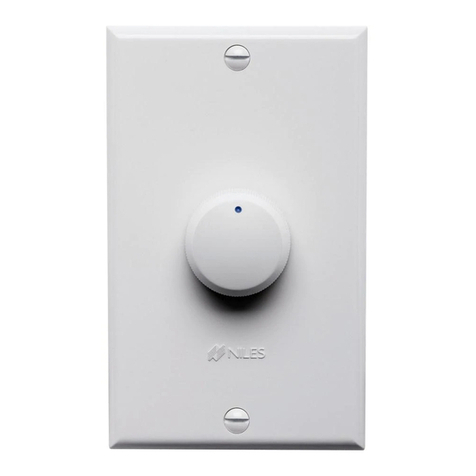
Niles WVC100 Installation & operating guide

Niles

Niles WVC100 Installation & operating guide

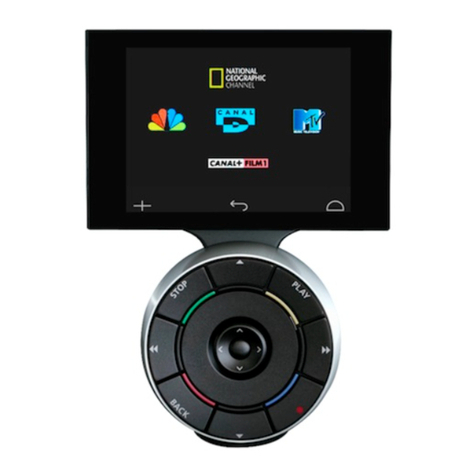
Bang & Olufsen BEO6 Getting started

Bang & Olufsen

Bang & Olufsen BEO6 Getting started

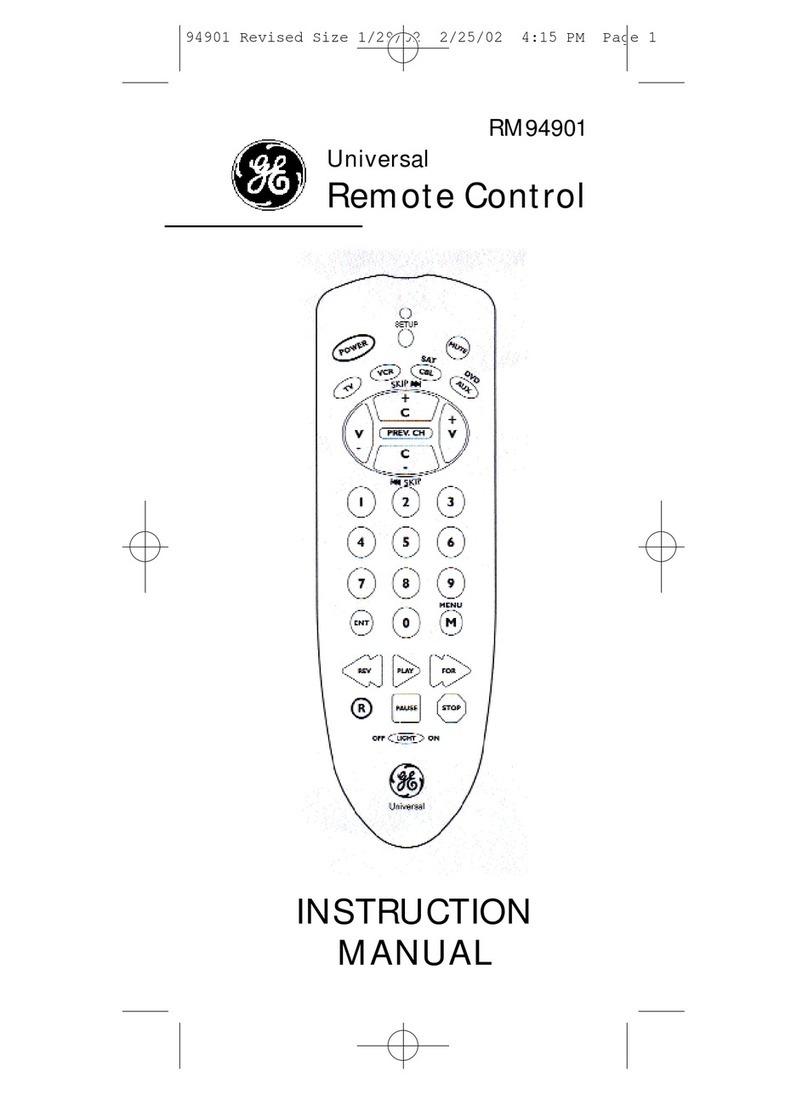
GE 94901 instruction manual

GE

GE 94901 instruction manual

FUTABA R7108SB Full manual

FUTABA

FUTABA R7108SB Full manual

Invacare G91S user manual

Invacare

Invacare G91S user manual

manuals.online logo
manuals.online logoBrands
  • About & Mission
  • Contact us
  • Privacy Policy
  • Terms and Conditions

Copyright 2025 Manuals.Online. All Rights Reserved.

INSTALLATION & USER MANUAL
800-388-0293 Fax: 207-216-4562 [email protected] www.wascoskylights.com
Eastern Facility: 85 Spencer Drive, Unit A, Wells, ME 04090 Western Facility: 6645 Echo Avenue, Reno, NV 89506
with Rain Sensor
MODELS EVMS & GSVMS
INSTALLATION & USER MANUAL
2
Installation and User Manual
1
Revision 8.12.2015
TABLE OF CONTENTS
1
Features
2In The Box
2
Further Items Required
3
Basic Operation
4
Solar Panel and Operator Installation
4
Operator Installation
5
Solar Panel and Rain Sensor Installation
6
Wiring the Solar Panel and Rain Sensor to the Operator
7Remote Setup and Configuration
8
Pairing Remote to Operator
9
Multiple Remotes
9
Secondary Remote Configuration
11
Rain Sensor Operation
12
Time to Close Operation
13
Setting MAX-OPEN Limit
14 Setting Temperature Control (TC)
15
Checking STATUS of Batteries and Charging Current
16
Re-Zoning
18
Remote Display
18
Troubleshooting Tips
FEATURES
Operator Highlights:
1. Powered by a solar charged NiMH battery pack.
2. End-user replaceable battery pack.
3. Operating force rating of 60 lbs at the chain.
4. Maximum opener chain travel of 8 inches with option to program various lengths.
5. Bright White cover standard. Paintable surface for custom color match.
6. Attachment link on chain is fastened to the sash by a release pin.
7. AC trickle charger included.
8. Adaptable to awning and hopper windows, and skylights.
Remote Highlights:
1. Large and readable display with bi-directional feedback from the operator:
a. Open / Close status percentage displayed.
b. Operator and remote battery level percentage displayed.
c. Solar charge rate displayed in mA.
d. Temperature display.
2. 9 programmable zones with up to 9 operators assigned per zone. Able to control up to 81 operators.
3. Automatic temperature control function.
4. Multiple remotes can be used on a Main / Secondary relationship. Pairing and settings can be sent from a main remote to
secondary remotes wirelessly.
5. Stand-up base with wall mount option.
6. Remote uses standard (2) AA batteries.
2 Features
3 In The Box
4 Basic Operation
5 Solar Panel and Rain Sensor Installation
6 Remote Setup and Conguration
7 Pairing Remote to Operator
8 Multiple Remotes
8 Secondary Remote Conguration
10 Rain Sensor Operation
11 Time to Close Operation
12 Setting MAX-OPEN Limit
13 Setting Temperature Control (TC)
14 Checking STATUS of Batteries and Charging Current
15 Re-Zoning
16 Remote Display
17 Troubleshooting Tips
INSTALLATION & USER MANUAL
3
Solar Smart Operator Installation and User Manual
Revision 8.12.2015
2
IN THE BOX
•Solar Smart Operator
•operator battery cover
•operator battery
•chain clip with release pin
•small flat head screw driver
•remote
•remote battery cover
•(2) AA batteries
•wall mount attachment
•solar panel with wiring pigtail
•rain sensor with wiring and bracket
•AC trickle charger
•stainless steel mounting bracket
•(2) stainless steel bracket tabs
•(4) stainless steel bolts
•(4) stainless steel nuts
FURTHER ITEMS REQUIRED
•(5) fasteners for mounting the operator
•(2) fasteners for mounting the chain clip
•(4) fasteners for mounting the solar panel and bracket
DO NOT INSTALL THE BATTERIES
UNTIL DIRECTED TO DO SO
Chain Clip
Battery Cover
Operator Battery
AC Trickle Charger
Connector
Lifting Chain
Mounting Bracket
SOLAR SMART OPERATOR
SOLAR SMART REMOTE
INSTALLATION & USER MANUAL
4
Installation and User Manual
3
Revision 8.12.2015
BASIC OPERATION
•Using the operator requires that it has been paired to the remote. Refer to Initial Remote Setup and Configuration.
Opening and Closing of an Operator
1. Press any key to wake up the remote, if the LCD display has powered off.
2. Press ZONE to choose a single zone (1 thru 9) of operators or ALL to operate all operators in all zones.
3. Press OPEN or CLOSE to open or close the window/skylight.
4. Press OPEN or CLOSE during operation to STOP the operator at any time.
Enable / Disable Automatic Functions
1. Press and hold AUTO to show or remove AUTO from the display, thus enabling or disabling the temperature control
(TC) or Time-to-Close (P1) functions.
INSTALLATION & USER MANUAL
5
Installation and User Manual
5
Revision 8.12.2015
INSTALLATION of the SOLAR PANEL and RAIN SENSOR
•The solar panel must be mounted with airspace
underneath for cooling and performance efficiency; as
well as maintain the product life span.
1. Lay the solar panel face down on a flat surface.
Take care not to scratch the solar panel.
2. Insert two stainless steel nuts into the channel of
the perimeter frame; one each on the two short
sides.
3. Use two stainless steel bolts to attach the two
bracket tabs to the frame with the two nuts
inserted into the channel. Do not fully tighten at
this time.
4. Use the remaining stainless steel bolts and nuts to
attach the mounting bracket to the solar panel.
5. Install the solar panel and bracket on to the
exterior of the building near the operator
installation location.
6. Tilt and rotate the solar panel to maximize the
solar panels exposure to the Sun. Alignment
towards the southern sky is recommended for
most locations in North America for best
exposure to mid-day sun.
7. Tighten all the fasteners to secure the solar panel
orientation.
8. Route and waterproof the pigtail wiring to the
interior of the building where the operator is to be
installed.
9. Install the rain sensor and bracket on the exterior
as level as possible near the operator.
10. Route and waterproof the wiring to the interior
where the operator will be installed.
•It is highly recommended to only use the wiring
provided for the solar panel and rain sensor.
Installation and User Manual
5
Revision 8.12.2015
INSTALLATION of the SOLAR PANEL and RAIN SENSOR
•The solar panel must be mounted with airspace
underneath for cooling and performance efficiency; as
well as maintain the product life span.
1. Lay the solar panel face down on a flat surface.
Take care not to scratch the solar panel.
2. Insert two stainless steel nuts into the channel of
the perimeter frame; one each on the two short
sides.
3. Use two stainless steel bolts to attach the two
bracket tabs to the frame with the two nuts
inserted into the channel. Do not fully tighten at
this time.
4. Use the remaining stainless steel bolts and nuts to
attach the mounting bracket to the solar panel.
5. Install the solar panel and bracket on to the
exterior of the building near the operator
installation location.
6. Tilt and rotate the solar panel to maximize the
solar panels exposure to the Sun. Alignment
towards the southern sky is recommended for
most locations in North America for best
exposure to mid-day sun.
7. Tighten all the fasteners to secure the solar panel
orientation.
8. Route and waterproof the pigtail wiring to the
interior of the building where the operator is to be
installed.
9. Install the rain sensor and bracket on the exterior
as level as possible near the operator.
10. Route and waterproof the wiring to the interior
where the operator will be installed.
•It is highly recommended to only use the wiring
provided for the solar panel and rain sensor.
1. Review the separate instructions for motor
operation and open the skylight fully with the
remote control.
2. Connect the solar panel to the wire on the exterior
of the skylight at the low side. The connector can
only go together one way and will ‘click’ when
locked together.
3. Locate the solar panel on the skylight frame as
shown below, centered side to side. Install the
panel with the screws supplied.
4. Close the skylight to complete the installation.
NOTE: The skylight needs to be installed on the roof before attaching the solar panel.
INSTALLATION & USER MANUAL
6
Installation and User Manual
7
Revision 8.12.2015
INITIAL REMOTE SETUP and CONFIGURATION
•
The following are applicable for configuring the main remote only. To configure additional remotes, refer to 'Multiple
Remotes' for more information.
•Pressing MODE does not work when zone in remote display is set to ALL. Press ZONE to exit zone ALL.
•All steps must be performed within 30 seconds or the remote control will default to the previous settings.
1. Open the remote battery cover and install the two AA alkaline batteries and replace
the cover.
2. All the screen display segments will be visible while the remote runs a self-test which
lasts for a few seconds. After which, SET will be displayed.
3. Press ▲ ▼ to choose either C (Celsius) or F (Fahrenheit).
4. Press ENTER to save your selection.
5. Press ▲ ▼ to choose either M (main) or S (secondary). Select M for main.
Note: Secondary is only used when using additional remotes. Refer to 'Multiple
Remotes' for more information.
6. Press ENTER to save your selection.
7. ZONE ALL and the temperature should now be displayed.
Installation and User Manual
7
Revision 8.12.2015
INITIAL REMOTE SETUP and CONFIGURATION
•The following are applicable for configuring the main remote only. To configure additional remotes, refer to 'Multiple
Remotes' for more information.
•Pressing MODE does not work when zone in remote display is set to ALL. Press ZONE to exit zone ALL.
•All steps must be performed within 30 seconds or the remote control will default to the previous settings.
1. Open the remote battery cover and install the two AA alkaline batteries and replace
the cover.
2. All the screen display segments will be visible while the remote runs a self-test which
lasts for a few seconds. After which, SET will be displayed.
3. Press ▲ ▼ to choose either C (Celsius) or F (Fahrenheit).
4. Press ENTER to save your selection.
5. Press ▲ ▼ to choose either M (main) or S (secondary). Select M for main.
Note: Secondary is only used when using additional remotes. Refer to 'Multiple
Remotes' for more information.
6. Press ENTER to save your selection.
7. ZONE ALL and the temperature should now be displayed.
NOTE: The remote has been congured and paired by Wasco. Keep instructions for future use.
INSTALLATION & USER MANUAL
7
Solar Smart Operator Installation and User Manual
Revision 8.12.2015
8
PAIRING the REMOTE to the OPERATOR
•Pairing sets up communication between the remote and the operator.
•
The remote will be able to control all operators assigned within a single zone simultaneously, or control all zones at once.
•There are 9 zones (1 thru 9), with each zone containing 9 ID numbers (1 thru 9). Each operator will need to be assigned
to a zone and ID number. Each zone and ID number combination can only be assigned one operator.
•The following instructions are applicable to pairing the first and additional operators to a single remote.
•Each operator can only be paired with one main remote, however multiple secondary remotes may be used once setup and
configured.
The Operator
•The remote will need to be paired within 2 minutes, or the operator will default back to the previous settings.
1. Remove the battery cover from the operator. If
connected, disconnect the battery connector from
the operator circuit board, for at least 30 seconds.
NOTE: The Solar Panel must also be
disconnected at this time.
2. Connect the battery connector to the operator circuit
board, pressing firmly until the plug is locked into
place.
3. The red light on the circuit board will continually
blink while it is in pairing mode.
The Remote
1. Press any key to wake up the remote, if the display has powered off.
2. Press and hold the MODE , release when PAIR SET is displayed.
3. Press ZONE as necessary to choose the appropriate zone (1 thru 9).
4. Press ENTER to save your selection.
5. Press ▲ ▼ to choose the ID number (1 thru 9) within the zone. ID numbers
already in use will not be displayed.
6. Press ENTER to save your selection. The remote will attempt to pair to the
operator.
(continues on next page)
INSTALLATION & USER MANUAL
8
Installation and User Manual
9
Revision 8.12.2015
7. SUCC will be displayed to indicate a successful pairing. The operator will then
fully open then close one cycle. DO NOT press any buttons on the remote until
this cycle completes.
a. If a FAIL message is displayed, press ENTER on the remote to try to
pair again.
b. If a FAIL message is displayed again, ensure that the operator is in
pairing mode. If the red light is not still blinking, disconnect and
reconnect the battery connector on the operator and repeat steps 1-7
again.
MULTIPLE REMOTES
•It is intended that one or multiple operators may be controlled from multiple secondary remotes. This is done by sending the
pairing and settings stored in the first configured M (main) remote, to the additional S (secondary) remote(s). Secondary
remotes will be 'copies' of the main.
•Any changes to operator zones, ID numbers, and/or adding additional operators can only be performed using the main remote.
The changed settings would then need to be re-sent from the main to the secondary remote(s).
•Ensure that a main remote has been configured as outlined in 'Remote Setup and Configuration' and that it has been paired to
the operator(s) as described in 'Paring Remote to Operator.'
Secondary Remote Configuration
•All steps must be performed within 30 seconds or the remote control will default to the previous settings.
1. Open the remote battery cover; remove and reinstall two AA alkaline batteries and
replace the cover.
2. All the screen display segments will be visible while the remote runs a self-test which
lasts for a few seconds. After which, SET will be shown on the Display to indicate
input is required.
3. Press ▲ ▼ to choose either C (Celsius) or F (Fahrenheit).
4. Press ENTER to save your selection.
5. Press ▲ ▼ to choose either M(main) or S (secondary). Select Sfor secondary.
6. Press ENTER to save your selection.
7. ZONE ALL and the temperature should now be displayed.
INSTALLATION & USER MANUAL
9
Solar Smart Operator Installation and User Manual
Revision 8.12.2015
10
1. SECONDARY REMOTE STEPS
a. Press and hold MODE , release when PAIR SET is displayed and the S in
the upper-right corner is flashing.
b. Press ENTER . The secondary remote will now be waiting to receive the
transmission from the main remote. It will wait for 30 seconds.
2. MAIN REMOTE STEPS
a. Press and hold MODE , release when PAIR SET is displayed.
b. Press MODE twice to move past RE-ZONE to display M in the upper-right
corner as flashing.
c. Press ENTER to begin transmitting the settings to the secondary remote.
d. SUCC will be displayed on a successful transfer of settings.
i. If a FAIL message is displayed instead, be sure that the secondary remote is
still configured to be waiting to receive the transmission.
Press ENTER to retry.
INSTALLATION & USER MANUAL
10
Installation and User Manual
11
Revision 8.12.2015
RAIN SENSOR
The rain sensor should be installed horizontally, with a slight tilt to prevent water from pooling. The sensor location depends on many
factors. The key to proper installation is that the sensor must be level and exposed when the operator opens the unit. The wires from
the sensor to the operator must be ran to the operator in a water proof manner so as to not induce water penetration that could damage
the interior. The sensor is not polarity sensitive so it does not matter which wire goes to which connector in the operator.
By default, the rain sensor is enabled when the remote is initially paired to the operator regardless of whether the rain sensor is attached
or not. When the rain sensor is enabled a small umbrella will be displayed in the top right hand display box.
1. To enable or disable the rain sensor, press any key to wake up the remote if the LCD
display has powered off.
2. Press MODE .
3. Press ZONE as necessary to choose the desired zone.
4. After the desired zone is flashing, press ENTER .
5. MAX-OPEN will know be flashing.
6. Press ▲ ▼ until the icon is displayed and flashing, press ENTER .
7. Press ▲ ▼ to choose the ID number (1 thru 9) within the zone.
8. Press ENTER to confirm your selection.
9. Press ▲ ▼ to choose between ON and OFF while they are flashing.
10. Press ENTER to save your setting.
11. LCD displays steady ON or OFF for one second, then SUCC for 2 seconds, indicating
success. Press MODE a few times to return to the home screen
a. If setting not successful, LCD displays FAIL for 1 second, then returns to the
same step #8 to retry setting.
RAIN SENSOR OPERATION
When a drop of water is on the sensor the operator may not react immediately. The control system actually takes multiple
reading in an effort to avoid false readings and possible “cycling” of the operator before it sends the close or open commands.
If the operator is manually opened when the rain sensor is enabled AND there is water present on the sensor, the
operator will close and the umbrella icon will blink on the Remote. If you desire to open the operator at this time, the
sensor will need to be disabled before it will stay in the open position.
If the Rain Sensor and the Automated Temperature Control are enabled at the same time, the Rain Sensor will take precedence
over the Temperature Control. In other words, if rain is detected, the operator will close regardless of the temperature until
such time as water is no longer detected on the sensor before it will automatically re-open.
As noted above, the rain sensor is designed to detect a lowering of the resistance between the metallic strips on the sensor. The
resistance can be lowered by a number of factors including moss, sap, heavy dew, or condensation drops from surrounding
structures. Therefore it is important to periodically clean the sensor to maintain proper operation. If all operations function
properly except when the Rain Sensor is enabled, cleaning the Rain Sensor is recommended.