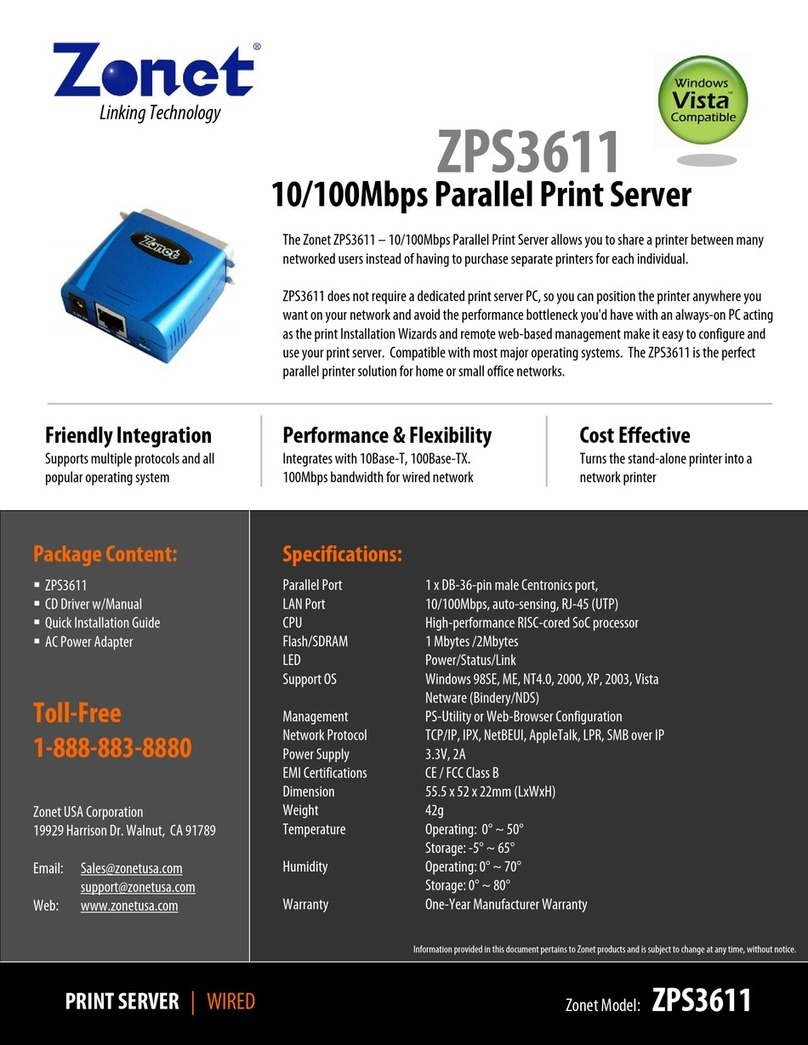
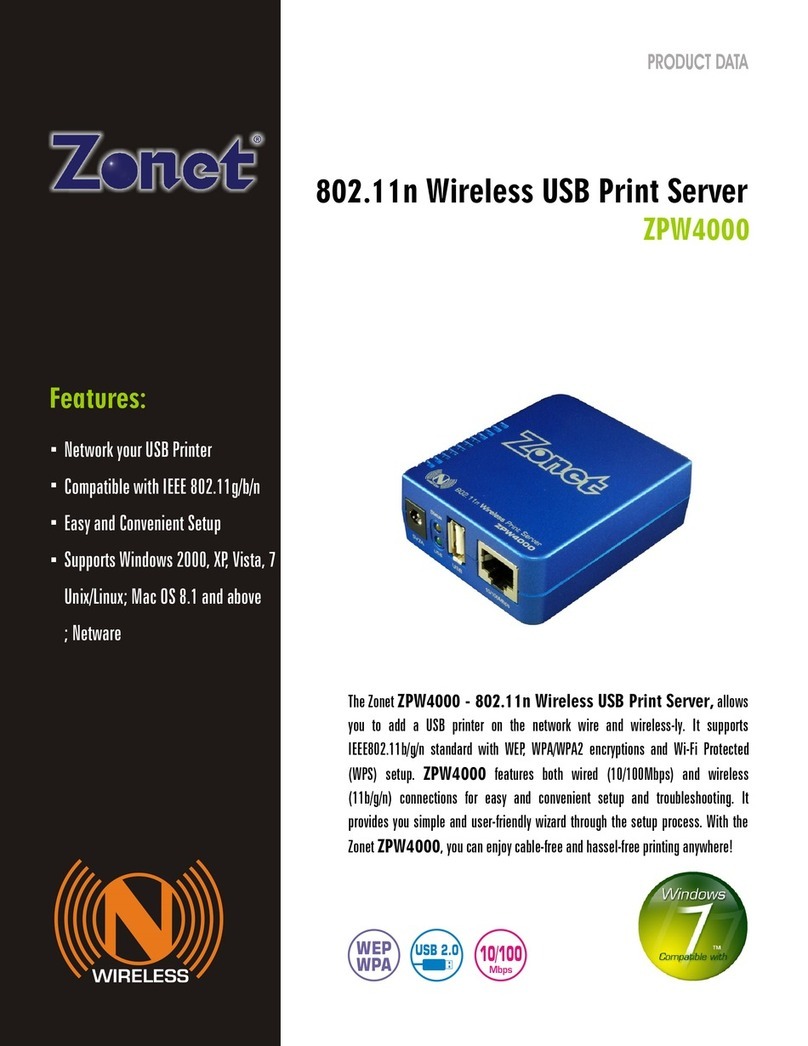
manuals.online logo
Brands
  1. Home
  2. •
  3. Brands
  4. •
  5. Zonet
  6. •
  7. Print Server
  8. •
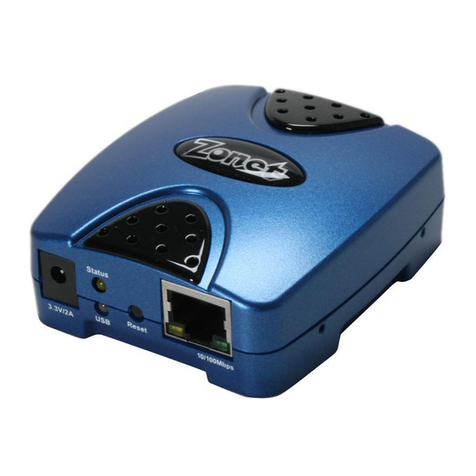
  9. Zonet ZPW4000 User manual

Zonet ZPW4000 User manual

Other manuals for ZPW4000

2

Other Zonet Print Server manuals

Zonet ZPS1000 User manual

Zonet

Zonet ZPS1000 User manual

Zonet ZPS1002 - User manual

Zonet

Zonet ZPS1002 - User manual

Zonet ZPW4000 Operation manual

Zonet

Zonet ZPW4000 Operation manual

Zonet ZPS1002 - User manual

Zonet

Zonet ZPS1002 - User manual

Zonet ZPS1000 User manual

Zonet

Zonet ZPS1000 User manual

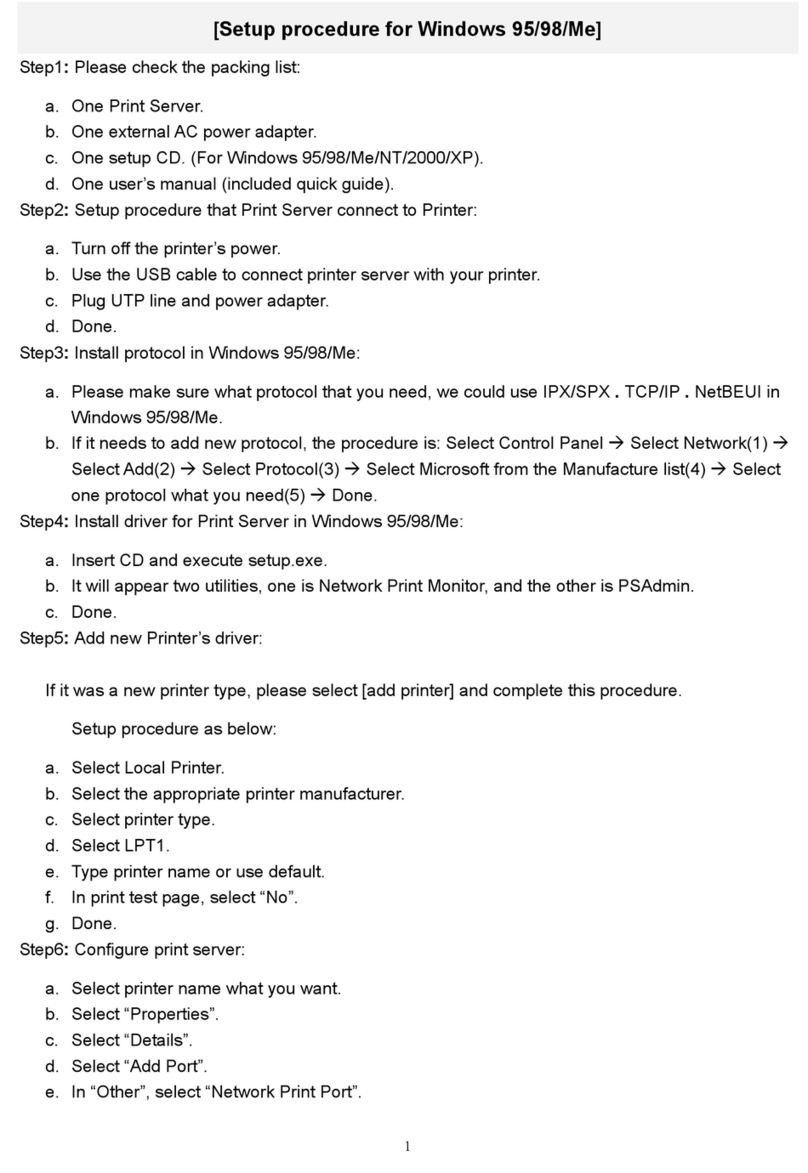
Zonet ZPS2102 - SETUP PROCEDURE FOR WINDOWS... User manual

Zonet

Zonet ZPS2102 - SETUP PROCEDURE FOR WINDOWS... User manual

Zonet ZPS3611 - QUICK User manual

Zonet

Zonet ZPS3611 - QUICK User manual

Zonet ZPW4000 User manual

Zonet

Zonet ZPW4000 User manual

Popular Print Server manuals by other brands

Atlantis Land NETSERVER A02-PSU_GX02 quick start guide

Atlantis Land

Atlantis Land NETSERVER A02-PSU_GX02 quick start guide

Digitus DN-13003-1 user manual

Digitus

Digitus DN-13003-1 user manual

Intellinet 509077 user manual

Intellinet

Intellinet 509077 user manual

Buffalo LPV4-U2-300S user manual

Buffalo

Buffalo LPV4-U2-300S user manual

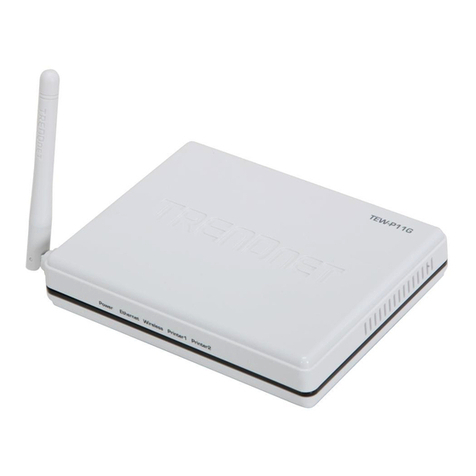
TRENDnet TEW-P11G datasheet

TRENDnet

TRENDnet TEW-P11G datasheet

Axis 140 BJC user manual

Axis

Axis 140 BJC user manual

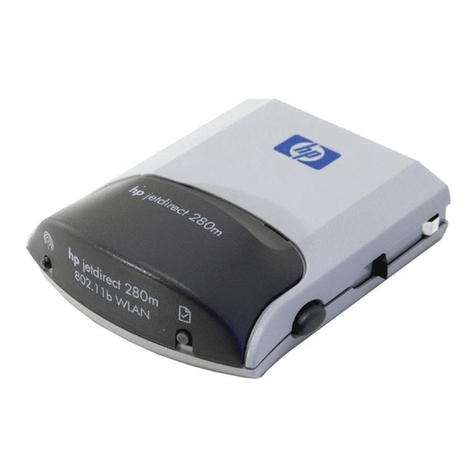
HP Jetdirect 280m - 802.11b Wireless Print... user guide

HP

HP Jetdirect 280m - 802.11b Wireless Print... user guide

MicroNet SP766W user manual

MicroNet

MicroNet SP766W user manual

Buffalo LPV4-U2-300S Quick setup guide

Buffalo

Buffalo LPV4-U2-300S Quick setup guide

Axis 5600+ user manual

Axis

Axis 5600+ user manual

Edimax PS-1206PWg Compatibility listing

Edimax

Edimax PS-1206PWg Compatibility listing

Epson C823622A - Interface Type B Print Server brochure

Epson

Epson C823622A - Interface Type B Print Server brochure

Axis 540 series Quick installation guide

Axis

Axis 540 series Quick installation guide

D-Link DP-300+ user manual

D-Link

D-Link DP-300+ user manual

Hawking HPS1U Quick installation guide

Hawking

Hawking HPS1U Quick installation guide

LevelOne WPS-9123 user manual

LevelOne

LevelOne WPS-9123 user manual

D-Link DP-300+ manual

D-Link

D-Link DP-300+ manual

LevelOne FPS-1032 user manual

LevelOne

LevelOne FPS-1032 user manual

manuals.online logo
manuals.online logoBrands
  • About & Mission
  • Contact us
  • Privacy Policy
  • Terms and Conditions

Copyright 2025 Manuals.Online. All Rights Reserved.

T
ABLE OF
C
ONTENTS
1.
INTRODUCTION .................................................................................................. 1
P
RODUCT
O
VERVIEW
........................................................................................................ 1
W
IRELESS
S
PECIFICATIONS
................................................................................................ 1
C
OMPONENTS AND
F
EATURES
.............................................................................................. 2
H
ARDWARE
I
NSTALLATION
................................................................................................. 3
N
ETWORK
E
NVIRONMENT
................................................................................................... 4
W
IRED
N
ETWORK WITH
P
RINT
S
ERVER
: ................................................................................. 4
W
IRELESS
N
ETWORK WITH
P
RINT
S
ERVER
: ............................................................................. 4
I
NFRASTRUCTURE
(A
CCESS
P
OINT
)
M
ODE
:.............................................................................. 4
A
D
-H
OC
(PEER-
TO
-PEER)
M
ODE
: ...................................................................................... 4
2.
PRINT SERVER INSTALLATION............................................................................ 5
P
REPARATION
................................................................................................................ 5
C
ONFIGURATION
S
OLUTION
T
A LE
........................................................................................ 5
3. SOFTWARE INSTALLATION...................................................................................... 7
I
NSTALLING THE
PSA
DMIN AND
P
RINT
S
ERVER
’
S
D
RIVER
............................................................. 7
U
SING
PSA
DMIN
...........................................................................................................22
W
IZARD
......................................................................................................................22
M
ANUAL
S
ETUP
.............................................................................................................25
R
EFRESH
.....................................................................................................................28
M
ULTIPLE
P
RINT
Q
UEUES
C
ONFIGURATION
(N
OVELL
N
ETWARE
) ....................................................28
U
NINSTALLING THE
PSA
DMIN ON
W
INDOWS
PC ......................................................................29
4. INTERNET PRINTER CONNECTION AND HP WEB JETADMIN................................... 30
IPP
O
VERVIEW
..............................................................................................................30
HP
W
E
J
ET
A
DMIN
O
VERVIEW
...........................................................................................32
I
NSTALLING
HP
W
E
J
ET
A
DMIN
..........................................................................................32
R
EMOVING
HP
W
E
J
ET
A
DMIN
U
TILITY
.................................................................................33
5. CONFIGURATION FROM EMBEDDED WEB SERVER ................................................. 34
O
VERVIEW
...................................................................................................................34
U
SING
E
M EDDED
W
E
S
ERVER
.........................................................................................34
S
ETUP
M
ENU
................................................................................................................43
I
NSTALLING
P
RINT
S
ERVER ON
N
ET
W
ARE
4.
X
/5.
X
....................................................................50
S
ETTING
U
P A
M
ACINTOSH
C
OMPUTER
(M
AC
8.
X
/9.
X
)...............................................................53
P
REPARATION
...............................................................................................................57
TCP/IP
P
ROTOCOL
I
NSTALLATION
.......................................................................................58
IPX/SPX-
COMPATI LE
P
ROTOCOL
I
NSTALLATION
.....................................................................58
N
ET
EUI
P
ROTOCOL
I
NSTALLATION
(9X/ME/NT4/2000) .........................................................59
W
INDOWS
2000/XP/2003
MANUAL
I
NSTALLATION
P
ROCEDURE
...................................................59
U
NINSTALLING
N
ETWORK
P
RINT
P
ORT ON
W
INDOWS
2000/XP/2003............................................61
7. TCP/IP LPR PORT PRINTING INSTALLATION......................................................... 3
ASIC
TCP/IP
I
NSTALLATION
O
VERVIEW
...............................................................................63
A
SSIGNING AN
IP
A
DDRESS
..............................................................................................63
W
INDOWS
NT
LPR
P
ORT
P
RINTING
I
NSTALLATION
...................................................................63
W
INDOWS
2000/XP/2003/V
ISTA
/7
S
TANDARD
TCP/IP
P
ORT
P
RINTING
I
NSTALLATION
.....................65
UNIX
I
NSTALLATION
.......................................................................................................68
8.
U
PGRADING
P
RINT
S
ERVER
............................................................................................73
O
VERVIEW
...................................................................................................................73
U
PGRADING THE PRINT SERVER FROM
PSA
DMIN
.......................................................................73
U
PGRADING THE PRINT SERVER FROM
W
INDOWS
2000/XP/2003/V
ISTA
/7
(T
HROUGH
TCP/IP) ............73
U
PGRADING THE PRINT SERVER FROM
UNIX
(T
HROUGH
TCP/IP) ..................................................74
U
PGRADING THE PRINT SERVER FROM
ROWSER
.......................................................................74

9. TROUBLESHOOTING .............................................................................................. 7
GENERAL TROUBLESHOOTING OVERVIEW................................................................. 7
P
OWER
R
ELATED
P
RO LEMS
..............................................................................................76
P
RINT
P
ORT
R
ELATED
P
RO LEMS
.........................................................................................77
W
INDOWS
2000/XP
T
ROU LESHOOTING
..............................................................................77
M
OVING THE PRINT SERVER TO
A
N
EW
S
EGMENT
......................................................................78
M
OVING
Y
OUR
C
OMPUTER TO
A
N
EW
S
EGMENT
.......................................................................80
N
OVELL
N
ET
W
ARE
T
ROU LESHOOTING
..................................................................................80
TCP/IP
T
ROU LESHOOTING
..............................................................................................80
APPENDIX ................................................................................................................. 83
F
REQUENTLY
A
SKED
Q
UESTIONS
.........................................................................................88
A
DDITIONAL
I
NSTALLATION
I
NSTRUCTIONS
.............................................................................90
Copyright Statement
is the registered trademark of Zonet Technology Inc. All the
products and product names mentioned herein are the trademarks or registered
trademarks of their respective holders. Copyright of the whole product as
integration, including its accessories and software, belongs to Zonet Technology
Inc. Without the permission of Zonet Technology Inc., any individual or party is
not allowed to copy, plagiarize, imitate or translate it into other languages.
802.11n Wireless Print Server User Manual
1
1.Introduction
Product Overview
The external print servers enhance capability by letting you place your printers at
convenient locations directly on the Ethernet network, and by increasing network
printer performance and management. Please note that the print server does not
support printing with host-based printers, e.g. CAPT, GDI, PPA.
Network Management
The print servers support the Simple Network Management Protocol (SNMP),
which remote printer management and a warning. A standard SNMP agent is
permanent on these print servers. Any standard SNMP-based application can be
used to access and manage these
print servers.
Network configuration
The print servers provide an embedded web server that can be accessed via a
proper web browser. We also subsidiary Windows-based PSAdmin utility which
help administrator to setup print server environment.
Wireless Specifications
Standard Complies with IEEE 802.11b/g/n standard
Radio Frequency 2.4Ghz ISM and
Media Access Control
Method
Carrier Sense Multiple Access / Collision Avoidance
(CSMA/CA) with ACK
Modes Ad-Hoc and Infrastructure (User definable)
Data Transfer Rate 1, 2, 5.5, 6, 9, 11, 12, 18, 24, 36, 48, 54, 108Mbps
Output Power 15 ~ 20d m
Wireless Security WEP(64bit/128bit) and WPA/WPA2
802.11n Wireless Print Server User Manual
Components and Features
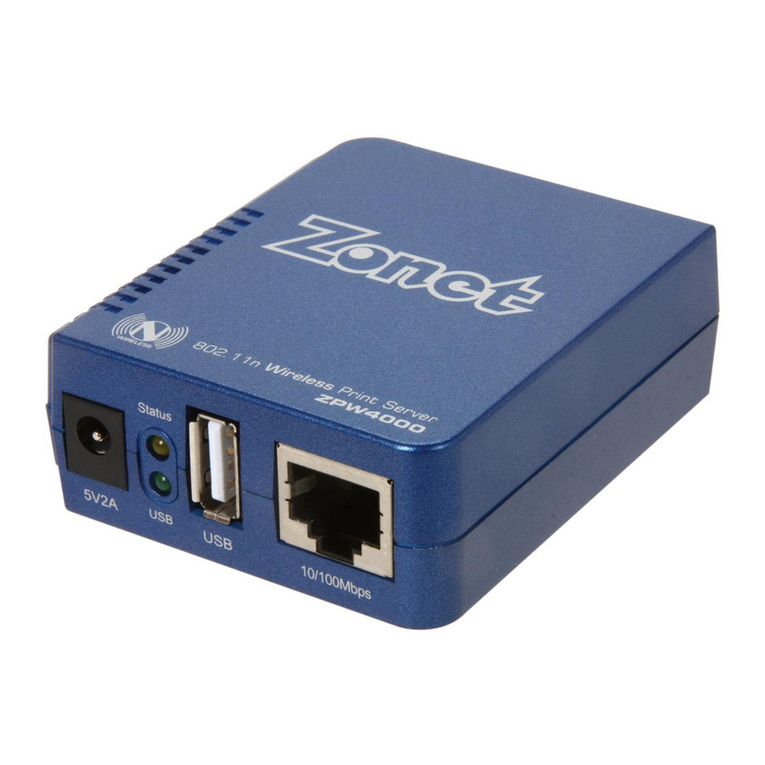
802.11n Wireless Print Server
˙1 US 2.0 port
˙Fast Ethernet network port: RJ-45 for 10 ase-T or 100 ase-TX
˙1 LED to indicate Status: Orange
˙1 LED to indicate US port: Green
˙1 LED to indicate WLAN status: Orange
˙ uilt-in WPS utton
˙ uilt-in Reset utton
˙One Setup CD for Windows 2000/XP/2003/Vista/7, User Guide
˙One external AC power adapter
˙One Quick Installation Guide
LED Indicators
LED State Indication
On (Orange)
When power switched on, the Status indicator will
flash five times, and then on. The LAN port is li
nking
also
Flash
ing (one time
per second) When power switched on but LAN port is not linking
Status
Flash
ing (several
times per second)
Data transmitting
US On (Green) Connect with US 2.0 printer
On(Orange) WLAN enabled
WLAN Flashing Data transmitting
Before you start, you should prepare the following items:
One Windows-based computer with print server setup CD
One printer with a US port
One US printer cable
802.11n Wireless Print Server User Manual
3
Hardware Installation
To install the print servers, you need to complete these steps:
˙Confirm that your printer US port works well.
˙Connect the print server to the network and printer, and plug in the print server.
Follow these instructions to install the print servers, please refer to any
peripheral
you are connecting to the print server:
1. Turn off the printer’s power.
2. Connect the print server to your printer with the US cable.
3. Turn the printer’s power on.
4. Plug the AC power adapter into the power connector on the print server.
5. Wait 10 seconds until all the LEDs have stopped flashing. (the WLAN LED
will continue to flash if data is being transmitted via wireless connectivity).
Note: The Status LED should be flash five times when POST. If not, please
contact your local dealer for repair or replacement. Then WLAN LED should
be on to associate with the proper Access Point with best wireless signal. If
not, please contact your local dealer for repair or replacement
WPS
WiFi Protected Setup
Printer Server supports WiFi Protected Setup (WPS), which is an easy way to set
up a secure wireless network. WPS is an industry standard specification, defined
by the WiFi Alliance.
WPS allows you to quickly set up a wireless network with strong security, without
having to configure security settings manually. Each WPS connection works
between two devices. oth devices must support WPS (check each device’s
documentation to make sure).
1. Press WPS buttons in each of the device itself and Wireless AP in three seconds
and release it, then the WLAN LED of device will be off.
2. Wait two minutes to find another device that also has WPS activated. Then, the
two devices connect and set up a secure network by themselves.
802.11n Wireless Print Server User Manual
4
Network Environment
Wired Network with Print Server:
Wireless Network with Print Server:
Infrastructure (Access Point) Mode:
Ad-Hoc (PEER-to-PEER) Mode:
802.11n Wireless Print Server User Manual
5
2.
Print Server Installation
Preparation
To meet users’ network printing needs in today’s heterogeneous and multiple
protocol networking environments, the print server supports industrial standard
protocols, including TCP/IP, IPX/SPX, Net EUI and AppleTalk. This means that the
print server supports the most popular network operating systems today,
including Windows 2000/XP/2003/Vista/7, UNIX/Linux systems and Macintosh
computer. As such, there might be several ways to deploy the print server on your
network.
Supported Networks
Print server supports a variety of network protocols, including TCP/IP, IPX/SPX,
Net EUI and AppleTalk. In addition, we provide software for network
configuration on the following networks:
˙Microsoft Windows 2000/XP/2003/Vista/7
˙Apple EtherTalk
˙UNIX /Linux system
˙Internet (via Internet Printer Connection software)
Configuration Solution Table
Setup Operating System
Function Remarks
PSAdmin utility / Setup Wizard
Windows 2000/XP/2003/
Vista/7
Install a single
network on a
peer-to-peer or
client-server network
Easy printer installation runs
from print server setup CD
Embedded Web server
Windows 2000/XP/2003/
Vista/7,
Mac OS8.1 or above,
Linux…
Remote setup print
server from private
LAN
Support Microsoft Internet
Explorer 6.0 or above,
Mozilla Firefox 3.0 or above;
Safari 3.2.3 or above, etc.
HP Web JetAdmin
Windows 2000/XP/2003/
Vista/7
Remote management
of print server,
include alert and
consumables
Print server solution for
continual management of
multiple printers- anywhere
on your LAN
802.11n Wireless Print Server User Manual
6
Internet Printing Protocol
Windows
2000/XP/2003/Vista/7
Printing via the internet
to Internet Printing
Protocol- enabled print
server
Allows saving distribution of
HQ hardcopy document over
Internet, replacing fax, mail
Comment
Configuration solution Table has many installations way to setup Windows
2000/XP/2003/Vista/7, UNIX / Linux system and Mac computer. Firstly, we
introduce PSAdmin utility, HP Web JetAdmin program and Internet Printing
Protocol solution. Then we will discuss Embedded Web Server Installation with
print server.