Prestige 2002 Series
6
1In Windows XP, click start, Control Panel.
In Windows 2000/NT, click Start, Settings, Control
Panel.
2In Windows XP, click Network Connections.
In Windows 2000/NT, click Network and Dial-up
Connections.
3Right-click Local Area Connection and then click
Properties.
4Select Internet Protocol (TCP/IP) (under the
General tab in Windows XP) and click Properties.
5The Internet Protocol TCP/IP Properties screen
opens (the General tab in Windows XP).
6Select Use the following IP address and fill in the
IP address (choose one from192.168.5.2 to
192.168.5.254) and Subnet mask (255.255.255.0)
fields.
7Click OK to close the Internet Protocol (TCP/IP)
Properties window.
8Click Close (OK in Windows 2000/NT) to close the
Local Area Connection Properties window.
9Close the Network Connections screen.
3 Initial Configuration
Your voice service provider may assign the Prestige’s settings automatically. If the PWR/VoIP LED turns
orange, you can skip to Section 4.1 to make calls through the Internet. Use this section if the PWR/VoIP LED
stays green or you want to configure the Prestige 2002L for making regular calls.
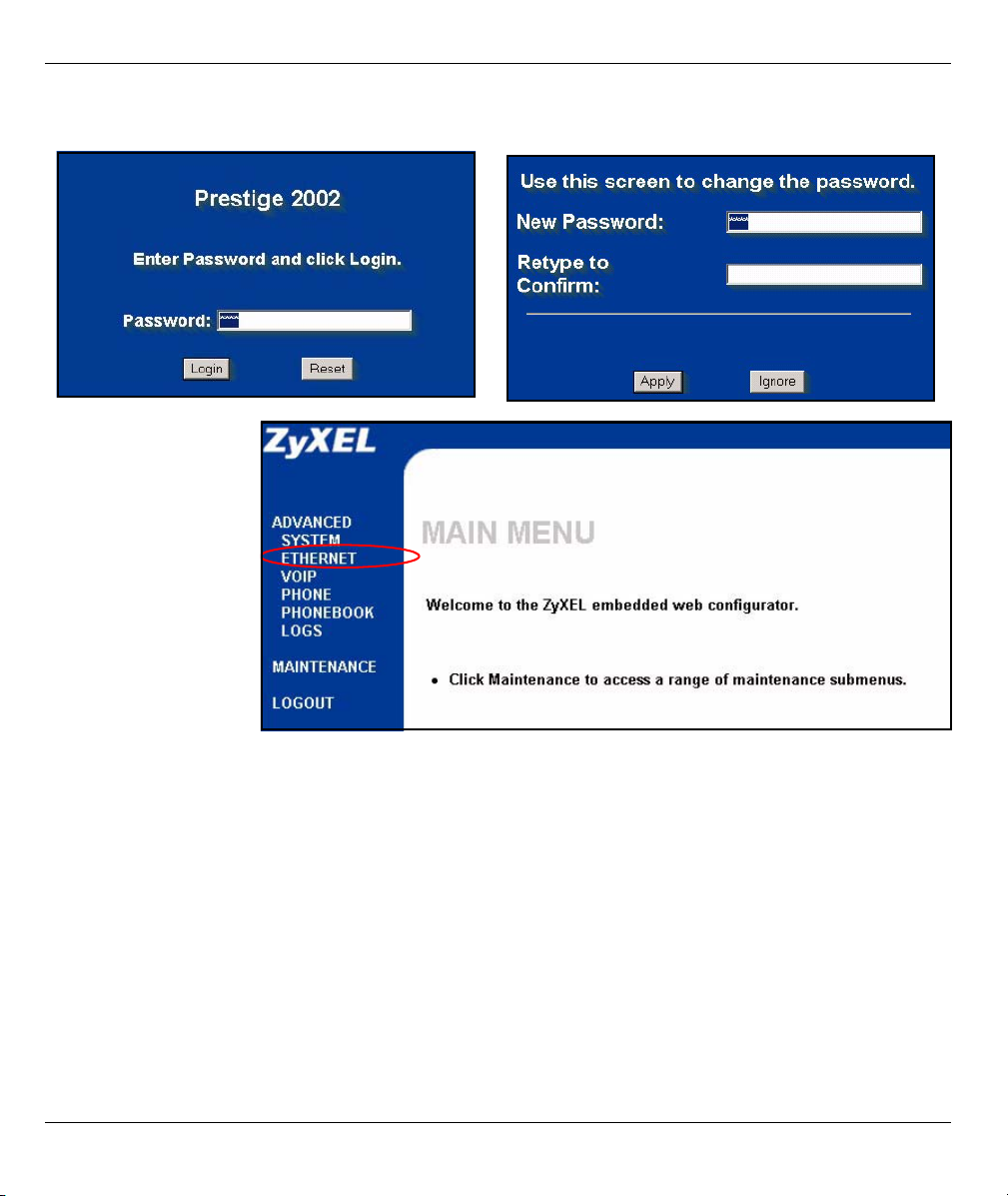
1Launch your web browser. Enter
“192.168.5.1” (the Prestige’s default
management IP address) as the web
site address.