5
Installing Your AVC-2310
5Follow the on-screen instructions.
■If you are using Windows 98SE, you may need your
Windows 98SE CD to complete the installation.
■If you are using Windows XP or Windows 2000 and you
have plugged your device into a USB 1.1 port, you will see a
message indicating that a high-speed USB device is plugged
into a non-high-speed USB port. This means your AVC-2310
will run at the slower USB 1.1 speed. To increase your speed
you may want to upgrade to USB 2.0. Go to www.adaptec.com
for more information on USB 2.0 adapters.
■If you are using Windows XP, you may see a warning
message about Microsoft Windows logo certification. Click
Continue Anyway.
6When the driver installation is complete and you’ve clicked
Finish, you may see a message asking you to restart your
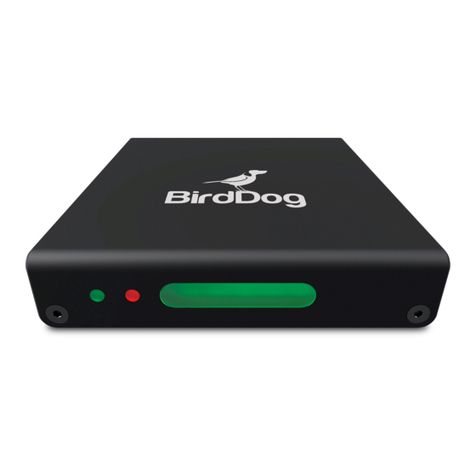
computer. Click Yes. The LED on the front of the AVC-2310
becomes green after you finish the driver installation.
You are now ready to install the software.
7From the main VideOh! Installation screen, click Install
Software, then click WinDVR.
If the VideOh! installation screen doesn’t appear, use Windows
Explorer to display the CD contents, then click autorun.exe.
8
Follow the on-screen instructions to install InterVideo WinDVR
software. During the installation, if you are prompted to install
DirectX, do so
.
9From the main VideOh! Installation screen, click Install
Software, then click MyDVD.
Note: Windows 98SE only—Your system may automatically
install an updated version of Windows Installer, then
prompt you to restart your computer. Follow the on-screen
instructions to continue the installation.
10 Follow the on-screen instructions to install Sonic MyDVD and
the ArcSoft®ShowBizTM companion software.
11 When the installation is complete, restart your computer.
You are now ready to CONNECT.