manuals.online logo
Brands
  1. Home
  2. •
  3. Brands
  4. •
  5. Adobe
  6. •
  7. Software
  8. •
  9. Adobe 65057479 User manual

Adobe 65057479 User manual

This manual suits for next models

1

Other Adobe Software manuals

Adobe CONNECT User manual

Adobe

Adobe CONNECT User manual

Adobe 38000511 - Macromedia Flash Basic User manual

Adobe

Adobe 38000511 - Macromedia Flash Basic User manual

Adobe 65007312 - Photoshop Lightroom Manual

Adobe

Adobe 65007312 - Photoshop Lightroom Manual

Adobe CONNECT ENTERPRISE SERVER 6-INSTALLATION... User manual

Adobe

Adobe CONNECT ENTERPRISE SERVER 6-INSTALLATION... User manual

Adobe 65018518 - Flash CS4 Professional Guide

Adobe

Adobe 65018518 - Flash CS4 Professional Guide

Adobe PREMIERE 5 User manual

Adobe

Adobe PREMIERE 5 User manual

Adobe ACROBAT READER User manual

Adobe

Adobe ACROBAT READER User manual

Adobe MEDIA SERVER User manual

Adobe

Adobe MEDIA SERVER User manual

Adobe PAGEMAKER 6.5 - Installation guide

Adobe

Adobe PAGEMAKER 6.5 - Installation guide

Adobe 38039481 - Flash CS3 Professional User manual

Adobe

Adobe 38039481 - Flash CS3 Professional User manual

Adobe CONFIGURATOR 1 User manual

Adobe

Adobe CONFIGURATOR 1 User manual

Adobe 65045315 - Photoshop Elements - PC Operating manual

Adobe

Adobe 65045315 - Photoshop Elements - PC Operating manual

Adobe 65029902 - Robohelp Server - PC User manual

Adobe

Adobe 65029902 - Robohelp Server - PC User manual

Adobe 29180155 - Photoshop Elements 4.0 User manual

Adobe

Adobe 29180155 - Photoshop Elements 4.0 User manual

Adobe 38040334 - Dreamweaver CS3 User manual

Adobe

Adobe 38040334 - Dreamweaver CS3 User manual

Adobe 62000112DM - Acrobat 3D - PC User manual

Adobe

Adobe 62000112DM - Acrobat 3D - PC User manual

Adobe 65010248 - Illustrator CS4 - PC User manual

Adobe

Adobe 65010248 - Illustrator CS4 - PC User manual

Adobe 65009626 - Soundbooth CS4 - PC Guide

Adobe

Adobe 65009626 - Soundbooth CS4 - PC Guide

Adobe 65011817 - Fireworks CS4 - Mac Guide

Adobe

Adobe 65011817 - Fireworks CS4 - Mac Guide

Adobe PREMIERE 6.0 FOR WINDOWS - IEEE 1394 COMPATIBILITY... User manual

Adobe

Adobe PREMIERE 6.0 FOR WINDOWS - IEEE 1394 COMPATIBILITY... User manual

Adobe 26001648 - Illustrator CS3 User manual

Adobe

Adobe 26001648 - Illustrator CS3 User manual

Adobe 29180248 - Photoshop Elements 5.0 User manual

Adobe

Adobe 29180248 - Photoshop Elements 5.0 User manual

Adobe 65064073 User manual

Adobe

Adobe 65064073 User manual

Adobe ACROBAT 3D User manual

Adobe

Adobe ACROBAT 3D User manual

Popular Software manuals by other brands

Garmin 010-10844-00 - Mobile XT - GPS Software null

Garmin

Garmin 010-10844-00 - Mobile XT - GPS Software null

COMPRO COMPROFM manual

COMPRO

COMPRO COMPROFM manual

Muratec OFFICEBRIDGE ONLINE user guide

Muratec

Muratec OFFICEBRIDGE ONLINE user guide

Oracle Contact Center Anywhere 8.1 installation guide

Oracle

Oracle Contact Center Anywhere 8.1 installation guide

Avaya NULL One-X for RIM Blackberry user guide

Avaya

Avaya NULL One-X for RIM Blackberry user guide

HP ProLiant BL420c user guide

HP

HP ProLiant BL420c user guide

PS Audio PowerPlay Programming manual

PS Audio

PS Audio PowerPlay Programming manual

Brady LOCKOUT PRO 3.0 Administrator's guide

Brady

Brady LOCKOUT PRO 3.0 Administrator's guide

Avaya Interaction Center user guide

Avaya

Avaya Interaction Center user guide

Texas Instruments TI-83 Plus Silver Edition Guide book

Texas Instruments

Texas Instruments TI-83 Plus Silver Edition Guide book

Novell GROUPWISE 8 - INTERNET AGENT manual

Novell

Novell GROUPWISE 8 - INTERNET AGENT manual

Oracle Application 9i Configuration guide

Oracle

Oracle Application 9i Configuration guide

Acer RDM user guide

Acer

Acer RDM user guide

Canon Vixia HF21 instruction manual

Canon

Canon Vixia HF21 instruction manual

Canon ZR950 instruction manual

Canon

Canon ZR950 instruction manual

Samsung Auto Backup user manual

Samsung

Samsung Auto Backup user manual

Polycom Vortex EF2201 Application note

Polycom

Polycom Vortex EF2201 Application note

Brocade Communications Systems Brocade 8/12c user manual

Brocade Communications Systems

Brocade Communications Systems Brocade 8/12c user manual

manuals.online logo
manuals.online logoBrands
  • About & Mission
  • Contact us
  • Privacy Policy
  • Terms and Conditions

Copyright 2025 Manuals.Online. All Rights Reserved.

Adobe
Creative Suite 5
Setup Guide
Including
Pantone And Color Setup
Adobe Bridge Setup
PDF Creation Using InDesign
Democrat Printing & Lithographing Company
Quality. Flexibility.
Flexibility.
Service. Value.
www.democratprinting.com
2
Moving to InDesign?
InDesign CS5 has a host of new features (and features introduced in previous ver-
sions of InDesign) that may help you in your day-to-day operations. The ability to
place native PhotoShop (.psd) and Illustrator (.ai) files as well is InDesign (.ind) files
into your page layout is still supported which comes in very hand during the initial
design phases before all of the decisions are made. How many times have you flat-
tened that PhotoShop document to get it into a layout just to have to go back in and
recreate because something you forgot to save it in layers as a .psd along the way?
Or, you have an order form that is included in your catalog but it was created as a
stand alone piece? Place the InDesign file in your layout–no recreation!
Some of the new productivity features of InDesign CS5 are pretty astounding and
have been long awaited! From Adobe’s website we find, “Produce sophisticated
page layouts using customer-inspired productivity features such as smart guides, rapid table creation, multiple-file placement,
the ability to create pages of different sizes in a single file, and streamlined object selection and editing.” Yes, you did read
that correctly! InDesign CS5 now has the ability to create multiple page sizes in one document! Doing extensive math and
hoping that it is correct on things such as roll folds, gate folds, spines and front covers of perfect bound pieces with an image
that crosses over on both is a thing of the past!
Adobe also tells about some of the new composition tools available to us now, “Create beautiful, sophisticated text for virtu-
ally any medium with professional typography features including styles, text wrap, the Paragraph Composer, OpenType®
support and drop caps. Include headlines that span or split columns without a separate text frame.”
You’ll also notice that when you export your PDF in InDesign CS5, you don’t have to wait for the export window to clear
before you can continue working. (I know, no more trips to the coffee machine under the premise of, “Well, I’m export-
ing!”) InDesign CS5 performs this now as a background task. Once you’ve set your export settings and the page range, it
will handle this in the background and let you get back to work.
For the entire listing of features in InDesign CS5, please visit http://www.adobe.com/products/indesign/features/
What you’ll nd in this document
Setup Steps Special Features
Step 1—Setup Color Management, Page 3 Working In Color, Pages 10-11
Step 2—InDesign Setup, Pages 4-9 Working In Position, Pages 12-13
Step 3—Export PDF’s
Step 4—Check PDF’s

3
Step 1 — Setup Color Management
From the Adobe website - “What is Bridge? Adobe® Bridge CS5 software is a powerful media manager that provides
centralized access to all your creative assets.” There is a host of new and enhanced features in Adobe® Bridge CS5 so be
sure to visit http://www.adobe.com/products/creativesuite/bridge/ and check them out! The main feature of Adobe® Bridge
CS5 that we are concerned with are the centralized color settings. “Set color preferences from a centralized panel in Adobe
Bridge for more consistent color in your projects and files. This single set of preferences controls color settings for Photo-
shop CS5 editions, Illustrator CS5, InDesign CS5, and Adobe Acrobat® 9 Pro, so colors match closely onscreen as you work
across Creative Suite components.”
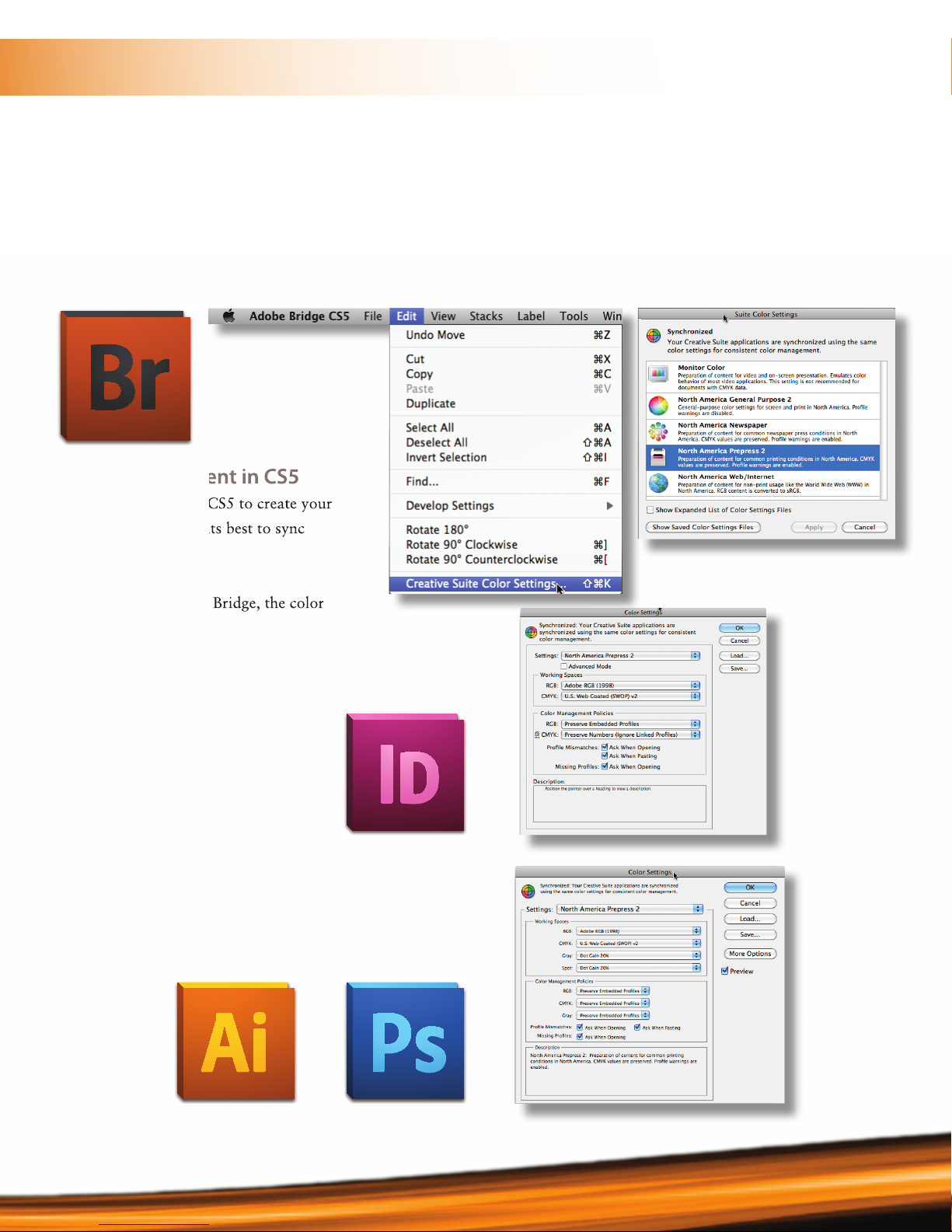
Color Management in CS5
Before using InDesign CS5 to create your
images or documents, its best to sync
your color settings
When you use Adobe’s Bridge, the color
settings in all CS applications are auto-
matically synchronized, ensuring that
the colors look and act the same in
all applications.
Democrat Printing recommends
North American Prepress 2.
Set it in Bridge (above) and check
that the settings have been applied
in InDeisgn, Illustrator and
PhotoShop or any other CS5
applications you are using (right).
Color Management in CS5
Before using InDesign CS5 to create your
images or documents, its best to sync
When you use Adobe’s Bridge, the color
4
Step 2 — InDesign Setup
Why are there two joboptions and what does atten mean?
When you visit our website at www.democratprinting.com to download the DPL Standard
Presets you’ll find two sets of PDF screen captures and Job Option files:
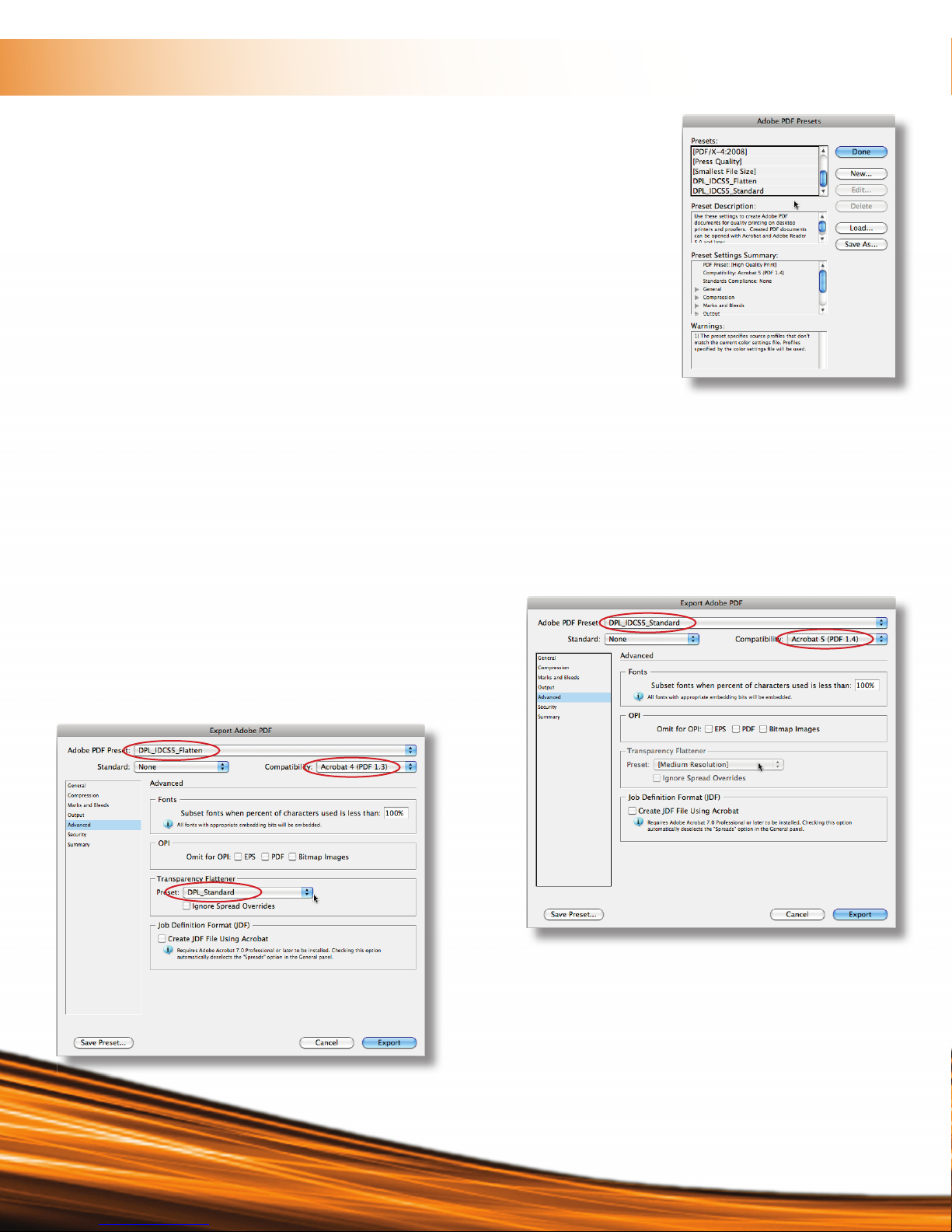
1) Standard (PDF 1.4 with transparency flattened by DPL)
2) Flattened (PDF 1.3 with IDCS5 flattened transparency)
The Standard setting allows the PrePress system at Democrat Printing, utilizing the Adobe
PDF Print Engine, to process “normal” transparency in the file.
The Flattened setting is the lesser used export setting, where any transparency will be ad-
dressed by the application program upon export.
We ‘standardly” recommend allowing our prepress equipment to flatten normal transparency, so the Standard Job Options
will work for most users. However, since not all transparencies are created equal—some come from Quark, some from
“who knows where” and some from Adobe and some have incorrect color setup (just because you are behaving and utilizing
Pantone Process Colors doesn’t mean that your advertisers are paying as much attention)—we offer a flattened output for
personal preference or toubleshooting. (However, flattened files make it more difficult for us to make corrections if they are
needed further along in the production process.)
As we mentioned, the difference between
the two settings options is how they handle
transparency flatting. See the Standard (right)
and the flattened (below) screen captures.
Flattened 1.3 Settings
Standard 1.4 Settings
5
InDesign Setup — Transparency
If you choose to use Flattened Files, you’ll need the transparency Flattening Presets
Sometimes the need may arise when it is desired to produce a PDF version 1.3 which would indicated that all transparency
and layers are flattened by InDesign. This is accomplished by utilizing the export parameter of DPL_IDCS5_Flatten. To aid
in the flattening process, InDesign CS5 utilize a flattener preset to give consistent results. The current saved flattener preset
file is available on our website, www.democratprinting.com
The Flattener can be either installed by loading the Saved Flattener Presets (.flst) or by building the file locally. The easiest
way is to load the file. This is done by opening InDesign and under the edit menu, locate the Transparency Flattener Presets
item. (Below left) Once selected the Transparency Flattening Presets window opens where the .flst file can be loaded by
selecting the Load... button and navigating to the saved flattener preset (.flst) (below center) The present can also be built
locally be selecting the New... button and recreating the file as shown in the bottom right.
6
InDesign Setup — Job Options
OK, I know which job options I need to use, how do I get them loaded?
InDesign CS5 utilizes PDF Export parameters to produce Press Ready PDF’s. There are two ways to install/create these
export parameters.
The first (and easiest way) is to download the InDesign CS5 export parameter, which are called
.joboption files and double-click on the job option file. This will launch Acrobat Distiller and install
the export parameters in the entire Adobe Suite of products that are installed on the local machine.
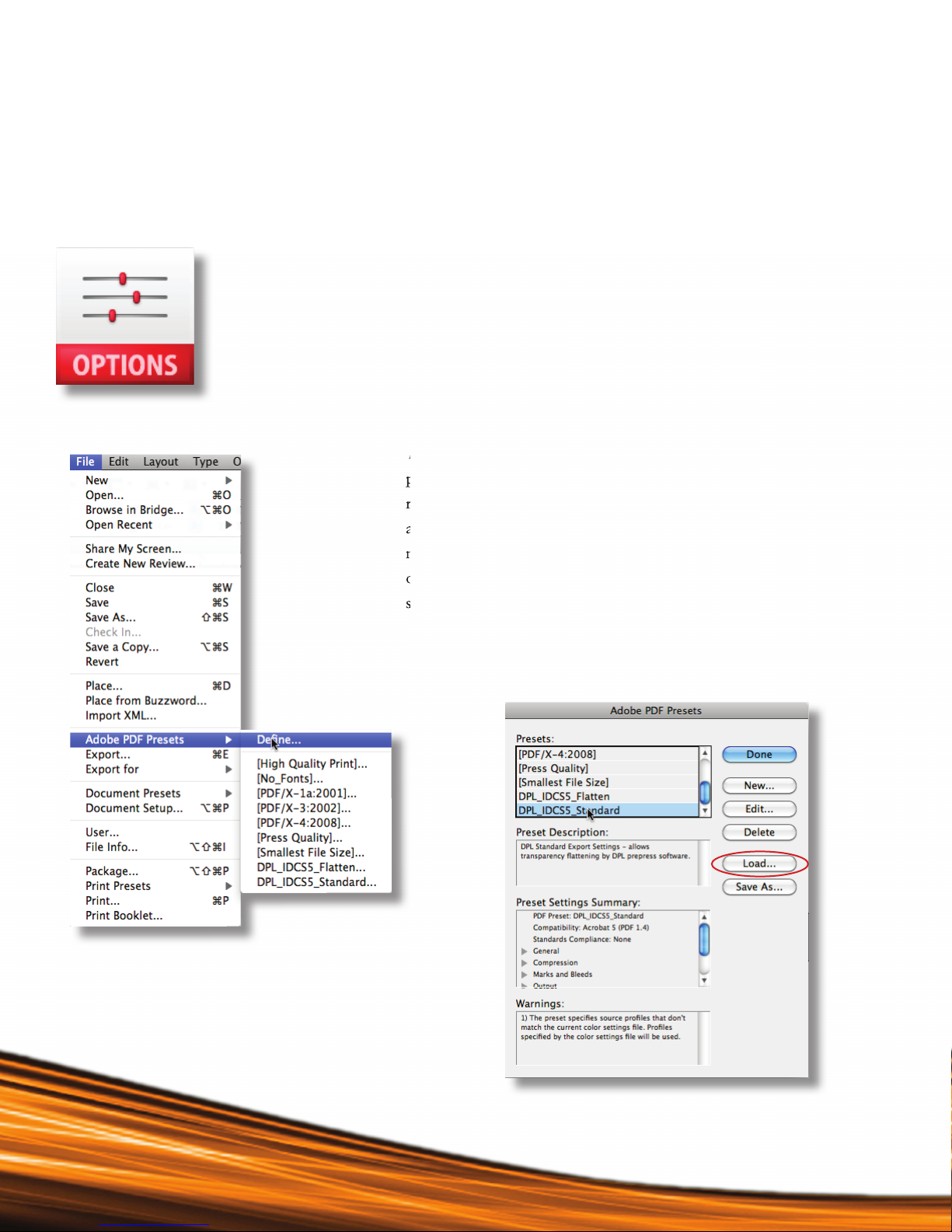
The second method is, with InDesign open, go to the File>Adobe PDF Presets>Define (bottom left)
and choose “Load” (bottom right). Navigate to the options file (that you downloaded for our web-
site) and “open”. You will now have our PDF Preset available for use in InDesign.
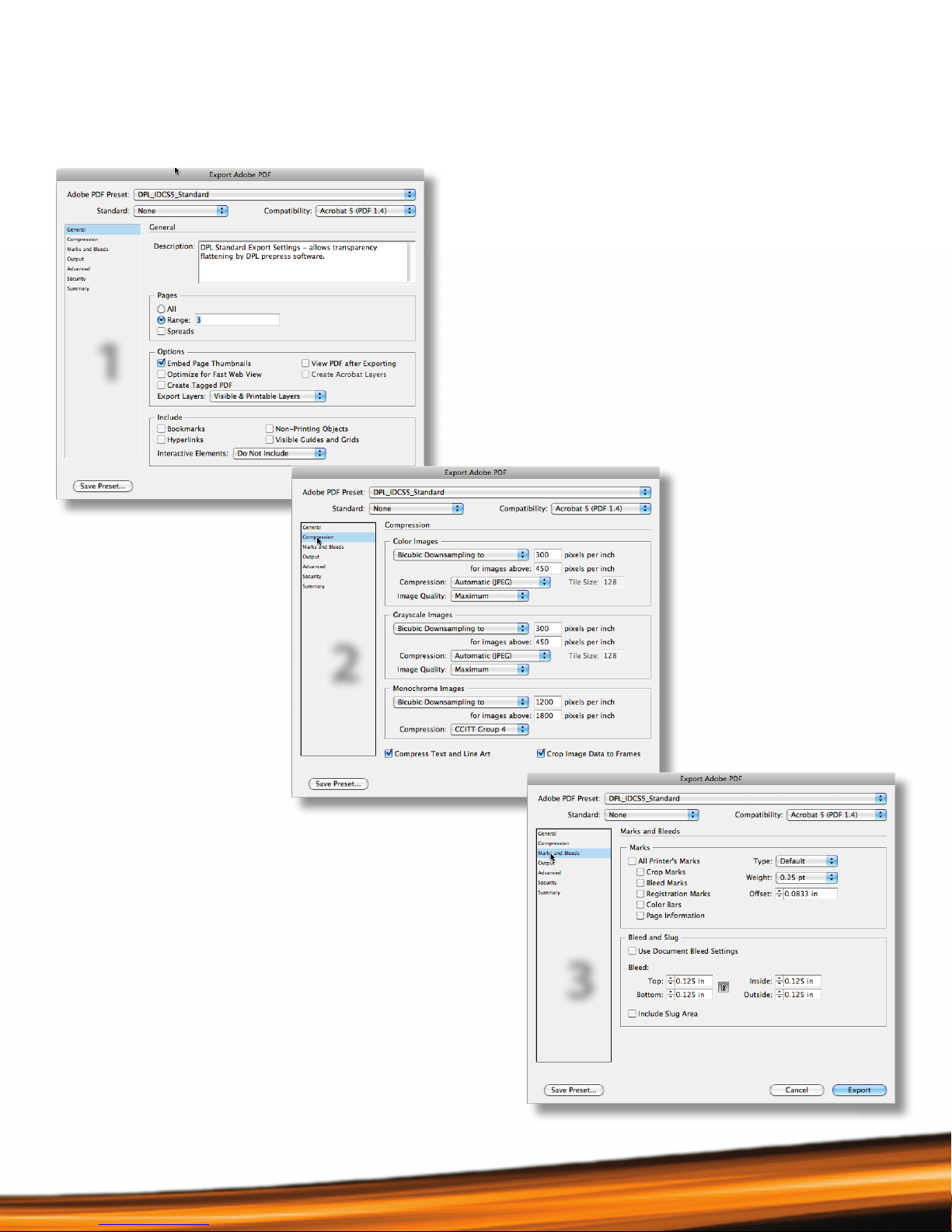
The final method which is more cumbersome is to recreate the export
parameter via the screen shots on the following pages. It is highly
recommended that the first method is used to install the export settings
as the chance of error is greatly diminished. If you choose the manual
method, choose Define... and follow the screen shots on the next couple
of pages for building this parameter set. When you have completed the
screen shots, don’t forget to click the “Save Preset” button!
The final method which is more cumbersome is to recreate the export
parameter via the screen shots on the following pages. It is highly
recommended that the first method is used to install the export settings
as the chance of error is greatly diminished. If you choose the manual
method, choose Define... and follow the screen shots on the next couple
of pages for building this parameter set. When you have completed the
screen shots, don’t forget to click the “Save Preset” button!
7
InDesign Setup — Job Options
Screen captures of presets for your reference.
1
2
3
8
InDesign Setup — Job Options
Screen captures of presets for your reference, continued.
4
5
6
Please Note:
The font subsetting
percentage has changed
from past settings due
to RIP upgrades!
9
InDesign Setup — Preighting
InDesign CS5 Live Preighting
InDesign CS5 (like CS4) provides enhanced tools for identifying problems in documents ear-
lier in the design and print production phases. The Live Preflight feature alerts designers-in
real time-to issues, based on the profile settings, as they assemble the pages. Continuous pre-
flighting alerts you to potential production problems in real time so you can quickly navigate
to a problem, fix it directly in your layout and keep working. In addition, the redesigned
Links Panel offers more information about all linked assets, in a handy, integrated format.
Be default the [Basic] profile is applied to new and converted documents. This profile flags missing or modified links, overset
text and missing fonts. Although you cannot edit or delete the [Basic] profile, you can create and use multiple profiles. For
example, you can switch between profiles when working on different documents, when using different print service provid-
ers, or when running a single document through a different production phases.
There are many affordable classes where to learn more about this fantastic feature in Adobe Creative Suite 5, including In-
Design. One great source, which we recommend is, www.lynda.com!
Loading a Prole
Democrat Printing as created two Preflight Profiles that you can
download from our website-one for 4/Color work and one for
5/Color work. If you need a specific profile, please contact your
Account Executive.
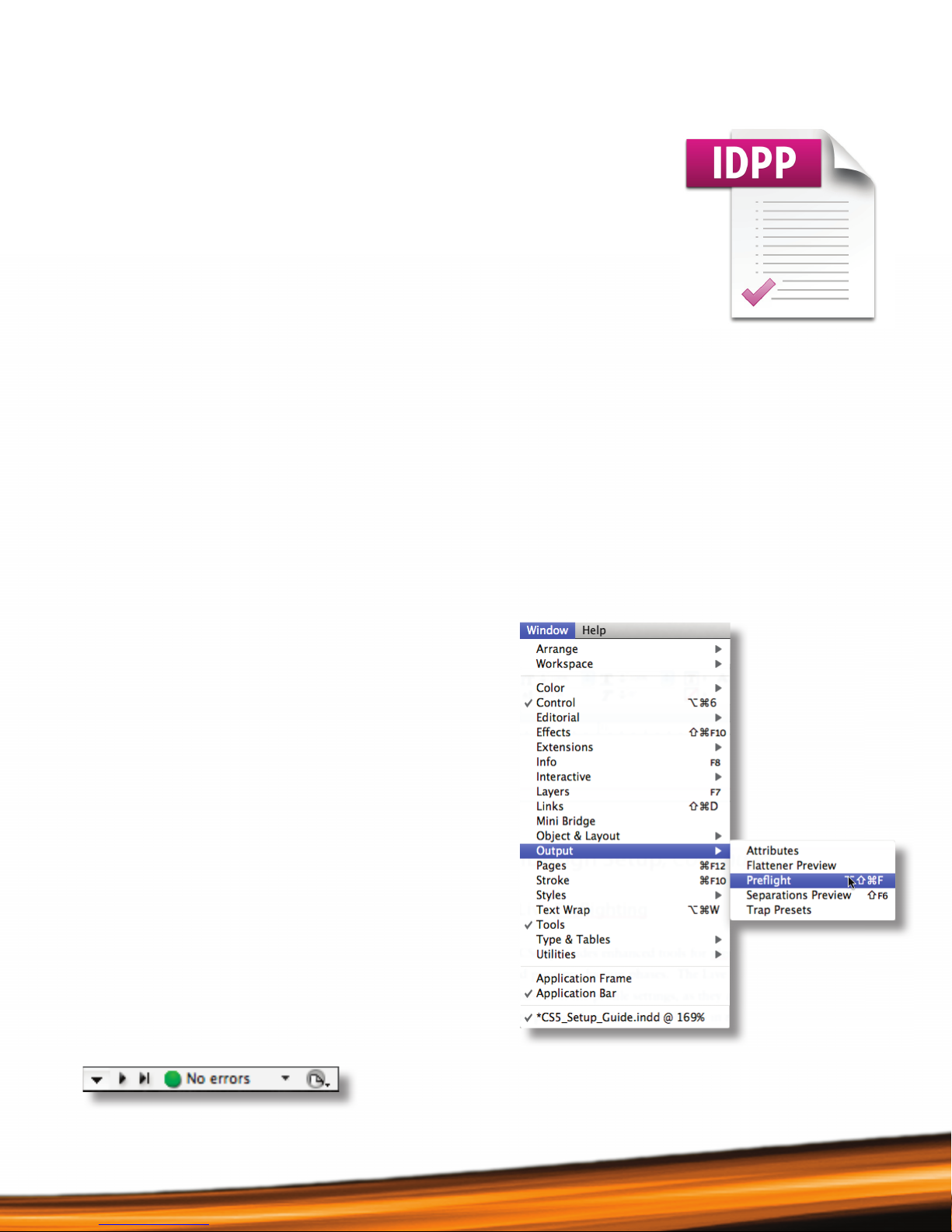
After downloading the appropriate profile, open the Preflight Panel,
Windows>Output>Preflight, then choose Define Profiles... from the
pop-out menu. Choose Load Profile... (navigate to the profile you
downloaded). Note, when the Preflight Proifle gets updated, the
name will change to reflect the new creation date. Please check to
verify you have our latest profile.
Tip:
To open the Preflight Panel,
double click on the Preflight
Status Bar. Green indicates no
errors-Red indicates errors.
Located at the bottom left corner of your
document window is the Preflight Status Bar.
10
InDesign Tips — Which Color Book to Use and Appearance of Black
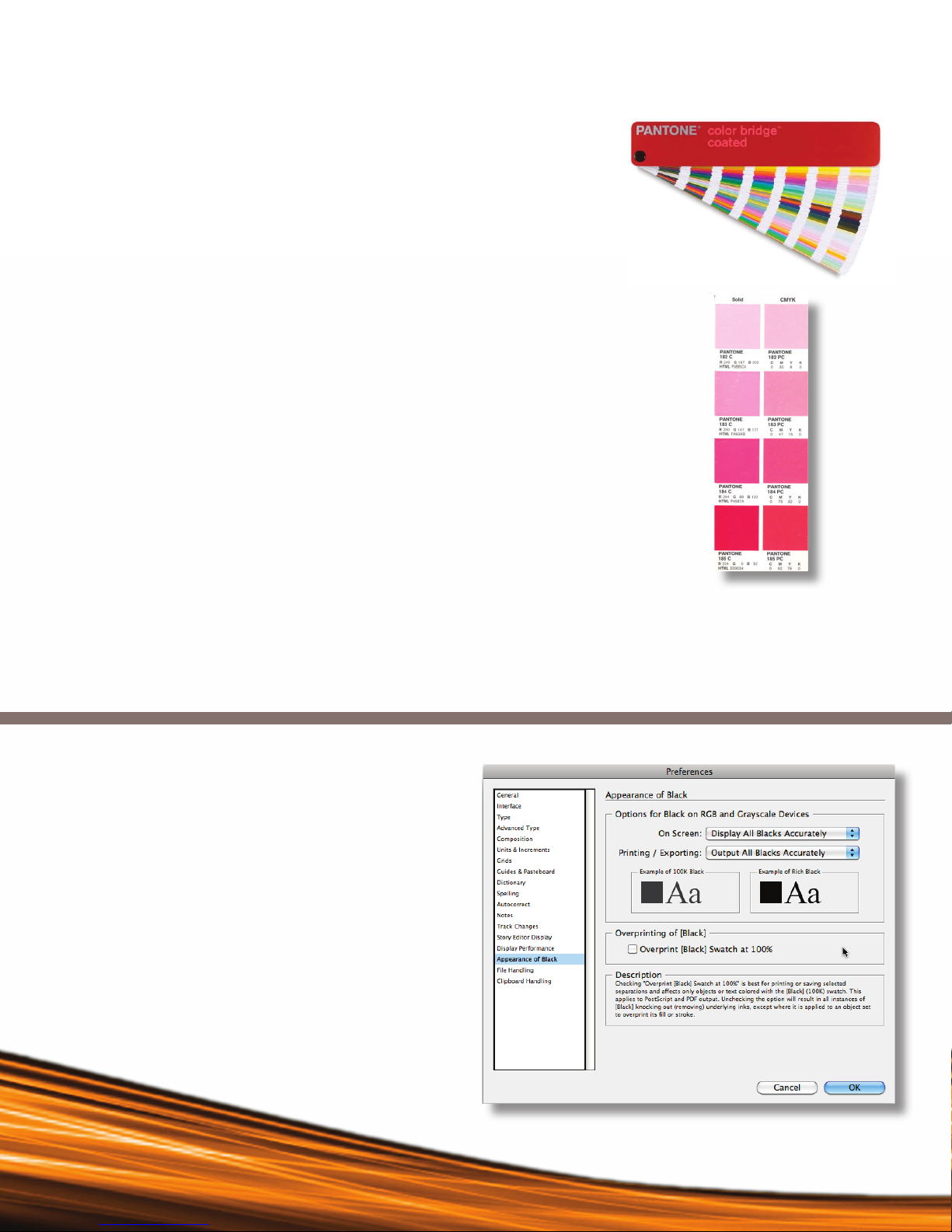
Pantone—Your Best Tool For Choosing Color
• What books and software am I supposed to be using?
The best book to use is the Pantone Color Bridge.
Purchase a Pantone Book online at www.pantone.com or contact your
Account Executive for assistance.
• Pantone Color choice is key from design through printing
Always have a Pantone Book handy-write your name on it and when you
design, trust the Pantone Book over your monitor or previous printed pages.
• Remember to keep your Pantone Books updated
You will need to purchase new books and download software each time
Pantone introduced revisions.
• What do the letters indicate?
The letter codes indicate the intended paper type: C=Coated; U=Uncoated;
M=Matte. Try to avoid CV=Computer Video and CVC=Computer Video,
Coated Paper.
• How do I download the Pantone Color Book into my design software?
Pantone color bridge installer is offered as a free download. Please
register and/or login at www.mypantone.com.
Appearance of Black in InDesign
The settings for knockout/overprint of black are not with
the other settings. You must go into “Preferences” and
choose the settings for Appearance of Black.
(Our suggested settings are shown at right.)
Pantone Color Bridge set displays a side-by-side match
between the Pantone Solid Ink Color and the closest
CMYK simulation of the same color, for both coated and
uncoated paper. It includes 1,089 colors to choose from.