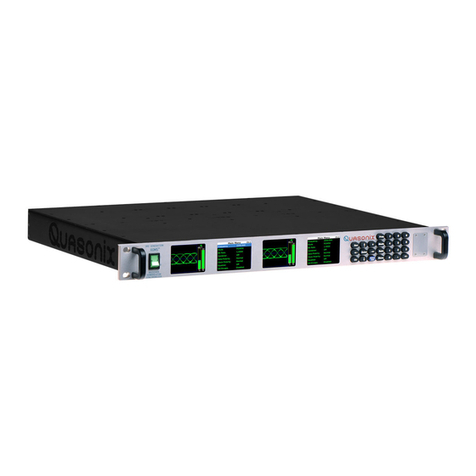
Agilent Technologies MXE EMI Receiver N9038A User manual

Agilent Technologies
Getting Started Guide
Agilent X-Series
EMI Receiver
This manual provides documentation
for the following:
MXE EMI Receiver N9038A

Notices
© Agilent Technologies, Inc. 2013
No part of this manual may be
reproduced in any form or by any
means (including electronic storage
and retrieval or translation into a
foreign language) without prior
agreement and written consent from
Agilent Technologies, Inc. as
governed by United States and
international copyright laws.
Manual Part Number
N9038-90027
Supersedes:N9038-90025
Print Date
September 2013
Printed in USA
Agilent Technologies Inc.
1400 Fountaingrove Parkway
Santa Rosa, CA 95403
Warranty
The material contained in this
document is provided “as is,” and is
subject to being changed, without
notice, in future editions. Further, to
the maximum extent permitted by
applicable law, Agilent disclaims
all warranties, either express or
implied, with regard to this manual
and any information contained
herein, including but not limited to
the implied warranties of
merchantability and fitness for a
particular purpose. Agilent shall not
be liable for errors or for incidental
or consequential damages in
connection with the furnishing, use,
or performance of this document or
of any information contained
herein. Should Agilent and the user
have a separate written agreement
with warranty terms covering the
material in this document that
conflict with these terms, the
warranty terms in the separate
agreement shall control.
Technology Licenses
The hardware and/or software
described in this document are
furnished under a license and may
be used or copied only in
accordance with the terms of such
license.
Restricted Rights Legend
If software is for use in the
performance of a U.S. Government
prime contract or subcontract,
Software is delivered and licensed
as “Commercial computer
software” as defined in DFAR
252.227-7014 (June 1995), or as a
“commercial item” as defined in
FAR 2.101(a) or as “Restricted
computer software” as defined in
FAR 52.227-19 (June 1987) or any
equivalent agency regulation or
contract clause. Use, duplication or
disclosure of Software is subject to
Agilent Technologies’ standard
commercial license terms, and
non-DOD Departments and
Agencies of the U.S. Government
will receive no greater than
Restricted Rights as defined in FAR
52.227-19(c)(1-2) (June1987).U.S.
Government users will receive no
greater than Limited Rights as
defined in FAR 52.227-14 (June
1987) or DFAR 252.227-7015
(b)(2) (November 1995), as
applicable in any technical data.
Safety Notices
CAUTION
A CAUTION notice denotes a
hazard. It calls attention to an
operating procedure, practice, or the
like that, if not correctly performed
or adhered to, could result in
damage to the product or loss of
important data. Do not proceed
beyond a CAUTION notice until
the indicated conditions are fully
understood and met.
WARNING
A WARNING notice denotes a
hazard. It calls attention to an
operating procedure, practice, or the
like that, if not correctly performed
or adhered to, could result in
personal injury or death. Do not
proceed beyond a WARNING
notice until the indicated conditions
are fully understood and met.

3
Warranty
This Agilent technologies instrument product is warranted against defects in material and workmanship for a period
of three years from the date of shipment. During the warranty period, Agilent Technologies will, at its option, either
repair or replace products that prove to be defective.
For warranty service or repair, this product must be returned to a service facility designated by Agilent Technologies.
Buyer shall prepay shipping charges to Agilent Technologies, and Agilent Technologies shall pay shipping charges to
return the product to Buyer. For products returned to Agilent Technologies from another country, Buyer shall pay all
shipping charges, duties, and taxes.
Compliance
This product has been designed and tested in accordance with accepted industry standards, and has been supplied in a
safe condition. The documentation contains information and warnings that must be followed by the user to ensure
safe operation and to maintain the product in a safe condition.
Where to Find the Latest Information
Documentation is updated periodically. For the latest information about these products, including instrument software
upgrades, application information, and product information, browse to one of the following URLs:
http://www.agilent.com/find/mxe
To receive the latest updates by email, subscribe to Agilent Email Updates at the following URL:
http://www.agilent.com/find/emailupdates
Information on preventing analyzer damage can be found at:
http://www.agilent.com/find/tips
Is your product software up-to-date?
Periodically, Agilent releases software updates to fix known defects and incorporate product
enhancements. To search for software updates for your product, go to the Agilent Technical Support
website at
http://www.agilent.com/find/techsupport.

4

Contents
5
1 Quick-Start
Initial Inspection 10
Shipping Problems? 10
Instrument Location and Rack Mounting Requirements 11
Locating the instrument 11
Cooling and rack mounting 11
Turning on the EMI Receiver the First Time 12
Initializing the instrument using a USB mouse 12
Initializing the instrument using front-panel navigation 16
Anti-Virus Software and Firewalls 19
Shortening the Instrument Power-On Time 20
Instrument Information 20
Power requirements 20
Protecting Against Overpowering 21
Instrument Maintenance 22
Protecting against electrostatic discharge 23
2 Front and Rear Panel Features
Front-Panel Features 26
Overview of key types 29
Display Annotations 33
Rear-Panel Features 35
Front and Rear Panel Symbols 37
3 Using the EMC32 Software
How to Set Up and Run the EMC32 Software 40
Configuring the MXE 40
4 Instrument Operating System
Agilent Software Installed 42
Agilent signal analyzer software 42
Customer Installation of Software 42

6
Contents
3rd party software verified by Agilent 42
Installation of other 3rd party software 42
User Accounts 43
User login 43
Administrator login 43
AgilentOnly user account 43
Agilent service user accounts 43
Customer creation of accounts 44
Agilent X-Series EMI Receiver Licensing 44
Fixed Perpetual 44
Trial licenses 44
Licensing New Measurement Application Software -
After Initial Purchase 45
Installation procedure over USB 45
Windows Configuration 47
Settings that can be changed 47
Settings that must not be changed 48
Configuring Printers 50
Configuring LAN 50
Hostname 50
IP Address & Gateway 50
Windows Security 51
Windows Firewall 52
Automatic updates 52
Virus protection 53
Spyware protection 54
System Maintenance 55
Backup 55
System restore 55
Disk defragmenting 55
USB Connections 56
Disk Drive Partitioning and Use 57

Contents
7
Backing-up the factory calibration data 58
Disk Drive Recovery Process 59
Updating the software 61
5 Using Microsoft Windows XP
Navigating Windows Without a Mouse 64
Remote Desktop: Using the X-Series Instruments Remotely 68
Overview of Remote Desktop operation 68
Setting up Remote Desktop operation 68
How to locate the computer name of the instrument 71
Running a Remote Desktop session 72
The Virtual Front Panel 82
Embedded Web Server: Using the X-Series Instruments Remotely 83
Accessing the instrument through the Internet 83
Accessing the Web Control SA tab 88
Selecting the Get Data tab 90
Selecting the Get Image tab 91
Selecting the SCPI Telnet tab 92
Selecting the Help tab 94
Capturing/Printing Displays and Windows 95
Windows Shortcuts and Miscellaneous Tasks 96
Windows shortcuts (key combinations) 96
Windows taskbar auto-hide feature 98
Windows startup folder 99
6 Troubleshooting
Check the Basics 102
Problems with Microsoft Windows XP 104
Returning an EMI Receiver for Service 105
Calling Agilent Technologies 105
Locations for Agilent Technologies 105

8
Contents
Read the Warranty 106
Service Options 106
Packaging the Instrument 106

9
Agilent X-Series Signal Analyzers
Getting Started Guide
1 Quick-Start
This section explains how to initialize the EMI Receiver.
The following topics can be found in this section:
“Initial Inspection” on page 10
“Instrument Location and Rack Mounting Requirements” on page 11
“Turning on the EMI Receiver the First Time” on page 12
“Anti-Virus Software and Firewalls” on page 19
“Shortening the Instrument Power-On Time” on page 20
“Instrument Information” on page 20

10
Quick-Start
Initial Inspection
Initial Inspection
Inspect the shipping container and the cushioning material for signs of stress. Retain
the shipping materials for future use, as you may wish to ship the instrument to
another location or to Agilent Technologies for service.
Shipping Problems?
If the shipping materials are damaged or the contents of the container are
incomplete:
• Contact the nearest Agilent Technologies office.
• Keep the shipping materials for the carrier’s inspection.
• If you must return an EMI Receiver to Agilent Technologies, use the original (or
comparable) shipping materials. See “Returning an EMI Receiver for Service” on
page 105.
Table 1-1 Verifying the contents
Item Deliverable Description
Getting Started Guide Provides first-time power on
instructions, licensing information,
operating system information, and
general hardware information.
Documentation disk PDF files for all manuals (except
service), programming example files,
and some technical Application Notes.
Agilent IO Libraries disk Software for establishing and
configuring PC to instrument interfaces.
Optical mouse An optical USB mouse to simplify
screen navigation.
Keyboard A USB keyboard to simplify data input.
Power cable Connection for instrument power.

11
Quick-Start
Instrument Location and Rack Mounting Requirements
Locating the instrument
Make sure that the fan inlet and exhaust vent areas on the sides of the instrument are
not obstructed. The minimal required clearance is 2 inches. Airflow restrictions
cause additional airflow noise and cause the fans to speed up so they can draw in
enough air for the required cooling. This results in excessive audible noise.
Cooling and rack mounting
Do not rack mount the receiver side-by-side with any other instrument with
side-by-side ventilation. Make sure the exhaust air from the first instrument is
directed away from the inlet of the second unit. If the pre-heated air from the first
instrument is directed into the second instrument, it can cause excessive operating
temperatures in the second unit and can cause instrument failures. The instrument
draws air in from the left side and exhausts air from the right side.
CAUTION When installing the product in a cabinet, the convection into and out of the product
must not be restricted. The ambient temperature (outside the cabinet) must be less
than the maximum operating temperature of the product by 4° C for every 100 watts
dissipated in the cabinet. If the total power dissipated in the cabinet is greater than
800 watts, then forced convection must be used.

12
Quick-Start
Turning on the EMI Receiver the First Time
Initial power-on of the instrument can be accomplished using either of the following
methods:
•“Initializing the instrument using a USB mouse” on page 12
•“Initializing the instrument using front-panel navigation” on page 16
NOTE During the initial power-on process, the instrument turns off and restarts several
times. This only happens during the initial installation process.
Initializing the instrument using a USB mouse
Steps Actions Notes
1. Connect the mouse • Connect the mouse to
one of the instrument’s
USB ports.
2. Power on the
instrument a. Position the instrument
so you have easy access
to the power cord and
plug it in.
b. Press the power switch
(located in the lower left
corner of the
instrument’s front
panel) to turn the
instrument on.
See “Instrument Location and Rack Mounting
Requirements and “Power requirements” on
page 20 for more details.
The instrument can require more than 5 minutes
to power-on. This is affected by Windows XP
start-up requirements.
The Agilent Technologies screen appears
followed by a screen that allows you to select
the operating system.

13
Quick-Start
Turning on the EMI Receiver the First Time
3. Launch Microsoft
Setup • Highlight Microsoft
Windows XP
Professional and press
Enter to start the
pre-installed operating
system.
The instrument performs the following steps:
• Windows XP Startup window
• Black screen
• Windows Please wait message window
• Blue Agilent window
• The following Welcome window appears giving you information about the
End-User License Agreement.
At this time, it is safe to turn off the instrument before initializing the
software.
CAUTION After launching the setup, do not turn off the instrument or remove power before the
Setup Wizard completes and the system restarts. Turning off the instrument may corrupt
the system and the application may not operate.
Steps Actions Notes

14
Quick-Start
Turning on the EMI Receiver the First Time
4. Reboot and logon • Click OK When the instrument restarts, the following
message window appears:
This
window
appears
and
covers
the
Launch
XSA
window.
NOTE If you do not check the “Do not show this message again” check box, this message will be
displayed each time the instrument is turned on. No application will start while this message is
displayed. Before continuing, make sure that you carefully read the Anti-Virus message and
determine what action is appropriate.
5. Disable the
Anti-Virus message • Select the check box
and click Continue.Messages similar to the following continue to
appear:
Several required processes continue.
The XSA application initializes
6. Verify the installation a. On the instrument, press
System, Show, System.
b. Verify that the
purchased
application(s) appear in
the list.
If you require further assistance, contact the
Agilent support team.
Online assistance:
http://www.agilent.com/find/assist
Steps Actions Notes

15
Quick-Start
Turning on the EMI Receiver the First Time
7. View a signal a. Press Mode, Spectrum
Analyzer.
b. Press Input/Output,
RF Calibrator, 50
MHz.
c. Press FREQ Channel,
Center Freq, 50, MHz.
d. Press SPAN X Scale,
50, MHz.
This routes the internal 50 MHz signal to the
instrument input.
The 50 MHz reference signal appears on the display.
Steps Actions Notes

16
Quick-Start
Turning on the EMI Receiver the First Time
Initializing the instrument using front-panel navigation
The following keys are used in the initialization process:
Arrow keys
Enter key
Tab keys Select key
Steps Actions Notes
1. Power on the
instrument a. Position the instrument
so you have easy access
to the power cord and
plug it in.
b. Press the power switch
(located in the lower left
corner of the
instrument’s front
panel) to turn the
instrument on.
c. The Agilent
Technologies screen
appears followed by a
screen that allows you
to select the operating
system.
See “Instrument Location and Rack Mounting
Requirements and “Power requirements” on
page 20 for more details.
The instrument can require more than 5
minutes to power-on.

17
Quick-Start
Turning on the EMI Receiver the First Time
2. Launch Microsoft
Setup • Highlight Microsoft
Windows XP
Professional and press
Enter to start the
pre-installed operating
system.
The instrument performs the following steps:
• Windows XP Startup window
• Black screen
• Windows Please wait message window
• Blue Agilent window
• The following Welcome window appears giving you information about
the End-User License Agreement.
At this time, it is safe to turn off the instrument before initializing the
software.
CAUTION After launching the setup, do not turn off the instrument or remove power before the
Setup Wizard completes and the system restarts. Turning off the instrument may corrupt
the system and the application may not operate.
Steps Actions Notes

18
Quick-Start
Turning on the EMI Receiver the First Time
3. Reboot and logon • Press Enter When the instrument restarts, the following
message window appears:
This
window
appears
and
covers
the
Launch
XSA
window.
NOTE If you do not check the “Do not show this message again” check box, this message will be
displayed each time the instrument is turned on. No application will start while this message is
displayed. Before continuing, make sure that you carefully read the Anti-Virus message and
determine what action is appropriate.
4. DisabletheAnti-Virus
message • Press Select to select
the check box and
Enter to continue.
Messages similar to the following continue to
appear:
Several required processes continue.
The XSA application initializes
5. Verify the installation a. Press System, Show,
System.
b. Verify that the
purchased
application(s) appear in
the list.
If you require further assistance, contact the
Agilent support team.
Online assistance:
http://www.agilent.com/find/assist
Steps Actions Notes

19
Quick-Start
Anti-Virus Software and Firewalls
No anti-virus software is shipped with the EMI Receiver. It is recommended that you
install anti-virus software if your instrument is connected to the LAN. Check with
your IT department to see what they recommend.
The EMI Receiver is shipped with the Windows XP firewall enabled. Do not modify
the default network settings as this may cause problems with the operating system of
the instrument.
6. View a signal a. Press Mode, Spectrum
Analyzer.
b. Press Input/Output,
RF Calibrator, 50
MHz.
c. Press FREQ Channel,
Center Freq, 50, MHz.
d. Press SPAN X Scale,
50, MHz.
This routes the internal 50 MHz signal to the
instrument input.
The 50 MHz reference signal appears on the display.
Steps Actions Notes

20
Quick-Start
Shortening the Instrument Power-On Time
The instrument desktop includes a shortcut to the ConfigureApplications.exe
application that lets you control your instrument power-on configuration. You can set
the configuration to pre-load only the applications that you typically run. This can
significantly shorten the time it takes for your instrument to power-on. You can also
access this functionality by pressing: System, Power On, Configure Applications.
If (after power-on) you want to access an application that you did not pre-load, it will
take a little longer to bring it up once you press the application softkey. This longer
time-frame is only for the first access after power-on. After the initial access, mode
(application) switching will operate as quickly as if the application was pre-loaded.
Instrument Information
Power requirements
The only physical installation of your EMI Receiver is a connection to a power
source. Line voltage does not need to be selected.
This instrument does not contain customer serviceable fuses.
WARNING This is a Safety Class 1 Product (provided with a protective earthing ground
incorporated in the power cord). The mains plug shall only be inserted in a
socket outlet provided with a protective earth contact. Any interruption of the
protective conductor inside or outside of the product is likely to make the
product dangerous. Intentional interruption is prohibited. (IEC 348 clauses
17.3.3c & 17.3.4)
Failure to ground the instrument properly can result in personal injury. Before
turning on the instrument, you must connect its protective earth terminals to
the protective conductor of the main power cable. Insert the main power cable
plug into a socket outlet that has a protective earth contact only. DO NOT
defeat the earth-grounding protection by using an extension cable, power cable,
or autotransformer without a protective ground conductor.
CAUTION This product is designed for use in Installation Category II and Pollution Degree 2
per IEC 61010 Second Edition and IEC 664 respectively.
This instrument has autoranging line voltage input. Be sure the supply voltage is
within the specified range.
The Mains wiring and connectors shall be compatible with the connector used in the
premise electrical system. Failure, to ensure adequate earth grounding by not using
the correct components may cause product damage, and serious injury.
Other manuals for MXE EMI Receiver N9038A
3
Table of contents
Other Agilent Technologies Receiver manuals

Agilent Technologies
Agilent Technologies 83434A User manual

Agilent Technologies
Agilent Technologies MXE EMI Receiver N9038A User manual

Agilent Technologies
Agilent Technologies N5264A User manual

Agilent Technologies
Agilent Technologies MXE EMI Receiver N9038A User manual

Agilent Technologies
Agilent Technologies 83446A Manual

Agilent Technologies
Agilent Technologies MXE EMI Receiver N9038A User manual