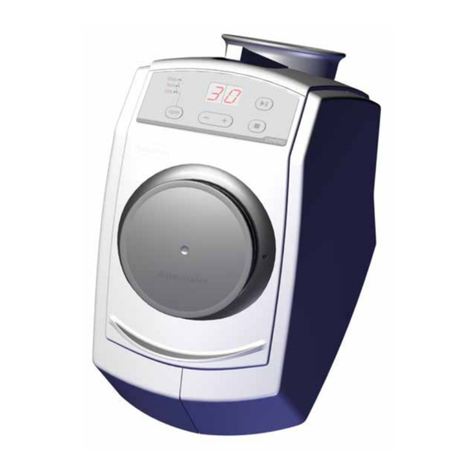
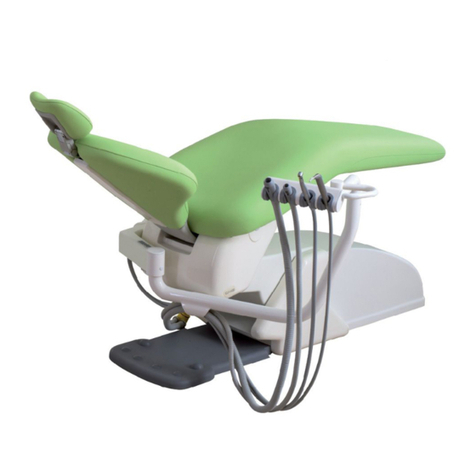
Air Techniques AirStar 30 NEO User manual
Other Air Techniques Dental Equipment manuals
Air Techniques
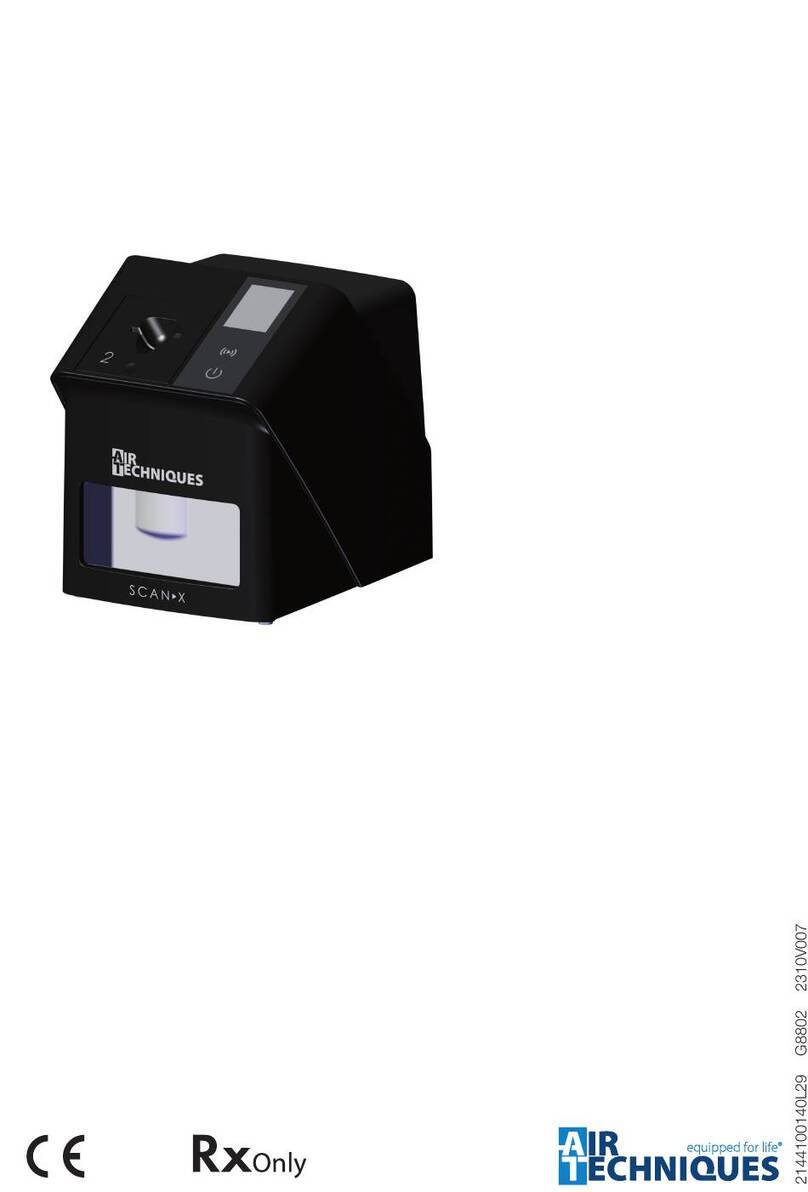
Air Techniques ScanX Swift 2.0 User manual
Air Techniques
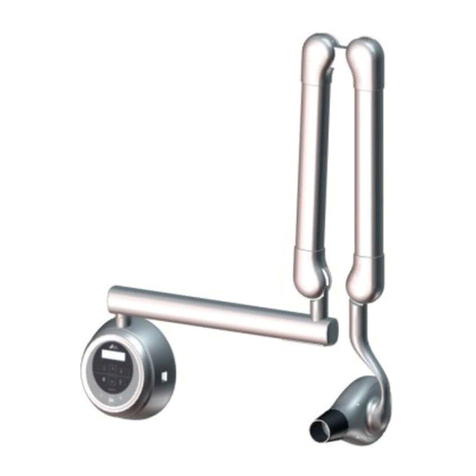
Air Techniques PRO VECTA HD User manual
Air Techniques
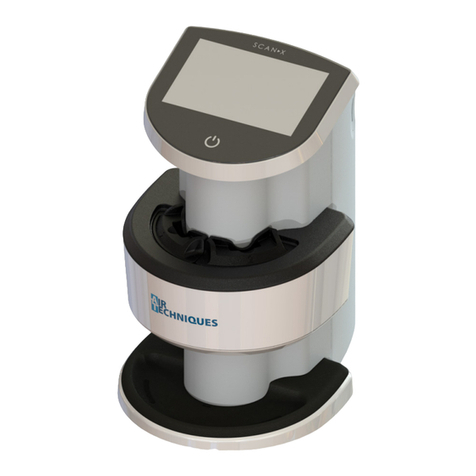
Air Techniques ScanX Duo Touch J1200 User manual
Air Techniques
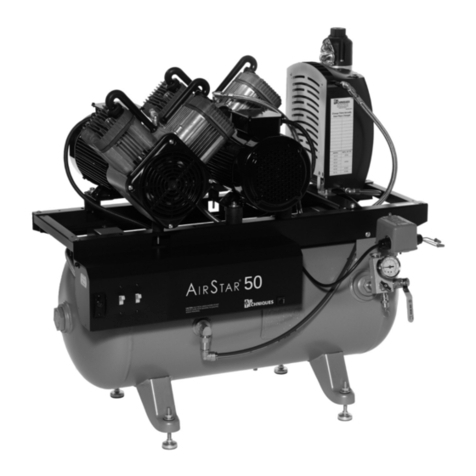
Air Techniques AirStar AS12INT User manual
Air Techniques
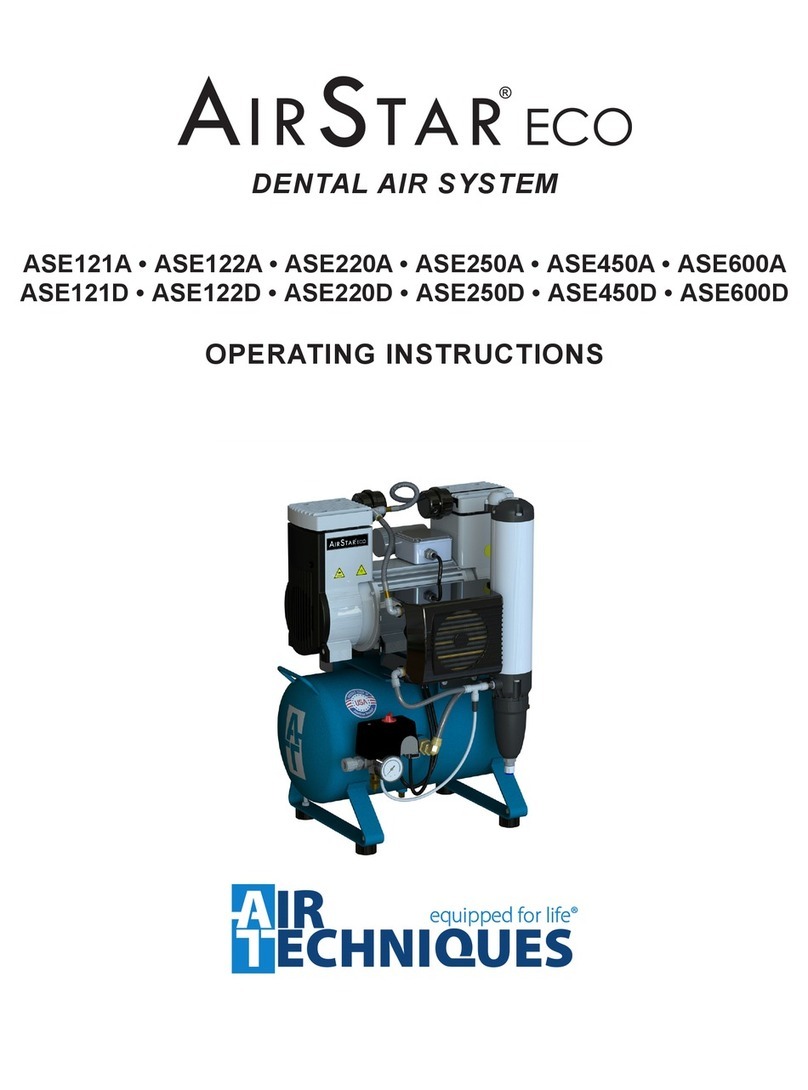
Air Techniques AirStar Eco5 ASE121A User manual
Air Techniques
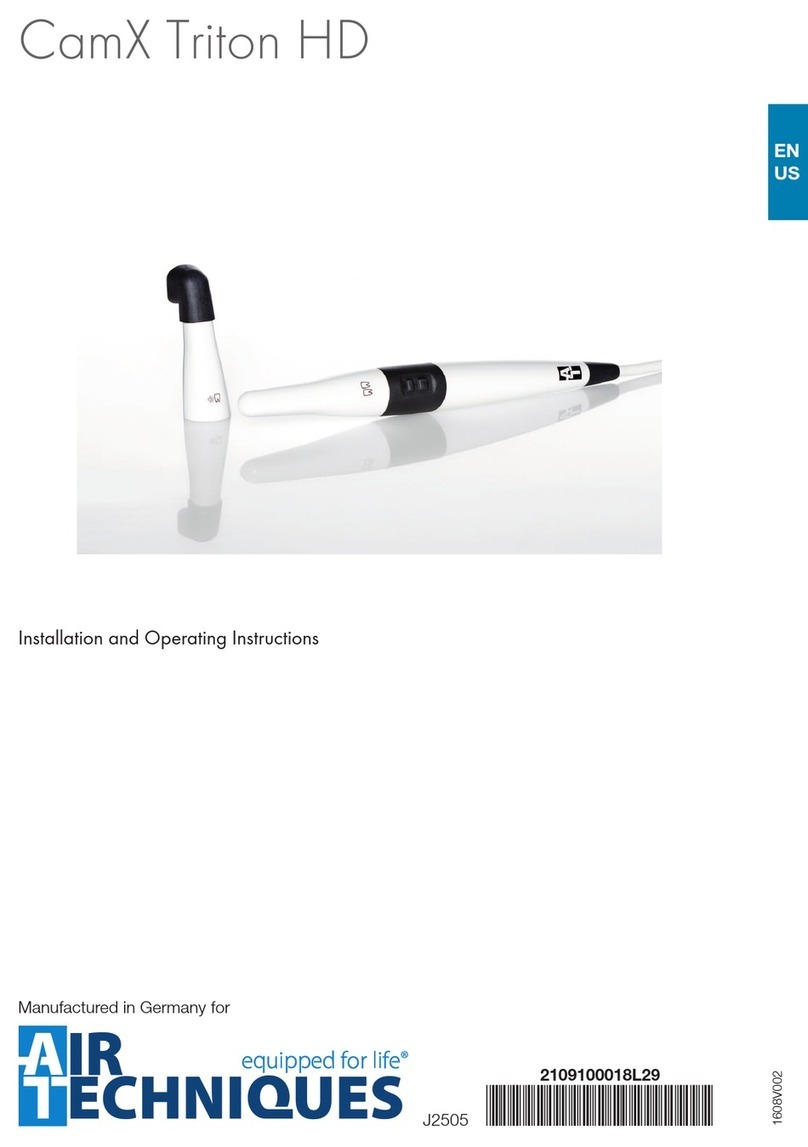
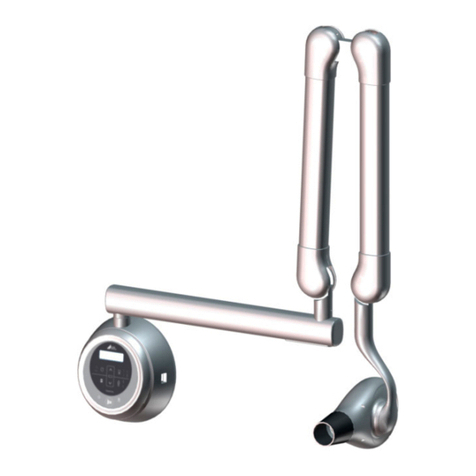
Air Techniques CamX Triton HD User manual
Air Techniques
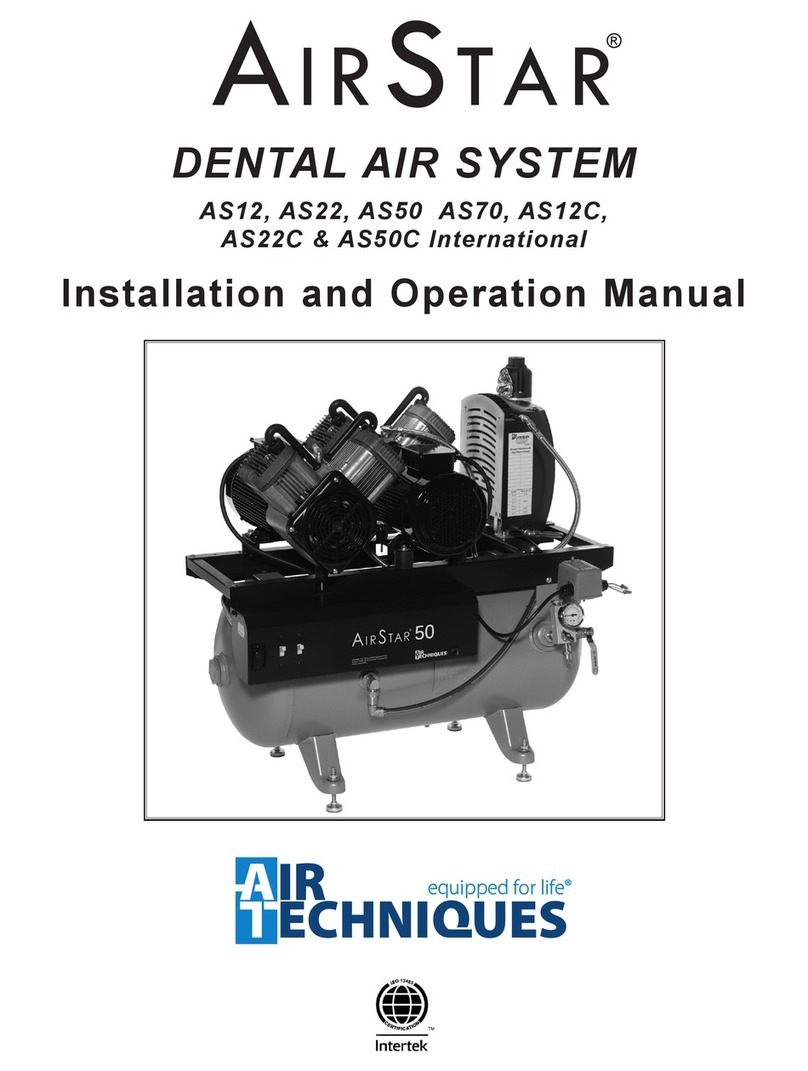
Air Techniques PRO VECTA HD User manual
Air Techniques
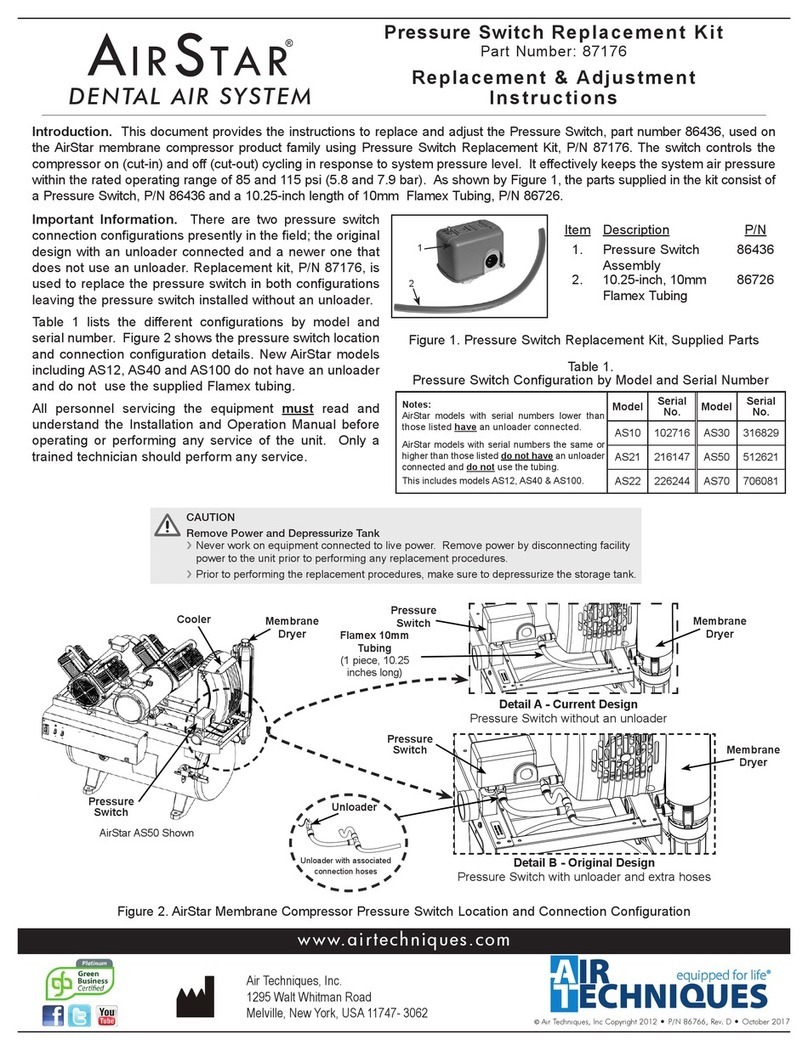
Air Techniques AirStar AS12INT User manual
Air Techniques
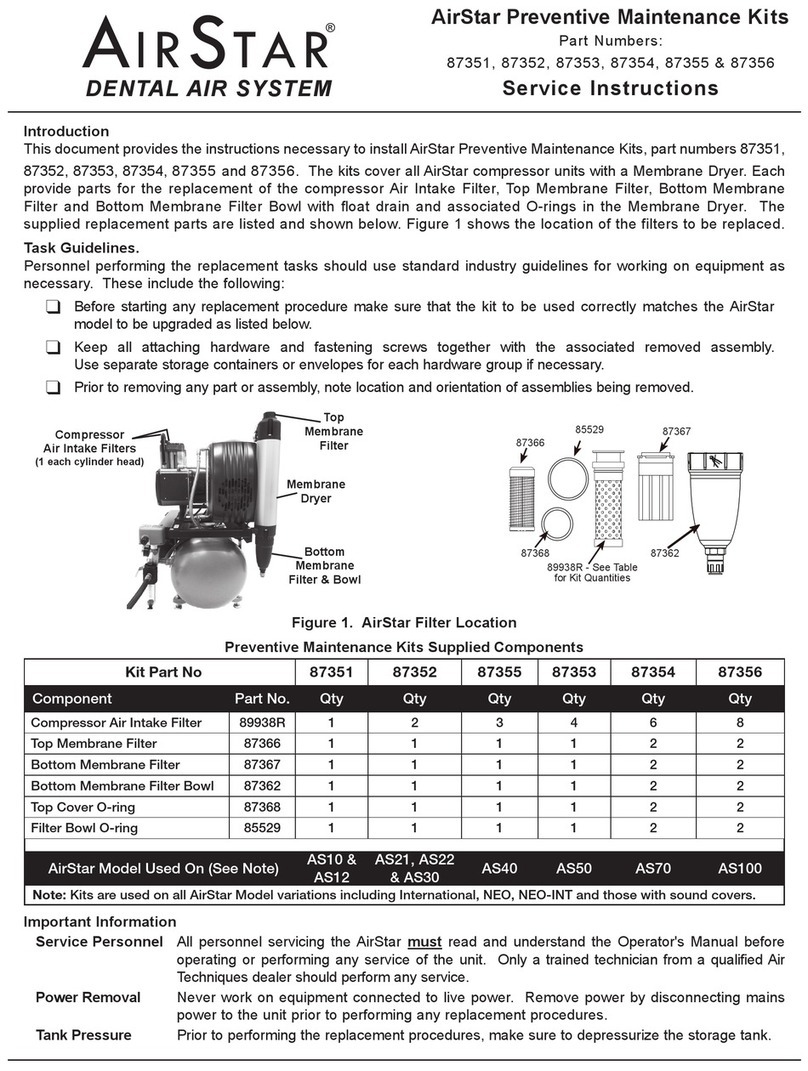
Air Techniques 87176 Guide
Air Techniques
Air Techniques AirStar 87352 Operating instructions

Air Techniques
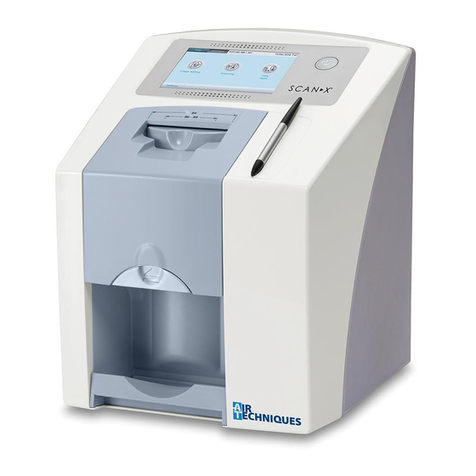
Air Techniques ScanX Touch User manual
Air Techniques
Air Techniques ScanX Swift User manual
Air Techniques
Air Techniques ProVecta 3D Prime User manual
Air Techniques
Air Techniques A/T2000 XR User manual
Air Techniques
Air Techniques AirStar 87351 Operating instructions
Air Techniques
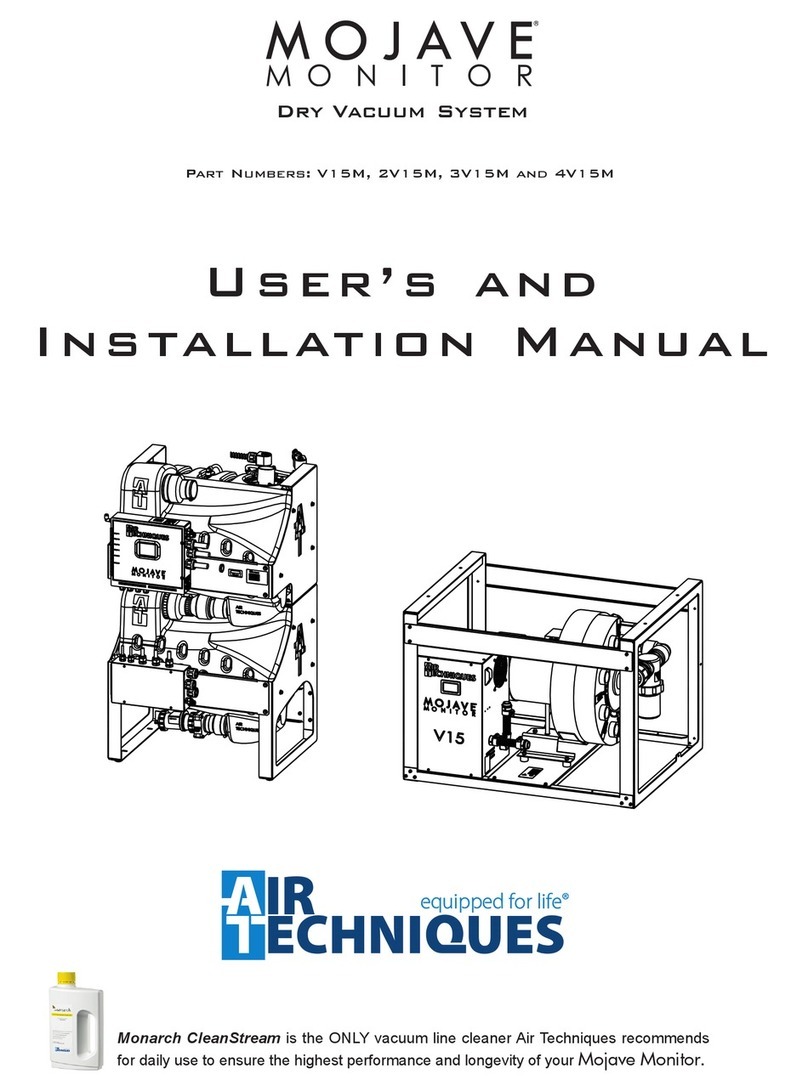
Air Techniques Mojave V15M Operating manual
Air Techniques
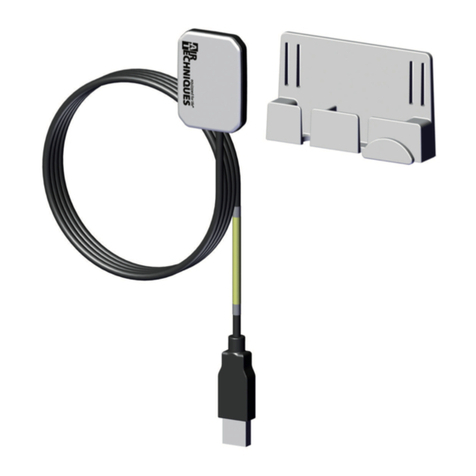
Air Techniques SensorX User manual
Popular Dental Equipment manuals by other brands
Vatech
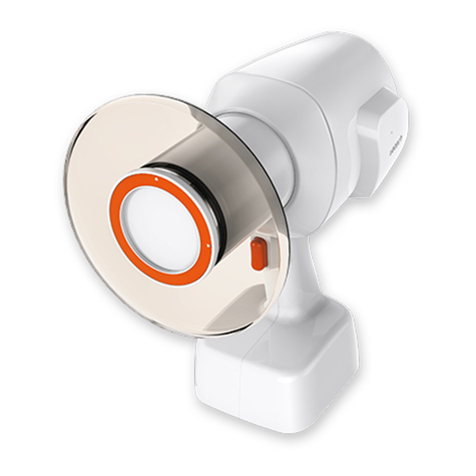
Vatech EzRay Air VEX-P300 user manual
KaVo
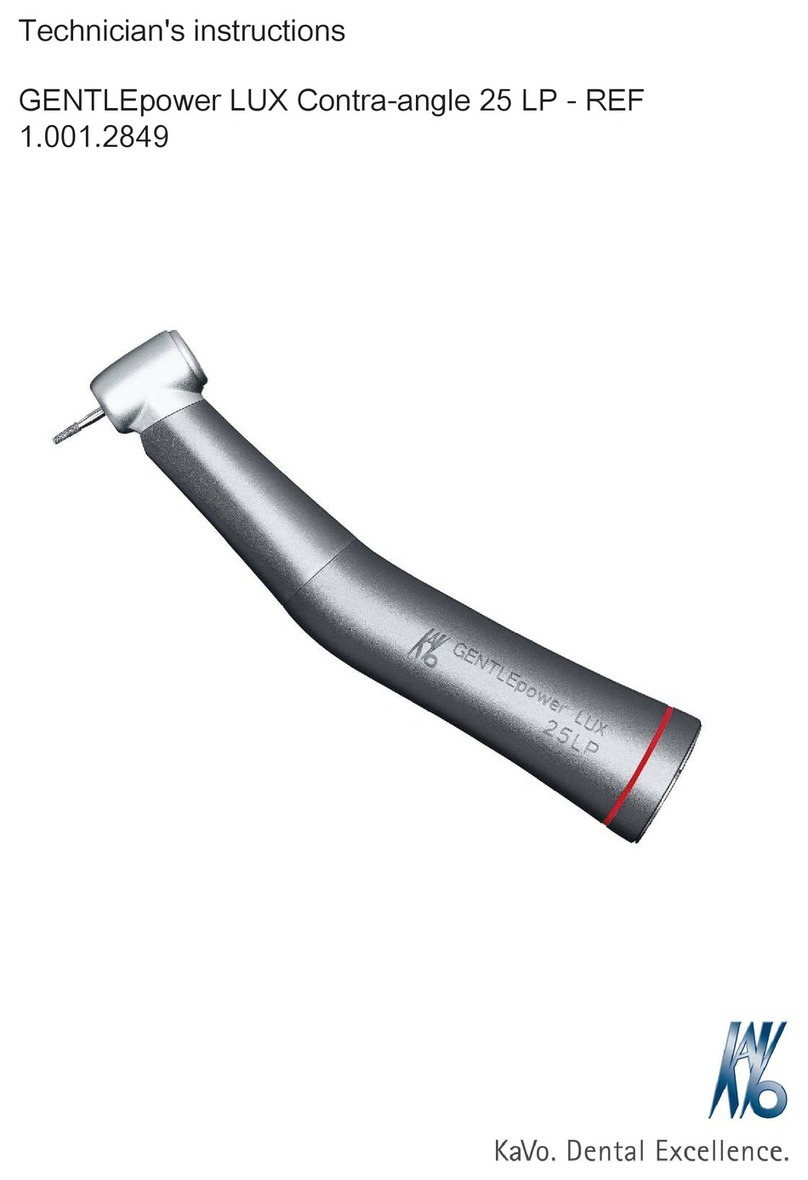
KaVo GENTLEpower LUX Contra-angle 25 LP Technician's Instructions
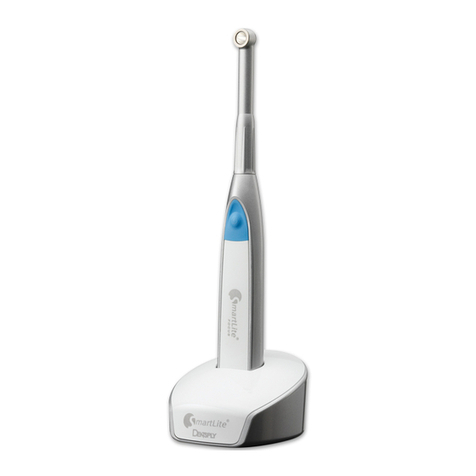
DENTSPLY
DENTSPLY SmartLite Focus Instructions for use
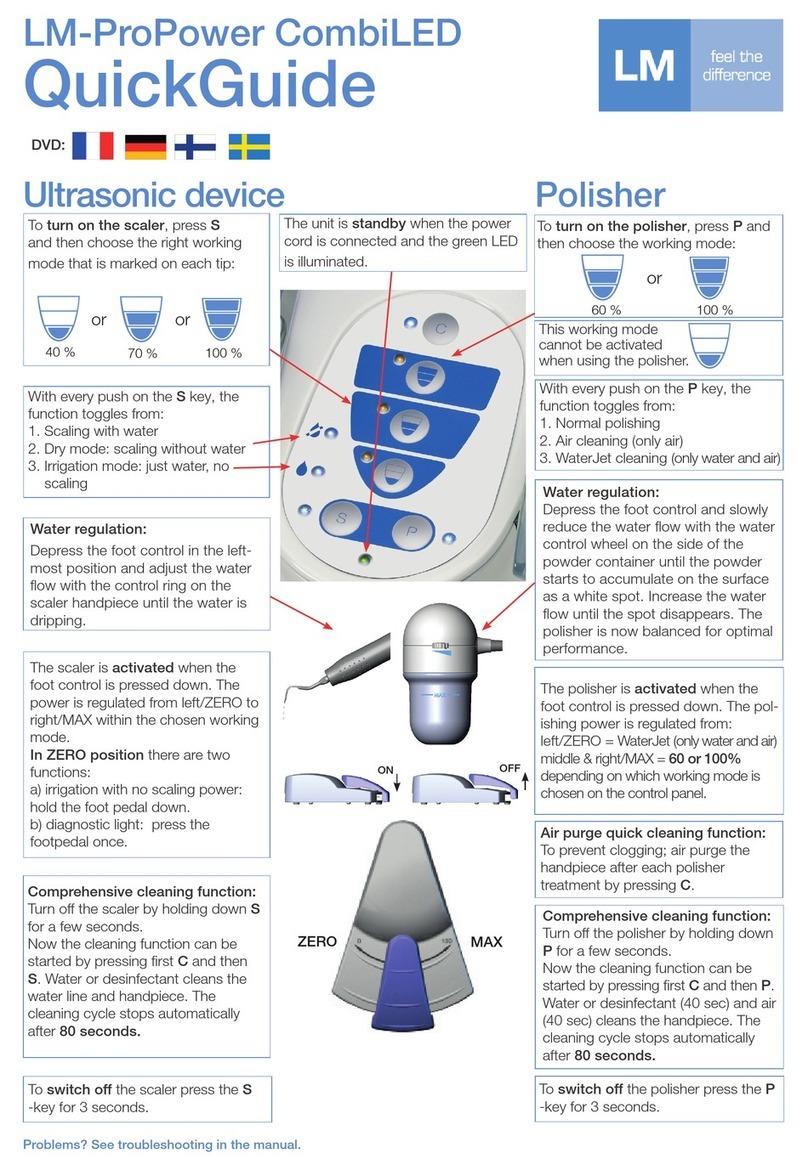
LM
LM ProPower CombiLED quick guide
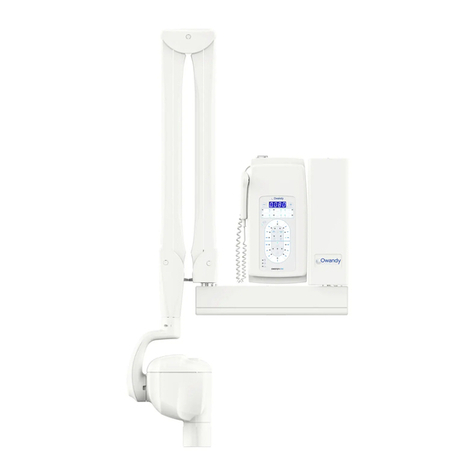
Owandy Radiology
Owandy Radiology RX-AC user manual
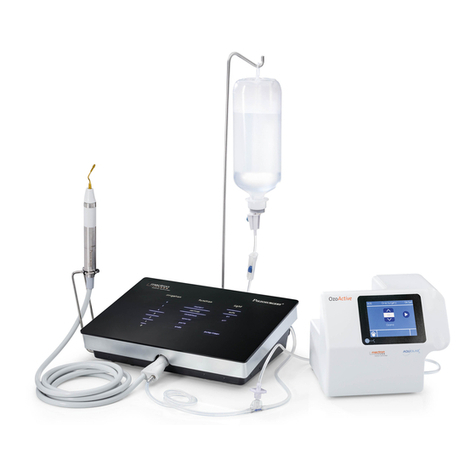
mectron
mectron Piezosurgery Cleaning and sterilization manual