English - 34 -
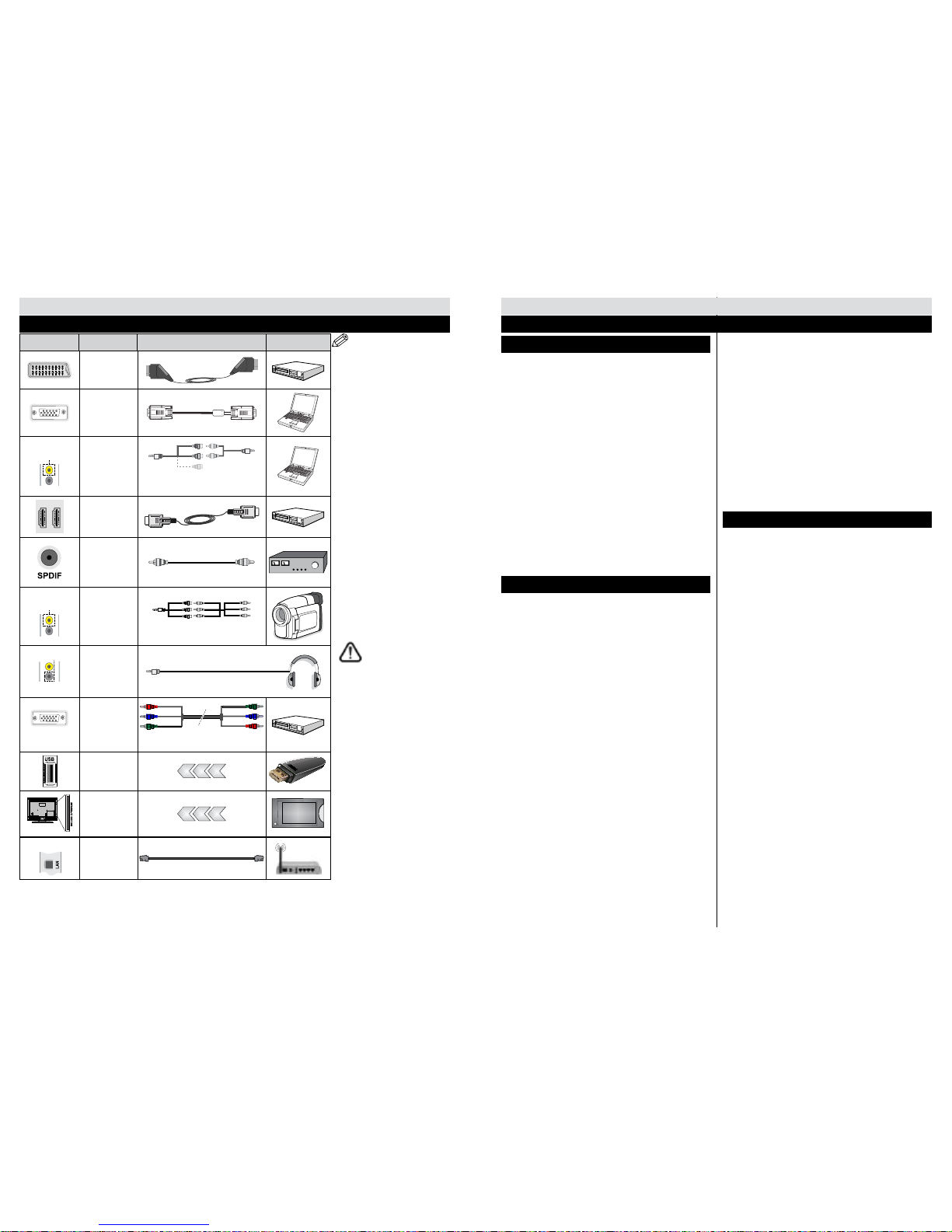
NOTE: When connecting
a device via the YPbPr or
Side AV input, you must
use connection cables to
enable connection. See the
illustrations on the left side. |To
enable PC audio, you will need
to use SIDE AV CONNECTION
cable’s WHITE & RED inputs. |If
an external device is connected
via the SCART socket, the TV
will automatically switch to AV
mode.|When receiving DTV
channels (Mpeg4 H.264) or
while in Media Browser mode,
output will not be available via
the scart socket. |When using
the wall mounting kit (optional),
we recommend that you plug all
your cables into the back of the
TV before mounting on the wall.
|Insert or remove the CI module
only when the TV is SWITCHED
OFF. You should refer to the
module instruction manual for
details of the settings. | Each
USB input of your TV supports
devices up to 500mA. Connecting
devices that have current value
above 500mA may damage your
TV.
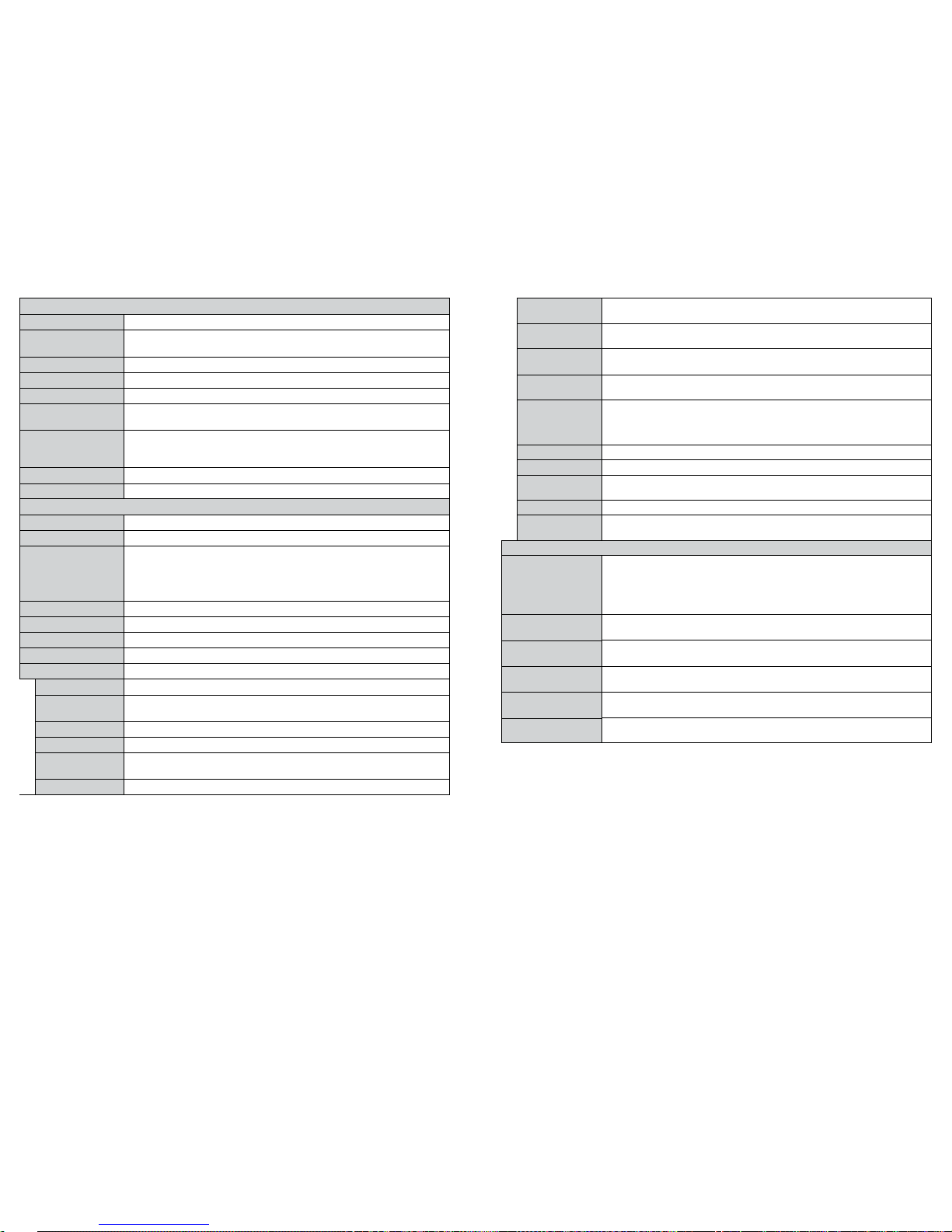
Connector Type Cables Device
Scart
Connection
(back)
VGA
Connection
(back)
SIDE AV PC/YPbPr
Audio
Connection
(side)
Side Audio/Video
Connection Cable
(Supplied)
PC Audio Cable
(Not supplied)
HDMI
Connection
(back)
SPDIFF
(Coaxial Out)
Connection
(back)
SIDE AV Side AV
(Audio/Video)
Connection
(side)
Side AV Connection
Cable (supplied)
HEADPHONE
Headphone
Connection
(side)
PC to YPbPr
YPbPr Video
Connection
(side) YPbPr Connection
Cable(not supplied)
USB
Connection
(side)
CI
Connection
(side)
CAM
module
LAN
Ethernet
Connection
(back) LAN / Ethernet Cable
Getting Started
Connections
If you want to connect a
device to the TV, make
sure that both the TV and
the device are turned off before
making any connection. After the
connection is done, you can turn
on the units and use them.
English - 35 -
Switching On/Off
To Switch the TV On
Connect the power cord to a power source such as a
wall socket (220-240V AC, 50 Hz).
To switch on the TV from standby mode either:
Press the Standby button, Programme +/- or a
numeric button on the remote control.
Press the side function switch on the TV until the TV
comes on from standby.
To Switch the TV Off
Press the Standby button on the remote control or
press the side function switch on the TV until the
TV switches into standby mode.
To power down the TV completely, unplug the
power cord from the mains socket.
Note: When the TV is switched into standby mode, the standby
LED can blink to indicate that features such as Standby Search,
Over Air Download or Timer is active. The LED can also blink when
you switch on the TV from standby mode.
First Time Installation
When turned on for the first time, the language
selection screen is displayed. Select the desired
language and press OK.
On the next screen, set your preferences using the
navigation buttons and when nished, press OK to
continue.
Note: Depending on the Country selection you may be
asked to set and conrm a PIN at this point. The selected
PIN cannot be 0000. You have to enter it if you are asked
to enter a PIN for any menu operation later.
You can activate Store Mode option at this point.
This option is intended only for store use. It is
recommended to select Home Mode for home use.
If Store Mode is selected, a conrmation screen will
be displayed. Select YES to proceed. This option
will be available in Other Settings menu and can be
turned off/on later.
If Home Mode is selected, Store Mode will not be
available after the First Time Installation. Press OK
button to continue.
Aerial Installation
If you select Aerial option from the search type selection
screen, the television will search for digital terrestrial TV
broadcasts. After all the available stations are stored,
the Channel List will be displayed on the screen.
While the search continues a message will appear,
asking whether you want to sort channels according
to the LCN(*). Select Yes and press OK to conrm.
(*) LCN is the Logical Channel Number system that
organizes available broadcasts in accordance with a
recognizable channel sequence (if available).
Press Menu button to quit channel list and watch TV.
Cable Installation
If you select Cable option and press OK button on
the remote control, a conrmation screen will be
displayed. Select YES and press OK to proceed.
To cancel operation, select NO and press OK. You
can select frequency ranges from next screen. Enter
the frequency range manually by using the numeric
buttons. When nished, press OK button to start
automatic search.
Note: Searching duration will change depending on
the selected search step.
Media Playback via USB Input
You can connect a 2.5” and 3.5” inch (hdd with external
power supply) external hard disk drives or USB memory stick
to your TV by using the USB inputs of the TV.
IMPORTANT! Back up the les on your storage
devices before connecting them to the TV.
Manufacturer will not be responsible for any le
damage or data loss. Certain types of USB devices
(e.g. MP3 Players) or USB hard disk drives/memory
sticks may not be compatible with this TV.
While formatting USB hard drives which have
more than 1TB (Tera Byte) storage space you may
experience some problems in the formatting process.
Wait a little while before each plugging and unplugging
as the player may still be reading les . Failure to do
so may cause physical damage to the USB player
and the USB device itself. Do not pull out your drive
while playing a le.
You can use USB hubs with your TV’s USB inputs.
External power supplied USB hubs are recommended
in such a case.
It is recommended to use the TV’s USB input(s)
directly, if you are going to connect a USB hard disk.
Note: When viewing image les the media browser menu
can only display 1000 image les stored on the connected
USB device.
Getting Started
First Time Installation - USB Connections