8-EN
Listening to Radio
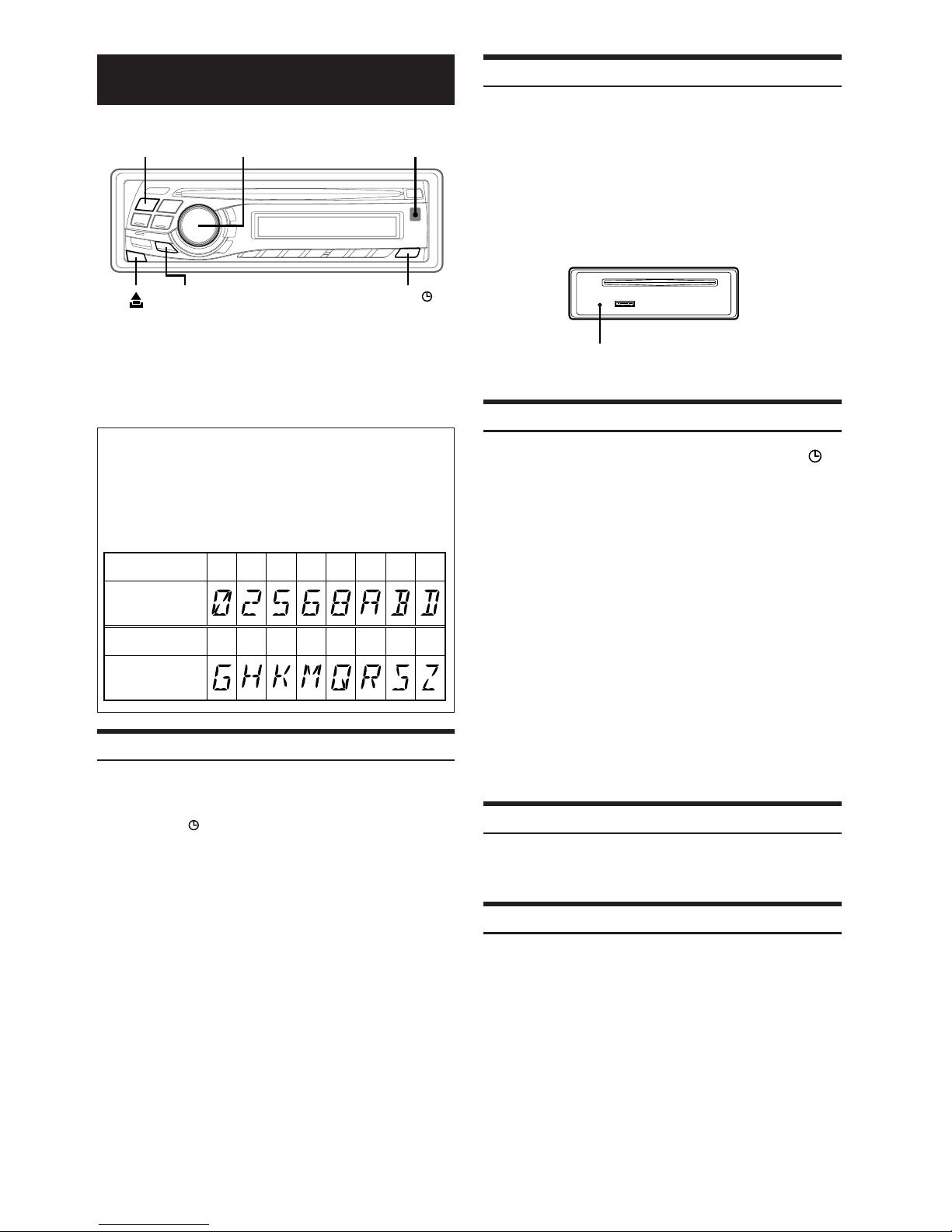
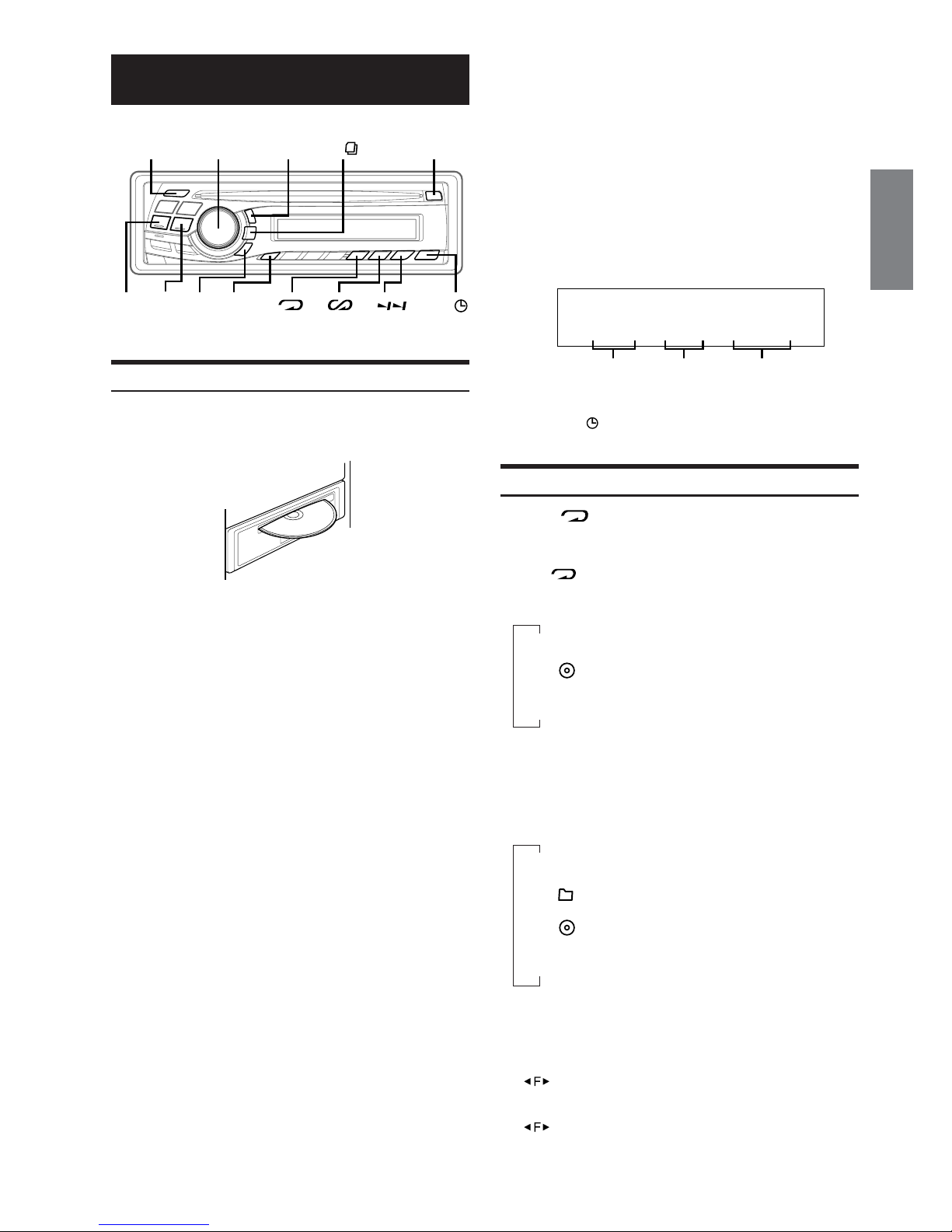
1Press SOURCE/POWER until a radio frequency
appears in the display.
2Press BAND repeatedly until the desired radio
band is displayed.
F1(FM1) →F2(FM2) →AM → F1(FM1)
3Press TUNE/A.ME to select the tuning mode.
DX SEEK (Distance mode) →SEEK (Local mode) →
OFF (Manual mode) → DX SEEK
•The initial mode is Distance mode.
Distance mode:
Both strong and weak stations will be automatically tuned in
(Automatic Seek Tuning).
Local mode:
Only strong stations will be automatically tuned in (Automatic
Seek Tuning).
Manual mode:
The frequency is manually tuned in steps (Manual tuning).
4Press gor fto tune in the desired station.
Holding down gor fwill change the frequency
continuously.
•The ST indicator appears on the display when a stereo FM station
is tuned in.
Manual Storing of Station Presets
1Select the radio band and tune in a desired radio
station you wish to store in the preset memory.
2Press and hold, for at least 2 seconds, any one of
the preset buttons (1 through 6) into which you
wish to store the station.
The selected station is stored.
The display shows the band, preset no. and station
frequency memorized.
•Atotal of 18 stations can be stored in the preset memory (6 stations
for each band; FM1, FM2 and AM).
•If you store a station in a preset memory which already has a
station, the current station will be cleared and replaced with the
new station.
Automatic Memory of Station Presets
1Press BAND repeatedly until the desired radio
band is displayed.
2Press and hold TUNE/A.ME for at least 2 seconds.
The frequency on the display continues to change while
the automatic memory is in progress. The tuner will
automatically seek and store 6 strong stations in the
selected band. They will be stored into buttons 1 to 6 in
order of signal strength.
When the automatic memory has been completed, the
tuner goes to the station stored in preset location no. 1.
•If no stations are stored, the tuner will return to the original station
you were listening to before the auto memory procedure began.
Tuning to Preset Stations
1Press BAND repeatedly until the desired band is
displayed.
2Press any one of the station preset buttons (1
through 6) that has your desired radio station in
memory.
The display shows the band, preset number and
frequency of the station selected.
Station Title Search Function
If the title of a radio station is entered, you can search for that radio
station by its title while listening to the currently received radio
station.
.
1Press SEARCH/Q.S. in Radio mode to switch to
Title Search mode.
The first title input blinks in the display.
2Select the desired title by turning the Rotary
encoder within 10 seconds.
3Press the Rotary encoder to receive the
frequency of the selected title.
•Title Search mode is canceled by pressing and holding SEARCH/Q.S.
for at least 2 seconds.
•If a station has no title, "NO TITLE" is displayed for 2 seconds.
Frequency Search Function
You can search for a radio station by its frequency.
1Press and hold SEARCH/Q.S. for at least 2
seconds in Radio mode to activate Frequency
Search mode.
2Turn the Rotary encoder within 10 seconds to
select the desired frequency.
3Press the Rotary encoder to receive the selected
frequency.
•Frequency Search mode is canceled by pressing and holding
SEARCH/Q.S. for at least 2 seconds.