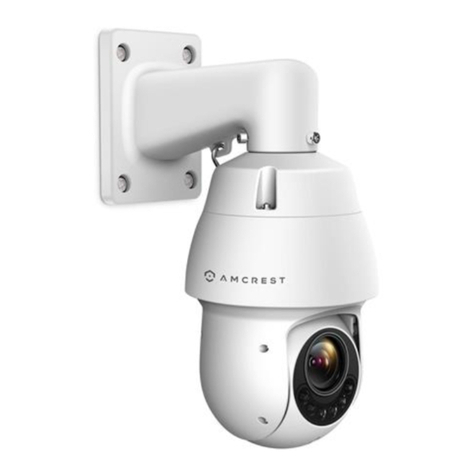
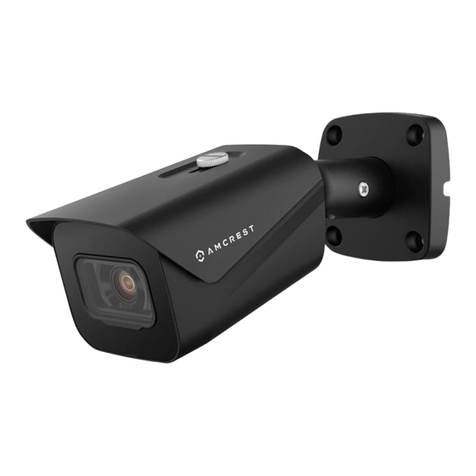
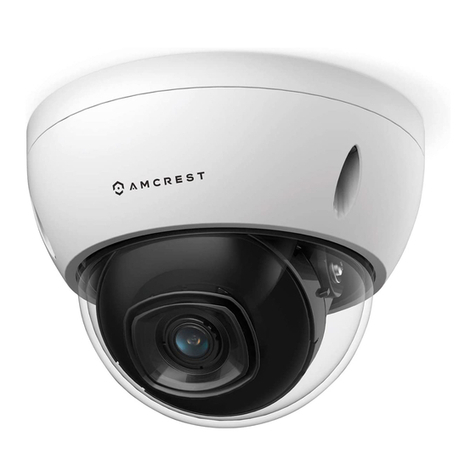
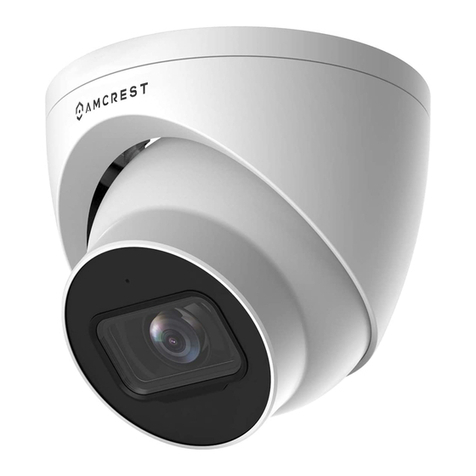
3
Welcome
Thank you for purchasing an Amcrest camera!
This user manual is designed to be a reference tool for the installation and operation of your AI camera.
Here you can find information about the camera’s features, functions, and information to aid in troubleshooting.
Many of the setup and installation sections below have corresponding videos on YouTube
To access the setup videos, please go to http://amcrest.com/videos
For access to the quick start guide and other support information, go to http://amcrest.com/support
To contact Amcrest support, please do one of the following:
Visit http://amcrest.com/contact
Important Security Warning
To keep your Amcrest camera secure and prevent unauthorized access, please make sure to follow the steps
below:
•Always make sure that your camera has the latest firmware as listed on
www.amcrest.com/firmware
•Never use the default password for your camera. Always ensure that your
password is at least 810 characters long and
contains a combination of lowercase characters, uppercase characters as well as
numbers.
Overview
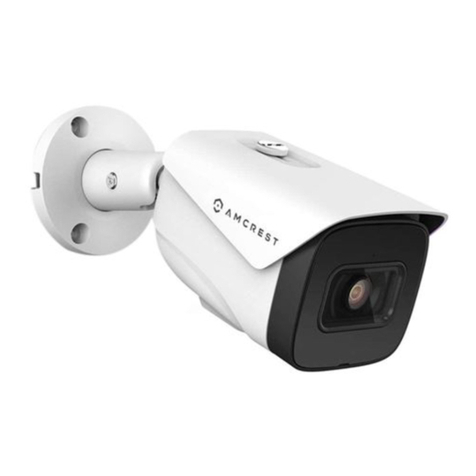
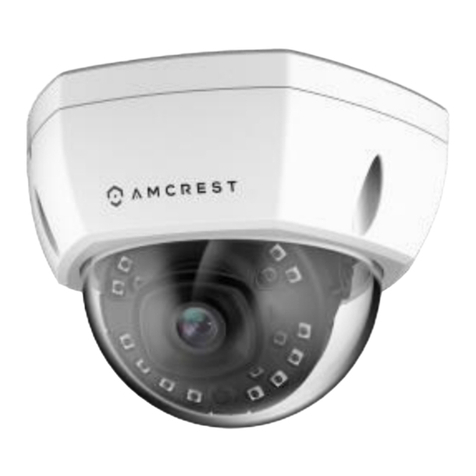
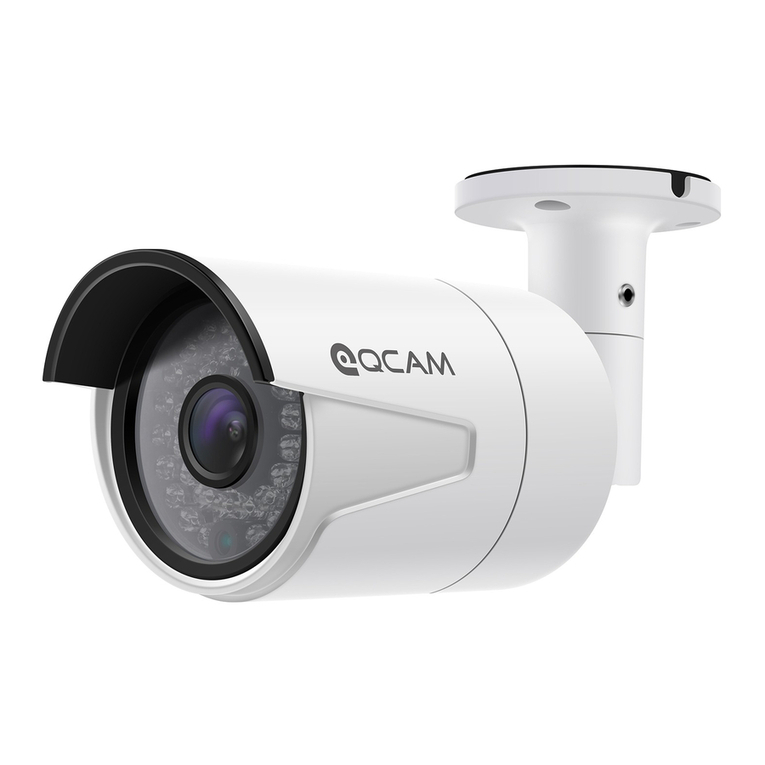
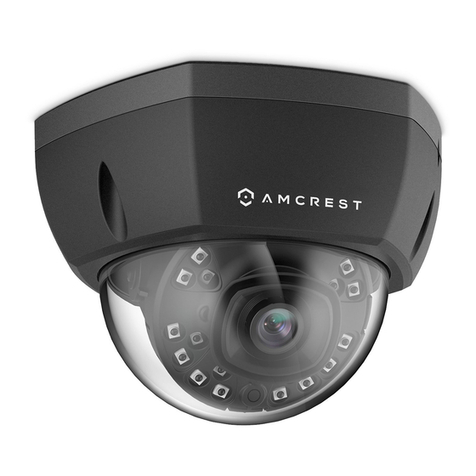
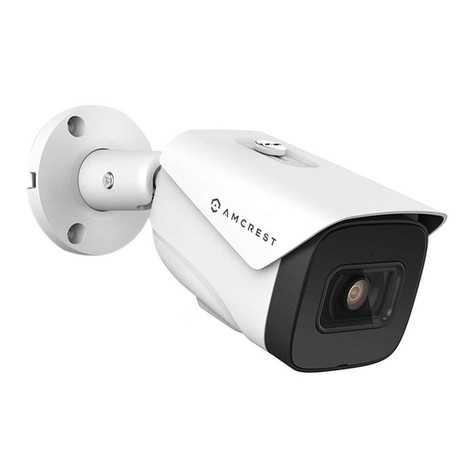
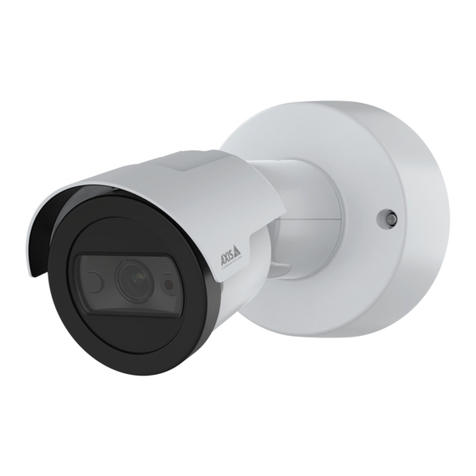
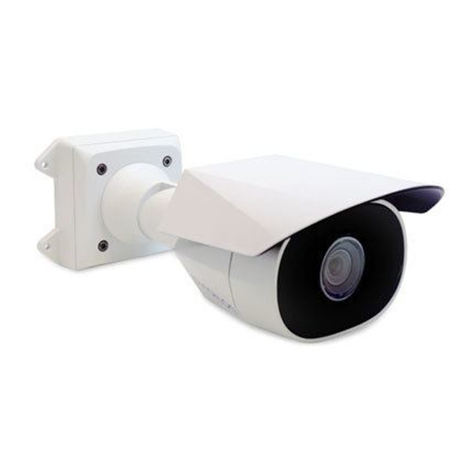
This fixed lens 4MP outdoor security camera delivers stunning ultra-high-definition video in 4-megapixel
resolution, at 20 frames per second. It features a super wide 2.1mm angled lens which providesa full 180° viewing
angle. The camera provides 3 IR LEDs which allow the camera to see at night from up to 49ft.
The camera also features a built-in microphone, on-board motion detection, built-in AI features, such as IVS, which
can be used for enhanced perimeter protection, and smart motion detection which allows the camera to detect
only human and vehiclesin the area. The camera also features flexible storage options to store recordings to a
microSD card (up to 256GB), SFTP/FTP, NAS, NVR, or using the Amcrest Cloud. All these features can be accessed
and customized using a web browser or even using the Amcrest View Pro app using a mobile device.
Installation Guide
Follow the steps and use the diagram in this section to install the POE cameras.
MicroSD Card Installation
A microSD card can be used to store and view local recordings/snapshots. This camera requires a class 10 or above
microSD card formatted to FAT32 to function. The camera can handle a max of 256GB of microSD card storage.
1. Remove the lens cover for the camera with the supplied wrench tool to access the motherboard.
2. Locate the provided microSD card slot on the motherboard and slide the clasp back to open.