manuals.online logo
Brands
  1. Home
  2. •
  3. Brands
  4. •
  5. APT
  6. •
  7. Printer
  8. •
  9. APT TRP80USE User manual

APT TRP80USE User manual

Popular Printer manuals by other brands

Evolis Elypso user guide

Evolis

Evolis Elypso user guide

Lexmark 522n - C Color Laser Printer Service manual

Lexmark

Lexmark 522n - C Color Laser Printer Service manual

Panduit COUGAR LS9Q Operator's manual

Panduit

Panduit COUGAR LS9Q Operator's manual

Olivetti PG L2140 Operation guide

Olivetti

Olivetti PG L2140 Operation guide

Samsung SL-M2820DW user manual

Samsung

Samsung SL-M2820DW user manual

Kyocera FS-9530DN specification

Kyocera

Kyocera FS-9530DN specification

Canon LASER SHOT LBP-1210 Specifications

Canon

Canon LASER SHOT LBP-1210 Specifications

Canon PIXMA PRO-1 Series Getting started

Canon

Canon PIXMA PRO-1 Series Getting started

Canon LBP113w Getting started

Canon

Canon LBP113w Getting started

Lexmark Infoprint 1332 user manual

Lexmark

Lexmark Infoprint 1332 user manual

Epson M1120 user guide

Epson

Epson M1120 user guide

TransAct POSJET 1500 Spare parts

TransAct

TransAct POSJET 1500 Spare parts

Telpar MTP-1500 user manual

Telpar

Telpar MTP-1500 user manual

Star DP8340 SERIES user manual

Star

Star DP8340 SERIES user manual

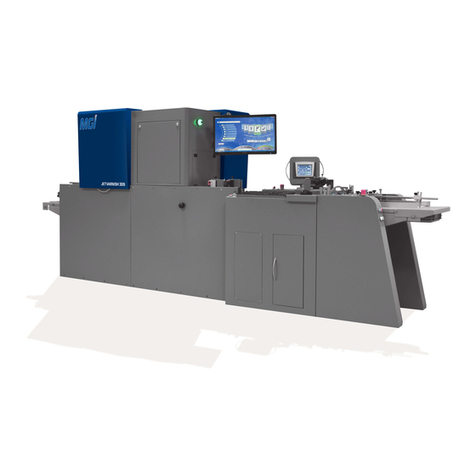
MGI JETVARNISH 3DS user manual

MGI

MGI JETVARNISH 3DS user manual

Kyocera TASKalfa PA4500ci Operation guide

Kyocera

Kyocera TASKalfa PA4500ci Operation guide

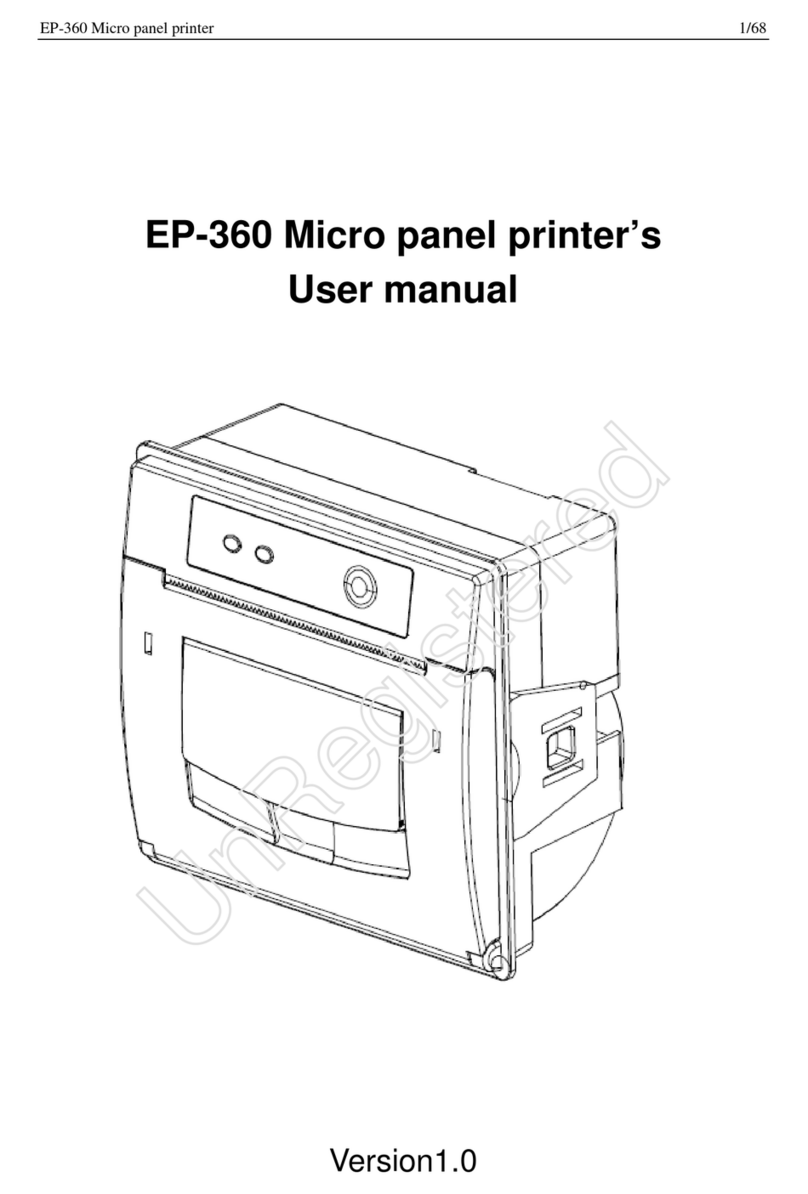
Emaar EP-360 user manual

Emaar

Emaar EP-360 user manual

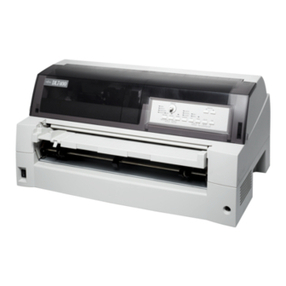
Fujitsu DL7400 user manual

Fujitsu

Fujitsu DL7400 user manual

manuals.online logo
manuals.online logoBrands
  • About & Mission
  • Contact us
  • Privacy Policy
  • Terms and Conditions

Copyright 2025 Manuals.Online. All Rights Reserved.

TRP80USE
Serial
● 250mm/s high speed printing
● 3-in-1 interfaces and inverted design of mainboard, ideal for kitchen
● Separated cutter and print head on mechanism
● Compatible with ESC/POS command set
● Built-in Web page to set up printer directly
● Support Ethernet printing status monitor
● Auto-recovery printing after internet disconnecton
● Faster connection by 10M Ethernet port to avoid receipt misprinting
● Support character sets GB18030 and various international languages
● Support printer identification, software binding and high speed driver mode
● Support different density bitmap and download graphics printing
● Support character enlargement, bold, underline, line spacing and character spacing
● Water-proof, Oil-proof, Dust-proof
TRP80USE
250mm/sec
150KM
200*152*138mm (WxDxH)
Dimensions
USB+Serial+Ethernet
Line Thermal Printers
5-USB
4
10. Functions of buttons and indicators
!
9. Buttons and Indicators
(1). FEED Button
Press to feed paper manually.
(2). PAPER Indicator
When this indicator is lighting as well as the ERROR indicator, printer is out of paper.
When this indicator is dim as well as the ERROR indicator, printer has paper.
When this indicator is lighting but the ERROR indicator is dim, roll paper is near end.
(3). ERROR Indicator
When printer is in the status of paper out, cutter error or print head overheat, this indicator is
flashing according to user's defined setting
(4). POWER Indicator
When this indicator lights, the printer is turned on.
When this indicator dims, the printer is turned off..
Step( )
a. Turn off then on the printer, the printer will initialize and reset the cutter.
Step (2)
a. Open the front cover.
b. Wheel the gear on the cutter to make the cutter back to initial position. Open the printer
cover and install roll paper correctly, then the printer works normally.
Caution: Do not open the printer cover by force, so as not to damage the print head and
auto cutter.
1
11. Cutter Maintenance
Power Switch
Error IndicatorPaper Indicator
FEED Button

Wheel Gear
1. Open the cover by the arrow direction
2. Turn the gear to reset the cutter
12. Professional Functions
a. 250mm/sec high-speed printing
b. Integration of mechianism and cutter
c. Support connecting to WAN printing
7
13.Driver Installation
a. Insert the driver CD dis, run the INTEGRO setup to set up.
b. Select “Insyall Printer Driver (N)”.
c. Select TRP80USE to continue.
d. Select the corresponding printer port.
7
e. Installation completed.