manuals.online logo
Brands
  1. Home
  2. •
  3. Brands
  4. •
  5. ARH
  6. •
  7. Digital Camera
  8. •
  9. ARH M402 User manual

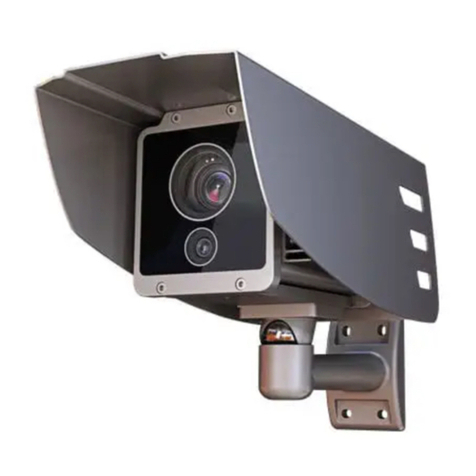
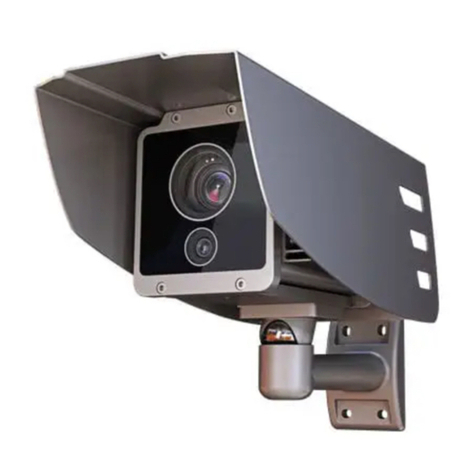
ARH M402 User manual

Other manuals for M402

1

This manual suits for next models

1

Other ARH Digital Camera manuals

ARH FREEWAYCAM3 User manual

ARH

ARH FREEWAYCAM3 User manual

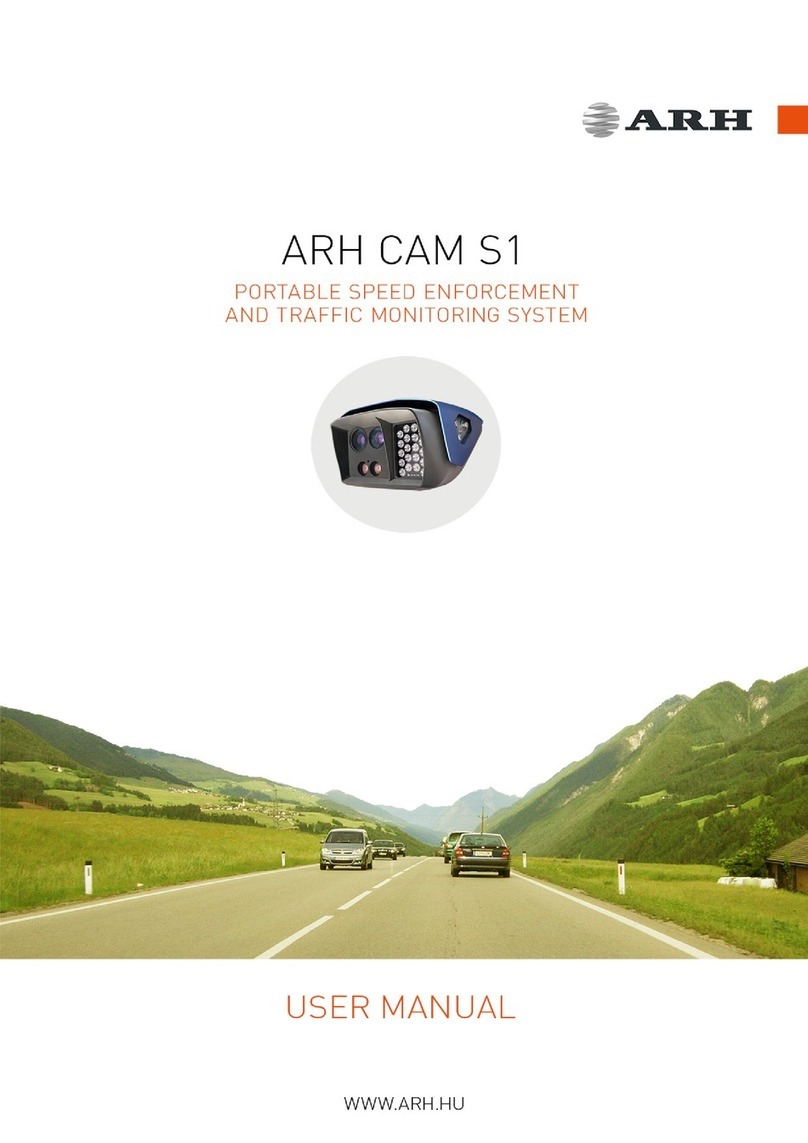
ARH CAM S1 User manual

ARH

ARH CAM S1 User manual

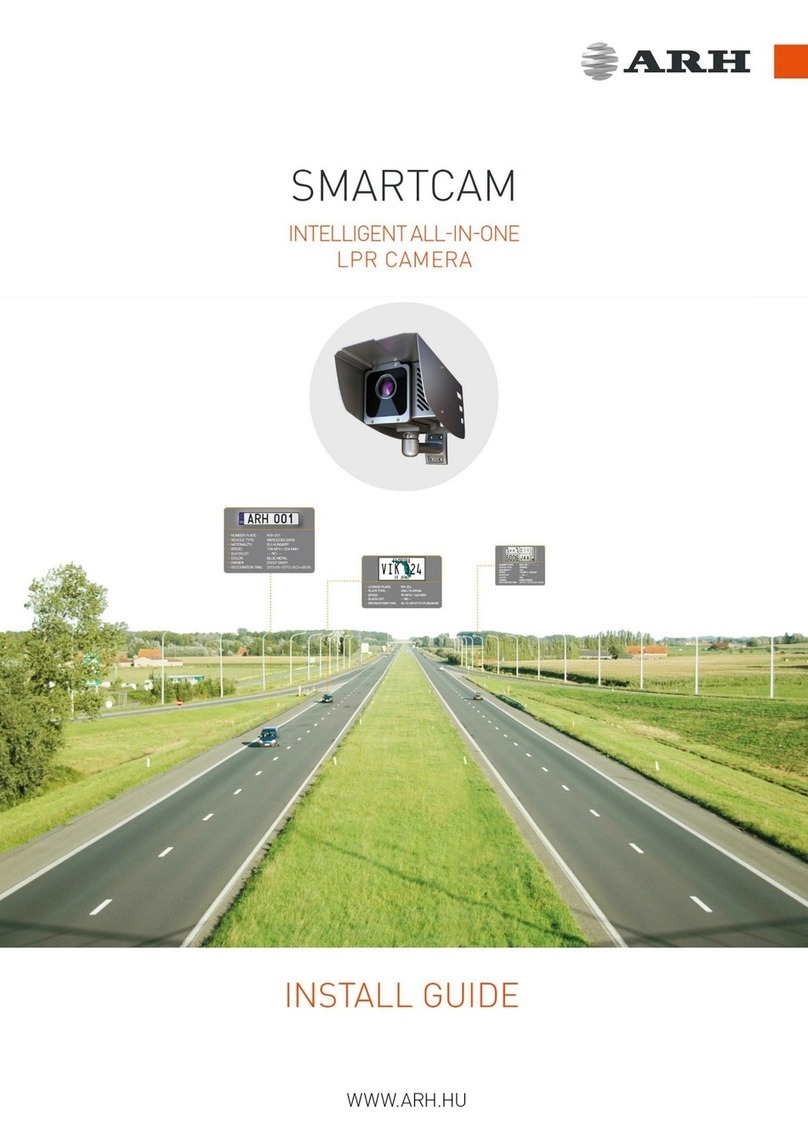
ARH SmartCAM User manual

ARH

ARH SmartCAM User manual

ARH PARKIT Series User manual

ARH

ARH PARKIT Series User manual

ARH FREEWAYCAM3 User manual

ARH

ARH FREEWAYCAM3 User manual

Popular Digital Camera manuals by other brands

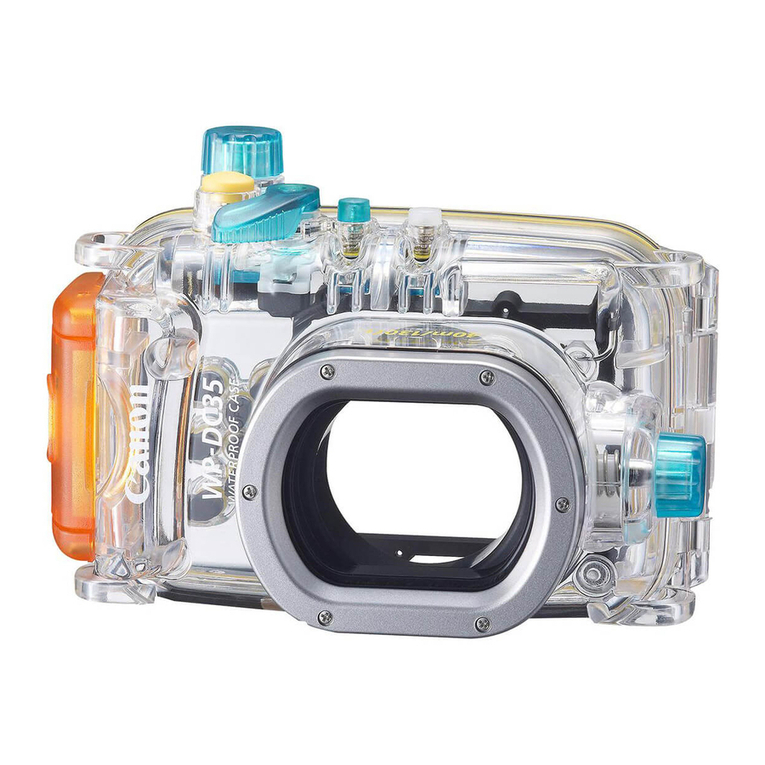
Canon WP-DC35 user guide

Canon

Canon WP-DC35 user guide

Xiaomi 70mai Dash Cam Lite user manual

Xiaomi

Xiaomi 70mai Dash Cam Lite user manual

Samsung PL70 Quick start manual

Samsung

Samsung PL70 Quick start manual

GE E1680W user manual

GE

GE E1680W user manual

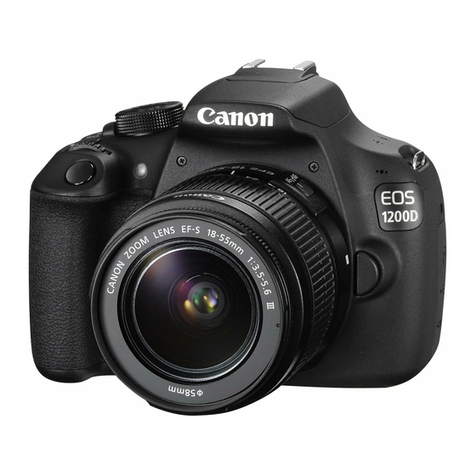
Canon EOS 1200D instruction manual

Canon

Canon EOS 1200D instruction manual

Tevion MD 86497 user guide

Tevion

Tevion MD 86497 user guide

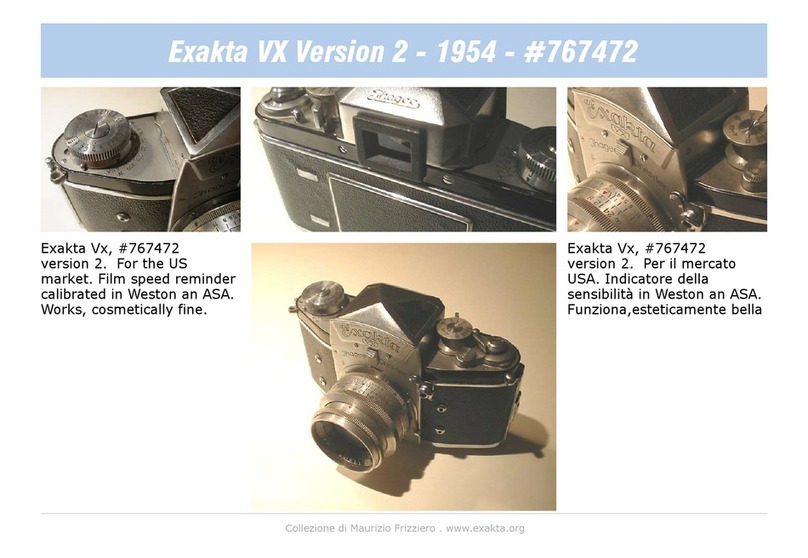
Exakta VX Features

Exakta

Exakta VX Features

Kodak Digital Science DC120 user guide

Kodak

Kodak Digital Science DC120 user guide

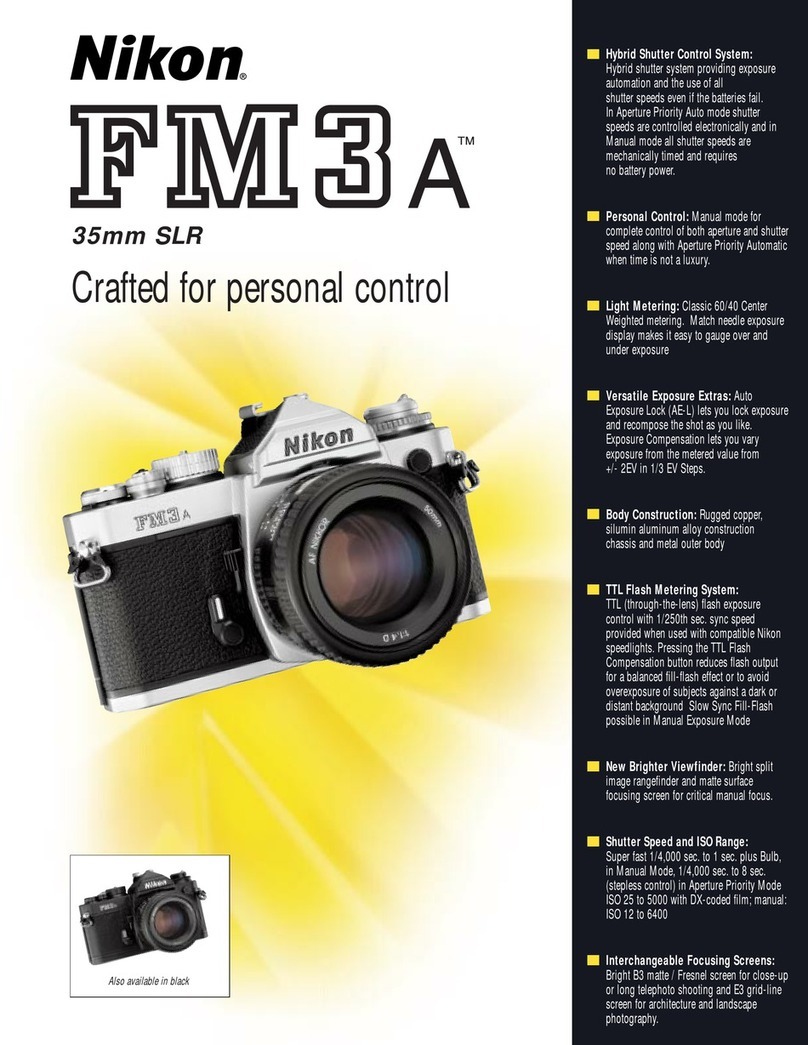
Nikon FM3A Specifications

Nikon

Nikon FM3A Specifications

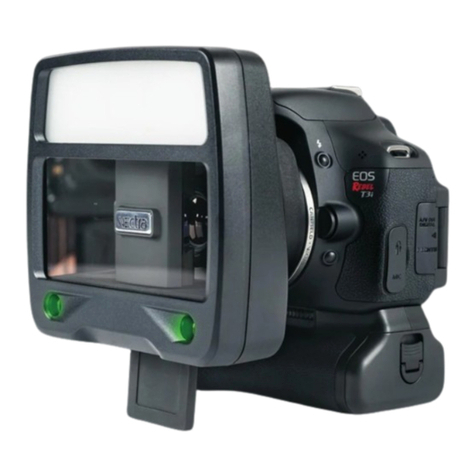
Vectra Fitness H1 Quick reference guide

Vectra Fitness

Vectra Fitness H1 Quick reference guide

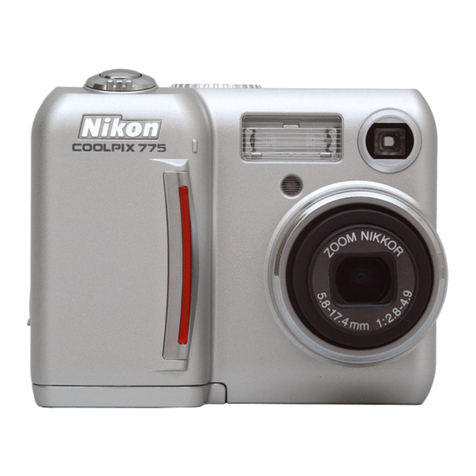
Nikon COOLPIX 775 quick start guide

Nikon

Nikon COOLPIX 775 quick start guide

Olympus IR 500 - 4MP Digital Solutions Camera Manuel de Référence

Olympus

Olympus IR 500 - 4MP Digital Solutions Camera Manuel de Référence

Samsung EC-L100ZBBA brochure

Samsung

Samsung EC-L100ZBBA brochure

FujiFilm FINEPIX BL01124-201 owner's manual

FujiFilm

FujiFilm FINEPIX BL01124-201 owner's manual

Panasonic DMC-L10KPP Service manual

Panasonic

Panasonic DMC-L10KPP Service manual

Hyundai Electric HYU-CC-CHBF12001 Quick installation guide

Hyundai Electric

Hyundai Electric HYU-CC-CHBF12001 Quick installation guide

Sony DSC-WX80 specification

Sony

Sony DSC-WX80 specification

Nikon Nuvis S - Point & Shoot instruction manual

Nikon

Nikon Nuvis S - Point & Shoot instruction manual

manuals.online logo
manuals.online logoBrands
  • About & Mission
  • Contact us
  • Privacy Policy
  • Terms and Conditions

Copyright 2025 Manuals.Online. All Rights Reserved.

DEFAULT IP ADDRESS: 192.0.2.3
Document Version: 2019.12.18 2/1 QUICK INSTALL GUIDE
MICROCAM M202/M402
QUICK INSTALL GUIDE
Document Version: 2019.12.18
WWW.ARH.HU
This Quick Install Guide will help you get through the first few steps from opening the package till the first use of
the camera Web interface.
1MOUNTING THE CAMERA:
1.1 By default, the camera is provided with a mobile (vehicle) bracket. By using this bracket, the camera can be mounted on a vehicle
roof rack or on a flat surface.
Additional accessories and mounting elements may be required depending on the actual vehicle.
1.2 The required tools for adjusting the bracket are the
followings:
(a) Allen key (size 2.5 & 3); (tilt)
(b) Wrench (depending on screw dimensions) to secure device in
desired rotation/position (rotation).
1.3 As a safety precaution, you may want to secure the camera with a cable
or steel wire rope through the
anchor hole –in case the mount
screws should, for any reason, let go. See camera side panel to find the anchor hole as shown in
the image (upper hole).
Secure mounting is the responsibility of the user.
2CABLE CONNECTIONS AND POWER:
2.1 If you own a cable according to 1 (d) above, use the cable
to connect the camera and skip this point. To connect and
power the camera with a 3rd party cable and connector
please use the table below (suggested M12 A coded 8
contacts CAT6)
2.2 First, connect the cable to the camera and after that to
the POE+ connector (It has to be an IEEE 802.3at
standard).
2.3 After a successful connection and power up, the camera will boot and a red indicator
LED in the front of the camera will show up. After a few seconds, the red light turns
off, and a green LED blinks two times, which means that the camera is ready for use.
2.4 Connect your PC to the same network

!
!
!
DEFAULT IP ADDRESS: 192.0.2.3
Document Version: 2019.12.18 2/2 QUICK INSTALL GUIDE
2.5 Be sure to follow industry best practices by using proper drip-loop cabling to avoid
rainwater intrusion into the camera housing.
To power up the camera properly, please use POE+ switch port or POE+ injector.
3ACCESSING THE CAMERA
3.1 Set your po IP address or create an alternate IP address in the 192.0.2.x subnet –
where x is an integer number between 1 and 254, except 3 –with the subnet mask
of 255.255.255.0.
3.2 Start a browser and enter the default IP address of the camera into the address bar
(http://192.0.2.3). After the first start, the bottom right window will appear.
3.3 The camera starts with Admin privileges, ready to be set up and configured. For more details, check the Help tab in the camera menu.
4FAQ
Where can I find the full documentation?
•You can access the full documentation through https://arh.hu/doc/ or via the ARH Technical Support System (ATSS)
Where can I find the name / IP address / MAC address / Serial Number of the camera?
•The sticker, indicating the Name, IP address, MAC address and the Serial Number of the
camera, can be found on the bottom of the device, under the sunshield.
How can I enter Recovery mode?
•Entering the recovery mode explained in the Cameras User’s Manual
document under the http://doc.arh.hu/cameras link.
5AVAILABLE MANUALS AND GUIDES:
•FULL INSTALL GUIDE
•MANUAL AND HELP
•PROGRAMMERS GUIDE
•CAMERA SETUP FOR 24/7 USE
http://doc.arh.hu/
ARH Documentations
6CONTACT INFORMATION
Headquarters:
ARH Inc.
Alkotás utca 41
HU-1123 Budapest
Hungary
Phone: +36 1 201 9650
Fax: +36 1 201 9651
www.arh.hu
ARH America:
ARA Corp.
28059 US Highway 19 North Suite 203
Clearwater, FL 33761
USA
Phone: (727) 724-4219
Fax: (727) 724-4290
www.adaptiverecognition.com
ARH Technical Support System (ATSS)
https://www.arh.hu/index.php/en/support.html
!