3
q w e r t
y u o
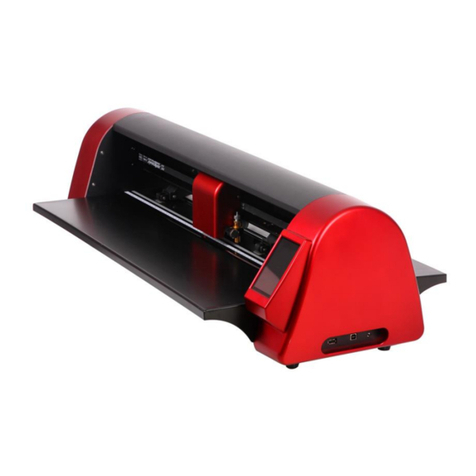
qUniversal power supply
wPower cord
eBlade holder
rBlades
• Blue Cap Blades for cutting thicker materials
• Red Cap Blades for cutting thin materials
• Yellow Cap Blades for cutting fabrics
t12˝x12˝ (or 15˝x15˝) low tack adhesive cutting mat
y12˝x12˝ (or 15˝x15˝) high tack adhesive cutting mat
uPen Holder
iPens
oUSB 2.0 cable
!0 Artistic SimpleCut Installation Disc
!1 Owner’s manual with Artistic SimpleCut activation code
i !0 !1
Standard Accessories
SimpleCut Software Installation Instructions
1. Insert the Artistic SimpleCut Installation DVD into your CD-ROM
drive. On most computers you will have a AUTORUN screen
pop up next. If your computer does not have the CD-ROM
AUTORUN feature activated, open Windows Explorer, then
open the CD-ROM folder and run the “setup.exe” program.
2. The Welcome screen informs you that you are about to install
Creative DRAWings SimpleCut Software. Click “Next” to
continue.
3. When the window with the License Agreement opens: Click
on the rst radio button of the window, conrming that you
accept the terms of the license agreement. Then click “Next” to
continue.
4. On the next window, select the installation type: If you choose
“Complete” (recommended), all program features will be
installed. If you choose “Custom”, you have to specify which
features of the program you want to install. Click “Install” after
you have made your decision.
5. Once the installation is nished, the Activation Form will appear.
Fill in the requested information together with the Activation Key
(found below these instructions).
6. Once you have lled this out, click the Activate Product button.
7. In order to activate Creative DRAWings SimpleCut, click on the
“Activate now” button. You must be connected to the Internet.
8. Once the activation procedure is nished, the “Activation
Successful” message will appear. If the Activation Key number
was wrong, or you are not connected to the Internet, you will
receive an Activation Failure message. Check your Activation
Key and your internet connection and try again. Once
successfully activated, click on the “Close” button to close the
dialog box.
9. When the Activation process nishes the installation of My
Editor v5.0 will start automatically. Click “Next” to continue.
10. The window with the License Agreement opens: click on the
rst radio button of the window, conrming that you accept the
terms of the License Agreement. Then click “Next” to continue.
11. In the next dialog box, enter the user name and the organization,
if any, and click “Next”.
12. The Destination Folder dialog box will appear. Press “Next”
to continue using the default destination, or specify another
location.
13. In the next window, select the installation type. If you choose
“complete” (recommended), all program features will be
installed. If you choose Custom, you will need to specify which
features you want to install. Click “Install” after you have made
your decision.
14. The next dialog box asks you to select what les you want My
Editor to handle. You can choose any selection that you want,
but it is recommended that you use the rst option: “my editor
v5.00 will handle only ngs, and mls”.
15. You are now ready to install. Click “Install” to begin.
Once the installation nishes, click on “Finish”.
16. The next dialog box informs you that the Creative DRAWings
SimpleCut was installed successfully. Click on the “Finish”
button to nish the installation process.
17. If an additional installation wizard starts to install DirectX9C, you
MUST allow it to install or the software will not work properly.
Follow on-screen prompts to install.
– Verification code –