6
GTO KEYPAD CONTROLLER
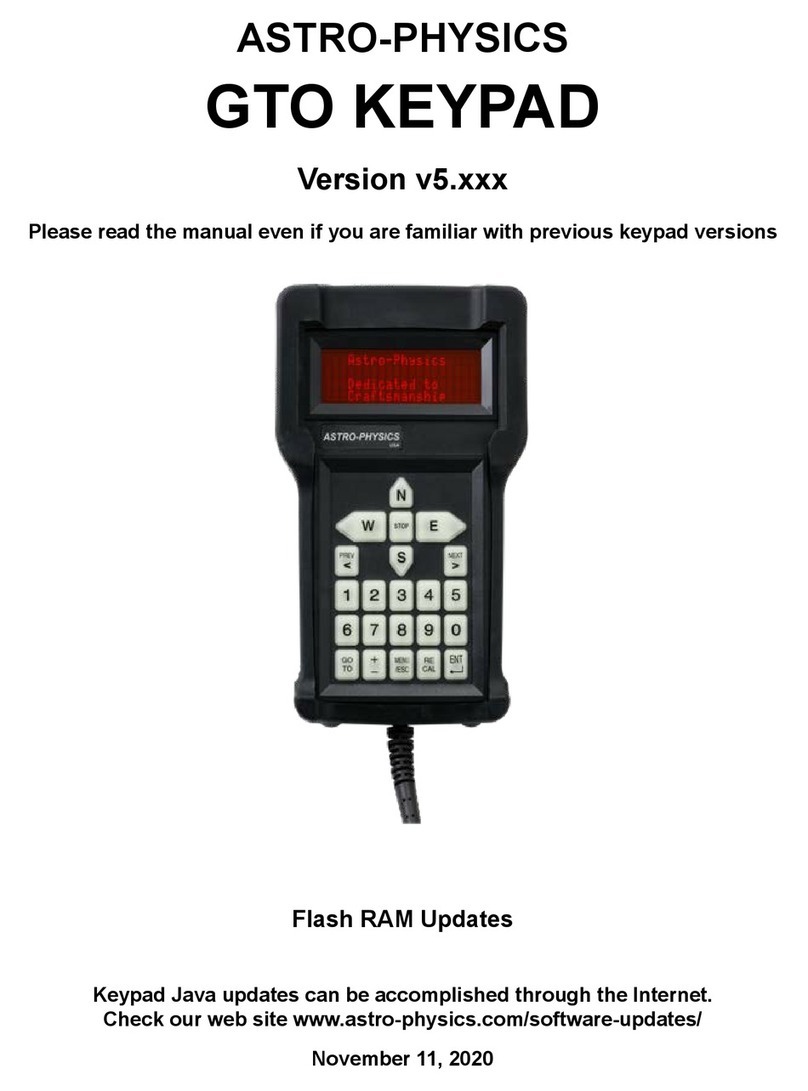
The GTO Keypad is the communication center for the operation of your GTO mount. We have designed this unit to be
as intuitive and easy to use as possible while lling it with terric features to make your observing session productive and
pleasurable. With a few keystrokes, you can slew to objects by their common name or catalog number, set up search
parameters to nd all the open clusters (in the Messier catalog) that are visible on a given night, focus your telescope
for astrophotography, set the countdown timer for the exposure, enter R.A. and Dec.
coordinates to nd the newest super nova, and much more.
Note: Please understand that the keypad is NOT the controller / brain of the mount.
The real control is in the GTOCPx Control Box. The keypad simply provides data
for the GTOCPx to do its job. Likewise, a computer with software can also duplicate
everything that the keypad does. The mount can be operated using only the keypad,
using only a computer, or using both.
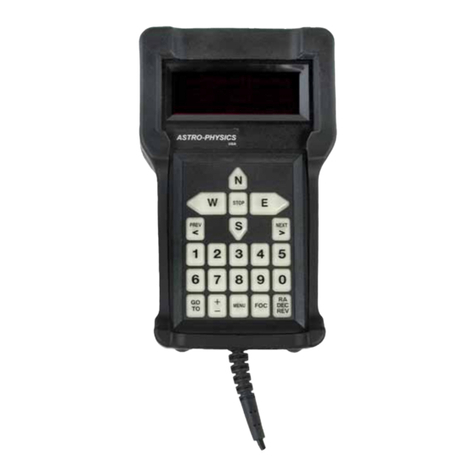
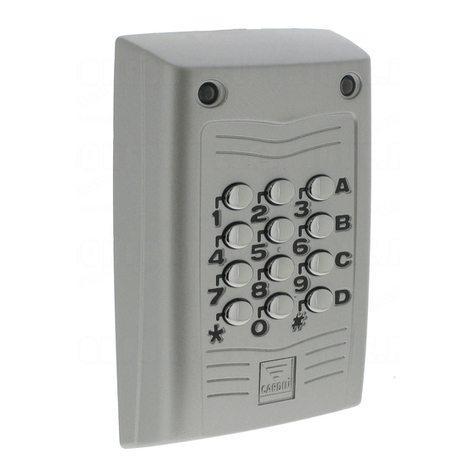
The heart of the controller is the 4-line display screen that will guide you through all
operations. The alphanumeric Keypad itself is translucent and backlit with red LEDs
for easy visibility at night. The buttons are also made with a phosphoresce material
that will glow in the dark for a brief time.
Button functions are clearly dened on the button itself or as an instruction on the
display screen. You do not have to remember shift key patterns or complex keystroke
sequences. The directional buttons are shaped like arrows to help you nd them in the
dark without looking at your Keypad. The stop button is readily accessible if you need
to cancel any slewing request immediately.
The menu system is very easy to navigate. Each screen will display several choices,
which correspond to a number button. Simply press the number button to initiate the
command, e.g. “1=M, 2=NGC”. When you press “1” the Messier entry screen will
display and you can enter the number of the object that you wish to see. Press GoTo,
which will cause the mount to slew. The <PREV and NEXT> buttons will allow you to scroll quickly through the lists of
common names or to nd more data about the object you are viewing. To adjust most settings, you will press the number
indicated on the screen several times to scroll (toggle) through your choices and stop at the one you want.
Layout and Buttons of the Keypad
Vacuum Fluorescent Display
The Keypad features a four-line, 20 character alphanumeric display. The brightness of the display is adjustable with “dim”
and “bright” settings. Please refer to the section entitled “Brightness of the display screen”. If you are using the Keypad in
the daylight, you will need to shade the screen from the direct light with your hand in order to see it more clearly.
N-S-E-W Directional Buttons
These four buttons are arranged so that the “E” and “W” buttons control the movement in right ascension and the “N” and
“S” buttons control the declination. This is the “normal” orientation of objects in the eyepiece eld. When you press the “N”
button, the star should move in an upward direction toward the top of your eyepiece eld. In addition, you can press two
buttons simultaneously for diagonal movement, e.g. the “N” and “W” buttons will cause a “NorthWest” movement. Note:
north and south buttons can be misleading concepts in movement of the Dec. axis. The reality is that “N” moves the Dec.
axis counterclockwise and “S” moves the Dec. axis clockwise.
RA/DEC REV Button:
Press the RA/DEC REV button to access these functions, then press MENU to exit from this screen. This button serves
several functions:
●Reversing R.A. and Dec.: If the star moves down when you push the “N”
button, press the RA/DEC REV button in the lower right corner of the Keypad.
A reversing menu will appear on the screen. If you want to reverse direction
of the “N” and “S” button, press “2” on the Keypad and the display will change
from “normal” to “reverse”. You can make the same adjustment with the “E”
and “W” buttons. When properly set up, the direction buttons will cause the
object to move according to your orientation at the eyepiece.
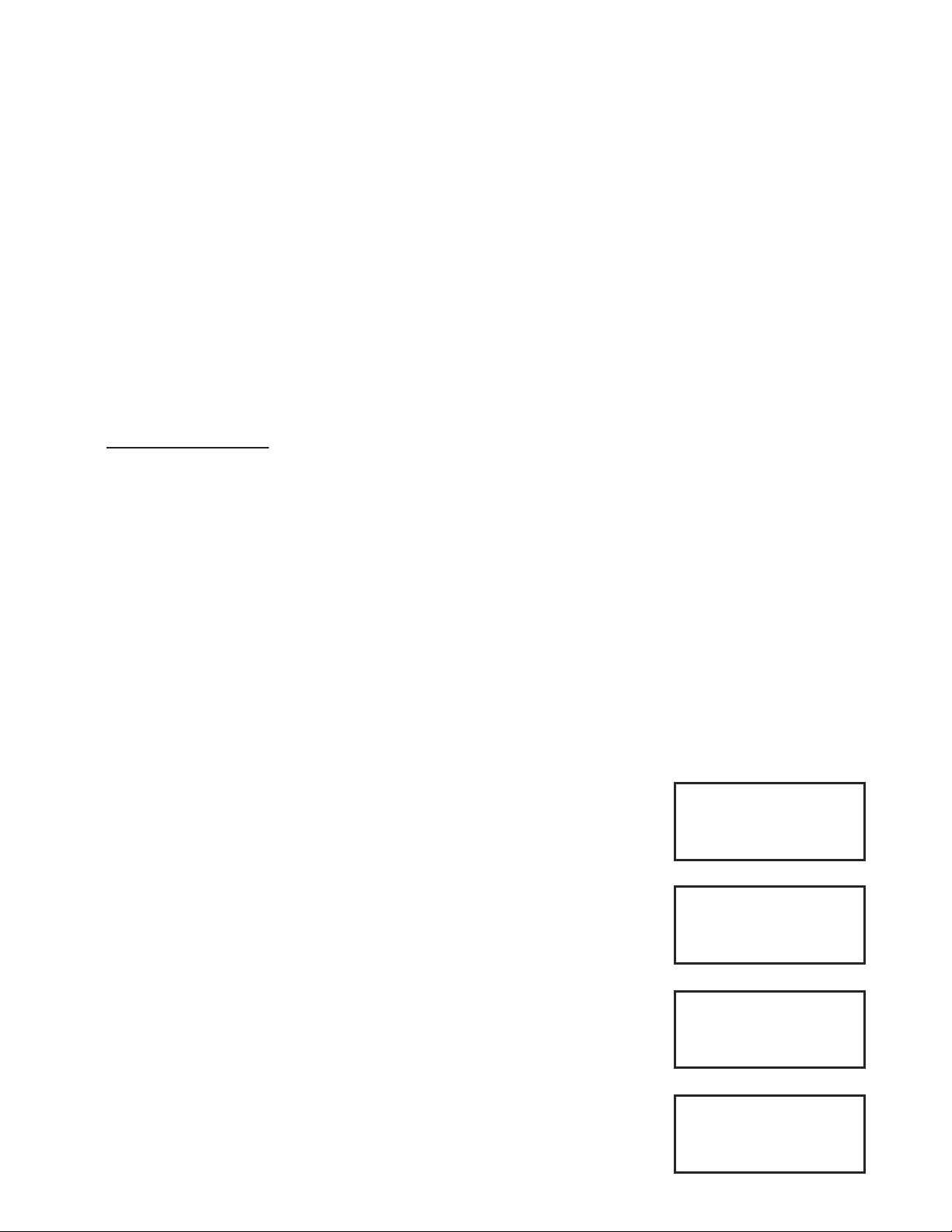
1=Rev RA :Normal
2=Rev DEC:Normal
9=Re-Calibrate
Meridian < 0W >
RA / DEC Reverse Screen