Asus TP300LA Guide

Notebook PC
E-Manual
E10478
Revised Edition V2
May 2015

2
Notebook PC E-Manual
COPYRIGHT INFORMATION
No part of this manual, including the products and software described in it, may be reproduced,
transmitted, transcribed, stored in a retrieval system, or translated into any language in any form or by
any means, except documentation kept by the purchaser for backup purposes, without the express
written permission of ASUSTeK COMPUTER INC. (“ASUS”).
ASUS PROVIDES THIS MANUAL“AS IS”WITHOUT WARRANTY OF ANY KIND, EITHER EXPRESS OR IMPLIED,
INCLUDING BUT NOT LIMITED TO THE IMPLIED WARRANTIES OR CONDITIONS OF MERCHANTABILITY OR
FITNESS FOR A PARTICULAR PURPOSE. IN NO EVENT SHALL ASUS, ITS DIRECTORS, OFFICERS, EMPLOYEES
OR AGENTS BE LIABLE FOR ANY INDIRECT, SPECIAL, INCIDENTAL, OR CONSEQUENTIAL DAMAGES
(INCLUDING DAMAGES FOR LOSS OF PROFITS, LOSS OF BUSINESS, LOSS OF USE OR DATA, INTERRUPTION
OF BUSINESS AND THE LIKE), EVEN IF ASUS HAS BEEN ADVISED OF THE POSSIBILITY OF SUCH DAMAGES
ARISING FROM ANY DEFECT OR ERROR IN THIS MANUAL OR PRODUCT.
Products and corporate names appearing in this manual may or may not be registered trademarks or
copyrights of their respective companies, and are used only for identication or explanation and to the
owners’benet, without intent to infringe.
SPECIFICATIONS AND INFORMATION CONTAINED IN THIS MANUAL ARE FURNISHED FOR INFORMATIONAL
USE ONLY, AND ARE SUBJECT TO CHANGE AT ANY TIME WITHOUT NOTICE, AND SHOULD NOT BE
CONSTRUED AS A COMMITMENT BY ASUS. ASUS ASSUMES NO RESPONSIBILITY OR LIABILITY FOR ANY
ERRORS OR INACCURACIES THAT MAY APPEAR IN THIS MANUAL, INCLUDING THE PRODUCTS AND
SOFTWARE DESCRIBED IN IT.
Copyright © 2015 ASUSTeK COMPUTER INC. All Rights Reserved.
LIMITATION OF LIABILITY
Circumstances may arise where because of a default on ASUS’part or other liability, you are entitled to
recover damages from ASUS. In each such instance, regardless of the basis on which you are entitled to
claim damages from ASUS, ASUS is liable for no more than damages for bodily injury (including death)
and damage to real property and tangible personal property; or any other actual and direct damages
resulted from omission or failure of performing legal duties under this Warranty Statement, up to the
listed contract price of each product.
ASUS will only be responsible for or indemnify you for loss, damages or claims based in contract, tort or
infringement under this Warranty Statement.
This limit also applies to ASUS’suppliers and its reseller. It is the maximum for which ASUS, its suppliers,
and your reseller are collectively responsible.
UNDER NO CIRCUMSTANCES IS ASUS LIABLE FOR ANY OF THE FOLLOWING: (1) THIRD-PARTY CLAIMS
AGAINST YOU FOR DAMAGES; (2) LOSS OF, OR DAMAGE TO, YOUR RECORDS OR DATA; OR (3) SPECIAL,
INCIDENTAL, OR INDIRECT DAMAGES OR FOR ANY ECONOMIC CONSEQUENTIAL DAMAGES (INCLUDING
LOST PROFITS OR SAVINGS), EVEN IF ASUS, ITS SUPPLIERS OR YOUR RESELLER IS INFORMED OF THEIR
POSSIBILITY.
SERVICE AND SUPPORT
Visit our multi-language web site at http://support.asus.com

Notebook PC E-Manual
3
Table of Contents
About this manual.....................................................................................................7
Conventions used in this manual ............................................................................. 8
Icons .................................................................................................................................... 8
Typography....................................................................................................................... 8
Safety precautions.....................................................................................................9
Using your Notebook PC.............................................................................................. 9
Caring for your Notebook PC ..................................................................................... 10
Proper disposal................................................................................................................ 11
Chapter 1: Hardware Setup
Getting to know your Notebook PC ...................................................................14
Top View............................................................................................................................. 14
Bottom................................................................................................................................ 17
Right Side .......................................................................................................................... 19
Left Side ............................................................................................................................. 20
Front Side .......................................................................................................................... 22
Chapter 2: Using your Notebook PC
Getting started ...........................................................................................................26
Charge your Notebook PC........................................................................................... 26
Lift to open the display panel .................................................................................... 28
Press the power button................................................................................................ 28
Gestures for the touch screen panel and touchpad .....................................29
Using touch screen panel gestures.......................................................................... 29
Using the touchpad....................................................................................................... 32
ASUS Smart Gesture ...................................................................................................... 39
Using the keyboard...................................................................................................40
Function keys ................................................................................................................... 40
Windows® 8.1 keys ......................................................................................................... 41
Using the numeric keypad.......................................................................................... 42
Using the touch screen panel as a tablet..........................................................43

4
Notebook PC E-Manual
Chapter 3: Working with Windows® 8.1
Starting for the rst time.........................................................................................46
Windows®UI.................................................................................................................47
Start screen....................................................................................................................... 47
Hotspots............................................................................................................................. 48
Start button ...................................................................................................................... 51
Customizing your Start screen................................................................................... 53
Working with Windows®apps ...............................................................................54
Launching apps............................................................................................................... 54
Customizing apps........................................................................................................... 54
Accessing the Apps screen.......................................................................................... 57
Charms bar........................................................................................................................ 59
Snap feature ..................................................................................................................... 62
Other keyboard shortcuts ......................................................................................64
Connecting to wireless networks ........................................................................66
Wi-Fi..................................................................................................................................... 66
Bluetooth .......................................................................................................................... 67
Airplane mode................................................................................................................. 68
Connecting to wired networks.............................................................................69
Conguring a dynamic IP/PPPoE network connection .................................... 69
Conguring a static IP network connection ......................................................... 70
Turning your Notebook PC o..............................................................................71
Putting your Notebook PC to sleep ......................................................................... 71
Windows® 8.1 lock screen........................................................................................72
To proceed from the lock screen............................................................................... 72
Customizing your lock screen.................................................................................... 73
Chapter 4: Power-On Self-Test (POST)
The Power-On Self-Test (POST).............................................................................76
Using POST to access BIOS and Troubleshoot...................................................... 76
BIOS ................................................................................................................................76
Accessing BIOS ................................................................................................................ 76
BIOS Settings.................................................................................................................... 77

Notebook PC E-Manual
5
Recovering your system..........................................................................................87
Enabling a recovery option ........................................................................................ 89
Tips and FAQs
Useful tips for your Notebook PC ........................................................................92
Hardware FAQs ...........................................................................................................93
Software FAQs.............................................................................................................96
Appendices
DVD-ROM Drive Information (on selected models)........................................... 100
Blu-ray ROM Drive Information (on selected models).......................................102
Internal Modem Compliancy ..................................................................................... 102
Overview............................................................................................................................ 103
Network Compatibility Declaration......................................................................... 103
Non-Voice Equipment .................................................................................................. 103
Federal Communications Commission Interference Statement................... 105
Declaration of Conformity (R&TTE directive 1999/5/EC).................................. 106
CE Marking........................................................................................................................ 108
RF Exposure information (SAR) - CE......................................................................... 108
IC Radiation Exposure Statement for Canada ...................................................... 109
Déclaration d’Industrie Canada relative à l’exposition aux ondes radio ... 110
Radio Frequency (RF) Exposure Information ....................................................... 111
Informations concernant l’exposition aux fréquences radio (RF) ................. 111
Wireless Operation Channel for Dierent Domains........................................... 112
France Restricted Wireless Frequency Bands ....................................................... 112
UL Safety Notices............................................................................................................ 114
Power Safety Requirement.......................................................................................... 115
TV Notices ......................................................................................................................... 115
REACH................................................................................................................................. 115

6
Notebook PC E-Manual
Macrovision Corporation Product Notice.............................................................. 115
Prevention of Hearing Loss......................................................................................... 115
Nordic Lithium Cautions (for lithium-ion batteries)........................................... 116
Optical Drive Safety Information .............................................................................. 117
CTR 21 Approval (for Notebook PC with built-in Modem) .............................. 118
ENERGY STAR complied product .............................................................................. 120
Global Environmental Regulation Compliance and Declaration .................. 120
ASUS Recycling/Takeback Services.......................................................................... 121
Rechargeable Battery Recycling Service in North America............................. 121
Regional notice for California..................................................................................... 121
Regional notice for Singapore ................................................................................... 122
Regional notice for India.............................................................................................. 122
Notices for removeable batteries..............................................................................122
Avis concernant les batteries remplaçables..........................................................122

Notebook PC E-Manual
7
About this manual
This manual provides information about the hardware and software
features of your Notebook PC, organized through the following
chapters:
Chapter 1: Hardware Setup
This chapter details the hardware components of your Notebook
PC.
Chapter 2: Using your Notebook PC
This chapter shows you how to use the dierent parts of your
Notebook PC.
Chapter 3: Working with Windows® 8.1
This chapter provides an overview of using Windows® 8.1 in your
Notebook PC.
Chapter 4: Power-On Self-Test (POST)
This chapter shows you how to use POST to change the settings
of your Notebook PC.
Tips and FAQs
This section presents some recommended tips, hardware FAQs,
and software FAQs you can refer to for maintaining and xing
common issues with your Notebook PC.
Appendices
This section includes notices and safety statements for your
Notebook PC.

8
Notebook PC E-Manual
Conventions used in this manual
To highlight key information in this manual, some text are presented as
follows:
IMPORTANT! This message contains vital information that must be
followed to complete a task.
NOTE: This message contains additional information and tips that can
help complete tasks.
WARNING! This message contains important information that must be
followed to keep you safe while performing tasks and prevent damage to
your Notebook PC's data and components.
Typography
Bold = This indicates a menu or an item that must be selected.
Italic = This indicates sections that you can refer to in this manual.
= Use the touch screen panel.
= Use the touchpad.
= Use the keyboard.
Icons
The icons below indicate the devices you can use for completing a
series of tasks or procedures on your Notebook PC.

Notebook PC E-Manual
9
Safety precautions
Using your Notebook PC
This Notebook PC should only be used in
environments with ambient temperatures between
5°C (41°F) and 35°C (95°F).
Refer to the rating label on the bottom of your
Notebook PC and ensure that your power adapter
complies with this rating.
Do not leave your Notebook PC on your lap or near
any part of your body to prevent discomfort or
injury from heat exposure.
Do not use damaged power cords, accessories, and
other peripherals with your Notebook PC.
While powered on, ensure that you do not carry or
cover your Notebook PC with any materials that can
reduce air circulation.
Do not place your Notebook PC on uneven or
unstable work surfaces.
You can send your Notebook PC through x-ray
machines (used on items placed on conveyor belts),
but do not expose them to magnetic detectors and
wands.
Contact your airline provider to learn about related
inight services that can be used and restrictions
that must be followed when using your Notebook
PC in-ight.
10
Notebook PC E-Manual
Caring for your Notebook PC
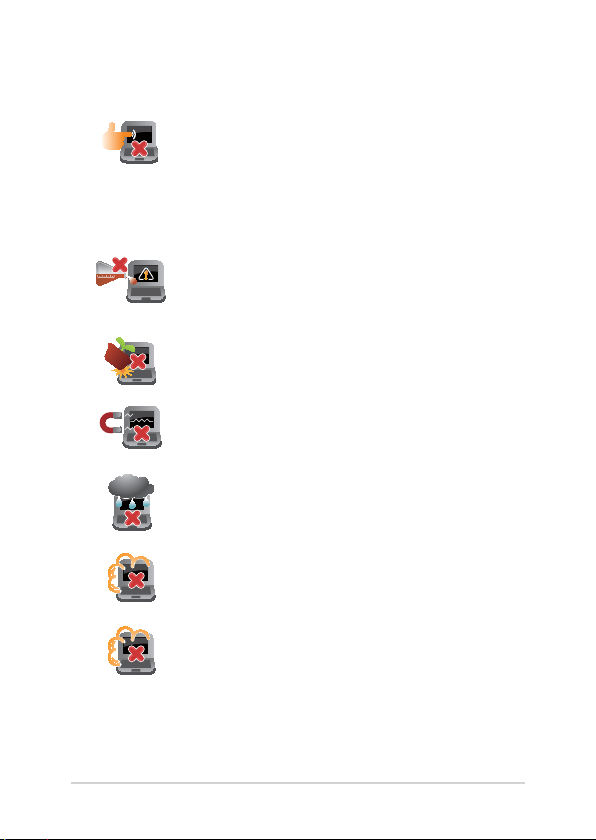
Disconnect the AC power and remove the battery
pack (if applicable) before cleaning your Notebook
PC. Use a clean cellulose sponge or chamois cloth
dampened with a solution of nonabrasive detergent
and a few drops of warm water. Remove any extra
moisture from your Notebook PC using a dry cloth.
Do not use strong solvents such as thinners,
benzene, or other chemicals on or near your
Notebook PC.
Do not place objects on top of your Notebook PC.
Do not expose your Notebook PC to strong
magnetic or electrical elds.
Do not use or expose your Notebook PC near
liquids, rain, or moisture.
Do not expose your Notebook PC to dusty
environments.
Do not use your Notebook PC near gas leaks.
This manual suits for next models
2
Table of contents
Other Asus Laptop manuals

Asus
Asus FX505DY Series User manual
Asus
Asus W3000A Series User manual
Asus
Asus Eee PC X101 User manual
Asus
Asus W1V User manual

Asus
Asus Eee PC X101CH User manual
Asus
Asus Vivobook 16X M1603 User manual

Asus
Asus TP550L User manual
Asus
Asus B53E User manual
Asus
Asus Eee PC 701SD Series User manual
Asus
Asus A2D User manual