manuals.online logo
Brands
  1. Home
  2. •
  3. Brands
  4. •
  5. ATTO Technology
  6. •
  7. Host Adapter
  8. •
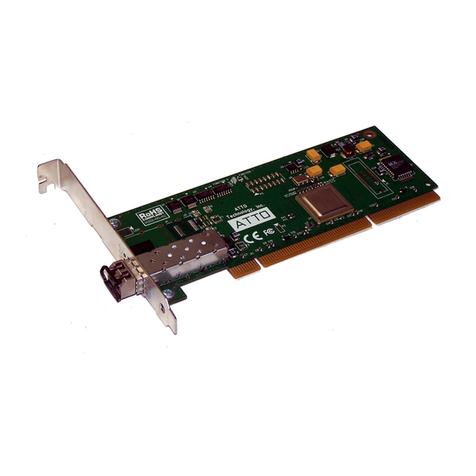
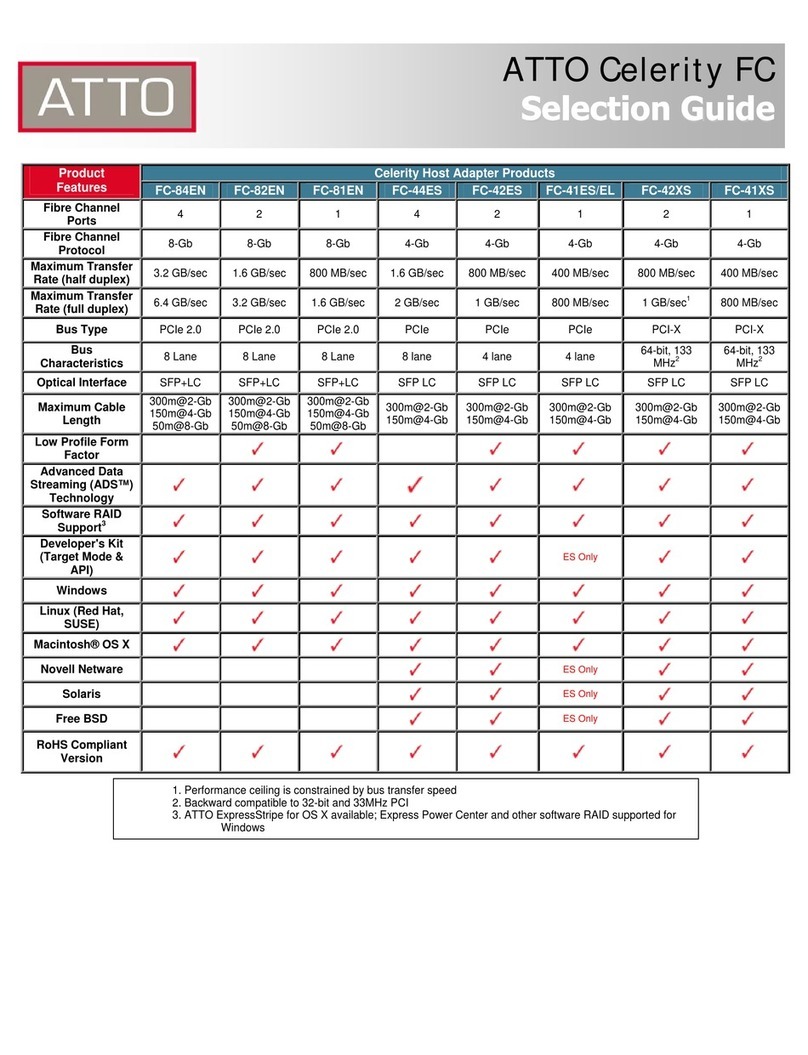
  9. ATTO Technology ATTO Celerity FC-81EN User manual

ATTO Technology ATTO Celerity FC-81EN User manual

Other manuals for ATTO Celerity FC-81EN

3

This manual suits for next models

11

Other ATTO Technology Host Adapter manuals

ATTO Technology R30F User manual

ATTO Technology

ATTO Technology R30F User manual

ATTO Technology ExpressSAS H608 User manual

ATTO Technology

ATTO Technology ExpressSAS H608 User manual

ATTO Technology ATTO ExpressPCI FC 3322 Manual

ATTO Technology

ATTO Technology ATTO ExpressPCI FC 3322 Manual

ATTO Technology Celerity FC-41EL User manual

ATTO Technology

ATTO Technology Celerity FC-41EL User manual

ATTO Technology ExpressPCI UL5D LP User manual

ATTO Technology

ATTO Technology ExpressPCI UL5D LP User manual

ATTO Technology R30F User manual

ATTO Technology

ATTO Technology R30F User manual

ATTO Technology Low-Profile SAS Host Adapter H308 User manual

ATTO Technology

ATTO Technology Low-Profile SAS Host Adapter H308 User manual

ATTO Technology ExpressPCI UL4S User manual

ATTO Technology

ATTO Technology ExpressPCI UL4S User manual

ATTO Technology ATTO Celerity FC-42XS User manual

ATTO Technology

ATTO Technology ATTO Celerity FC-42XS User manual

ATTO Technology ExpressSAS H1208 HBA User manual

ATTO Technology

ATTO Technology ExpressSAS H1208 HBA User manual

ATTO Technology ExpressSAS R348 User manual

ATTO Technology

ATTO Technology ExpressSAS R348 User manual

ATTO Technology Celerity FC-84EN User manual

ATTO Technology

ATTO Technology Celerity FC-84EN User manual

ATTO Technology ATTO Celerity FC-42ES User manual

ATTO Technology

ATTO Technology ATTO Celerity FC-42ES User manual

ATTO Technology ExpressSAS H1208 HBA User manual

ATTO Technology

ATTO Technology ExpressSAS H1208 HBA User manual

ATTO Technology ATTO XstreamCORE FC 7550 User manual

ATTO Technology

ATTO Technology ATTO XstreamCORE FC 7550 User manual

ATTO Technology H30F User manual

ATTO Technology

ATTO Technology H30F User manual

ATTO Technology UL3D User manual

ATTO Technology

ATTO Technology UL3D User manual

ATTO Technology ATTO ExpressPCI FC 3342 User manual

ATTO Technology

ATTO Technology ATTO ExpressPCI FC 3342 User manual

ATTO Technology iPBridge 2600 User manual

ATTO Technology

ATTO Technology iPBridge 2600 User manual

ATTO Technology ExpressPCI UL5D User manual

ATTO Technology

ATTO Technology ExpressPCI UL5D User manual

ATTO Technology Celerity FC-41EL User manual

ATTO Technology

ATTO Technology Celerity FC-41EL User manual

ATTO Technology ATTO ExpressPCI FC 3321 User manual

ATTO Technology

ATTO Technology ATTO ExpressPCI FC 3321 User manual

ATTO Technology R348 v User manual

ATTO Technology

ATTO Technology R348 v User manual

ATTO Technology ATTO Celerity FC-81EN Manual

ATTO Technology

ATTO Technology ATTO Celerity FC-81EN Manual

Popular Host Adapter manuals by other brands

Digital Equipment StorageWorks EK-KZPCM-UG user guide

Digital Equipment

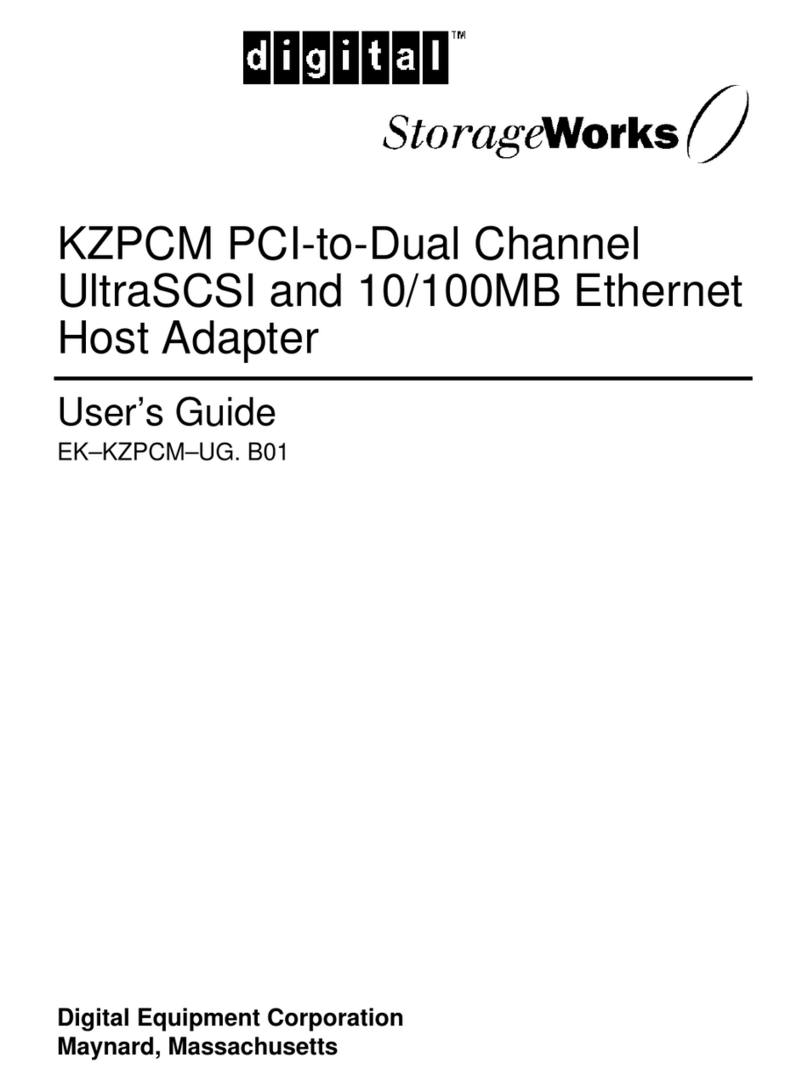
Digital Equipment StorageWorks EK-KZPCM-UG user guide

Sun Microsystems Sun StorEdge installation guide

Sun Microsystems

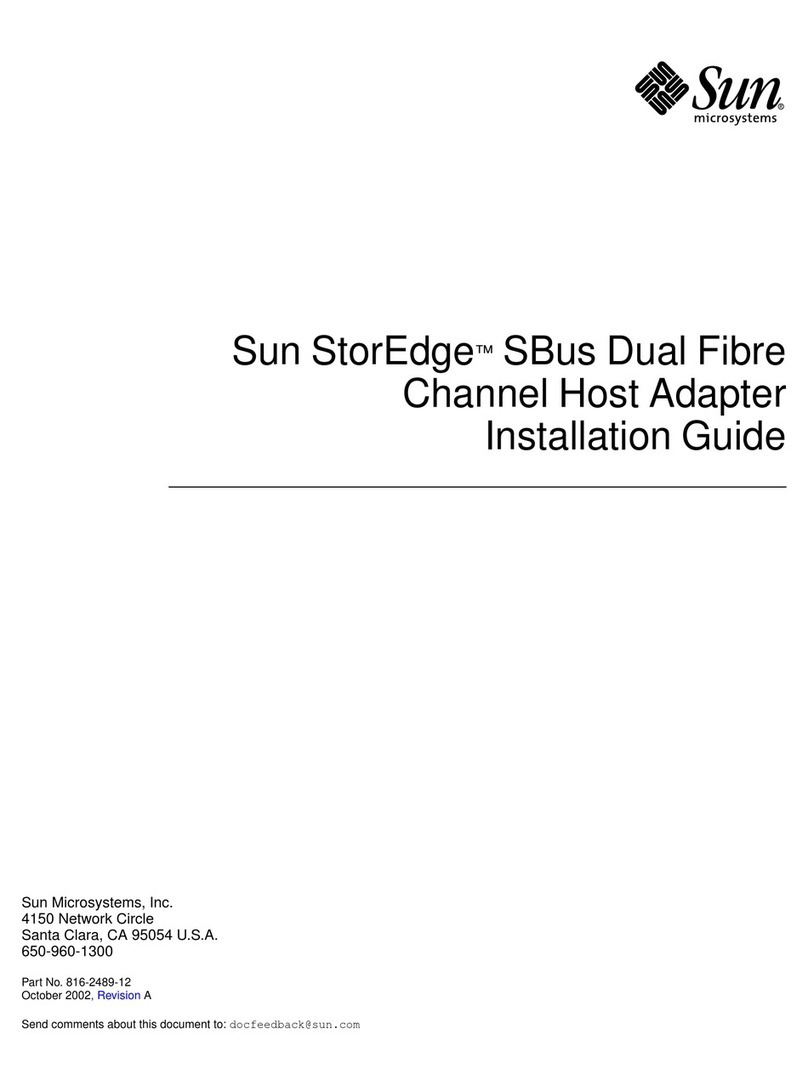
Sun Microsystems Sun StorEdge installation guide

LSI LSI21320-R Quick Hardware Setup Guide

LSI

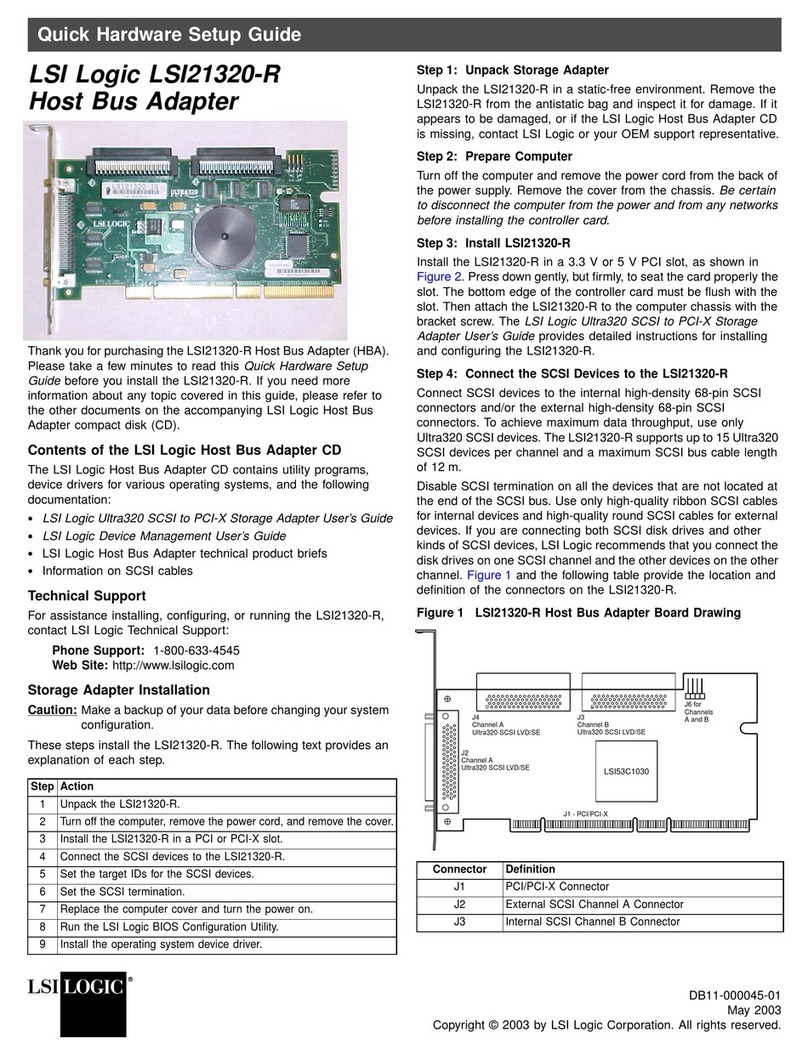
LSI LSI21320-R Quick Hardware Setup Guide

Savant SVR-SMRTD-10 Quick reference guide

Savant

Savant SVR-SMRTD-10 Quick reference guide

Sonnet Tempo Ultra ATA66 installation manual

Sonnet

Sonnet Tempo Ultra ATA66 installation manual

Adaptec AHA-1540B user manual

Adaptec

Adaptec AHA-1540B user manual

EyeLink 1000 Plus quick start guide

EyeLink

EyeLink 1000 Plus quick start guide

Adaptec SlimSCSI APA-460 installation guide

Adaptec

Adaptec SlimSCSI APA-460 installation guide

Adaptec AHA-2740W user guide

Adaptec

Adaptec AHA-2740W user guide

Adaptec AMM-1510M user guide

Adaptec

Adaptec AMM-1510M user guide

Archos Gmini 500 Series installation guide

Archos

Archos Gmini 500 Series installation guide

Digital Equipment KZPBA-CA user guide

Digital Equipment

Digital Equipment KZPBA-CA user guide

HP FCA2214DC PCI-X installation guide

HP

HP FCA2214DC PCI-X installation guide

Adaptec AHA-8945 Specifications

Adaptec

Adaptec AHA-8945 Specifications

Sun Microsystems Sun StorEdge PCI FC-100 installation manual

Sun Microsystems

Sun Microsystems Sun StorEdge PCI FC-100 installation manual

Sun Microsystems Single-Ended installation guide

Sun Microsystems

Sun Microsystems Single-Ended installation guide

LSI LSIU40HVD Value Line user guide

LSI

LSI LSIU40HVD Value Line user guide

SIIG 1394 3-Port Host Adapter Quick installation guide

SIIG

SIIG 1394 3-Port Host Adapter Quick installation guide

manuals.online logo
manuals.online logoBrands
  • About & Mission
  • Contact us
  • Privacy Policy
  • Terms and Conditions

Copyright 2025 Manuals.Online. All Rights Reserved.

2. Remove the cover bracket from a PCIe slot. PCIe slots and adapters vary in the number of
connectors present, depending on the data lanes being supported.
3. Insert the adapter in an available, compatible PCIe slot. Push the adapter into the slot until
the adapter is firmly seated. The adapter can be installed in a x8 or x16 mechanical PCIe slot.
4. Connect Fibre Channel devices by inserting a Fibre Channel cable from the devices to the
connectors on the Celerity FC host adapter until you hear a click.
Some PCIe adapters may have a short connector. Excessive force could break the
connector. Use caution when pressing the board into the slot.
5. Repeat steps 2 through 3 for each adapter you want to install.
6. Replace the server cover and plug in the power cord.
7. Turn the power on.
Configure your Adapter
Default settings are appropriate for most systems, but you may change the default settings using
the Device Manager in Windows or the ethtool in Linux.
ATTO Technology, Inc.
155 CrossPoint Parkway
Amherst, New York 14068 USA
www.atto.com
Tel (716) 691-1999
Fax (716) 691-9353
Sales support: [email protected]
Technical support: techs[email protected] (716) 691-1999 x242
© 2020 ATTO Technology, Inc. All rights reserved. All brand or product names are trademarks of
their respective holders. No part of this document may be reproduced in any form or by any means
without the express written permission of ATTO Technology, Inc.
8
/2020 PRMA-0400-000MD
Celerity™Fibre Channel Host Adapter Getting Started Guide
Thank you for purchasing the ATTO Celerity FC Host Adapter. This guide gives you the basics for
installing and configuring your adapter. For more information, please visit our website at
www.atto.com
Overview
This guide covers hardware and software installation, setup procedures, and troubleshooting tips
for ATTO Celerity Fibre Channel adapters. Ensure you have the equipment and software you need
for the installation:
Celerity Fibre Channel adapter
A computer with an available PCIe, PCIe 3.0, or PCIe 4.0 expansion slot
Storage, cables, and connectors
ATTO ConfigTool™ Configuration and Management Utility
System Requirements
Before installing the ATTO Celerity Fibre Channel adapter, please check your system for the
following minimum configuration requirements:
Supported Operating Systems
Microsoft Windows®
Microsoft Windows Server®
macOS®
Linux®
VMware®
FreeBSD
illumos
Please visit https://www.atto.com/support/interoperability/ for details on specific
supported operating systems.
Installing Drivers
Configure your system to recognize and use your Celerity HBA by installing drivers for your
operating system.
Windows
Power on your system and log in as the administrator or a user with proper administrative
privileges.
8. Go to https://www.atto.com/ downloads/
9. Register or log in if previously registered.
10. Click on Fibre Channel HBAs in the left dialog.
11. Navigate to your HBA model/family in the right dialog and click on it.
12. Scroll down and select the desired driver depending on the operating system.
13. A download window appears. Choose Save File.
14. Double-click the downloaded file to extract and launch the driver setup program.
15. Follow the on-screen instructions to complete the driver installation.
WHQL Certified Drivers are available for select Celerity Fibre Channel HBAs. If available,
these drivers will be listed below the default Windows drivers.
macOS
1. Power on your system and log in as the administrator or a user with proper administrative
privileges.
2. Go to https://www.atto.com/ downloads/
3. Register or log in if previously registered.
4. Click on Fibre Channel HBAs in the left dialog.
5. Navigate to your HBA model/family in the right dialog and click on it.
6. Scroll down and select the desired driver depending on the operating system.
7. A download window appears. Choose Save File.
8. Double-click the downloaded file to extract and launch the driver setup program.
9. Follow the on-screen instructions to complete the driver installation.
Linux
These steps assume a basic knowledge of Linux terminal commands. You must also have
the correct kernel source files for the appropriate kernel already installed.
1. Power on your system and log in as the administrator or a user with proper administrative
privileges.
2. Go to https://www.atto.com/ downloads/
3. Register or log in if previously registered.
4. Click on Fibre Channel HBAs in the left dialog.
5. Navigate to your HBA model/family in the right dialog and click on it.
6. Scroll down and select the desired driver depending on the operating system.
7. A download window appears. Choose Save File.
8. After the download has completed, open the Celerity volume on the desktop.
9. Open the Linux folder.
10. Open the Drivers folder.
11. Copy the .tgz file to a temporary folder.
12. Open a terminal window and change to the location of the copied tgz.
13. Extract the file using the command tar -xfz<filename.tgz>
14. Change to the directory created above and run the installer script ./install.sh
VMware
ESXi 5.0 and later: 8Gb Celerity support
ESXi 5.1 and later: 16Gb Celerity support
ESXi 5.5 and later: 32Gb Celerity support
1. Power on your system and log in as the administrator or a user with proper administrative
privileges
2. Go to https://www.atto.com/ downloads/
3. Register or log in if previously registered.
4. Click on Fibre Channel HBAs in the left dialog.
5. Navigate to your HBA model/family in the right dialog and click on it.
6. Scroll down and select the desired driver depending on the operating system.
7. A download window appears. Choose Save File.
8. Within the bundle, unzip the Driver VIB file (.vib) for your ATTO adapter.
9. Use the Datastore Browser in the vSphere Client to upload the VIB file to your ESXi host.
10. Log in to the ESXi host on the Local Tech Support Console (ESXi), or through a SSH client.
11. Install the VIB using the following command on the ESXi host: # esxcli software vib install –v
<full path to VIB file>
12. Once the VIB is installed, reboot the ESXi host
FreeBSD and illumos
Refer to the Celerity Installation and Operation Manual for instructions on installing
FreeBSD drivers and illumos drivers.
ATTO ConfigTool® Configuration and Management Utility
The ATTO ConfigTool is a utility program available for macOS, Windows and Linux that displays
information about installed storage adapters, drivers and devices and provides a mechanism to
configure installed storage adapters in local and remote hosts. The ATTO ConfigTool is used to
manage all ATTO host based products including HBAs and ThunderLink Adapters. Refer to the ATTO
Utilities manual for specific operating system installation and setup instructions.
Hardware Installation
If you are replacing an existing adapter with a
new adapter, you must re-install the driver.
Insert a PCIe Adapter in the Server
1. Turn off the server and unplug the power cord, then
remove the server's cover.
Turn off and unplug the server before removing
the server's cover. Failure to do so could endanger you and
may damage the adapter or server.