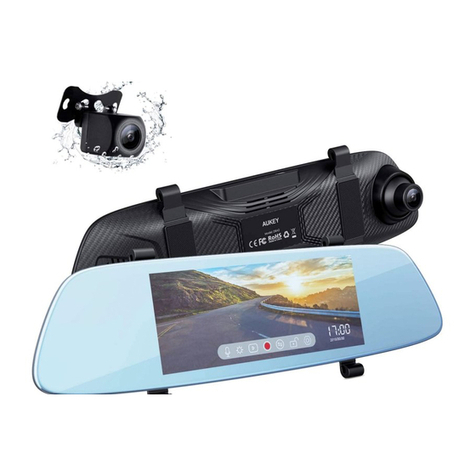
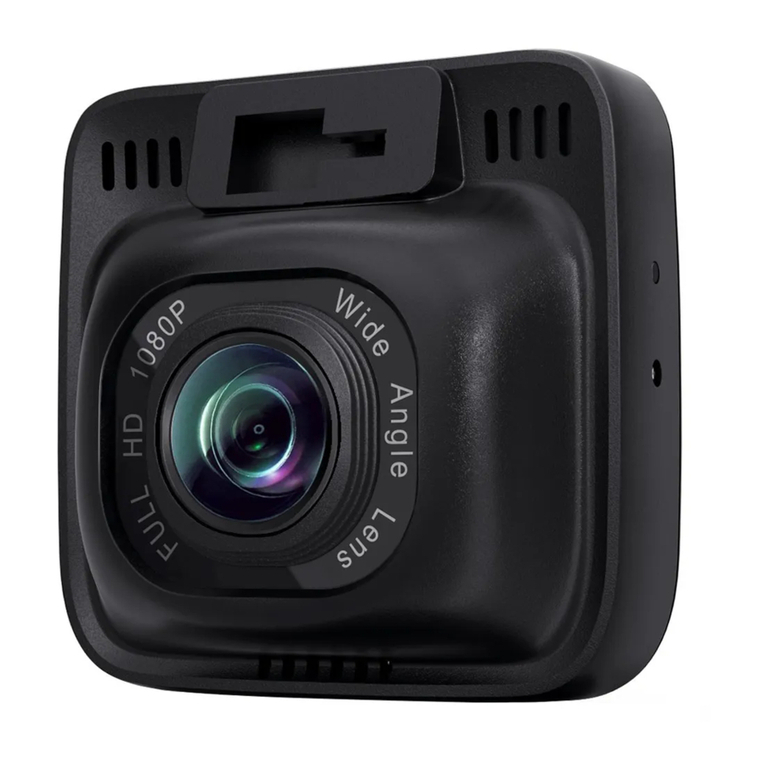
Aukey DR02 D User manual

Dual Dash Cameras
User Manual

Contents
English 01 - 12
Italiano 51 - 62
Deutsch 13 - 24
Français 25 - 37
Español 38 - 50
日本語 63 - 74

- 01 -
Thank you for purchasing the AUKEY DR02 D Dual Dash Cameras. Please read this
user manual carefully and keep it for future reference. If you need any assistance,
please contact our support team with your product model number and Amazon
order number.
Package Contents
Dual Dash Cameras (front and rear camera)
Dual-Port USB Car Charger
4m / 13ft USB Mini-B Cable
6m / 20ft USB Mini-B Cable
Two Sticker Mounts
Six 3M Stickers
Six Cable Clips
User Manual
Warranty Card
Optional Accessory: The AUKEY External GPS Antenna provides accurate position
and speed data to the DR02 D that is saved and displayed on recorded videos.
This extended information may support your case in any driving disputes or incidents.
Note: Please use a Class 10 micro SD memory card (Max 128 GB) for reliable
recording and performance. Format the micro SD card in the dash camera
before first use.
Visitwww.aukey.com/downloadstodownloadthelatestfirmware.

- 02 -
Product Diagram
Front Camera
USB Mini-B Power Input
GPSInput
USB Mini-B AV Input
Mount Locking Clip
Lens
Microphone
Outward LED Status
Indicator
Reset Button
MicroSDCardSlot

- 03 -
Screen
Control Buttons
Inward LED Status Indicator
Screen Indicator
1080P+1080P 00:01:14
2049/08/13 22:15:06
USB Mini-B AV Output
Outward LED Status Indicator
Lens
Mount Locking Clip
Rear Camera

- 04 -
Specifications
Model
Image Sensor
CPU
Screen
Angle of View
Aperture
Exposure Value
Recording Resolutions
Image Format
Sound Recording
Recording Modes
Gravity Sensor Sensitivity
Micro SD Card
Input
Operating Temperature
Materials
Dimensions
DR02 D
Sony Exmor IMX323 2.3 Megapixel
CMOS Sensor
NT96663
1.5” LCD
Front camera: 170°
Rear camera: 152°
Front camera: f/1.8
Rear camera: f/2.0
-1.0, -2/3, -1/3, +0.0, +1/3, +2/3, +1.0
Dual camera: 1080p (30fps)
Front camera only: 1080p (30fps),
720p (60fps), 720p (30fps), WVGA, VGA
JPEG
On / off
Loop, Motion Detection, Time-Lapse,
and Emergency Recording
Low / Middle / High sensitivity
Class 10 or higher, 128GB Max
DC 5V 1A-2A
-30°C – 75°C (-22°F – 167°F)
ABS, PC, glass
Front camera: 77 x 51 x 37mm / 3” x 2” x 1.45”
Rear camera: 54 x 50 x 28mm / 2.1” x 2” x 1.1”

- 05 -
System LED Indicators
There are four indicators in total. Each camera unit has an LED indicator that
faces outside (to let others know you have cameras active). The front camera
has an LED indicator which faces inside and an on-screen indicator (both for
your reference). The outward LED indicators on both cameras can be switched
off if you want the dash camera system to be even less visible to people outside.
Go to Setup > Detect Led > select Off > press OK.
Outward LED Status
Indicators
Solid Green
Flashing Green
Inward LED Status
Indicator
Solid Green
Flashing Green
Screen Indicator
Off
Flashing Red
Meaning
On; not recording
On; recording
Note: In Motion Detection mode, only the inward LED indicator will be on in standby.
Once motion is detected, all indicators will operate the same as normal recording.
Button Recording Mode
Enter Emergency
Recording mode
View playlist
(short press)
Turn on/off Audio
Recording
(long press)
Open Setup menu
(short press)
Take a snapshot
(long press)
Playlist & Setup Menu
Return to
previous menu
Move up
Move down
Playback Mode
Return to
playlist / Stop
Delete / Rewind
Lock & Unlock /
Fast-forward
Control Buttons

- 06 -
Toggle screen
view and turn
off the screen
Enter / Confirm Play / Pause
Reset
Button Short press to restart the device (this won’t affect saved files)
There are 3 screen view options– Dual view, front camera, and rear camera.
When dash camera is powered on, press the OK button to switch views or switch
off the screen (recording continues). ‘Screen Saver’ setting can also be used to
automatically switch off the screen after 1 or 3 minutes.
Using a Micro SD Card
The camera doesn’t include internal storage and requires a micro SD card (Class
10+ recommended and 128GB Max supported) to function. A 128GB micro SD
card should store around 20 hours of 1080p recordings. Use a high-quality, branded
card for maximum reliability. Insert a micro SD card into the front camera micro
SD card slot. Later, when the camera is powered on, format it (‘Format’ option
in Dash Camera ‘Setup’) to prepare the card for first use in the dash camera.
Formatting will permanently erase any data on the micro SD card. For best
performance, format periodically (after backing up any important files). ‘Format
Warning’ in ‘Settings’ can be switched on to remind you to do this.
Installation & Powering On/Off
The diagram below shows the parts and exact way the cables must be connected.
You may wish to connect and test the dash camera system before proper, long-term
installation in your vehicle. For convenient testing in your home, a power bank
or wall charger with 1A or 2A USB port can be used instead of the car charger.

- 07 -
4m / 13ft USB Mini-B Cable 6m / 20ft USB Mini-B Cable
Dual-Port USB Car Charger Front Camera Rear Camera
1080P+1080P 00:01:14
2049/08/13 22:15:06

- 08 -
1. For optimal performance, install the AUKEY DR02 D front/rear camera in the
top-center of your front/rear windshield, facing directly ahead/behind. Lens
direction can be adjusted up and down
2. Use the 6m/20ft Mini-B Cable (with an L-shaped connector at one end) to
connect the two cameras. The L-shapedmini-B connector plugs into the Mini-B
AV Input of the front camera and the other end into the Mini-B AV Output of
the rear camera
3. Connect the 4m/13ft USB Mini-B Cable (with a standard USB-A connector at
one end) to one of the car charger ports and to the front camera Mini-B
Power Input
4. Cable routing should be as shown in the following two diagrams. Use the cable
clips to help fix the two cables conveniently and safely. Careful placement of
the cables and use of existing trim and carpeting to conceal them will give a
tidier finish
①
②
Table of contents
Languages:
Other Aukey Dashcam manuals