Aukey DRA2 User manual

Mirror Dash Camera
User Manual

Contents
English 01 - 11
Italiano 48 - 59
日本語 60 - 69
Deutsch 12 - 23
Français 24 - 35
Español 36 - 47
Thank you for purchasing the AUKEY DRA2 Mirror Dash Camera. Please
read this user manual carefully and keep it for future reference. If you
need any assistance, please contact our support team with your
product model number and Amazon order number.
Package Contents
Mirror Dash Camera
Rear Camera with 7m / 23ft Cable
Car Charger with 3.5m / 11.5ft USB Mini-B Cable
Four Mounting Straps (2 + 2 spare)
Two Screws
Two 3M Stickers
Six Cable Clips
Trim Removal Tool
User Manual
Warranty Card
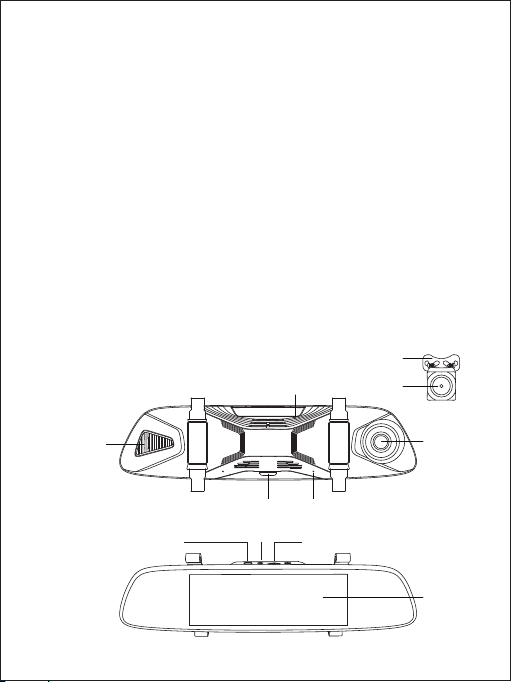
Product Diagram
- 01 -
Reset Button
Speaker
Mounting Bracket
Lens
Power Button Microphone
Lens
Screen
MicroSD Card Slot
AV Input
USB Mini-B Power Input

- 02 -
Specifications
Model
Image Sensor
Angle of View
Aperture
Video Recording Modes
Dimensions
Video Format
Recording Resolutions
CPU
Screen
Screen Resolution
Sound Recording
MicroSD Card
Input
Battery
Operating Temperature
Materials
On / Off
Class 10 or higher, 256GB Max
DC 5V 2.5A via mini USB
500mAh
-20°C – 70°C (-4°F – 158°F)
ABS, PC, glass
DRA2
MOV
MSC8336
6.8” LCD
1280 x 480p
Front camera: SC2363 2-megapixel CMOS
Rear camera: H65 1.3-megapixel CMOS
Front camera: 170°
Rear camera: 160°
Front camera: f/2.2
Rear camera: f/2.3
Front camera: 1080p (30fps)
Rear camera: 720p (30fps)
Mirror Dash Camera:
319 x 80 x 42mm / 12.56” x 3.15” x 1.65”
Rear Camera:
31 x 23 x 23mm / 1.22” x 0.9” x 0.9”
Loop, Motion Detection, Parking,
Time-Lapse, and Emergency Recording

- 03 -
Using a MicroSD Card
The dash camera doesn’t include internal storage and requires a
microSD card (Class 10+ recommended and 256GB Max supported) to
function. Use a high-quality, branded card for maximum reliability. Insert
a microSD card into the mirror dash camera microSD card slot. Later,
when the camera is powered on, format it (‘Format SD Card’ in dash
camera ‘General Settings’) to prepare the card for first use in the dash
camera. Formatting will permanently erase any data on the microSD
card. For best performance, format periodically (after backing up any
important files).
Testing the Dash Camera System
You may wish to connect and test the dash camera system before
proper, long-term installation in your car (or other vehicle). Connect the
two cables to the mirror dash camera and plug the car charger into
your car 12V/24V outlet (see ‘Installing the Dash Camera System’ steps 2
& 3 below); then switch on the car ignition to power the 12V/24V outlet.
The dash camera system will power on automatically. Check that both
cameras are operating correctly. See ‘Using the Touchscreen Buttons’
and other sections for information on operation.

- 04 -
Use two of the included mounting straps to attach the mirror dash
camera to your car rear-view mirror. It should be attached with the
widest part of the mirror dash camera at the bottom and the input
ports on the top edge
1.
Plug the car charger into your car 12V/24V outlet and connect the
other end to the USB mini-B power input of the mirror dash camera
Plug the 7m/23ft rear camera cable into the AV input of the mirror
dash camera
2.
3.
Installing the Dash Camera System

Windshield
Plug in car charger
- 05 -
Cable routing should be as shown in the following two diagrams. Use
the cable clips to help fix the two cables conveniently and safely. A
trim removal tool is included for concealment of cables behind trim
and carpeting for a tidier finish. Removed trim can be left off until the
cables are well-arranged in their final position and the dash camera
system is operational
4.
You can mount the rear camera internally or externally. External
mounting generally offers a clearer image and better view point for
reversing. However, it requires three small holes to be drilled in your
car bodywork (two for camera mounting and one for cable routing).
5.
A
B

- 06 -
Detach the rear camera from the rest of the cable at the connection
point on the cable 155mm/6.1” from the rear camera. Note that this
slim rear camera connector defines the size of the hole you’ll need to
drill later for the camera cable
Find a suitable camera mounting position above your license plate
(central and tucked under an edge is most effective and discreet)
Remove trim on the inside of the car behind that mounting position
to check there are no obstructions for drilling and also get access for
cable routing (leave the trim off for step 6)
Confirm your rear camera mounting position. Ensure the camera is
the right way up for correct picture orientation (note that the
bracket is fixed to the camera back top edge). Drill the two holes for
the camera bracket screws and one hole for the camera cable (use
a metal drill bit for drilling through metal)
Insert the rear camera connector & cable into the car through the
hole and fix the camera securely onto the car using the camera
bracket screws. Reconnect the two sections of the rear camera
cable inside the car
(a)
(b)
(c)
(d)
(e)
Install the camera inside your car next to the rear window using
the 3M sticker. Ensure the camera is the right way up for correct
picture orientation (note that the bracket is fixed to the camera
back top edge)
You need to hardwire the red wire of the rear camera cable to
the positive wire of your reversing lights (ask a skilled person for
help if you aren’t confident about doing this). This enables the
screen to automatically switch to the rear camera full view when
you go into reverse. If you don’t complete this step, you’ll need to
switch views manually and the reversing guide lines won’t appear
on-screen.
(a)
6.
External Camera Mounting:
Internal Camera Mounting:

- 07 -
Powering On / Off
Press and hold the power button for 3 seconds to turn the dash camera
on/off. After the dash camera is turned on, short-press the power button
to turn the screen on/off (recording continues). ‘Auto Screen Off’and
‘Auto Power-Off’ in ‘General Settings’ can be used to turn the screen or
the dash camera off automatically after 1 or 3 minutes.
Using the Touchscreen Buttons
Ensure your car is safely parked in a flat place
Remove trim to get access to the wiring system connections
inside the trunk
Identify the reversing light wiring. Use a voltmeter to find the wire
that’s only live (with about +12V) when your car is in reverse
Hardwire to this wire using a soldering or ‘military splice’ method
and seal with electrical tape
Switch on the car ignition to power the 12V/24V outlet. The dash
camera system will power on and start recording automatically.
Check that both cameras are operating correctly and are
positioned well for the best view. The mirror dash camera has a
pivoting lens barrel and the rear camera tilts on its bracket
(a)
(b)
(c)
(d)
7.
2019/01/01
09:00
Caution
AUKEY is not responsible for any damage caused to or by the air bag
due to incorrect placement of the device or its cables

- 08 -
Audio Recording: Mute/unmute the microphone. When audio
recording is on, in-car audio will be recorded during video recording
Screen Brightness Adjustment: Choose from 5 screen brightness levels
Playback: Preview, lock/unlock, or delete recorded videos
Recording: Start/stop recording. There will be a short delay to begin
and end writing videos to storage
Screen View Switch: Switch between 3 screen view options– dual
view, front camera, and rear camera (in that order). Touch the icon
or swipe horizontally across the screen
Video Protection: Lock/unlock a video in video recording mode.
Protected videos won’t be overwritten by loop recording and
can only be deleted if you unlock them first
Settings: Change video and general settings. Touch the up & down
arrows to see more settings and settings options
Loop Recording: Recording will begin automatically after powering
on with a microSD card in the device. Each recorded file is up to 3
minutes long, with old footage being replaced when microSD card
storage is full. The videos will be saved in the ‘Normal’ folder (or
‘Emergency’ folder if Emergency Recording is activated)
Motion Detection Recording: Switch on motion detection in
‘General Settings.’ This function will start recording video when the
dash camera optically detects motion in front and stop recording
when motion is no longer detected. The videos will be saved in the
‘Motion Detection’ folder
Parking Mode: Switch on parking mode in ‘General Settings.’ The
dash camera will use its internal rechargeable battery to operate
even when the car ignition is turned off and power is disconnected. If
any motion or vibration is physically detected by the G-sensor when
parked, it will record automatically (screen off) for 10 seconds and
then turn off. The videos will be saved in the ‘Emergency’ folder
●
●
●
Video Recording
Table of contents
Languages:
Other Aukey Dashcam manuals