manuals.online logo
Brands
  1. Home
  2. •
  3. Brands
  4. •
  5. Axon
  6. •
  7. Digital Camera
  8. •
  9. Axon Body 2 User manual

Axon Body 2 User manual

Other manuals for Body 2

6

Other Axon Digital Camera manuals

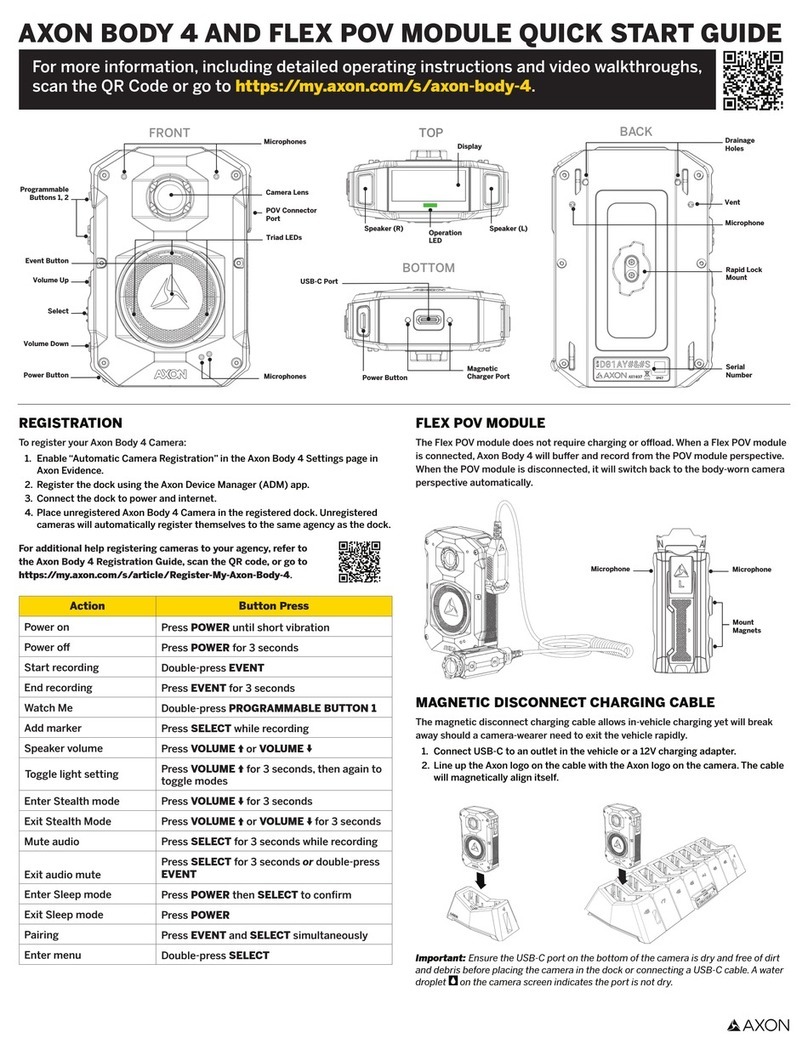
Axon Body 4 User manual

Axon

Axon Body 4 User manual

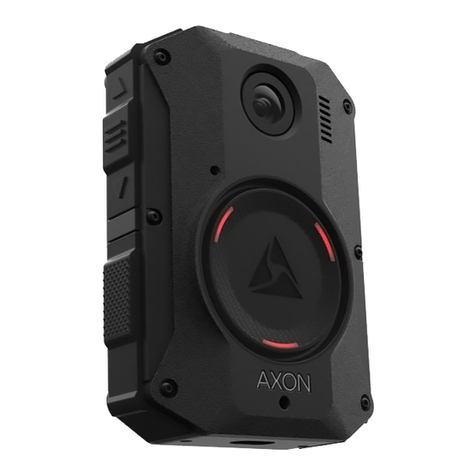
Axon Body 3 User manual

Axon

Axon Body 3 User manual

Axon Fleet User manual

Axon

Axon Fleet User manual

Axon Body 2 User manual

Axon

Axon Body 2 User manual

Axon AX1023 User manual

Axon

Axon AX1023 User manual

Axon Body 3 User manual

Axon

Axon Body 3 User manual

Axon Body 3 Instruction and safety manual

Axon

Axon Body 3 Instruction and safety manual

Axon TASER User manual

Axon

Axon TASER User manual

Axon AX1023 User manual

Axon

Axon AX1023 User manual

Axon AX1001 User manual

Axon

Axon AX1001 User manual

Axon Body 4 User manual

Axon

Axon Body 4 User manual

Axon AX1005 User manual

Axon

Axon AX1005 User manual

Popular Digital Camera manuals by other brands

Canon WP-DC35 user guide

Canon

Canon WP-DC35 user guide

Xiaomi 70mai Dash Cam Lite user manual

Xiaomi

Xiaomi 70mai Dash Cam Lite user manual

Samsung PL70 Quick start manual

Samsung

Samsung PL70 Quick start manual

GE E1680W user manual

GE

GE E1680W user manual

Canon EOS 1200D instruction manual

Canon

Canon EOS 1200D instruction manual

Tevion MD 86497 user guide

Tevion

Tevion MD 86497 user guide

Exakta VX Features

Exakta

Exakta VX Features

Kodak Digital Science DC120 user guide

Kodak

Kodak Digital Science DC120 user guide

Nikon FM3A Specifications

Nikon

Nikon FM3A Specifications

Vectra Fitness H1 Quick reference guide

Vectra Fitness

Vectra Fitness H1 Quick reference guide

Nikon COOLPIX 775 quick start guide

Nikon

Nikon COOLPIX 775 quick start guide

Olympus IR 500 - 4MP Digital Solutions Camera Manuel de Référence

Olympus

Olympus IR 500 - 4MP Digital Solutions Camera Manuel de Référence

Samsung EC-L100ZBBA brochure

Samsung

Samsung EC-L100ZBBA brochure

FujiFilm FINEPIX BL01124-201 owner's manual

FujiFilm

FujiFilm FINEPIX BL01124-201 owner's manual

Panasonic DMC-L10KPP Service manual

Panasonic

Panasonic DMC-L10KPP Service manual

Hyundai Electric HYU-CC-CHBF12001 Quick installation guide

Hyundai Electric

Hyundai Electric HYU-CC-CHBF12001 Quick installation guide

Sony DSC-WX80 specification

Sony

Sony DSC-WX80 specification

Nikon Nuvis S - Point & Shoot instruction manual

Nikon

Nikon Nuvis S - Point & Shoot instruction manual

manuals.online logo
manuals.online logoBrands
  • About & Mission
  • Contact us
  • Privacy Policy
  • Terms and Conditions

Copyright 2025 Manuals.Online. All Rights Reserved.

Operation LED
The Axon Body 2 camera’s operation LED displays the current
operating mode.
Operating Mode Operation LED
Recording OR
Recovering interrupted video* Blinking red
Buering Blinking green
Booting up/powering down OR
Error state** Solid red
*When the Function LED also is blinking red.
**When the Function LED also is solid red.
Function LED
The Axon Body 2 camera’s function LED displays when certain
functions are enabled.
Function Enabled Function LED
Mute (no audio capture) Blinking blue
Camera error * Solid red
Bluetooth feature is booting up Solid blue
*Use the power switch to turn the camera o and on.
Battery LED in the eld
In the eld, the battery LED can display the battery’s remaining capacity
and the camera’s current operating mode.
Battery Capacity or Function Battery LED
Battery capacity is 40–100%* Green
Battery capacity is 20–39%* Yellow
Battery capacity is less than 20%* Red
BUFFERING mode** Blinking green
EVENT mode** Blinking red
* When the Battery Status button is pressed
** When congured to mirror Operation LED
Battery LED in an Axon Dock
When the Axon Body 2 camera is in an Axon Dock, the battery LED
displays the battery’s charge status.
Battery Charge Battery LED
Fully charged (capacity greater than 98%) Green
Charging in progess (capacity 20 to 98%) Yellow
Charging in progress (capacity less than 20%) Red
Axon Body 2 Quick Start Guide
English
Recording
The Axon Body 2 camera has 2 operating modes - BUFFERING and
EVENT modes. BUFFERING mode provides pre-event buering to
capture activities that occur before you activate the EVENT mode.
EVENT (also known as Recording) mode is for recording.
1. Turn the system on. Move the Power Switch to the On position (the
red area under the switch is exposed when the switch is in the On
position).
• The camera takes a few seconds to boot up and be ready to record.
• The operation LED will be solid red and then transition to blinking
green when the system goes into BUFFERING mode.
• The Axon Body 2 camera enters BUFFERING mode after the boot
up sequence. With default settings, BUFFERING mode holds
the previous 30 seconds of video (NO AUDIO) leading up to the
beginning of a recording.
2. To record, quickly double-press the EVENT button.
• The camera now records audio as well as video.
• The camera beeps twice to let you know that recording has started.
The two beeps will repeat every 2 minutes (audio notications
can be deactivated if necessary).
• The operation LED will blink red.
3. To add a marker to the video, quickly press and release the Function
button.
4. To stop audio recording (mute), press and hold the Function button
for three seconds.
5. To stop all recording and return to BUFFERING mode, press and
hold the EVENT button for at least 3 seconds, until there is a long,
audible beep.
With default settings, the system does not capture audio in
BUFFERING mode, so anything recorded in that mode will be video-
only. BUFFERING mode starts only after the camera is turned on. The
system does not record when the Axon Body 2 camera is turned o.
Solid Red
Boot Up Mode
Blinking Green
BUFFERING Mode
EVENT Button
Blinking Red - EVENT Mode
Read, understand, and follow all current instructions, warnings, and relevant Axon training materials before using any Axon system. The
most up-to-date warnings and instructions are available at www.axon.com.
Before using an Axon Body 2 camera, ensure it is fully charged and properly congured.
Quick Reference
Status LED
Top View
Operation LED
Bottom View
Connection Socket
Data Transfer and Recharging
through Axon Dock or PC
Function LED
Power Switch
Red = On/Buffering
Battery Status Button
Push to show battery status
Function Button
Mute or add marker
Camera Lens
Microphone
Battery LED
Green = 40% - 100%
Yellow = 20% - 39%
Red = Less Than 20%
Speaker
EVENT Button
Double Tap = Start Record
Hold 3 Sec = Stop Record
Front View
Status LED
When you plug your camera into the Axon Dock, the Axon Body 2
camera status LED displays the camera’s status.
Device Status Status LED
Initial connection (momentary) Solid red (for 20 seconds or
fewer)
In queue awaiting upload Solid yellow
Device ready (all videos uploaded successfully) Solid green
Device not assigned, agency mismatch, camera
set in the oine mode, or device error Blinking red
Uploading data Blinking yellow
Firmware update, internal battery charging,
extremely low battery, or memory full
Blinking red and yellow – DO
NOT remove the camera
from the Axon Dock
Transfer error, device re-trying to transfer Blinking green and yellow
Possible network error. Verify Axon Dock is
registered and refer to the Troubleshooting
chapter of the User Manual or go to
help.axon.com.
Blinking red, yellow, and then
green (cycling all colors)
Axon Dock has no communication with the
camera. Verify the Axon Dock core and bays
are seated properly. Contact Axon Technical
Support if not resolved.
LED o
Using Axon View
The Axon View application enables you to replay
video and add metadata (GPS, title, case ID, and
category) to your videos using a smart phone or other
smart device.
1. Using your smart device, search for and download
the Axon View application from the Play Store or
the App Store.
2. On your smart device, install and open the Axon
View application
3. Follow the onscreen instructions or go to
help.axon.com for addiitonal information.
Note: All data is stored on the Axon camera. No videos are stored
on your smart device.
Notications
The Axon Body 2 camera emits beeping sounds called audio prompts to notify you of the system status. These audio prompts usually occur after
you perform an action with the camera. The audio prompts are accompanied by vibrations that match the beeps.
Operating Mode Audio Notication Haptic Notication (Vibration)
Powering on or o One beep Once
Recording an event Two beeps (every 2 minutes) Twice (every 2 minutes)
The device is ending an event and returning to BUFFERING mode One long beep Once, long duration
Low battery notications:
• Camera in BUFFERING mode and battery has power for 20 minutes or less
•
Camera in EVENT (recording) mode and battery nearly discharged (the
camera will shut down within a few minutes)
Four quick beeps (every 20 seconds) Four times, quickly (every 20 seconds)
Camera memory is full (the camera will not record) Three beeps Three times
Camera internal clock is not set OR Error state* Five quick beeps (every 20 seconds ) Five times, quickly (every 20 seconds)
*When the Operation and Function LEDs are also solid red.
Bluetooth is a trademark of the Bluetooth SIG, Inc.; Play Store is a trademark of Google, Inc.;App Store is a trademark of Apple, Inc.; iOS is a trademark of Cisco Systems,
Inc.; and Windows is a trademark of Microsoft Corporation.
,  AXON, Axon, Axon Body 2, A xon Dock, Axon View, and Evidence Sync are trademarks of Axon Enterprise, Inc., some of which are registered in the US and other
countries. For more information, visit www.axon.com/legal. All rights reserved. © 2019 Axon Enterprise, Inc.
MPC0205 Rev: H
Recharging the Battery and Uploading Data
The Axon Dock is used to recharge the Axon Body 2 camera’s battery
and upload data. If you do not have an Axon Dock, upload video
with a Windows compatible computer using Evidence Sync. For more
information about Evidence Sync, go to help.axon.com.
1. Ensure the Axon Body 2 camera is o.
2. Insert the camera into the Axon Dock with
the power switch down, as shown in the
image to the right. The Axon Dock
automatically:
• Uploads data
• Deletes videos from the camera
•Updates camera rmware and settings
• Charges the camera battery
3. It is recommended that you wait until the
battery LED displays green before
removing the camera from the Axon
Dock.
DO NOT remove the camera if the status LED is blinking red
and yellow.
Pairing an Axon Body 2 Camera with Axon View
1. Turn on the Axon Body 2 camera and wait until the camera boots
up.
2. Open Axon View, select a Body 2 camera and tap Initiate Pairing.
3. Hold down the Function and EVENT buttons for 5 seconds.
4. Wait until you hear four beeps. The Function LED will blink green.
5. On your smart device, follow the onscreen instructions.