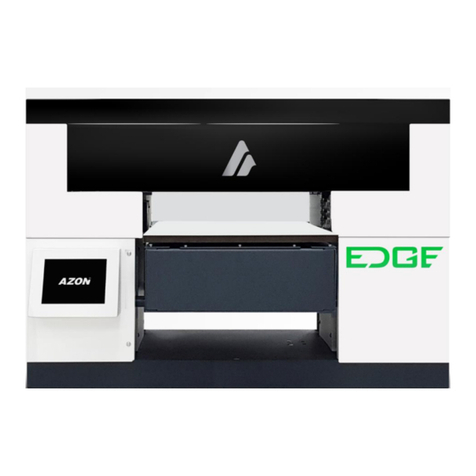
Preparing and Filling system with ink
Wait until the message in the LCD display shows “Ready”.
1. The Ink cartridges are numbered from 1-8. Using these
numbers as a guide, place the sealed Ink cartridges into
your Azon DTS and lower both blue levers to secure
them in place.
2. You must perform a Power Cleaning during setup to ensure ink is proper flowing
through the ink lines.
After every Power Cleaning always empty waste container.
Power Cleanings are executed from the LCD Display Panel.
With the printer in Ready status on the LCD Display Panel
located above the White ink cartridge press the RIGHT ARROW
once.
Press the UP ARROW and scroll through the menu items until
you come to "Maintenance." Press the RIGHT ARROW once.
Press the DOWN ARROW to scroll the menu items until you
come to "Power Clean." To execute a Power Cleaning, press
the RIGHT ARROW once. Confirm Power Cleaning by pressing
RIGHT ARROW again. Abort it with LEFT ARROW.
The LCD display will inform you of the Power Cleaning's status in percentages. At the
10% mark, the display will prompt you to move both blue levers into the UP position.
At the 20% mark, you will be prompted to move both blue levers into the DOWN position.
You will again be prompted to move both levers at the 30%, 40% and 50% marks. At the
50% point, both levers will be in the DOWN position and you will not have to adjust them
again during the power cleaning cycle.
Once the Power Cleaning is complete, the LCD Display will read "Ready."
Perform one more Power Cleanings.