manuals.online logo
Brands
  1. Home
  2. •
  3. Brands
  4. •
  5. Barracuda Networks
  6. •
  7. Modem
  8. •
  9. Barracuda Networks M10 User manual

Barracuda Networks M10 User manual

Other Barracuda Networks Modem manuals

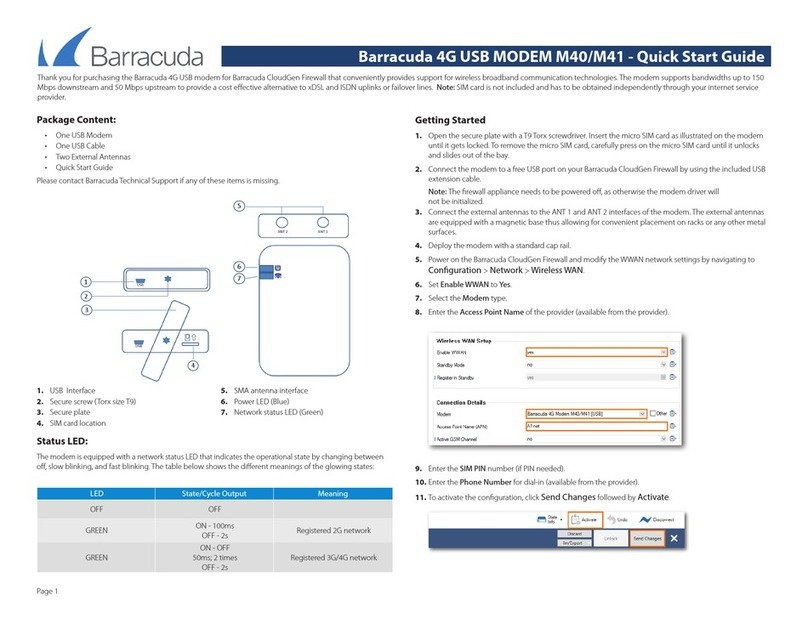
Barracuda Networks M40 User manual

Barracuda Networks

Barracuda Networks M40 User manual

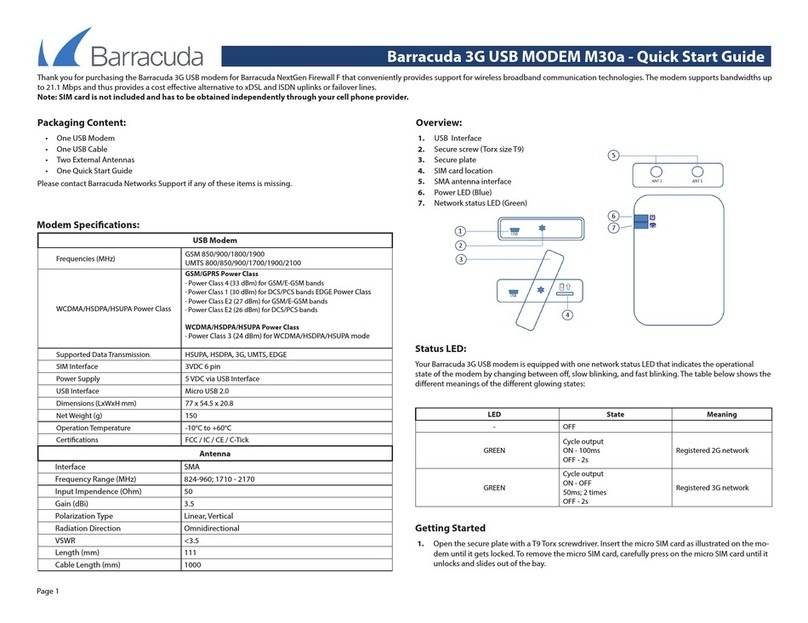
Barracuda Networks M30a User manual

Barracuda Networks

Barracuda Networks M30a User manual

Popular Modem manuals by other brands

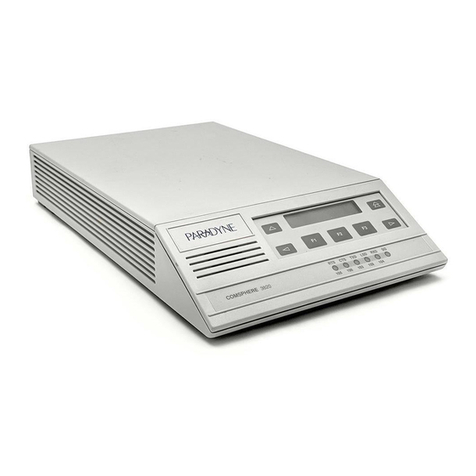
Paradyne COMSPHERE 3810 User guide supplement

Paradyne

Paradyne COMSPHERE 3810 User guide supplement

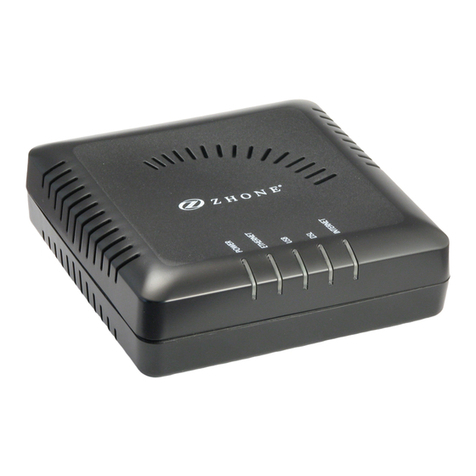
Zhone 6411-A1-xxx Technical specifications

Zhone

Zhone 6411-A1-xxx Technical specifications

Air 802 Linux USB?ADG?2 user guide

Air 802

Air 802 Linux USB?ADG?2 user guide

ETEK TD-8011 user manual

ETEK

ETEK TD-8011 user manual

Arris Touchstone CM8200 user guide

Arris

Arris Touchstone CM8200 user guide

3Com EtherLink 3C900B Installation and operating instructions

3Com

3Com EtherLink 3C900B Installation and operating instructions

Axxera DMH25 Operation manual

Axxera

Axxera DMH25 Operation manual

Lantronix M110 Series Command reference

Lantronix

Lantronix M110 Series Command reference

Megasat HD Stick 510se user manual

Megasat

Megasat HD Stick 510se user manual

Davicom DM562AP Operation manual

Davicom

Davicom DM562AP Operation manual

NetComm IG1000 Specifications

NetComm

NetComm IG1000 Specifications

Intelimax MA-2060 user manual

Intelimax

Intelimax MA-2060 user manual

ELPRO 905U-E user manual

ELPRO

ELPRO 905U-E user manual

SMC Networks D3CM1604V Administrator's manual

SMC Networks

SMC Networks D3CM1604V Administrator's manual

Telstra Wi-Fi 4G Advanced Pro X user guide

Telstra

Telstra Wi-Fi 4G Advanced Pro X user guide

Thrane&Thrane imarsat EXPLORER 300 user manual

Thrane&Thrane

Thrane&Thrane imarsat EXPLORER 300 user manual

Samsung AceLink SAM-335A user guide

Samsung

Samsung AceLink SAM-335A user guide

Enfora Enabler-G Integration guide

Enfora

Enfora Enabler-G Integration guide

manuals.online logo
manuals.online logoBrands
  • About & Mission
  • Contact us
  • Privacy Policy
  • Terms and Conditions

Copyright 2025 Manuals.Online. All Rights Reserved.

Page 1
Barracuda M10 USB MODEM - Quick Start Guide
Thank you for purchasing the M10 Barracuda USB Modem which conveniently provides support for wireless broadband communication using
3G/UMTS/HSDPA/HSUPA technologies. The modem supports bandwidths up to 7.2 Mbps and thus provides a cost effective alternative to xDSL and ISDN uplinks or
failover lines. Note: SIM card is not included and has to be obtained independently through your cell phone provider.
Packaging Content:
One USB Modem
One USB Cable
One external Antenna
One Quick Start Guide
Please contact Barracuda Networks Support if any of these items is missing.
Modem Specifications:
USB Modem
Frequencies (MHz)
GSM 850/900/1800/1900
UMT S850/1900/2100
UMT S2100
Output Power
Class4 (+33dBm ±2dB) for EGSM900
Class 1 (+30dBm ±2dB) for GSM1800
Class E2 (+27dBm ± 3dB) for GSM 900 8-PSK
Class E2 (+26dBm +3 /-4dB) for GSM 1800 8-PSK
Class 3 (+24dBm +1/-3dB) for UMTS 2100, WCDMA FDD BdI
Supported Data Transmission
HSUPA
HSDPA
3G
UMTS
EDGE
SIM Interface
3VDC 6 pin
Power Supply
5 VDC via USB Interface
USB Interface
USB 2.0
Dimensions (LxWxH mm)
71 x 49 x 20
Net Weight (g)
150
Operation Temperature
0 °C –40 °C
Certifications
FCC, CE, ROHS
Antenna
Interface
SMA
Frequency Range (MHz)
800-2800
Input Impendence (Ohm)
50
Gain (dBi)
3.5
Polarization Type
Vertical
Radiation Direction
Omnidirectional
VSWR
<1.5
Max. Input Power (W)
50
Length (mm)
260
Cable Length (mm)
3000
Overview:
1. SIM Tray
2. SIM Tray Lock (open SIM Tray by pressing the lock with a pen)
3. USB Interface
4. Headphone Jack
5. LED 1 (green)
6. LED 2 (red)
7. SMA Antenna interface
The Status LEDs:
Your Barracuda M10 USB-Modem is equipped with two status LEDs which indicate the operational
state of the modem by changing between off, slow blinking, fast blinking and steady glowing. The
table below shows the different meanings of the different glowing states:
LED 1
LED 2
State
Meaning
-
RED
Steady
SIM card missing, no
PIN set, not in Provider
net, ERROR
GREEN
-
Blinking
Successful 3G/UMTS
connection with
provider established
GREEN
-
Fast Blinking
Data transfer using
3G/UMTS uplink
GREEN
RED
Blinking
Successful EDGE
connection with
provider established
GREEN
RED
Fast Blinking
Data transfer using
EDGE uplink
Getting Started
1) Open the SIM card tray by carefully pressing on the tray lock which is situated next to the tray,
ideally by using a pen. Remove the SIM card tray and place the SIM card in the tray.
Page 2
Barracuda M10 USB MODEM - Quick Start Guide
2) Connect the USB modem to a free USB port on your Barracuda NG Firewall by using the
included USB extension cable. Note: The Barracuda NG Firewall appliance needs to be powered-
off, as otherwise the modem driver will not be initialized.
3) Connect the external antenna to the SMA interface of the USB modem. The external antenna is
equipped with a magnetic base thus allowing for convenient placement on racks or any other metal
surfaces.
4) Place the USB Modem. Ideally use the included Velcro tape for affixing the USB Modem e.g. to
the Barracuda NG Firewall Appliance or deploy the modem with a standard cap rail.
5) Power on the Barracuda NG Firewall and modify the UMTS/3G network settings by navigating to
Config >Network >UMTS/3G
6) Set UMTS/3G Enabled to YES
7) For UMTS/3G Modem Card choose Barracuda 3G Modem [USB] from the drop-down-list.
8) Enter the APN Name of the provider (available from the provider)
9) Enter the SIM PIN number (if PIN needed)
10) Enter the Phone Number for dial-in (available from the provider)
11)Commit Changes
To commit all previously done configuration steps, the new configuration needs to be activated at
the Barracuda NG Firewall. Click Send Changes followed by Activate.
12)Network Activation
Navigate to Control >Box and click Activate New within the Network Configuration section.
Click Force in the appearing Network Activation pop-up window.
Wait for the Activation Succeeded dialog, and then click OK.Note: Due to network activation you
may lose connection to the appliance. Select Reconnect (upper right) to reconnect to the
appliance.
13) Navigate to Control > Network and check the availability of the 3G/UMTS uplink (ppp5)
14) In order to restart, switch-off or stop the 3G/UMTS connections navigate to Control > Box >
Dynamic Networks