Belkin F1PG200ENau Instruction Manual
Other Belkin Adapter manuals

Belkin
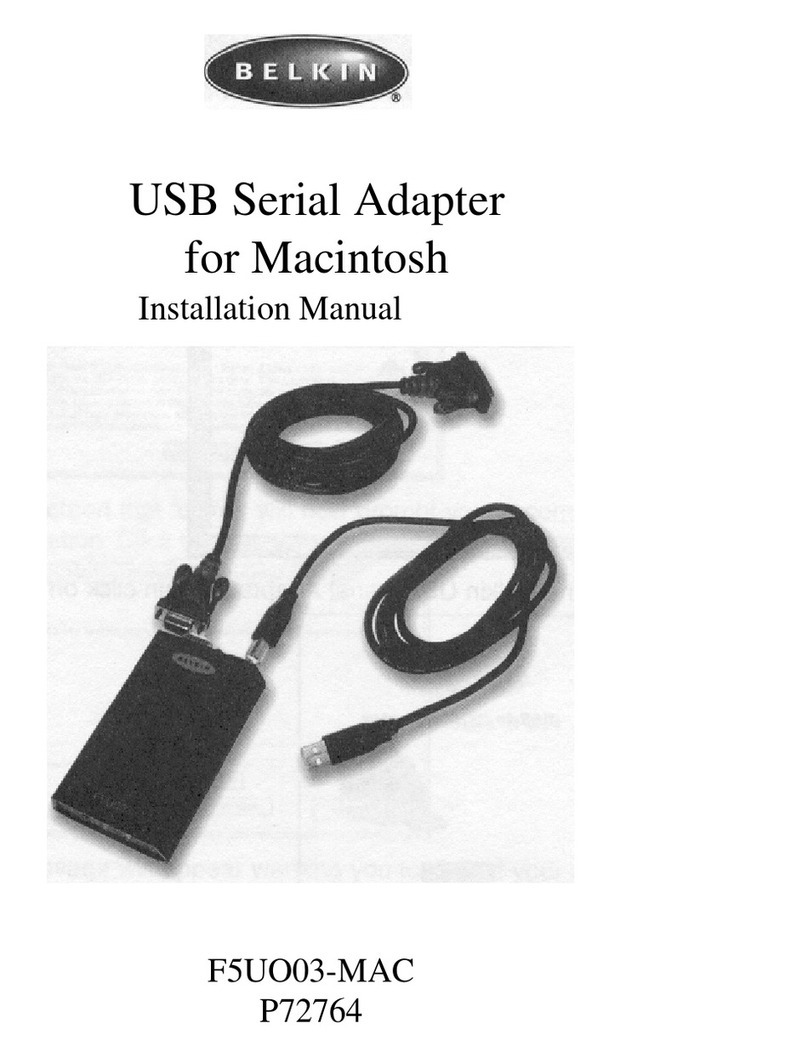
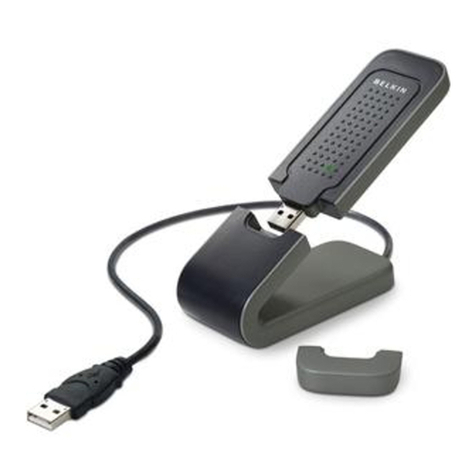
Belkin F5U103 User manual
Belkin
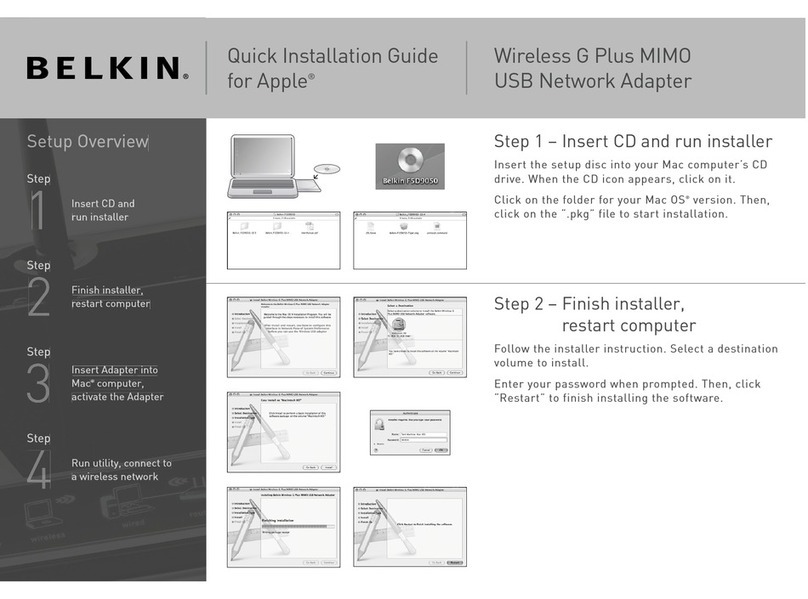
Belkin G+MIMO User manual
Belkin
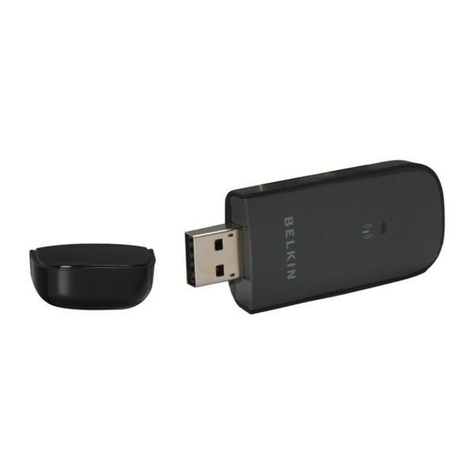
Belkin F5D7051 User manual
Belkin
Belkin F6D4050 User manual

Belkin
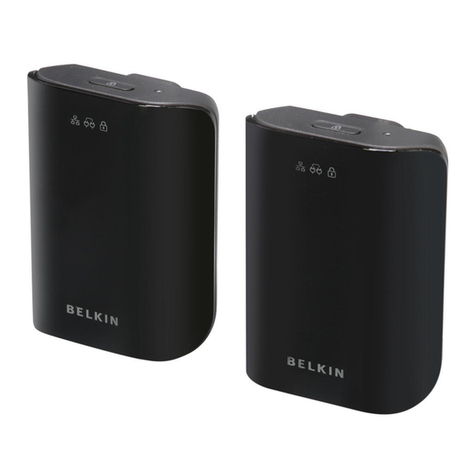
Belkin F5D7050 User manual
Belkin
Belkin F5D4077 User manual
Belkin
Belkin Surf F7D1102 User manual
Belkin
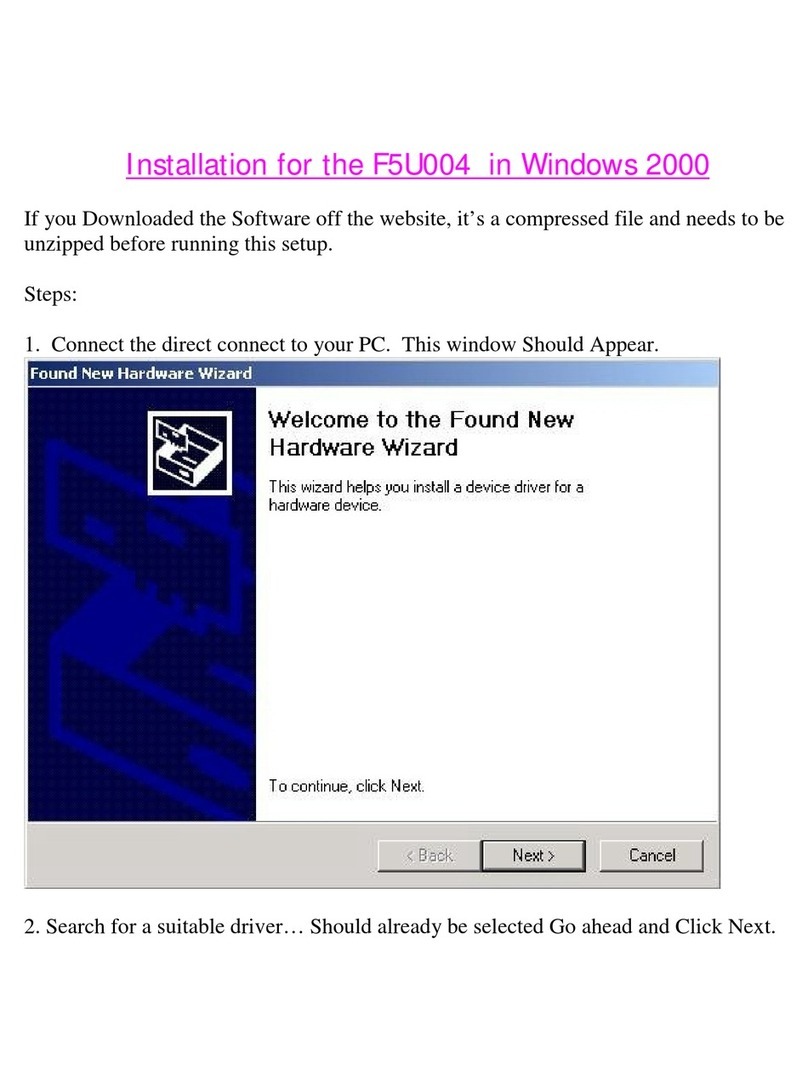
Belkin F5U004 User manual

Belkin
Belkin F8T003 User manual
Belkin
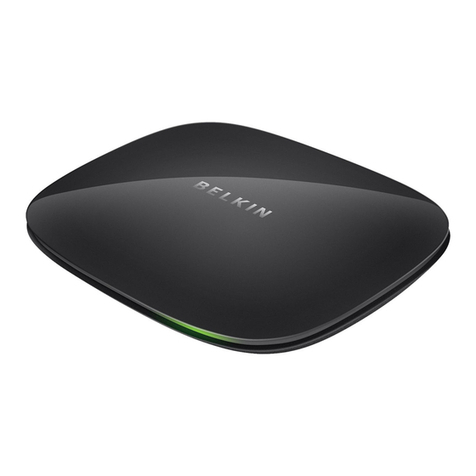
Belkin F8T001 User manual
Belkin
Belkin Screencast User manual
Belkin
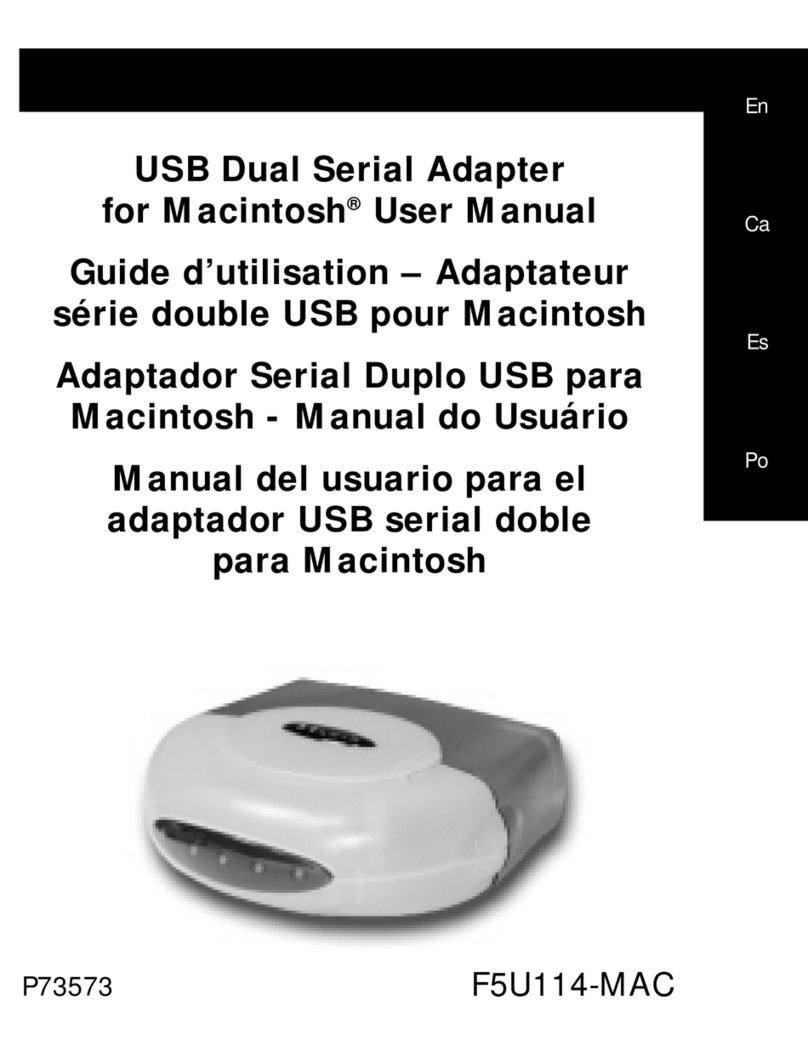
Belkin F5U114-MAC User manual
Belkin
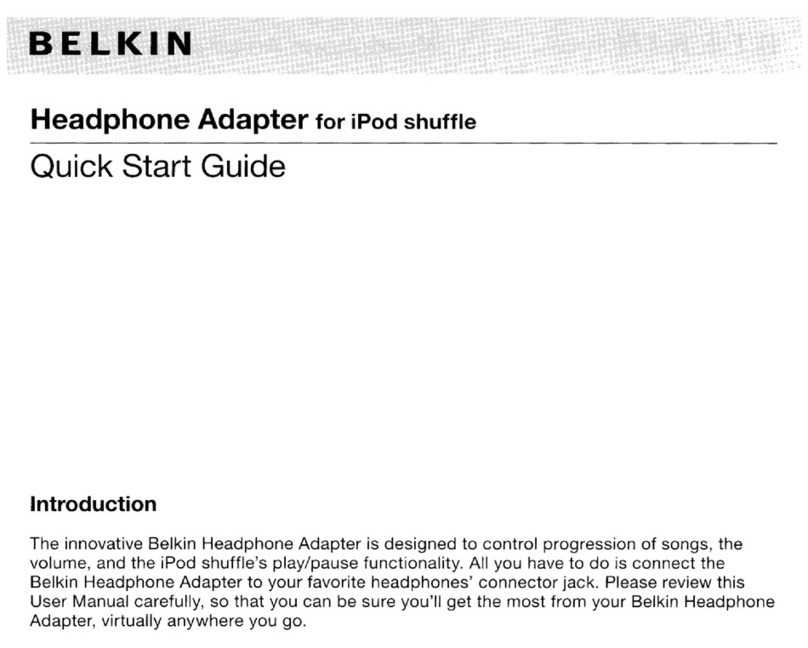
Belkin F8Z452ea User manual
Belkin
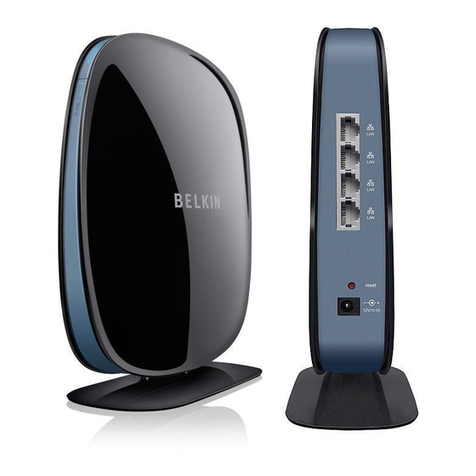
Belkin F7D4550 User manual

Belkin
Belkin BT-WINXPSP2 User manual
Belkin
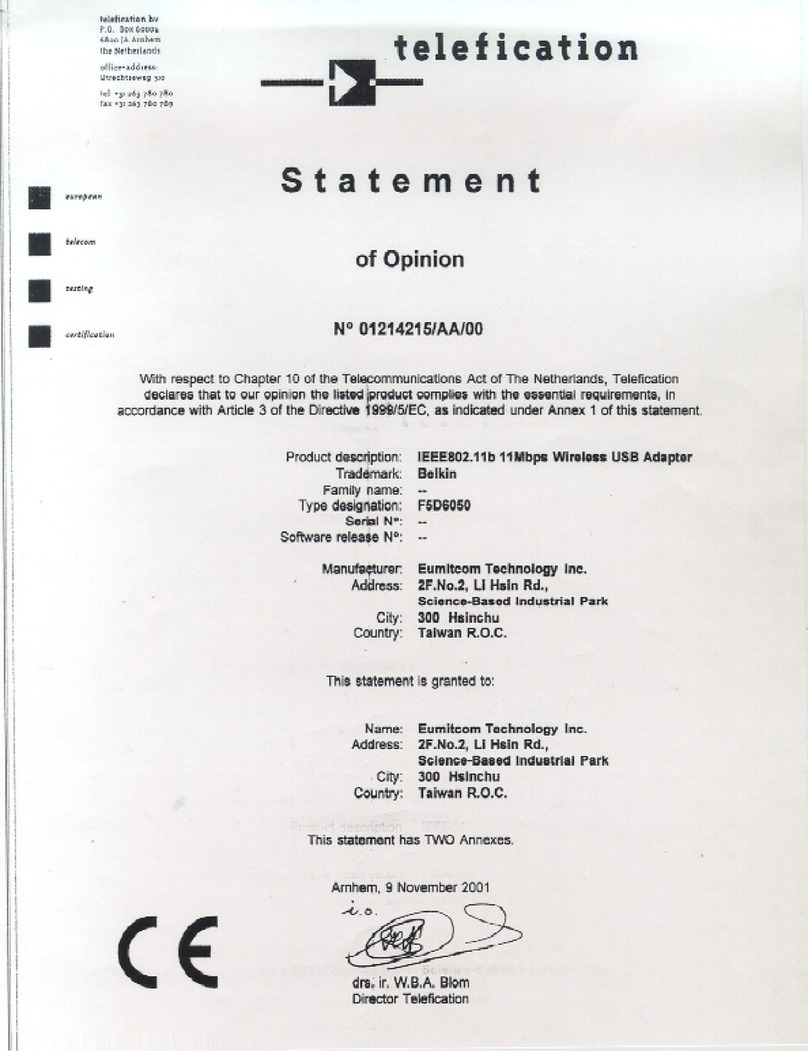
Belkin F5D6050 Reference guide
Belkin
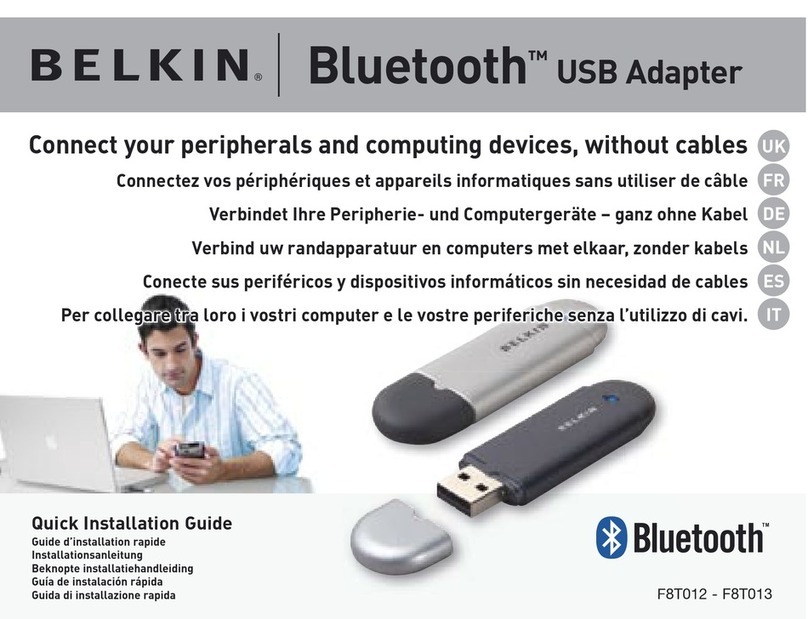
Belkin Bluetooth USB Adapter F8T012 User manual
Belkin
Belkin F5D6050 Reference guide
Belkin
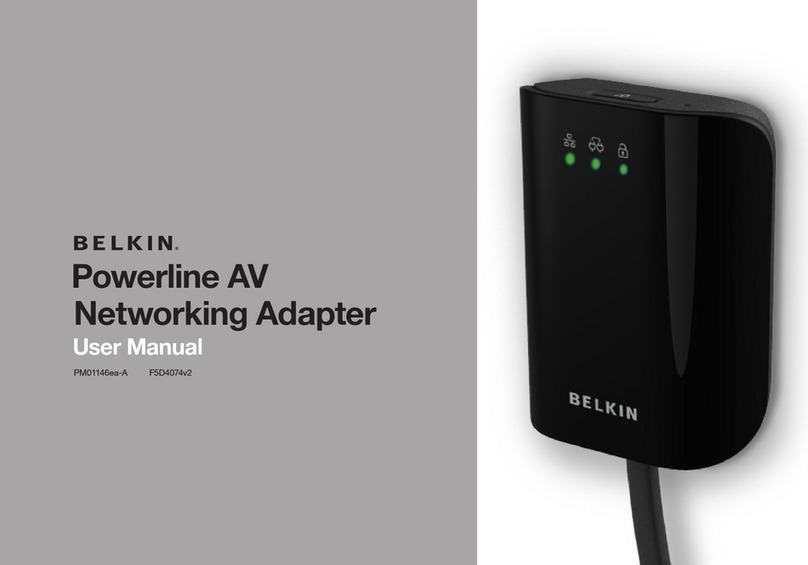
Belkin PM01146EA-A F5D4047V2 User manual
Belkin
Belkin F7D2101V1 User manual