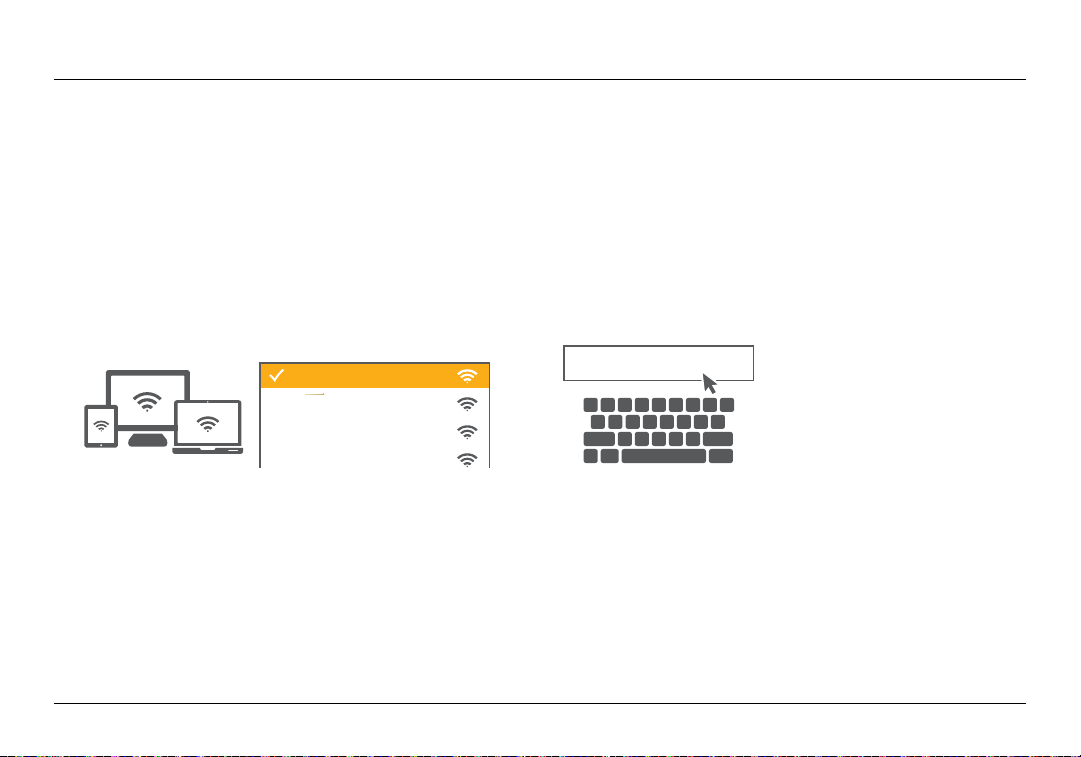
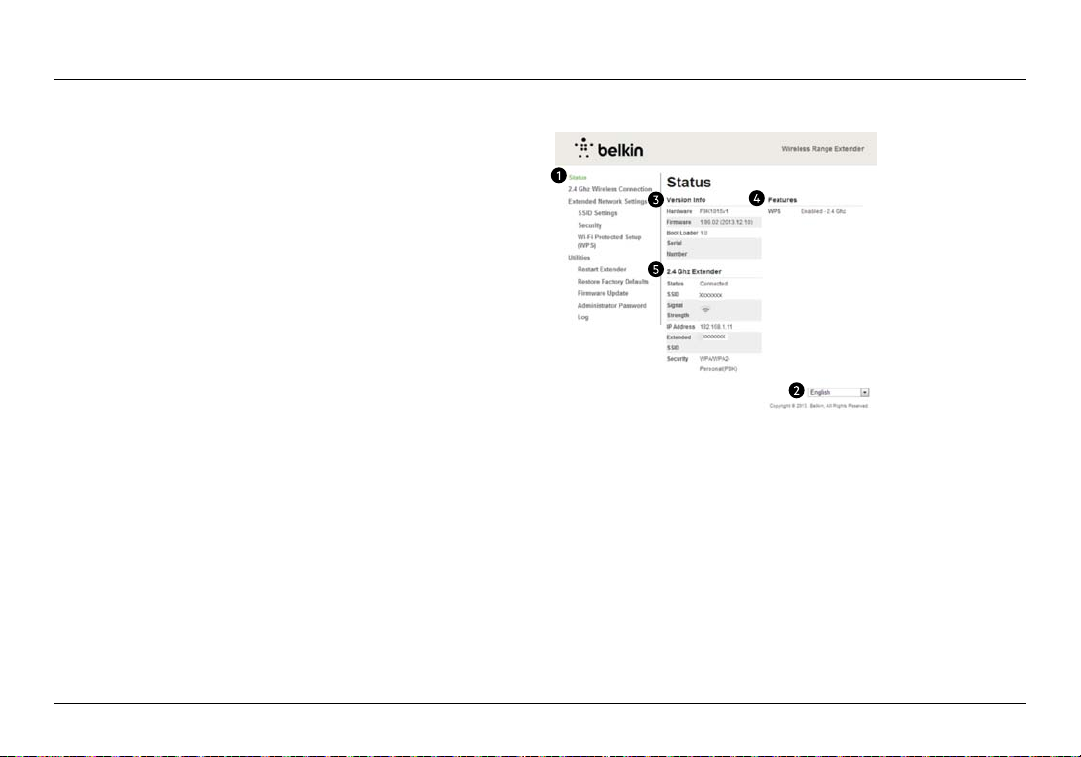
Belkin SURF N300 User manual
Other Belkin Extender manuals
Belkin
Belkin OmniView F1DE008C User manual
Belkin
Belkin OmniView User manual

Belkin
Belkin PLAY N600 User manual

Belkin
Belkin SURF N300 User manual
Belkin
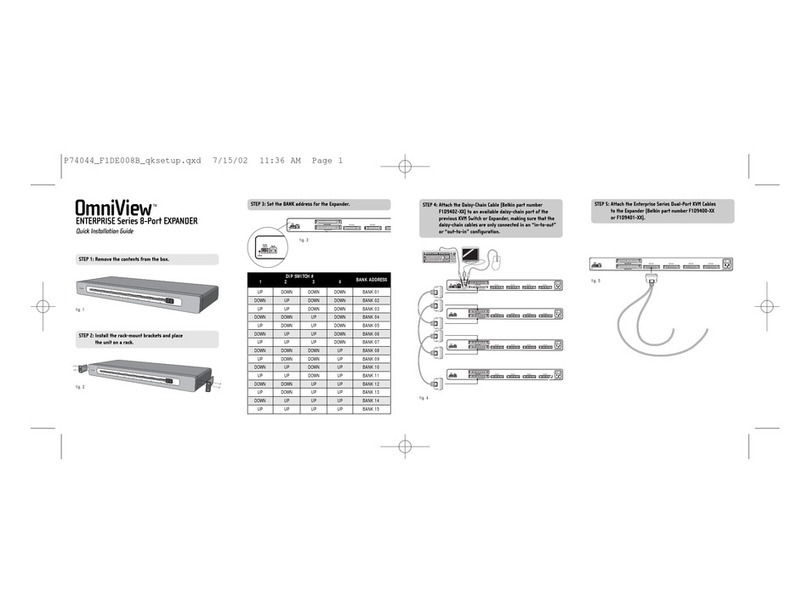
Belkin OmniView ENTERPRISE F1DE008B User manual
Belkin
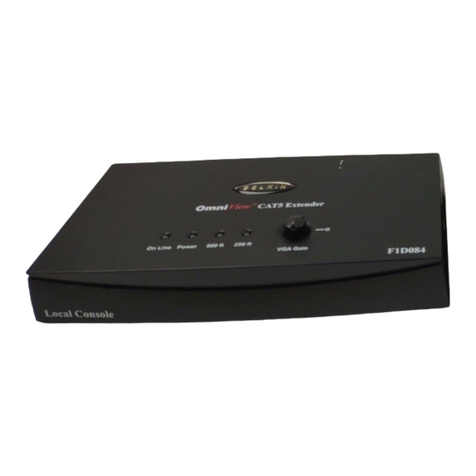
Belkin F1D084 - annexe 1 User manual
Belkin
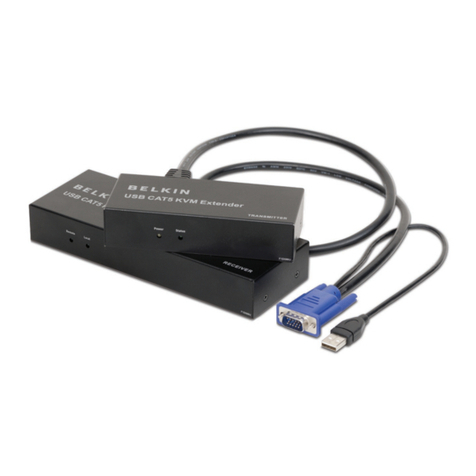
Belkin OmniView F1D086Uea User manual

Belkin
Belkin F9K1127 User manual

Belkin
Belkin SURF N300 User manual

Belkin
Belkin F1D084 - annexe 1 User manual

Belkin
Belkin F9K1015au User manual

Belkin
Belkin N600 DUAL-BAND User manual

Belkin
Belkin RX7500 User manual

Belkin
Belkin F1D084V2 User manual
Belkin
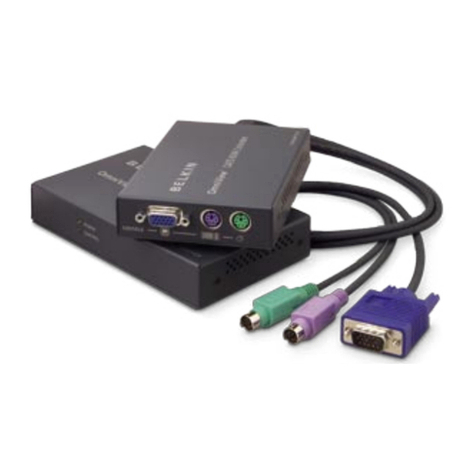
Belkin EXPANDVIEW CAT5 User manual

Belkin
Belkin F9K1106 User manual

Belkin
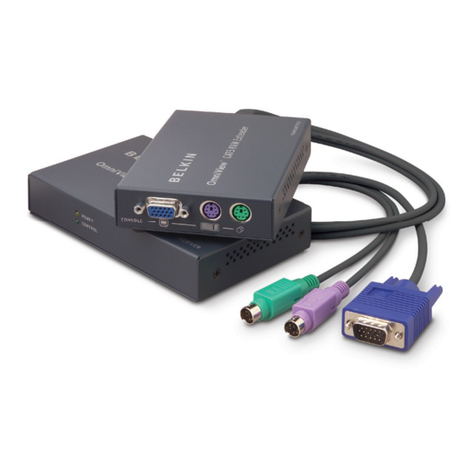
Belkin N300DB User manual
Belkin
Belkin OmniView F1D084vea2 User manual

Belkin
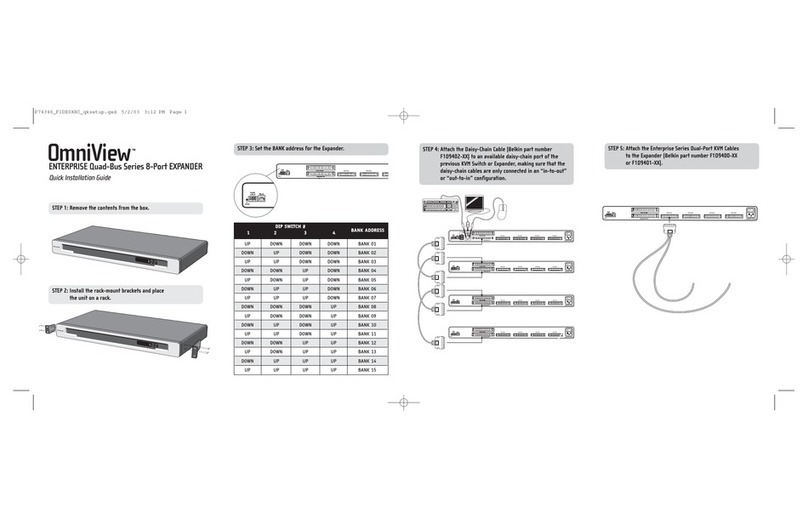
Belkin WV-HD121-100M User manual
Belkin
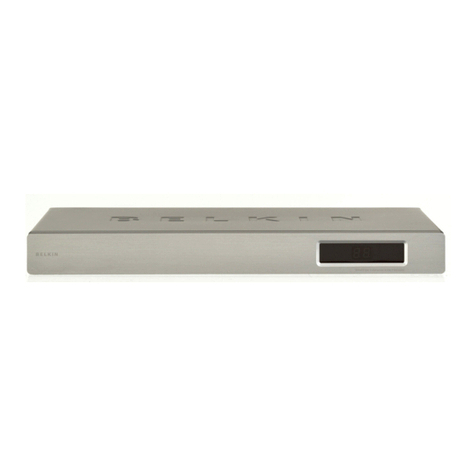
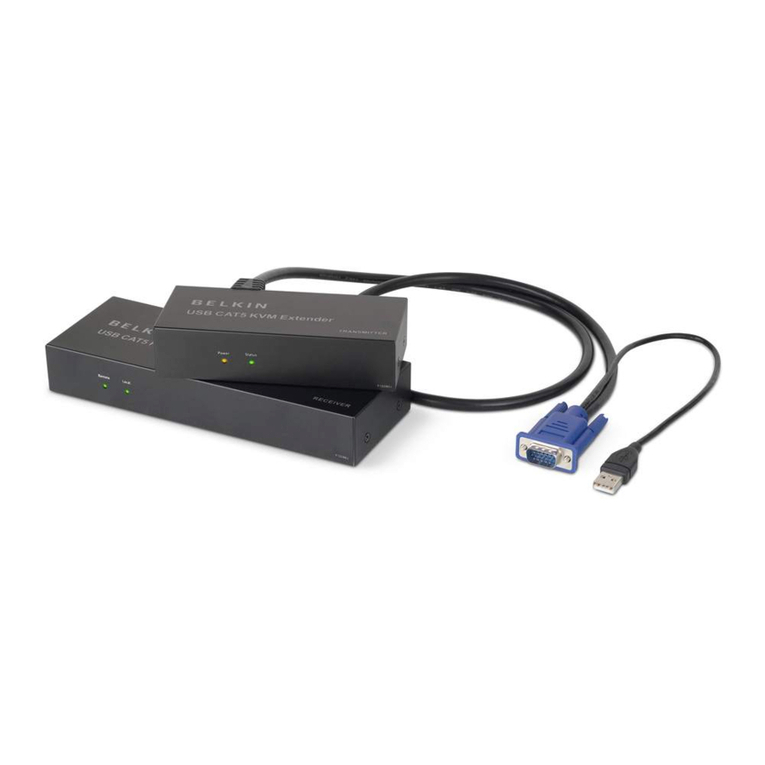
Belkin OmniView F1DE008C User manual

Popular Extender manuals by other brands


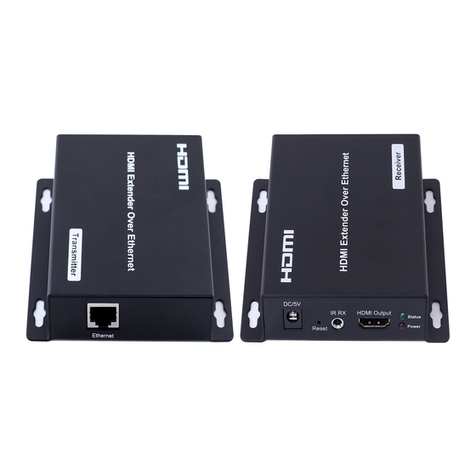
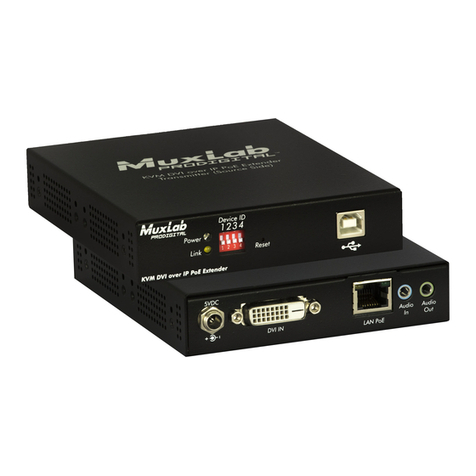

foxunhd
foxunhd SX-AEX01 operating instructions

TERK Technologies
TERK Technologies LFIRX2 owner's manual

Devolo
Devolo Audio Extender supplementary guide

Edimax
Edimax EW-7438RPn V2 instructions
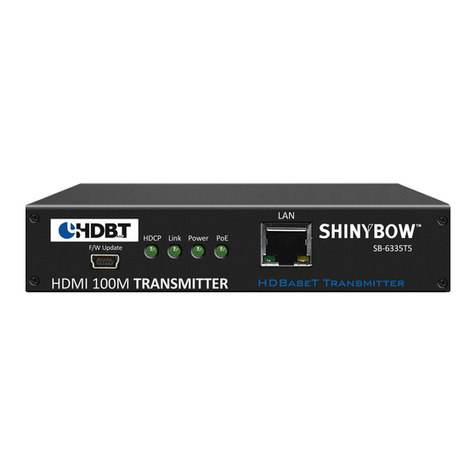
Shinybow USA
Shinybow USA SB-6335T5 instruction manual
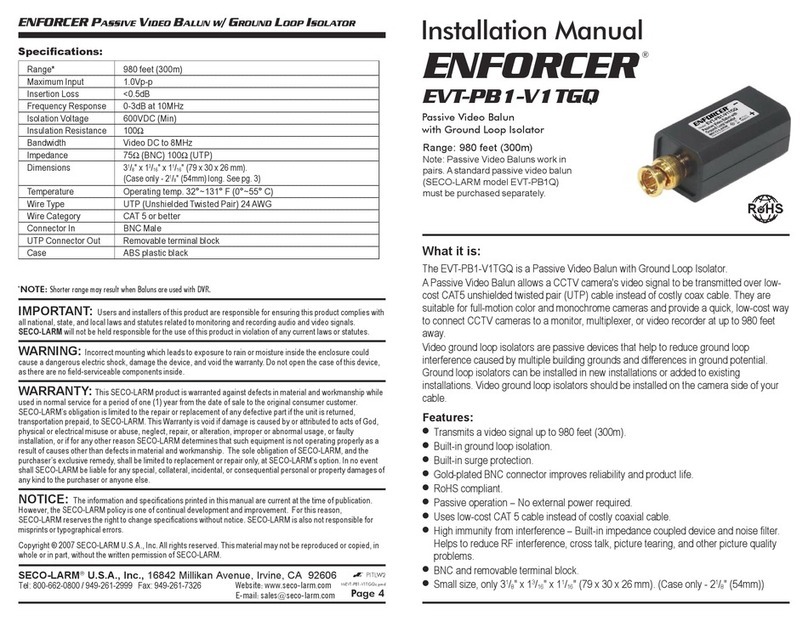
SECO-LARM
SECO-LARM ENFORCER EVT-PB1-V1TGQ installation manual