01
7
Before You Start
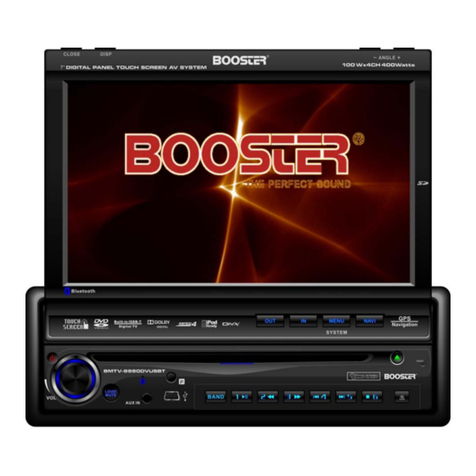
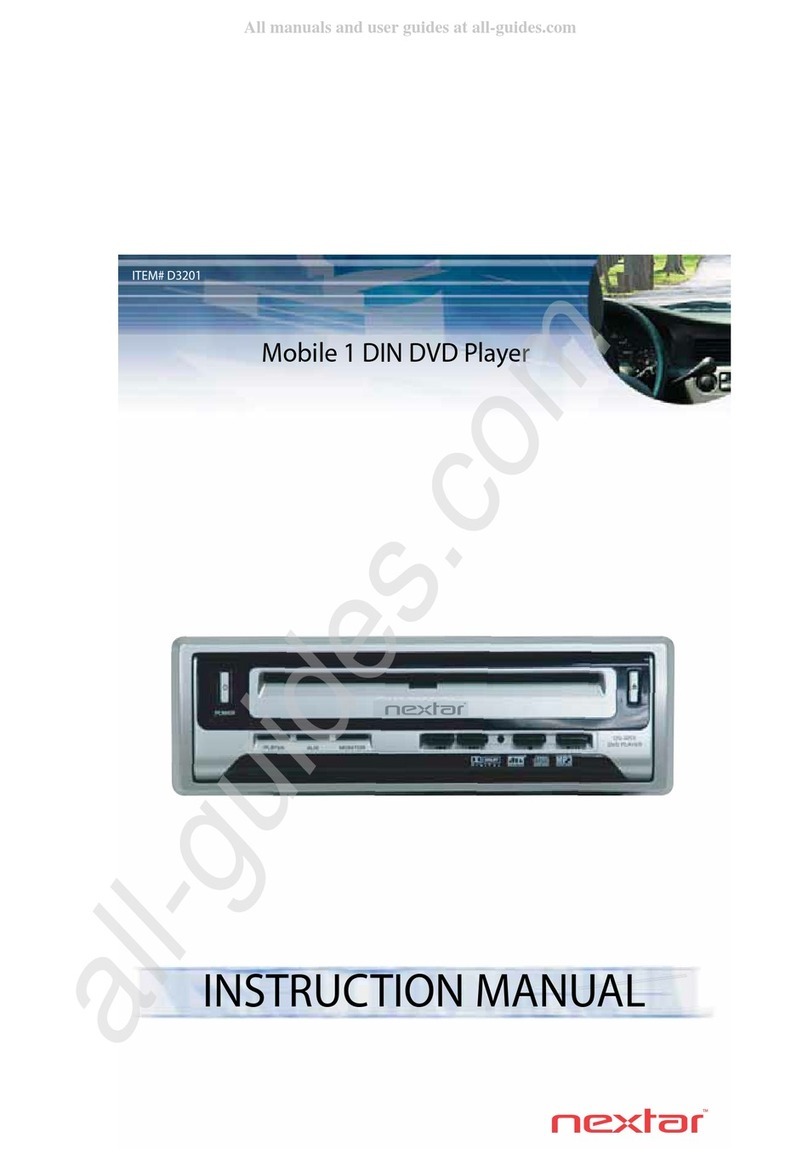
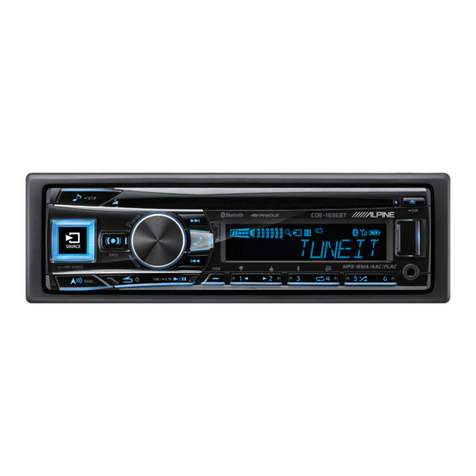
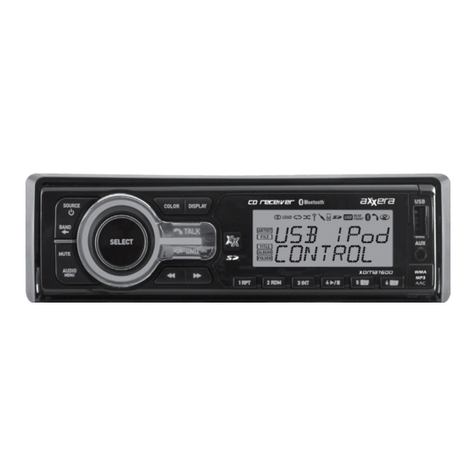
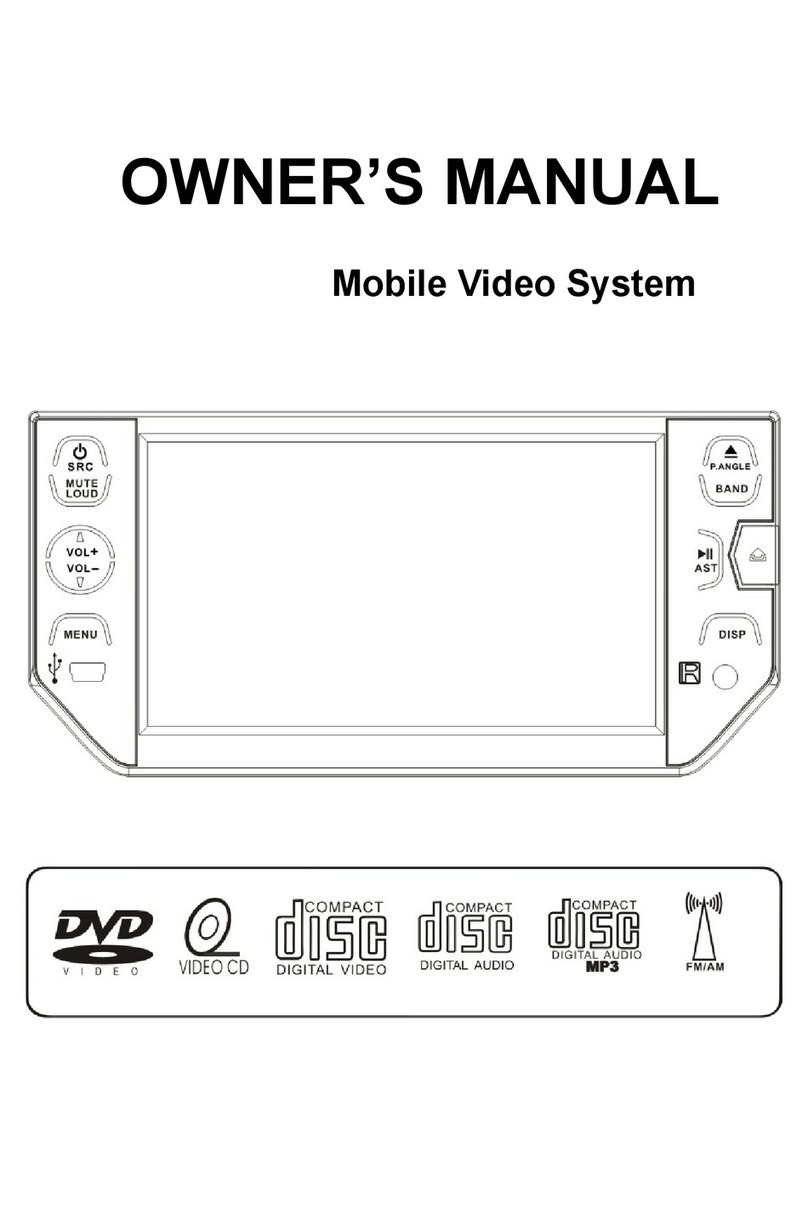
Location of the Controls
The Front Panel
34
08 08
Cellphone Pairing Mode
1. Browse your cellphone menu and find
the connectivity or Bluetooth connection
section.
2. Select search for a new handsfree device
function and allow the phone to find the
mobile.
(Different cellphone has different blue-
tooth menu, please refer to your phone
manul.)
3. When CAR A/V DEVICE appear, select
this item.
( if it can not be connected, please refer
to mobile manual, and connect it again.)
4. To input the password, the password is:
1234.
5. Press the connect with the Handsfree
option on your cellphone, and CON-
NECT appears.
Bluetooth Connection and
Disconnection
When established bluetooth connection
between this unit and the cellphone, bluetooth
icon on the display appears in red.
Press PAIR to turn off bluetooth con-
nection, and appears in blue.
Press ,PAIR SUCCESS appear on
the display, then display shows CONNECT
when bluetooth connected; display shows
PAIRING TIME OUT, when bluetooth
disconnected.
29
29
Note:
* Please keep the phone battery is full of power,
or else the bluetooth connection will be disturbed.
* To ensure connection succeed
----Please delete menu of cellphone with blue-
tooth.
----Please reset the unit and cellphone.
----Please reset every step of pairing.
* Disconnect after paring
----Please pair the phone in manual.
For example: pairing fixture cellphone connect.
To Dial by Cellphone
1. The unit activated automatically when you
make a call by cellphone, and DIAL OK
appears.
2. When you receive a call, PICK UP appears
on the display.
Using the Unit as a Handsfree
Device
When the unit is ringing, then it appears
call from and the phone number ID******
*****on the dialing,
To accept call: Press to answer a call,
it appears PICK UP on the display.
To reject call: Press to reject a call,
it appears REJECT on the display.
To end call: Press to end call, and
HANG UP appears on the display.
Note:
* Some of cellphones do not support reject
call during bluetooth mode.
* Pressing and on the monitor
performs the same function.
30
31
Last Number Dialing
Press button, it appears last call
number on , press again, and then
PICK UP appears on the display during
conversation.
Note:
30
4
* Pressing on the monitor performs the same
function.
* To dial the number of the unit in the car
only.
* Pressing on the monitor also performs the
same function.
5
* Press on the monitor to turn off the
bluetooth function.
7
Bluetooth
NAV I
SRC
MUTE
RADIO
DISP
A/V IN
SD GPS
RES
ENT SEEK
MIC
PWR
VOL
REMOTE Infrared Sensor
2
3SRC
Press it to select different modes available.
5DISP
Press this button first to enter the night
mode, press it again to close display, press
third to resume.
6
Press this button to mute.
MUTE Button
8GPS CARD Slot
9SD CARD Slot
10 USB Slot
7A/V IN
During waiting mode, briefly press to turn
on the unit, press and hold it to turn off;
rotate it to adjust the volume up or down.
11 PWR/VOL
4SEEK (adjust frequency)
Press it to insert or eject a disc.
Eject Button
15
11 Screen Resolution: 800 x 480 DPI
12 Disc Loading Slot
16 RES Button
Press this button to set the unit to initial
status.
13 RADIO
During other modes, press this button
to change to radio mode.
During radio mode, press it to change
bands.
14 NAVI
During others modes, press this button
to change to navigation mode, press it
again to return to the previous mode.
MIC (for bluetooth)
17