manuals.online logo
Brands
  1. Home
  2. •
  3. Brands
  4. •
  5. Brookstone
  6. •
  7. Drone
  8. •
  9. Brookstone 324464 Maintenance and service guide

Brookstone 324464 Maintenance and service guide

This manual suits for next models

1

Other Brookstone Drone manuals

Brookstone FLIGHTFORCE Maintenance and service guide

Brookstone

Brookstone FLIGHTFORCE Maintenance and service guide

Brookstone FLIGHTFORCE User manual

Brookstone

Brookstone FLIGHTFORCE User manual

Brookstone ROVER Land&Sea User manual

Brookstone

Brookstone ROVER Land&Sea User manual

Brookstone FLIGHTFORCE User manual

Brookstone

Brookstone FLIGHTFORCE User manual

Brookstone FLIGHTFORCE User manual

Brookstone

Brookstone FLIGHTFORCE User manual

Brookstone FLIGHTFORCE User manual

Brookstone

Brookstone FLIGHTFORCE User manual

Brookstone FLIGHTFORCE User manual

Brookstone

Brookstone FLIGHTFORCE User manual

Brookstone FLIGHTFORCE User manual

Brookstone

Brookstone FLIGHTFORCE User manual

Brookstone Flight Force 324185 User manual

Brookstone

Brookstone Flight Force 324185 User manual

Brookstone FLIGHTFORCE User manual

Brookstone

Brookstone FLIGHTFORCE User manual

Brookstone FLIGHTFORCE User manual

Brookstone

Brookstone FLIGHTFORCE User manual

Brookstone FLIGHTFORCE User manual

Brookstone

Brookstone FLIGHTFORCE User manual

Popular Drone manuals by other brands

Foxtech GAIA 160MP user manual

Foxtech

Foxtech GAIA 160MP user manual

Ryze Tello quick start guide

Ryze

Ryze Tello quick start guide

PowerVision PowerRay user manual

PowerVision

PowerVision PowerRay user manual

Force1 rogue F72 user manual

Force1

Force1 rogue F72 user manual

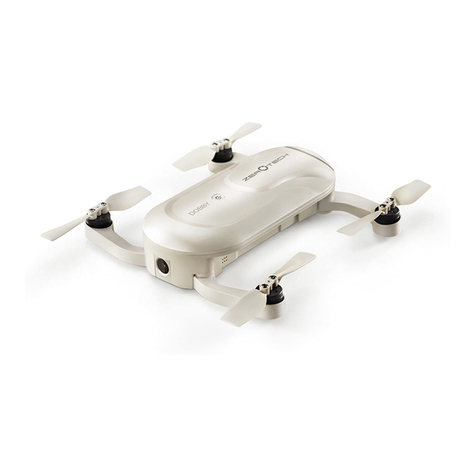
Zerotech DOBBY user manual

Zerotech

Zerotech DOBBY user manual

Walkera ZHUN quick start guide

Walkera

Walkera ZHUN quick start guide

Arris M900 user manual

Arris

Arris M900 user manual

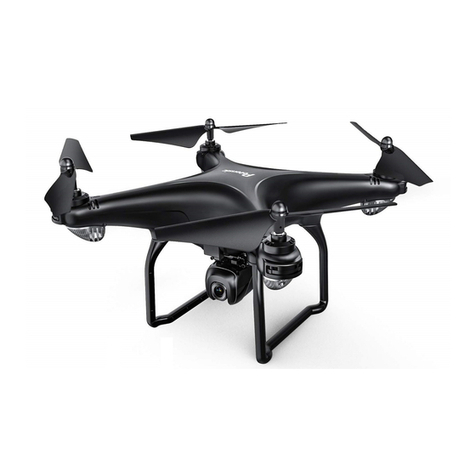
Potensic D58 Operation Guidance

Potensic

Potensic D58 Operation Guidance

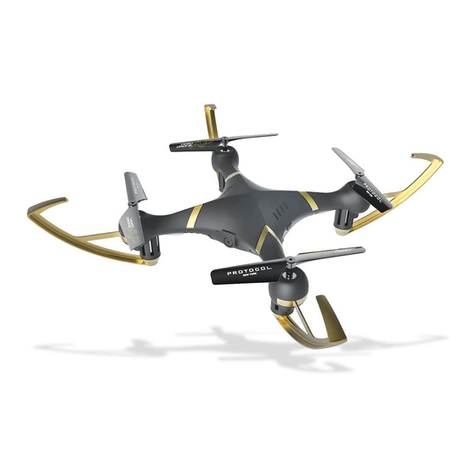
Protocol VIDEODRONE AP instruction manual

Protocol

Protocol VIDEODRONE AP instruction manual

dji Matrice M210 quick start guide

dji

dji Matrice M210 quick start guide

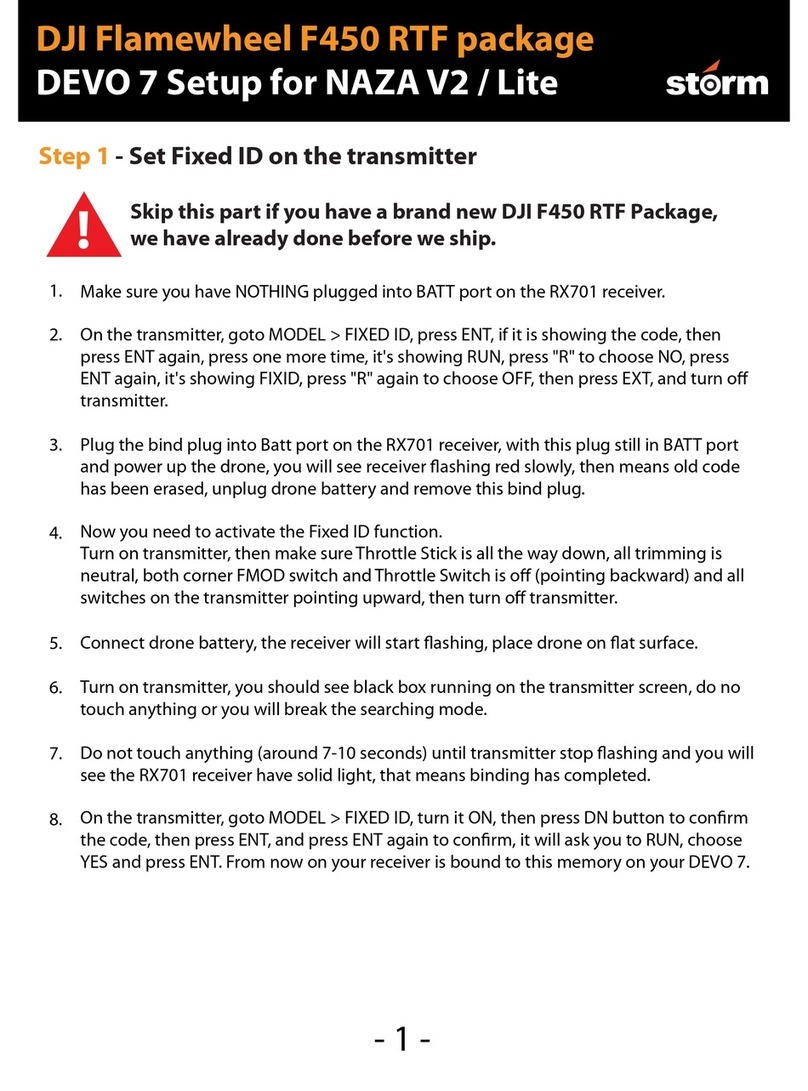
Storm DJI Flamewheel F450 RTF manual

Storm

Storm DJI Flamewheel F450 RTF manual

SYMA X440 user manual

SYMA

SYMA X440 user manual

XIRO Xplorer G Calibration guide

XIRO

XIRO Xplorer G Calibration guide

Freefly ALTA Setup guide

Freefly

Freefly ALTA Setup guide

Twodots TVVIN BOARD quick guide

Twodots

Twodots TVVIN BOARD quick guide

Parrot Bebop quick start guide

Parrot

Parrot Bebop quick start guide

Potensic ATOM SE user manual

Potensic

Potensic ATOM SE user manual

SYMA X5UW(720P) user manual

SYMA

SYMA X5UW(720P) user manual

manuals.online logo
manuals.online logoBrands
  • About & Mission
  • Contact us
  • Privacy Policy
  • Terms and Conditions

Copyright 2025 Manuals.Online. All Rights Reserved.

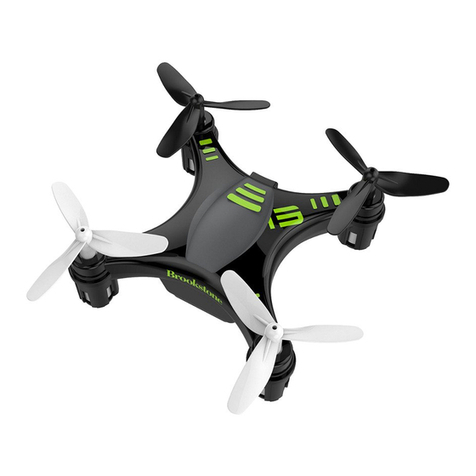
324464_INS_Zoom Bee Drone
Size:125mm x 105mm Output:100%_Prints:1/1,Blk
Flight Force
ZOOM BEE™ DRONE
for ages
14
+
324464_INS_Zoom Bee Drone
Size:125mm x 105mm Output:100%_Prints:1/1,Blk
1
TABLE OF CONTENTS
Warnings and Cautions ..............................................................1
FCC Information ....................................................................5
Li-Po Battery Warning .............................................................. 6
Controller.......................................................................... 6
Controller Button Functions ..........................................................7
Drone Parts........................................................................ 8
Charging the Drone's Battery ........................................................9
Inserting the Controller Batteries .....................................................9
Pre-Flight Checklist ...............................................................10
Frequency Pairing .................................................................10
Beginning Your Flight.............................................................. 11
Using the Trimmer Buttons.........................................................12
Re-Calibrating the Drone ..........................................................13
Flying Control .....................................................................14
One-Button Take Off and Landing ..................................................16
Emergency Landing ...............................................................16
Altitude Hold Mode ................................................................17
Speed Mode Switch ...............................................................17
Headless Mode ...................................................................18
Low Battery Alarm ................................................................19
Out of Range Alarm ...............................................................19
Installing Spare Propellers .........................................................20
Using the Zoom Bee™ App ........................................................21
Troubleshooting ...................................................................28
Care and Maintenance.............................................................29
Specifications .....................................................................29
Warranty..........................................................................32
CAUTION
• TO REDUCE THE RISK OF ELECTRIC SHOCK, DO NOT REMOVE COVER.THERE
ARE NO SERVICEABLE PARTS INSIDE.
• TO REDUCE THE RISK OF FIRE OR ELECTRIC SHOCK, DO NOT EXPOSE THIS
UNIT TO RAIN OR MOISTURE.
The lightning flash with arrow-head symbol within an equilateral triangle is
intended to alert the user to the presence of uninsulated “dangerous voltage”
within the unit’s enclosure that may be of sufficient magnitude to constitute a
risk of electric shock.
The exclamation point within an equilateral triangle is intended to alert the user
to the presence of important operating and maintenance (servicing) instructions
in the literature accompanying the unit.
IMPORTANT SAFETY INSTRUCTIONS
All of the safety and operating instructions should be read, adhered to and followed before
the unit is operated.
SAVE THESE INSTRUCTIONS
2 3
DANGER
To reduce the risk of electric shock, burns, fire or injury:
1. Do not use while bathing or in a shower.
2. Do not place or store unit where it can fall or be pulled into a tub or sink.
3. Do not place in, drop or submerge in water or other liquid.
4. Do not reach for unit that has fallen into water.Unplug it immediately.
5. Care should be taken so that objects do not fall and liquids are not spilled onto the unit.
WARNING
1. Close supervision is necessary when this appliance/product is used by or near children or
mentally disabled individuals.
2. Use this unit only for its intended use as described in this manual.
3. Unplug this unit during lightning storms or when unused for long periods of time.
4. Never drop or insert an object into any opening.
5. Protect the charging cable from being walked on or pinched, particularly at plug outlets,
convenience receptacles and the point where it exits the unit.
6. Do not allow charging cable to touch hot surfaces.Wrap cord loosely around the unit
when storing.
7. The unit should be situated away from direct sunlight or heat sources such as radiators,
electric heaters, heat registers, stoves, or other units (including amplifiers) that produce heat.
Avoid placing on top of stereo equipment that radiates heat.
8. Never block the air openings of the unit with materials such as clothing, plastic bags or
papers, or place it on a soft surface such as a bed or couch, where the air openings may
be blocked.
9. Do not carry this unit by cord or use cord as handle.
10.Never operate this unit if it has a damaged cable, if it is not working properly, or if it has
been dropped or damaged, or dropped into water.If the unit’s charging cable or plug is
damaged, do not attempt to fix it yourself.
11.To avoid the risk of electric shock, do not disassemble or attempt to repair the unit.
Incorrect repair can cause risk of electric shock or injury to persons when unit is used.
12.Do not operate in the presence of explosive and/or flammable fumes.
DRONE WARNINGS
1. The Drone’s blades revolve at high speeds and can cause damage to the user, spectators
and animals.Stand away from the Drone to reduce the risk of getting into the flight path
and always maintain visual contact with the Drone while flying.
2. Warn spectators that you will be flying your Drone so that they are aware of its position.
3. Before flight, inspect the rotor blades to make certain that the blades are securely
fastened to the Drone.
4. Before flying check your local laws and regulations pertaining to drone usage, particularly
around airports.
5. Operating the Drone in a wide-open space is recommended.The ideal space should have
a 200-foot radius, without buildings, crowds, or electrical power lines.
6. Do not fly near tall buildings, high voltage cables, or other places that produce signal
interference.Signal interruptions may result in accidents.
7. Parental guidance or adult supervision is suggested at all times.

45
8. If you are flying the Drone with others, make sure all spectators are behind you.
9. For best performance, it is recommended that you operate the Drone in zero wind
conditions, as wind can greatly affect the performance of the aircraft.
10. Record responsibly.Respect the privacy of individuals when recording video or taking
photos with the Drone.
11. Obtain permission from individuals before circulating videos or photos taken with the
Drone.
CAUTION: DO NOT ATTEMPT TO FLY THE DRONE IF THERE IS RAIN, SNOW, HEAVY
WINDS, THUNDER OR LIGHTNING OUTDOORS.IT COULD DAMAGE YOUR PRODUCT
AND MAY CAUSE BODILY HARM.
WARNING!
• Choking/cutting hazard.Small parts/sharp rotor blades.
• Keep hands, hair and loose clothing away from the propeller when the power switch is
turned to the ON position.
• Not suitable for children under 14 years old.Parental supervision recommended when
flying the Drone.
FCC INFORMATION
Caution: Changes or modifications not expressly approved by the party responsible for
compliance could void the user's authority to operate the equipment.
This equipment has been tested and found to comply with the limits for a Class B Digital
Device, pursuant to Part 15 of the FCC Rules.These limits are designed to provide reasonable
protection against harmful interference in a residential installation.This equipment generates,
uses, and can radiate radio frequency energy and, if not installed and used in accordance with
the instructions, may cause harmful interference to radio communications.However, there is no
guarantee that interference will not occur in a particular installation.
If this equipment does cause harmful interference to radio or television reception, which can be
determined by turning the equipment off and on, the user is encouraged to try to correct the
interference by one or more of the following measures:
• Reorient or relocate the receiving antenna.
• Increase the distance between the equipment and receiver.
• Connect the equipment to an outlet on a circuit different from that
to which the receiver is connected.
• Consult the dealer or an experienced radio/TV technician for help.
This equipment complies with part 15 of the FCC Rules.Operation is subject to the following two
conditions:
1. This equipment may not cause harmful interference.
2. This equipment must accept any interference received, including interference that may cause
undesired operation.
WARNING: To comply with FCC's RF radiation exposure limits for general population/
uncontrolled exposure, the antenna(s) used for this transmitter must be installed to provide a
separation distance of at least 20 cm from all persons and must not be collocated or operating
in conjunction with any other antenna or transmitter.
FCC ID: #ZKWWIFI1702221
DO NOT FLY THE DRONE IN FOUL WEATHER!
WARNING
WARNING!
CHOKING HAZARD - Small
parts.Not suitable for children
under 3 years.
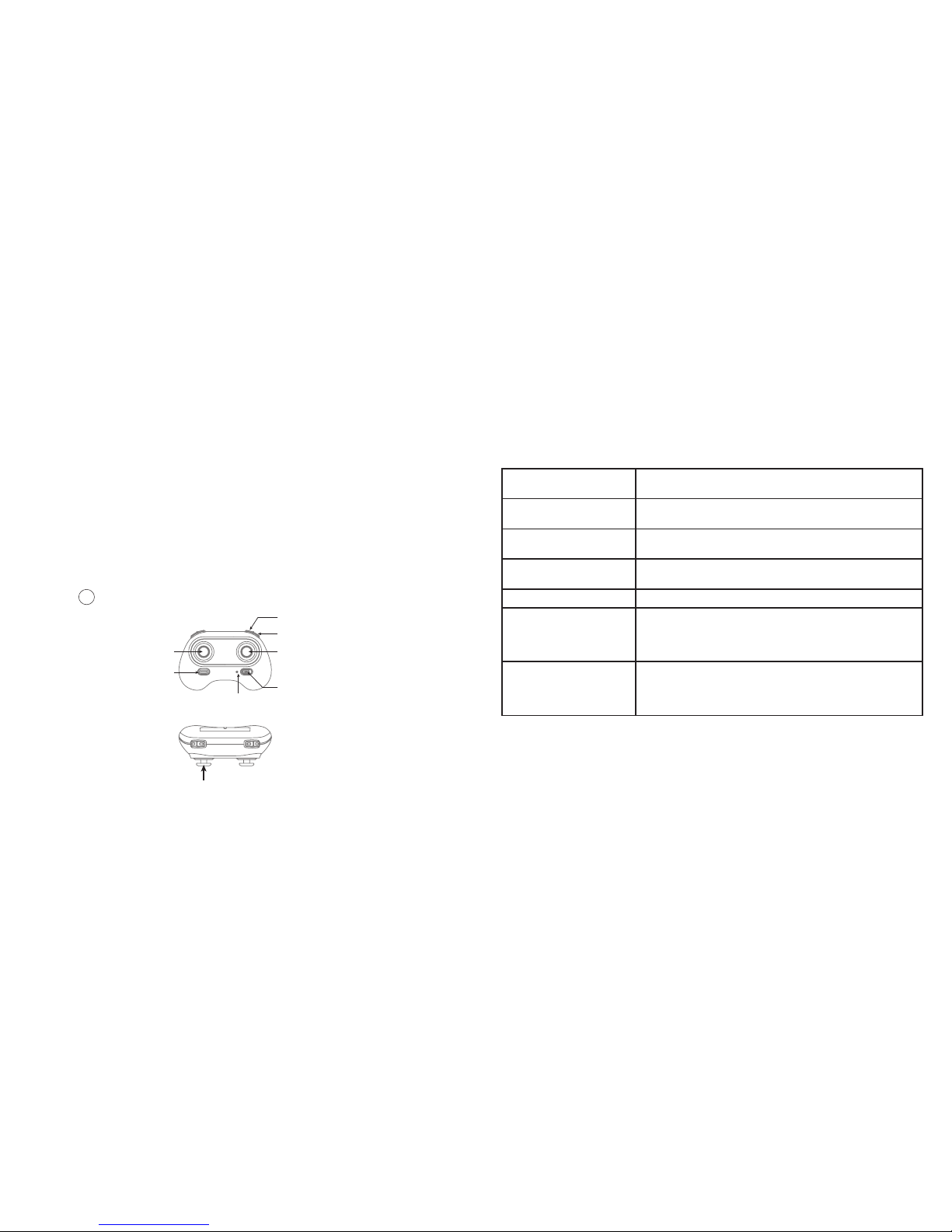
CONTROLLER
Trimmer mode button ( Press Down)
Left Stick
(Throttle / Rudder) Right Stick
(Forward /
Backward / Left /
Right)
High / Medium/
Low Speed Mode
Take Off /
Landing/
Emergency Stop
Button Power Switch
Power Indicator Light
Headless Mode
6
LI-PO BATTERY WARNING
This device contains a Lithium-Polymer battery.The battery must be recycled or disposed of
properly.Contact your local waste management office for information on battery recycling or
disposal.
Use only the supplied cable to recharge the battery.Improper charging may damage the
battery and the device.
Do not attempt to open the rechargeable battery or battery pack.There are no serviceable
parts inside.
Keep the battery out of reach of children.If swallowed, consult a physician immediately.
Do not dispose of battery in a fire as it may explode.The battery may also explode if
damaged. BC
7
CONTROLLER BUTTON FUNCTIONS
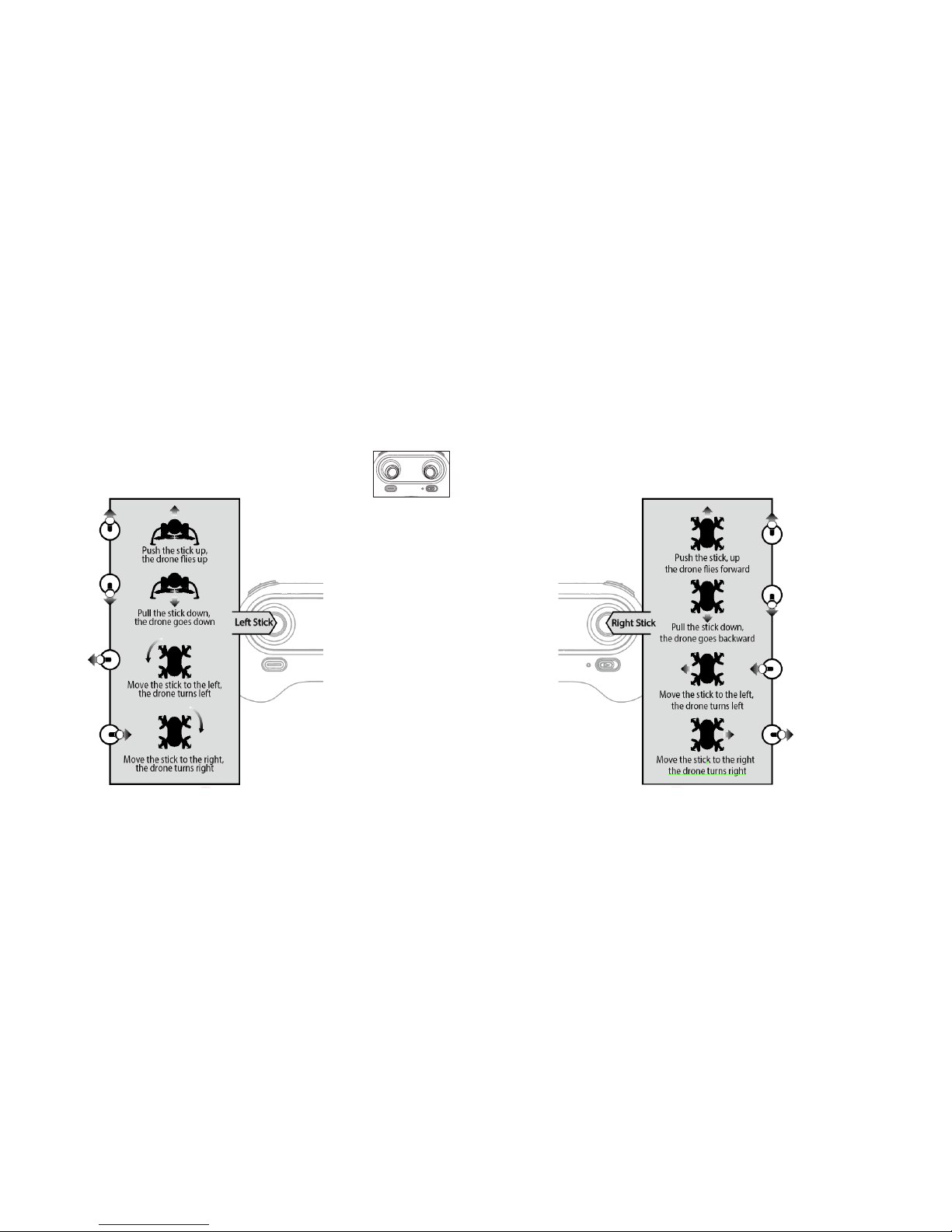
Left Stick Move the stick forward/backward/left/right to fly the drone
up/down/turn left/turn right.
Right Stick Move the stick forward/backward/left/right to fly the drone
forward/backward/left/right.
Power Switch Slide to the ON position to turn on the controller.Slide to the
OFF position to turn off.
Headless Mode Button Press to enter headless mode.Press again to exit headless
mode.
Speed Button Press to switch to High/Medium/Low speed.
Take Off/Landing/
Emergency Stop Button
Press once and the drone will take off.Press again and the
drone will land.Press and hold the button for more than 1
second for an emergency landing.The drone propellers will
stop and it will land immediately.
Trimmer Button Press this button and move the right stick to the required
trimmer direction.The drone will adjust its direction
accordingly.Release the stick to end trimmer mode.Refer to
Page 12 for information on using the Trimmer function.
9
CHARGING THE DRONE'S BATTERY
The Zoom Bee™ Drone includes a rechargeable Lithium-Polymer battery.Charge the
battery before first use.
To charge the drone's battery:
1. Ensure that the drone's power switch is in the
OFF position.
2. Insert the charging cable's connector into the
port on the rear of the drone.
3. Insert the charging cable's USB connector
into a USB port on an active device, such
as a computer, USB adapter, or power bank.
For fastest charging, us a device with 5V 2A
output current (not included).
4. The USB indicator is red while charging, and turns green when the drone is fully
charged.
INSERTING THE CONTROLLER BATTERIES
The controller uses 3 AAA batteries (included) which must
be inserted before first use.
To insert the controller's batteries:
1. Open the battery cover on the back side of the
controller.
2. Insert 3 AAA batteries, following the polarity indicators.
3X1.5V
Alkaline Bat
Battery Cover
8
Propeller Guard
Propeller Guard
Propeller Guard
Propeller Guard
Switch
Rear
RightLeft
Camera
Front
Drone Cover
Housing
B Propeller
A Propeller
Drone Bottom
Housing
A Propeller
B Propeller
Rear LED (Red)
Front LED (Green)
DRONE PARTS
PRE-FLIGHT CHECKLIST
1. Ensure that the drone battery and controller batteries are fully charged.
2. Ensure that the left stick of the controller is in the middle position.
3. Ensure that the connection between the battery and motor is solid.Vibration during use
may cause a bad connection and the drone could become difficult to control.
4. Strictly follow the instructions for the order for turning on and turning off the controller and
drone.Turn on the controller power first and then turn on the drone power before flying;
turn off the drone power first and then turn off the controller power when finished flying.
Improper on/off sequence may cause the drone to fly out of control and could threaten
your safety or the safety of others.
5. Improper operation may cause the drone to crash, which may cause motor defects that
could affect flying ability.If this occurs, visit the local distributor to buy new replacement
parts.
FREQUENCY PAIRING
1. Slide the controller's power switch to the ON position (Picture 1).The power indicator will
flash rapidly.
2. Push the left stick all the way down to the lowet position and then release.The left stick
will move back to the middle position (Pictures 2 and 3).
Picture 2Picture 1 Picture 3
Picture 4
10 11
3. Power on the drone (Picture 4) and put the drone on a flat surface.The drone must be
on a horizontal, level surface to work properly.
4. The drone body lights change from flashing to solid, indicating successful frequency
pairing.
BEGINNING YOUR FLIGHT
5. Position the drone so that its front (the end with the camera) is pointing away from you.
6. Power on the drone and check the direction of the rotating propellers.The left front
and right rear A propellers should rotate clockwise while the right front and left rear B
propellers should rotate counterclockwise.
7. Move the left stick and right stick at the same time 45 degrees inward, as shown below, to
start the motors.Repeat to lock the motors.
8. Push up the left stick to fly the drone up slowly.Pull down the left stick to its lowest
position slowly to land the drone on the ground.
9. Repeat Step 4 several times to practice.
10. If the drone tilts to one side when flying, adjust the rudder with the corresponding Trimmer
button on the controller, as described on Page 12.
Picture 5
USING THE TRIMMER BUTTONS
When you take off, if the drone tilts you can use the trimmer buttons to correct the problem.
• If the drone tilts forward, press down the left stick in the center, and push the right stick
backward.
• If the drone tilts backward, press down the left stick in the center and push the right
stick forward.
• If the drone head rotates to the left, press down the left stick in the center and push the
left stick to the right.
• If the drone head rotates to the right, press down the left stick in the center and push
the left stick to the left.
• If the drone tilts to the left, press down the left stick in the center and push the right
stick to the right.
• If the drone tilts to the right, press down the left stick in the center and push the right
stick to the left.
Trimmers
12
RE-CALIBRATING THE DRONE
Crashing the drone may cause it to become imbalanced beyond the level that can be adjusted
by the trimmer button.If this occurs, you can re-calibrate the drone.
1. Power off the drone, then turn off the controller switch.
2. Turn on the controller switch, push the left stick all the way down to the lowest position
and then release.The left stick will return to the middle position.
3. Power on the drone and put it on a flat surface in a horizontal position.The drone body
lights change from flashing to solid.
4. Push the right stick as shown below, and then release.(Do not move the left stick before
successful calibration.) The drone body lights flash, indicating that the drone is calibrating.
After successful calibration, the drone body lights will be solid.
Note: After a hard crash, the gyroscope in the drone may be impacted, causing the drone to
be difficult to control.If this occurs, power off the drone and power on again to calibrate.
13
FLYING CONTROL
Note: Before flying, move the left stick and the right stick 45 degrees
inward at the same time to start the motors.Push up the left stick slowly to
fly up.
Picture 5
14 15
ONE-BUTTON TAKE OFF AND LANDING
As an alternative to the take off and landing procedure described on Page 14, you can use
the one-button method.
1. Press the Take Off/Landing/Emergency Stop Button.The drone will fly up and keep
flying at an altitude of approximately 47 inches (1.2 meters).
Press the Take Off/Landing/Emergency Stop Button again and the drone will land.DO
NOT HOLD THE BUTTON and do not touch the left stick, or the function will fail.
EMERGENCY LANDING
If the drone is in an emergency situation, such as if it is about to hit people or obstacles,
press the Take Off/Landing/Emergency Stop Button and hold it for more than 1 second.The
propellers will stop immediately and the drone will land quickly.
Note: Do not use the Emergency Stop function unless it is an emergency.The drone will fall
suddenly after all propellers stop.
16
ALTITUDE HOLD MODE
Altitude Hold mode allows the drone to maintain a consistent altitude while allowing roll, pitch,
and yaw to be controlled normally.This mode makes it easier for beginners to control the
drone and makes the drone more stable for aerial photography.
To use Altitude Hold Mode, push the left stick up to fly the drone up, or press the stick down
to fly down, to your desired altitude, and then release the stick.The stick will move back to the
center position (Altitude Hold Center), as shown below.
The drone will continue flying at its current altitude.Repeat to change the drone altitude.
SPEED MODE SWITCH
Use the Speed Mode switch to select the appropriate speed.Low speed is suitable for
beginners, medium speed is suitable for skillful pilots to play in a gentle breeze, and high
speed is suitable for expert and experienced aerial stunt flyers.The default is medium speed.
Set your speed before beginning your flight.
Speed Mode Switch
17