BURK Technology Plus-X 600 User manual

1UNPACKING
4. Open a browser and enter the Plus-X 600 default IP address of 192.168.0.100.
5. The web page will prompt you to set a password for the administrator account.
6. The login screen will then be displayed. Enter the username admin and the password you supplied
above.
(1) Plus-X 600 Unit
(1) Ethernet cable
(6) 6-pin Terminal Block
2NETWORK SETUP
7 Beaver Brook Rd.
Littleton, MA 01460
www.Burk.com
CUSTOMER SUPPORT
PHONE:
(978) 486 - 3711
M-F 9am - 5pm EST
EMAIL:
e. Select Properties.
f. Choose “Use the following IP address” and enter an IP address of
192.168.0.x, where x is any valid address location except 100.
g. Enter Subnet Mask 255.255.255.0
a. From the Control Panel, select Network Connections.
b. Double-click the icon for the network you will be using.
c. On the General tab, click Properties.
d. Click Internet Protocol version 4 “TCP/IPv4”. h. Click OK.
(CONTINUED )
(4) 9-pin Terminal Block
(1) Power Cord
QUICK START GUIDE
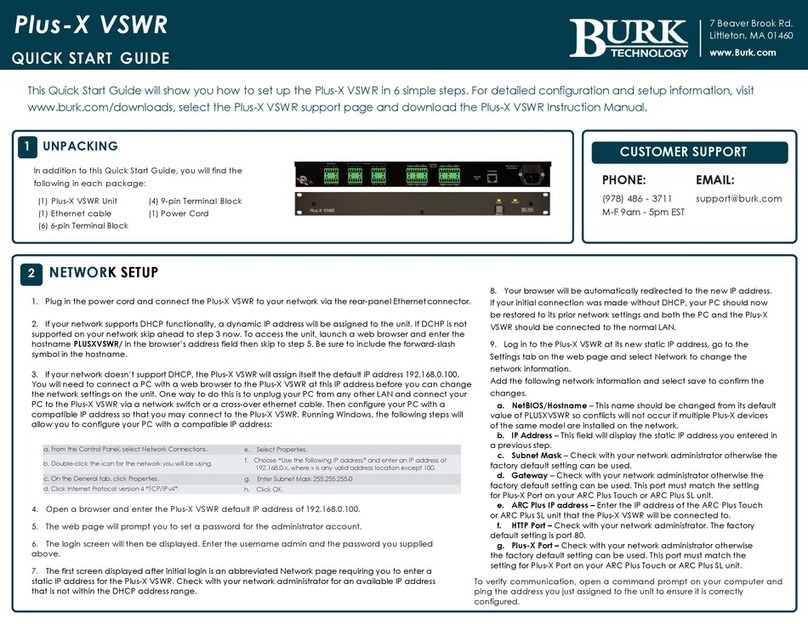
1. Plug in the power cord and connect the Plus-X 600 to your network via the rear-panel Ethernet connector.
2. If your network supports DHCP functionality, a dynamic IP address will be assigned to the unit. If DCHP is not
supported on your network skip ahead to step 3 now. To access the unit, launch a web browser and enter the
hostname PLUSX600/ in the browser’s address field then skip to step 5. Be sure to include the forward-slash
symbol in the hostname.
3. If your network doesn’t support DHCP, the Plus-X 600 will assign itself the default IP address 192.168.0.100. You
will need to connect a PC with a web browser to the Plus-X 600 at this IP address before you can change the
network settings on the unit. One way to do this is to unplug your PC from any other LAN and connect your PC
to the Plus-X 600 via a network switch or a cross-over ethernet cable. Then configure your PC with a compatible
IP address so that you may connect to the Plus-X 600. Running Windows, the following steps will allow you to
configure your PC with a compatible IP address:
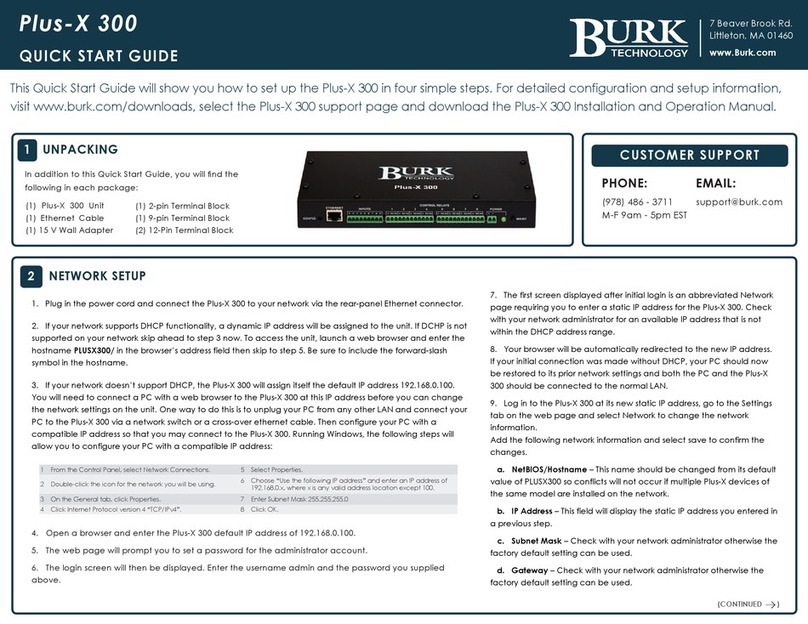
7. The first screen displayed after initial login is an abbreviated Network
page requiring you to enter a static IP address for the Plus-X 600. Check
with your network administrator for an available IP address that is not
within the DHCP address range.
8. Your browser will be automatically redirected to the new IP address.
If your initial connection was made without DHCP, your PC should now
be restored to its prior network settings and both the PC and the Plus-X
600 should be connected to the normal LAN.
9. Log in to the Plus-X 600 at its new static IP address, go to the Settings
tab on the web page and select Network to change the network
information.
Add the following network information and select save to confirm the
changes.
a. NetBIOS/Hostname – This name should be changed from its default
value of PLUSX600 so conflicts will not occur if multiple Plus-X devices of
the same model are installed on the network.
b. IP Address – This field will display the static IP address you entered in
a previous step.
c. Subnet Mask – Check with your network administrator otherwise the
factory default setting can be used.
d. Gateway – Check with your network administrator otherwise the
factory default setting can be used.
This Quick Start Guide will show you how to set up the Plus-X 600 in four simple steps. For detailed conguration and setup information,
visit www.burk.com/downloads, select the Plus-X 600 support page and download the Plus-X 600 Installation and Operation Manual.
In addition to this Quick Start Guide, you will nd the
following in each package:

1. To manually map Plus-X channels to the ARC Plus, click the Meter, Status,
or Command tab, as appropriate. Locate an unused channel and click
the … button in the Source column. This will bring up the Source dialog.
Click the Plus-X channel button and choose the Plus-X device and
channel you wish to use.
2. Configure labels, limits, and alarms for the newly added Plus-X channels.
3. Lastly, you will need to calibrate the metering channels. If you have not
already connected the input connector blocks, do so now. Then click
the Calibration icon at the far right of the Source column in the
AutoLoad Plus Meter Channels tab to complete the calibration process.
The Plus-X 600 communicates with the ARC Plus Touch or ARC Plus SL via
LAN/WAN, allowing installation anywhere a network connection is available.
Use AutoLoad Plus to add the
Plus-X device to the ARC Plus
Touch or ARC Plus SL unit. Ensure
you have the current version
of AutoLoad Plus installed on
your computer. To obtain the
current version, visit www.burk.
com/downloads and select the
AutoLoad Plus support page. On
the AutoLoad Plus menu, select
Edit->Plus-X Devices and click Add.
The dialog box shown to the right
will be displayed.
• Select Plus-X 600 and enter its network information.
Note: If adding more than one Plus X device to an ARC Plus, adjust the
starting channel so that other assigned channels are not overwritten.
•Select OK to conrm the rst Plus X device.
•If adding more than one Plus X device, repeat the same steps.
•Save the conguration by selecting File>Save in AutoLoad Plus
To conrm that the Plus-X 600 is communicating, log in to the ARC Plus Touch
or ARC Plus SL using the web browser. All assigned channels should show
their default values.
MANUALLY MAPPING PLUS-X CHANNELS
Note: If the meter or status inputs show as ofine or a warning is displayed,
check the network conguration and ensure the conguration is saved
within AutoLoad Plus.
Refer to the Plus-X 600 Installation and Operation Manual for further
information on conguring and operating the Plus-X 600 unit.
4CONNECTING TO AN ARC PLUS TOUCH OR
ARC PLUS SL
10. To verify communication, open a command prompt on your computer and ping the address
you just assigned to the unit to ensure it is correctly congured.
QUICK START GUIDE
3 CONNECTING STATUS, METERS AND RELAYS ON THE PLUS-X 600
The Plus-X 600 is a versatile I/O solution providing 16 status inputs, 8 metering inputs and 6 raise/
lower command pairs that can be unpaired through the Plus-X 600 web GUI Relay Pairs link.
Connecting a Meter or Status Input
1. Connect your site equipment to the provided 6-pin
push-on block connectors. Notice common ground
is shared between two meter or status channels.
Secure the wires with the built-in setscrews. The status
or metering sample connects to the + terminal, and a
common ground connects to the – terminal.
2. Connect the push-on blocks to the rear panel of the
Plus-X 600 with the setscrews facing up. Be sure to
precisely align the connector terminals to the + and –
contacts on the back panel of the unit.
Connecting a Relay Output
1. Connect your site equipment to the provided nine-
pin push-on block connectors. Secure the wires with
the built-in setscrews. Connections are standard, from
left to right: common (C), normally open (NO), and
normally closed (NC)
2. Connect the push-on blocks to the rear panel of the
Plus-X 600 with the setscrews facing up. Use care to
properly align each terminal with the contacts on the
back panel of the unit.
For information on configuring input and command channels and calibrating meter inputs, see
the Installation & Operation Manual for the Plus-X 600 unit and ARC Plus.
2 NETWORK SETUP (CONTINUED)
e. ARC Plus IP address – Enter the IP address of the ARC Plus Touch or ARC Plus SL unit that
the Plus-X 600 will be connected to.
f. HTTP Port – Check with your network administrator. The factory default setting is port 80.
g. Plus-X Port – Check with your network administrator otherwise the factory default setting
can be used. This port must match the setting for Plus-X Port on your ARC Plus Touch or ARC
Plus SL unit.
Meter Inputs
Status Inputs
Relay Outputs
Other BURK Technology Network Hardware manuals
Popular Network Hardware manuals by other brands

Matrix Switch Corporation
Matrix Switch Corporation MSC-HD161DEL product manual

B&B Electronics
B&B Electronics ZXT9-IO-222R2 product manual

Yudor
Yudor YDS-16 user manual

D-Link
D-Link ShareCenter DNS-320L datasheet
Samsung
Samsung ES1642dc Hardware user manual
Honeywell Home
Honeywell Home LTEM-PV Installation and setup guide