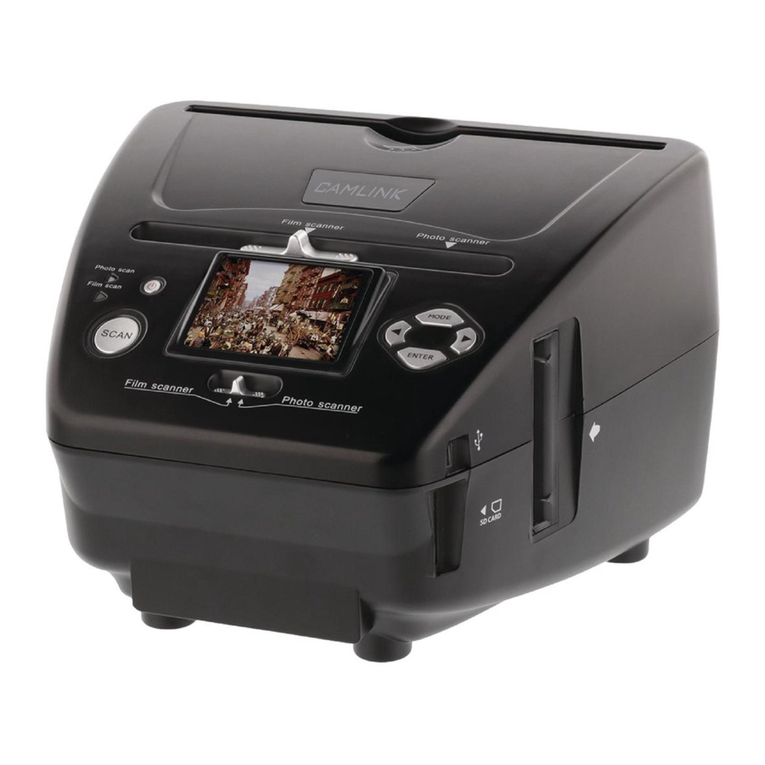
Camlink CL-FS20 User manual

Type: CL-FS20 Document version: 1
• GB - Film scanner - User manual 3
• DE - Filmscanner - Bedienungsanleitung 11
• FR - Scanner photo - Manuel de l'utilisateur 20
• NL - Filmscanner - Handleiding 30
• ES - Escáner de películas - Manual de Usuario 39
• IT - Scanner per negaivi
e diapositive - Manuale per l'utente 49
• FI - Filmiskanneri - Käyttöopas 58
• SE - Filmskanner - Bruksanvisning 67
• NO - Filmscanner - Brukerveiledning 76
• DK - Filmscanner - Brugsvejledning 84
• CZ - Filmový skener - Návod k použití 93
• HU - Filmolvasó - Használati útmutató 102
• GR - Σαρωτής φιλμ - Εγχειρίδιο χρήσης 111
• RO - Scanner de peliculă- Manual de utilizare 120
• RU - Сканер пленки - Руководство
пользователя 129

2
©2012 NEDIS BV. Camlink is a registered trademark of NEDIS BV. Although every effort has been
made to ensure the accuracy of the information contained in this manual specifications are subject to
change and therefore NEDIS BV cannot guarantee its correctness and completeness at all times.
Nedis B.V., part of the Nedis Group
De Tweeling 28
5215 MC ‘s-Hertogenbosch
The Netherlands
Tel: +31 73 599 1055
Fax: +31 73 599 9699
Web: www.nedis.com or www.nedis.nl
© Any unauthorised use of the information in this manual is prohibited. No part of this manual
may be reproduced, stored in a database or retrieval system, or published, in any form or in any
way, electronically or mechanically, by print, photocopy, microfilm or by any other means
without the express written permission of NEDIS.

3
©2012 NEDIS BV. Camlink is a registered trademark of NEDIS BV. Although every effort has been
made to ensure the accuracy of the information contained in this manual specifications are subject to
change and therefore NEDIS BV cannot guarantee its correctness and completeness at all times.
GB – English
Introduction
No PC needed for operation. 5 Mega pixel stand alone film/slide scan film to your
SD card or computer. Support various SD cards up to 32GB SDHC. USB 2.0
interface with USB power or AC power TV out feature: NTSC/PAL.
◆ Film scanner
◆ USB cable
◆ Video cable
◆ Negative Film holder
◆ Positive slide holder
◆ Rapid slide feeder
◆ DC5V adapter
◆ User’s Manual
◆ Brush
NOTE: You can use the provided brush to clean the backlight panel.
Technical specifications
Size 88.15 (L) X 86.25 (W) X111.20 (H) mm
Weight 301g
Sensor 1/3.2” 5mega CMOS
Effective resolution 5mega
Storage media External: SD card, compatible SDHC card
Sensitivity Auto
Lens Fixed focus F/6.0, F=6.34mm
Focus range 5.6cm
Still image Format: JPEG, resolution: 5M, 10M (interpolation)
Zoom No
Display 2.36” TFT
TV output format NTSC/PAL
Light sources Backlight compensation
White balance Auto
Exposure compensation Auto
Interface MSDC: USB2.0 (high speed)
Auto turn on No
Power DC 5V
Operation system Windows XP, Vista, 7, 8
CPU Intel Pentium 4/2.8GHz above
Memory 512MB above
Video card 64MB or high top video card
Transmission connection Standard USB2.0 or above
Hard disk capacity At least 200MB

4
©2012 NEDIS BV. Camlink is a registered trademark of NEDIS BV. Although every effort has been
made to ensure the accuracy of the information contained in this manual specifications are subject to
change and therefore NEDIS BV cannot guarantee its correctness and completeness at all times.
Adapter Yes
Positive board holder Yes
Negative board holder Yes
Brush Yes
USB cable Yes
Safety precautions
To reduce risk of electric shock, this product should
ONLY be opened by an authorized technician when
service is required. Disconnect the product from mains
and other equipment if a problem should occur. Do not
expose the product to water or moisture.
Ventilation: The device should be situated so that its location or position does not interfere
with its proper ventilation.
Heat: The device should be situated away from sources of high heat such as radiators or
stoves.
Non use period: The USB cord for the device should be unplugged from the computer
when the unit is left unused for a long period of time.
USB overloading: Do not overload the USB connections on your computer. If you have too
many devices connected to your computer such as a wireless mouse, Media player,
Mobile phone or other USB powered devices there may not be enough power for the film
scanner to operate properly.
Servicing: The user should not attempt to service the device beyond those means
described in the operating instructions. All other servicing should be referred to a qualified
person.
Film Holder: The design of film holder is follow ISO standard.
In some cases the holes on the film will not match exactly to alignment of the holder. This
is caused by a non-standard camera. In this case, there will be a small black line on the
edge of the frame that can easily be cropped out using photo editing software.
*ISO-international Organization for Standardization
Installation instructions
◆ Place the film scanner on the side and insert the end of the brush into the door on the
right side
Description of parts:
Positive slide Holder
Negative film Holder

5
©2012 NEDIS BV. Camlink is a registered trademark of NEDIS BV. Although every effort has been
made to ensure the accuracy of the information contained in this manual specifications are subject to
change and therefore NEDIS BV cannot guarantee its correctness and completeness at all times.
Rapid slide feeder
Brush
Using the included Holders
Rapid Slide Feeder
1. With the lever all the way to the right, stack your slides in the rapid slide feeder.
2. Place the rapid slide feeder into the FILM HOLDER SLOT.
3. Push the lever towards the left, then pull the lever back to the right again to load a slide
from the feeder into SLIDES 2. Repeat this step for subsequent slides (which will push
the used slides out the other side).
Loading Slides
(1) (2)
(1) Hold up the slide toward the light. Face the trademark slide of the slide away from you.
Look through the slide and it should appear normally (not a mirror image). Now turn the
slide so the image is upside down while looking at the same side.
(2) Open the slide holder at the marked spot on the top. With the slide holder laid open
place the slide into recessed area in the holder - the slide should fit perfectly.
Note: Handle slides with care. Any dust, Scratches or finger prints will show up on your
saved images. If possible, use cotton gloves when handing slides. It is recommended
to use compressed air to remove any dust on the slides. This is not included with the
film scanner but can be purchased from an office supply or electronics retailer.

6
©2012 NEDIS BV. Camlink is a registered trademark of NEDIS BV. Although every effort has been
made to ensure the accuracy of the information contained in this manual specifications are subject to
change and therefore NEDIS BV cannot guarantee its correctness and completeness at all times.
(3) (4)
(3) Close the slide holder and press the edges so that it locks in place.
(4) Hold it in the position as showing the film scanner.
Insert the Slide Holder into the slot on the right side of the film scanner as shown.
Loading Negatives
(1) (2)
(1) Hold up the negative toward the light. As you look through the negative, you should be
able to read the small negative numbers normally (not a mirror image).
Now turn the negative so the image is upside down while looking at the same side.
(2) Open the negative holder at the marked spot on the top. With the negative holder laid
open place the negative into holder so the notches line up with the notches on the
holder.
Note: Handle negatives with care. Any dust, scratches or finger prints will show up on
your saved images. If possible use cotton gloves when handling negatives. It is
recommended to use compressed air to remove any dust on the negatives.
This is not included with the film scanner but can be purchased from an office supply or
electronics retailers.
(3) (4)
(3) Close the negative holder and press the edges so that it locks in place. Hold it in the
position as shown in the film scanner.
(4) Insert the negative holder into the slot on the right side of the film scanner as shown.

7
©2012 NEDIS BV. Camlink is a registered trademark of NEDIS BV. Although every effort has been
made to ensure the accuracy of the information contained in this manual specifications are subject to
change and therefore NEDIS BV cannot guarantee its correctness and completeness at all times.
Proper Operation Sequence
1. Slide or Load film or negative film to board holder.
2. Insert board holder to scanner.
3. Connect the USB cable to PC.
4. Press power button to turn on scanner.
5. Press scanning button to start scanning.
6. Always take storage card out after finished.
8. Pictures also can be read from pc through USB connection.
User instructions
Capture Picture
When the video frequency has been stated, the image can be captured about 3 sec. You
can enter into the main menu to choose Capture mode to set slide style and EV value
when pressing manual key.
5M Resolution
Sign to card
00000 Scanning amount available
Playback mode
Mirror Image/Rotation
Exposure Compensation (EV -2~2)
Menu & Power on/off
Capture mode
Mirror Image/Rotation
If you need mirror image or rotation image when a picture is being scaned, you can press
the Rotation key to adjust it, then capture picture.

8
©2012 NEDIS BV. Camlink is a registered trademark of NEDIS BV. Although every effort has been
made to ensure the accuracy of the information contained in this manual specifications are subject to
change and therefore NEDIS BV cannot guarantee its correctness and completeness at all times.
Press key (mirror image), the image place will be altered (from left to right).
Continue Press key (rotation), the image place will be altered (from up to down).

9
©2012 NEDIS BV. Camlink is a registered trademark of NEDIS BV. Although every effort has been
made to ensure the accuracy of the information contained in this manual specifications are subject to
change and therefore NEDIS BV cannot guarantee its correctness and completeness at all times.
Main Menu
1. Capture mode: A: B&W film B: Positive film C: Negative film.
2. Exposure: Exposure Compensation (EV -2~2).
3. Resolution: 5mega/10mega.
4. Language: English, French, Deutsch, ltalian, Spanish, Chinese, Simplified Chinese,
Japanese.
5. USB MSDC: MSDC mode (mass storage).
Capture mode
Slide style
Press manual key to enter into main manual to choose slide style on shooting mode.
Choose needed image type like positive film, negative Film, B&W.
1. B&W film: choose B&W if there is B&W film at board holder.
2. Positive film: choose positive film if there is positive film at board holder.
3. Negative film: choose negative film if there is negative film at Board holder.
Exposure Compensation
Press the menu key to enter into main menu to choose exposure compensation on
Exposure mode, then setting exposure value of scanning picture.

10
©2012 NEDIS BV. Camlink is a registered trademark of NEDIS BV. Although every effort has been
made to ensure the accuracy of the information contained in this manual specifications are subject to
change and therefore NEDIS BV cannot guarantee its correctness and completeness at all times.
Resolution
5M or 10M can be chosen after enter into subordinate manual of resolution.
Language
Note: Choosing English, French, Deutsch, Italian, Spanish, Chinese, Simplified Chinese,
Japanese. According to user’s need.
USB MSDC
A: After connect the USB cable to PC and turn on the scanner, then enter into main menu.
B: Choose storage through up/down key. Click “OK” to confirm.
C: Open the folder on your PC. Now you can show the pictures on the PC.
Maintenance
Cleaning: We strongly suggest using a clean, dry, non-alcohol cotton swab to clean the
glass surface periodically to produce a clear image.
Table of contents
Languages:
Other Camlink Scanner manuals