6 TruVision DVR 17 and NVR 12 Recorder Operator Guide
Description
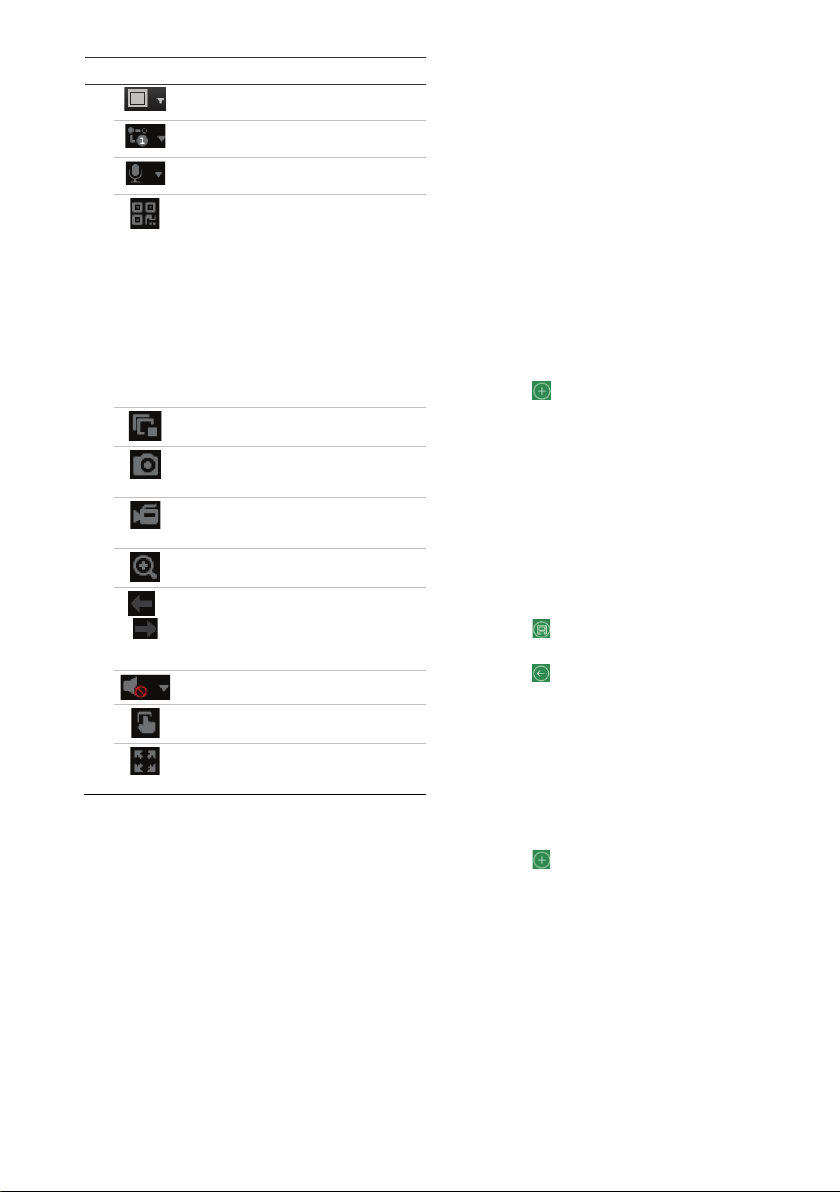
Multiview type: Switch between the different
multiview options from the drop-down list.
Stream type: Switch between main stream
(1) and substream (2).
Bi-directional audio: Turn microphone
on/off.
QR code: Click to show the SID and SCI
code,as well as the QR code for the SCI
code,for the recorder when it is registered to
UltraSync. The SID and SCI code need to be
entered when the recorder is added to
TVRMobile. Instead of entering this SCI code
manually, the QR code can be scanned to
add the SCI code automatically in the SCI
field of the mobile app.
This button will only appear when UltraSync
is enabled, which can only be done by the
installer.
For information on adding the recorder to
TVRMobile, see the section below.
Live views: Stop/start all live views.
Capture: Capture a snapshot of a video
image. Refer to the user manual for
information on where the files are saved.
Recording: Stop/start recording live view
and save the files on the PC (not the
recorder).
Digital zoom: Stop/start digital zoom to
zoom in/out of the selected camera image.
/
Previous page / Next page: View previous
and next camera respectively.
If viewing in multiview format, live view
moves to the next group of cameras for the
selected number of video tiles.
Audio: Adjust the audio level.
Alarm output: Select an alarm output to
switch it ON or OFF.
Full screen: Only video tiles appear on-
screen. Press ESC to return to screen with
the menus and viewer.
Adding the recorder to the
TVRMobile application
TVRMobile is the name of the mobile application for
iOS and Android devices that allows you to see live
and playback video of the recorder as well as control
the recorder on a mobile device.
The application can be downloaded from Google
Play store (Android) or Apple App store (iOS). The
application is supported on Android version 9 and
higher and on iOS version 14 and higher.
There are three ways for connecting to your recorder
via the app:
Via WIFI: Use a direct IP connection (LAN) of
the recorder
Via 4G: Use UltraSync or ezDDNS.
UltraSync is our cloud service that allows to
connect the recorder to the internet without the
need for port forwarding.
ezDDNS is our DDNS service that allows to
connectthe recorder to the internet based on
port forwarding.
To add the recorder to TVRMobile:
Using an IP (LAN) connection:
1. Make sure the mobile device and the
recorder are on the same local area network
(LAN).
2. Open the app and in the main menu tap
Devices.
3. Tap and thentap Manual Add.
4. Under Device Name, type in the name of
the recorder. The name can have up to 16
alphanumeric characters. Default name is
Device01.
5. Under Register Mode, select IP/Domain.
You need to edit the IP address or domain
address.
6. Enter the user name and password.
Note: The number of cameras under the
device can be obtained after the device is
successfully added.
7. Tap to confirm the settings. The device is
added to the device list.
8. Tap to exit and return to the previous
page.
Using the ezDDNS connection
1. Make sure the mobile device and the
recorder are on the same local area network
(LAN).
2. Open the app and in the main menu tap
Devices.
3. Tap and then tap Manual Add.
4. Under Device Name, type in the name of
the recorder. The name can have up to 16
alphanumeric characters. Default name is
Device01.
5. Under Register Mode, select ezDDNS.
Enter the registered ezDDNS server address
and the device domain name.
6. Enter the user name and password.