manuals.online logo
Brands
  1. Home
  2. •
  3. Brands
  4. •
  5. Celabs
  6. •
  7. Extender
  8. •
  9. Celabs HX40M User manual

Celabs HX40M User manual

Other Celabs Extender manuals

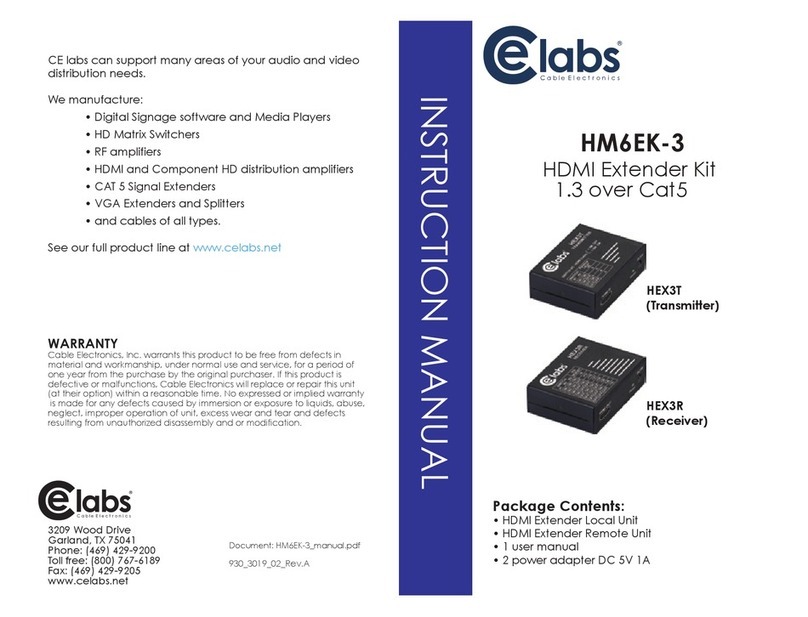
Celabs HM6EK-3 User manual

Celabs

Celabs HM6EK-3 User manual

Celabs HX70M User manual

Celabs

Celabs HX70M User manual

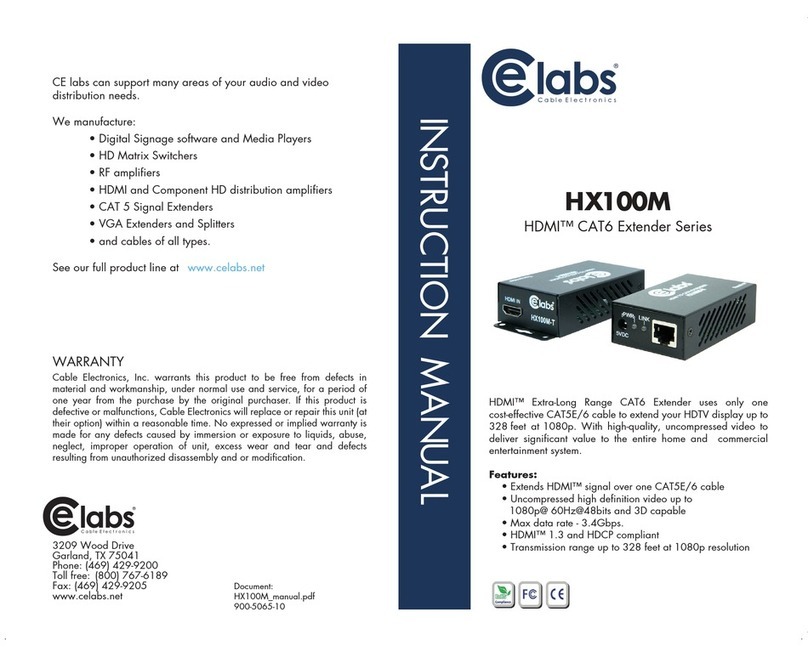
Celabs HX100M User manual

Celabs

Celabs HX100M User manual

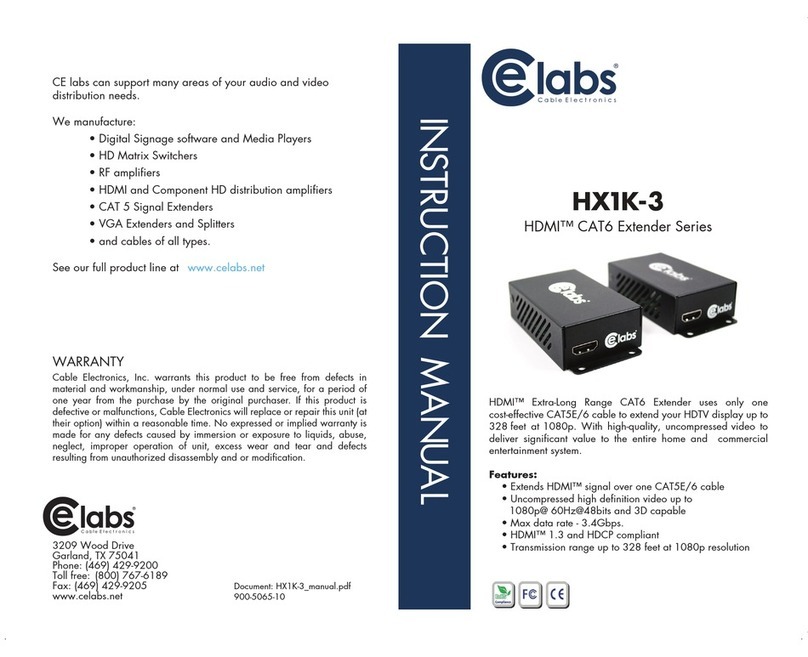
Celabs HX1K-3 Series User manual

Celabs

Celabs HX1K-3 Series User manual

Celabs HM6EK User manual

Celabs

Celabs HM6EK User manual

Celabs HX1K-3 User manual

Celabs

Celabs HX1K-3 User manual

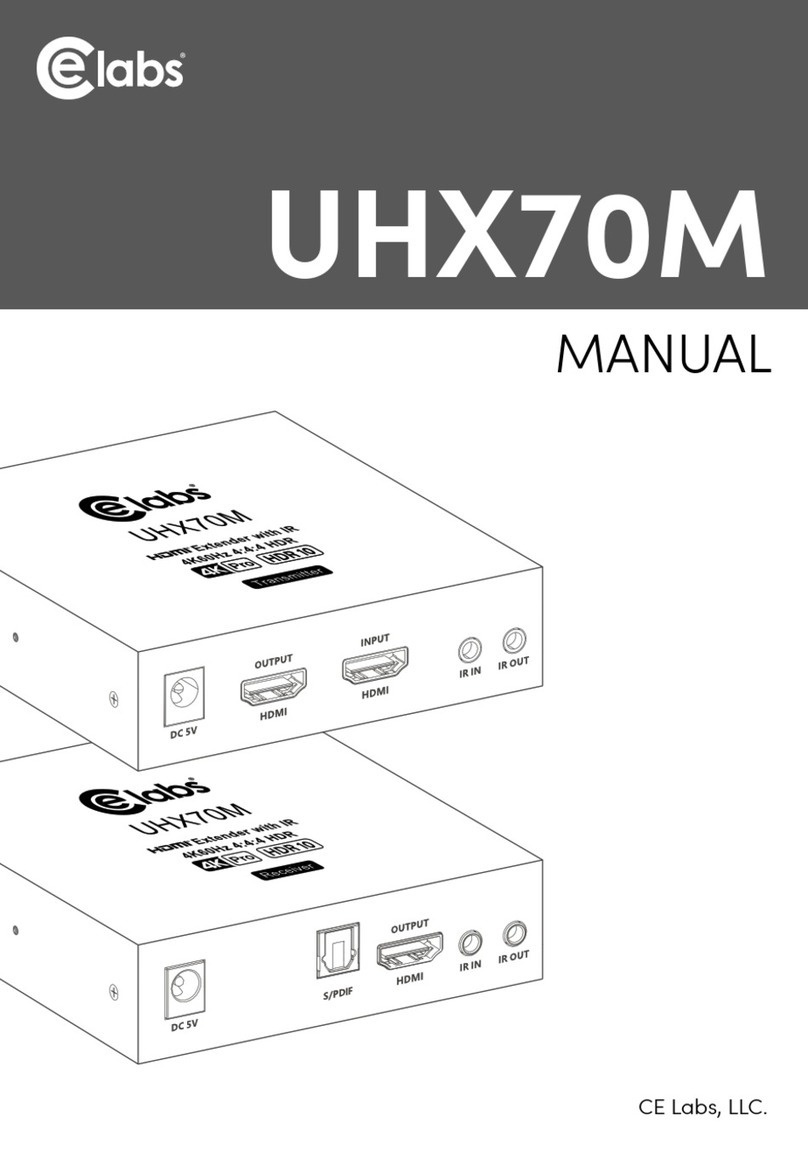
Celabs UHX70M User manual

Celabs

Celabs UHX70M User manual

Celabs HX70M User manual

Celabs

Celabs HX70M User manual

Popular Extender manuals by other brands

Paugge ENT-EXT20B user manual

Paugge

Paugge ENT-EXT20B user manual

REIGN XRE-100 manual

REIGN

REIGN XRE-100 manual

Lindy 42805 user manual

Lindy

Lindy 42805 user manual

Digi ConnectPort Network Device user manual

Digi

Digi ConnectPort Network Device user manual

British General N300 instructions

British General

British General N300 instructions

VPI ST-WLHDMI-L-30M Installation and operation manual

VPI

VPI ST-WLHDMI-L-30M Installation and operation manual

Gefen EXT-DIGAUD-141 user manual

Gefen

Gefen EXT-DIGAUD-141 user manual

AMX netlinx NXC-MPE Dimensional drawing

AMX

AMX netlinx NXC-MPE Dimensional drawing

SY HDBT-60T installation guide

SY

SY HDBT-60T installation guide

Appsys ProAudio ADX-16 user manual

Appsys ProAudio

Appsys ProAudio ADX-16 user manual

Atlona RS232 user manual

Atlona

Atlona RS232 user manual

IDK OPF-TH1000-A user guide

IDK

IDK OPF-TH1000-A user guide

Enable-IT 824WP quick start guide

Enable-IT

Enable-IT 824WP quick start guide

Worx Landroid RadioLink WA0864 Get started

Worx

Worx Landroid RadioLink WA0864 Get started

TP-Link TL-WA730RE user guide

TP-Link

TP-Link TL-WA730RE user guide

Camplex CMX-HDMI-SFPL user manual

Camplex

Camplex CMX-HDMI-SFPL user manual

SC&T HE03-4K user manual

SC&T

SC&T HE03-4K user manual

Samsung SCS-26UC4 user guide

Samsung

Samsung SCS-26UC4 user guide

manuals.online logo
manuals.online logoBrands
  • About & Mission
  • Contact us
  • Privacy Policy
  • Terms and Conditions

Copyright 2025 Manuals.Online. All Rights Reserved.

WARRANTY
Cable Electronics, Inc. warrants this product to be free from defects in
material and workmanship, under normal use and service, for a period
of one year from the purchase by the original purchaser. If this product is
defective or malfunctions, Cable Electronics will replace or repair this unit
(at their option) within a reasonable time. No expressed or implied warranty
is made for any defects caused by immersion or exposure to liquids, abuse,
neglect, improper operation of unit, excess wear and tear and defects
resulting from unauthorized disassembly and or modication.
3209 Wood Drive
Garland, TX 75041
Phone: (469) 429-9200
Toll free: (800) 767-6189
Fax: (469) 429-9205
www.celabs.net
CE labs can support many areas of your audio and video
distribution needs.
We manufacture:
- Digital Signage software and Media Players
- HD Matrix Switchers
- RF modulators
- RF ampliers
- HDMI and Component HD distribution ampliers
- CAT 5 Signal Extenders
- VGA Extenders and Splitters
- and cables of all types.
See our full product line at .www.celabs.net
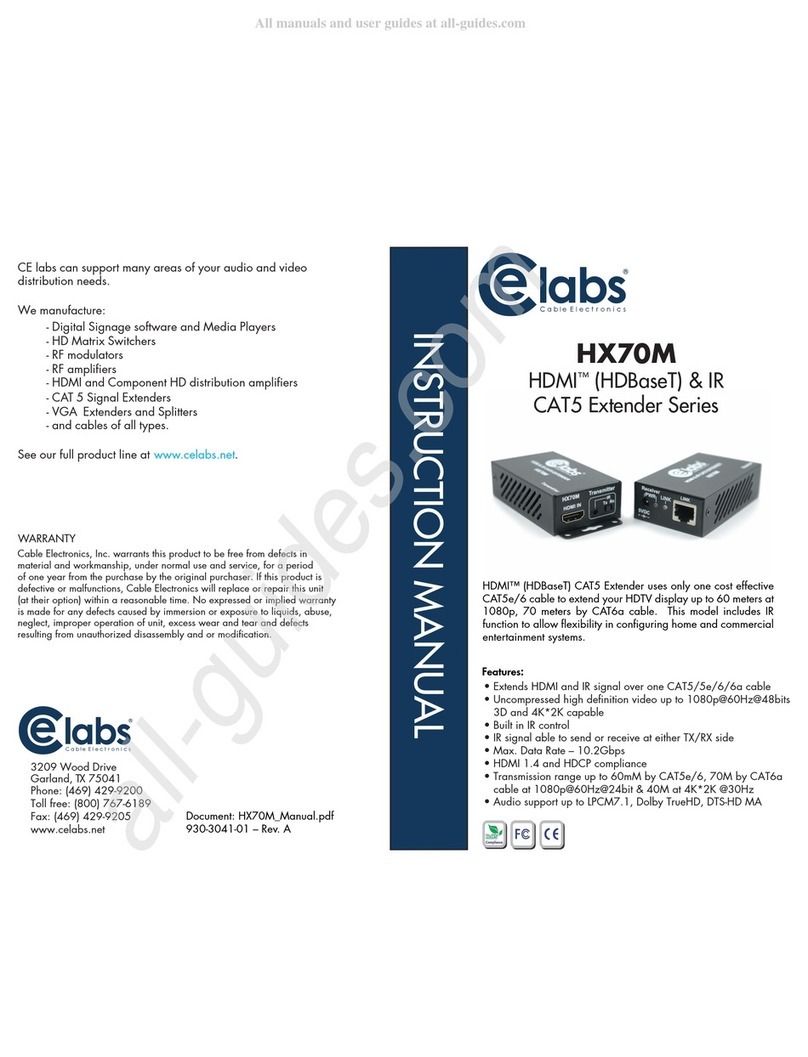
INSTRUCTION MANUAL
HDMI™& IR CAT5
Extender Series
HX40M
.
• Extends HDMI signal over one CAT5e/6 cable
• Transmission range up to 70 meters by 1080i/720p
• Transmission range up to 40 meters by 1080p@60Hz@24bit
• Built in auto equalization for easy plug and play
• Transmitter unit has built in EDID auto backup function
• HDCP compatible
HDMI™& IR UTP Extender Series over Single CAT5e/6 cable
extends your HDTV display up to 70 meters at 1080i/720p
and 40 meters at 1080p. It is equipped with HDMI™connectors
and supports DVI equipment with allowing use of a HDMI to DVI
adapter. It provides an easy and exible cabling solution for
integrating home theater components.
Features:
Document: HX40M_Manual.pdf
930-3040-01 – Rev. A
PANEL VIEW & FUNCTION INSTALLATION VIEW
SPECIFICATIONS
Cable
CE labs recommends using a high-quality CAT5e or CAT6 UTP cable. Distances
over 30 meters, it is recommended to use a CAT6 cable. Do NOT use STP cable.
Transmission Distance
The transmission distance will be affected by different HDMI equipment, HDMI jumper
cables, patch panels, poorly assembled RJ-45 connectors, and CATx cable quality.
RJ45 Dene: Video Link (TIA/EIA-568-B)
1. Orange-White TMDS DATA2 +
2. Orange TMDS DATA2 –
3. Green-White TMDS CLOCK + / HDMI 5V
4. Blue TMDS DATA1 +
5. Blue-White TMDS DATA1 –
6. Green TMDS CLOCK – / HDMI 0V
7. Brown-White TMDS DATA0 +
8. Brown TMDS DATA0 –
Caution
1. Keep cables away from any equipment with an electromagnetic wave, e.g.,
mobile phone, microwave, radio equipment, uorescent lamp, high voltage power
lines...etc.
2. This device is not a network device, do not connect with a network to avoid
damages.
HX40M TransmitterITEM
480i/p,720p,1080i/p @ 24/50/60Hz
Tx : ± 30•Rx : ± 55
30KHz ~ 60KHz
5 meters
HDMI Type A x 1
RJ45 x 1
3.5mm Phone Jack x 1
Resolution
IR Emit/Receive Angle
IR Carrier Frequency
IR Emit/Receive Distance
Video Input /Output
Linking Interface
2 Pin Dip x 1 • Slide x 1
LED Blue x 1•RJ45 Yellow/Green x 1
HX40M Receiver
Slide x 1
Switch
LED
IR Cable Interface
PS3
40M (max)
CAT5e Cable
Transmitter
Receiver
TV
Power Supply
Power Consumption
Temperature
Dimension (mm)
Weight (g)
420mA 180mA
Operation: 0 to 55o– Storage: -20 TO 85o– Humidity: up to 95%
DC 5V 1A
67 x 102 x 27
150
67 x 91 x 27
140
HX40M
LINK
DC 5V
POWER
HDMI IN
SETTING
On
HDMI & IR CAT5
IR 12
ON
IR
Tx Rx
Transmitter
HX40M
LINK
DC 5V
POWER
HDMI OUT
On
HDMI & IR CAT5
IR
IR
Tx Rx
Receiver
EDID Steup: Default
Set DIP switch 1 off 
Set DIP switch 2 off Select the rst default EDID: Support 1080i/LPCM 2 Channel
-OR-
Set DIP switch 2 on Select the second default EDID: Support 1080p/LPCM 5.1 Channel
Use External EDID
1. Set DIP switch 1 on, unplug the power to Transmitter
2. Connect Transmitter to HDMI connector of TV for auto backup
3. Plug in power for Transmitter, TV EDID back up complete when Blue LED keeps ashing
4. After TV EDID backup, Transmitter power must be reset (unplug and plug) to activate
Dip Switch Function
1. Use the default EDID
Use the backup TV EDID
2. Select the rst default EDID: Support 1080i/LPCM 2 Channel
Select the second default EDID: Support 1080p/LPCM 5.1 Channel
After changing Dip Switch settings, power must be reset (unplug and plug) to activate
LED Indication
BLUE Power
BLUE Flashing TV EDID backup completed
GREEN Sending and Receiving power & HDMI signal
YELLOW No data input or signal too weak
Transmitter Receiver